
Comm100 AI Agent is an intelligent virtual agent that uses Large Language Models (LLMs) to understand customer requests, provide relevant answers, and perform configured actions.
You can equip an AI Agent with your business Knowledge, customize how specific customer scenarios are handled through Topics, connect it to external systems through Functions and MCP Servers, and define what should happen at key points in a conversation through Events.
This guide introduces the main AI Agent capabilities and walks you through the recommended process for creating, configuring, testing, deploying, and continuously improving an AI Agent.
How the AI Agent Handles Customer Requests
When a customer sends a message, the AI Agent determines the most appropriate way to respond based on your configuration.
If Topics are configured, the AI Agent first determines whether the customer's request matches an applicable Topic. If a Topic is matched, the AI Agent follows the Workflow or Natural Language instructions configured for that Topic.
If no Topic matches, the AI Agent searches its Knowledge for relevant information and generates an answer based on the available content.
Depending on how a Topic is configured, the AI Agent can also use Functions or MCP Servers to retrieve real-time information, process data, or interact with external systems.
If the AI Agent cannot provide an answer, it follows the behavior configured for the Event when AI Agent cannot answer visitor question.
The following table summarizes the main AI Agent capabilities:
| Capability | Description |
| Knowledge | Provides the information the AI Agent can use to answer general customer questions, such as product information, policies, FAQs, and troubleshooting instructions. |
| Topics | Defines how the AI Agent should handle specific customer questions, intents, or business scenarios. |
| Functions & MCP | Allows the AI Agent to retrieve real-time information, process data, or interact with external tools and systems. |
| Events | Defines what the AI Agent should do when specific situations occur during a customer interaction. |
| Test Center | Helps you verify Topic matching and response accuracy before deployment and after configuration changes. |
| Learning | Helps you identify unanswered questions and poorly rated answers so you can continuously improve the AI Agent. |
This guide covers the following steps:
- Create an AI Agent.
- Add Knowledge.
- Set up Topics as needed.
- Set up Functions & MCP as needed.
- Configure AI Agent Events.
- Test the AI Agent.
- Set up the AI Agent for Live Chat or Ticketing & Messaging.
- Review Learning and continuously improve the AI Agent.
1. Create an AI Agent
After AI Agent is enabled for your Comm100 account, create an AI Agent for the channel where you want to use it.
To create an AI Agent:
- Log in to the Comm100 Control Panel.
- Go to AI & Automation > AI Agent.
- Open Manage AI Agents and create a new AI Agent.
- Configure the available settings, such as the AI Agent's name, primary language, channel, and other options.
- Save the AI Agent.
Choose the Language and Channel carefully because these settings cannot be changed after the AI Agent is created. The selected language is the AI Agent's primary language. AI Agent is multilingual and can also respond to customers in other supported languages.
Depending on the selected channel, additional settings may be available. For example, a Live Chat AI Agent can be configured to collect visitor feedback, automatically fill in wrap-up fields for AI Agent-only chats, and generate a conversation summary when transferring a chat to a human agent.
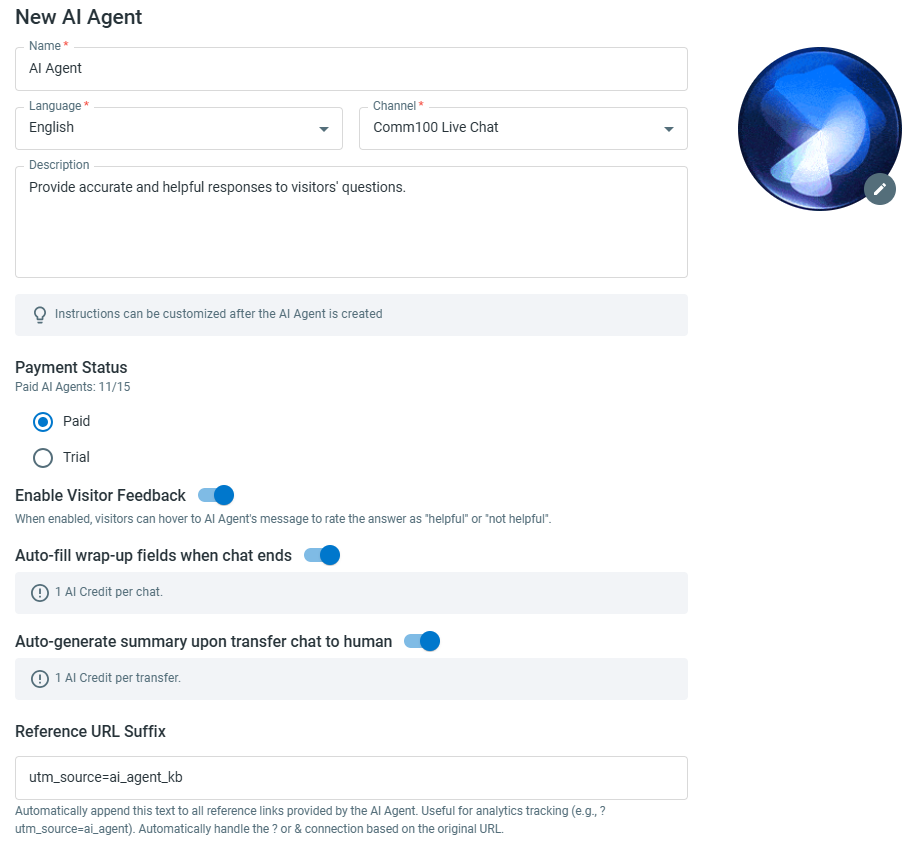
To learn more about how to create an AI Agent, see this article.
2. Add Knowledge for the AI Agent
Knowledge provides the information the AI Agent uses to generate answers when no applicable Topic is matched.
Go to AI & Automation > AI Agent > Knowledge to add and manage the information available to the AI Agent.
Comm100 supports several types of Knowledge:
- Webpages: Provide public webpage URLs for the AI Agent to crawl and use.
- Local files. Upload DOCX, HTML, MD, PDF, or TXT files.
- Knowledge Base articles. Add articles from Comm100 Knowledge Base, connected Confluence Cloud, or ServiceNow account.
- Cloud files: Add supported files from connected SharePoint Online or Google Drive directories.
- Snippets. Add smaller pieces of information that you want the AI Agent to use without publishing them on a public help center.
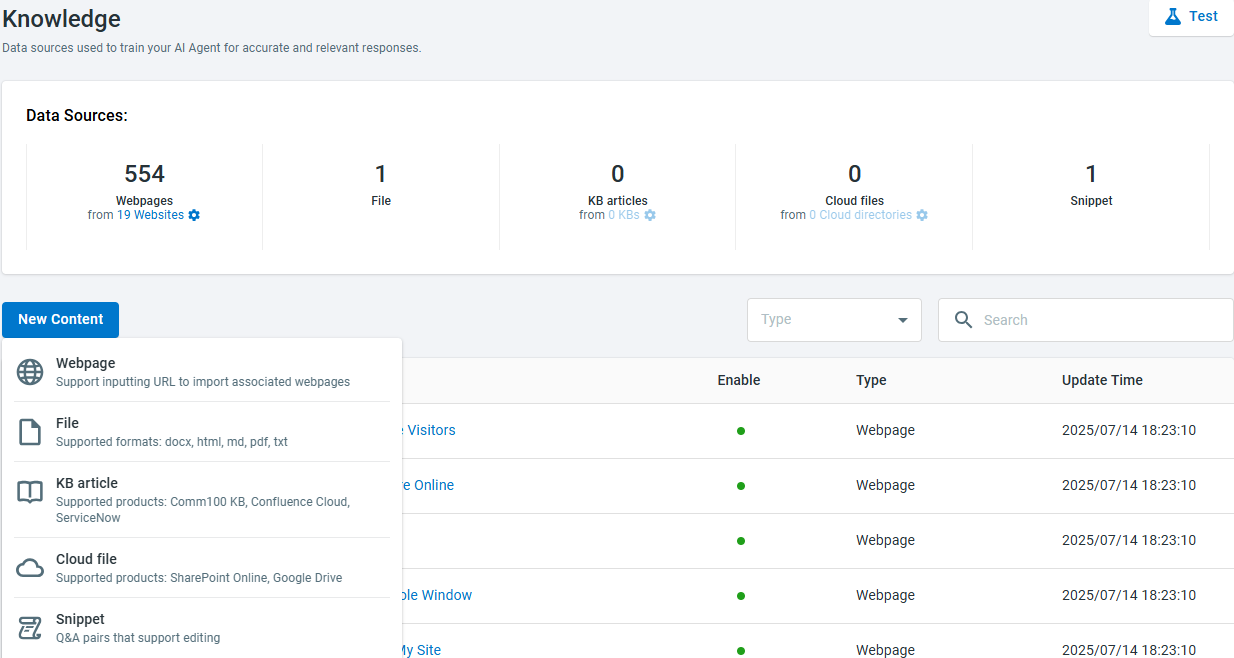
After adding Knowledge, keep the content accurate and up to date. You can enable or disable individual Knowledge contents and synchronize connected sources when the source information changes.
The quality, accuracy, and completeness of your Knowledge directly affect the information available to the AI Agent when generating answers.
To learn more about how to manage Knowledge sources for AI Agents, see this article.
3. Set Up Topics
Topics allow you to customize how the AI Agent handles specific customer questions, intents, or business scenarios.
Go to AI & Automation > AI Agent > Topics to create and manage Topics.
A Topic includes information such as its Name, Category, Description, and Answer. The Topic information helps the AI Agent determine when the Topic should be matched.
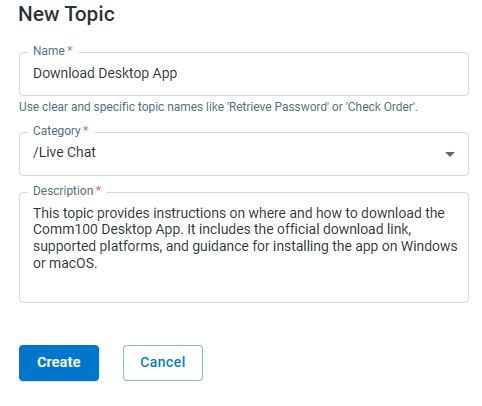
Write clear and specific Topic descriptions so the AI Agent can distinguish between different customer scenarios.
You can configure a Topic answer in the following ways:
By Workflow
Use a Workflow when you want to define a structured sequence of actions.
A Workflow is suitable for predictable processes where you want more control over the individual steps, such as:
- Sending predefined information.
- Collecting information from a customer.
- Applying conditions based on collected information.
- Calling a Function.
- Transferring the conversation to a human agent.
By Natural Language
Use Natural Language when you want to describe the expected behavior using instructions and allow the AI Agent to determine the appropriate steps based on the conversation.
Natural Language is useful for scenarios that require more flexibility or where customer requests may vary.
When writing instructions, clearly describe:
- What the AI Agent should accomplish.
- What information it should collect or verify.
- Any conditions that affect the next step.
- Which Functions or MCP Servers it can use, if applicable.
- What the expected outcome should be.
To learn more about how to set up AI Agent Topics, see this article.
Topic Matching Sensitivity
Topic Matching Sensitivity controls how closely a customer request must match a Topic before the AI Agent uses that Topic.
The value ranges from 0 to 100, with a default value of 80.
A higher value requires a closer match and can reduce incorrect Topic matches. A lower value makes Topics easier to match but may increase the possibility of less relevant matches.
If no Topic reaches the configured matching threshold, the AI Agent proceeds to Knowledge.
We recommend starting with the default setting and adjusting it only after reviewing actual conversations or Test Center results.
To learn more about Topic Matching Sensitivity, see this article.
4. Set Up Functions & MCP
Functions and MCP Servers are optional. Configure them when your AI Agent needs to retrieve real-time information, process data, or interact with systems outside Comm100.
Go to AI & Automation > AI Agent > Functions & MCP.
Comm100 supports the following options:
API Function
An API Function connects the AI Agent to an external API or web service.
For example, you can use an API Function to:
- Retrieve an order status.
- Look up account information.
- Check product availability.
- Create or update information in another system.
Use Functions for information that changes frequently rather than storing dynamic information in Knowledge.
LLM Function
An LLM Function uses a Large Language Model to process information based on your instructions.
It can be useful for tasks such as extracting, transforming, categorizing, or analyzing information.
Provide clear Function instructions and define the required input parameters so the AI Agent understands how the Function should be used.
MCP Server
An MCP Server connects the AI Agent to external tools and systems that support Model Context Protocol (MCP).
After connecting an MCP Server, supported tools can be made available for the AI Agent to use in applicable scenarios.
When configuring Functions and MCP Servers, provide meaningful names and descriptions so their purpose is clear. Test the configuration with representative inputs before using it in customer-facing conversations.
To learn more about how to use AI Agent Functions & MCP, see this article.
5. Configure AI Agent Events
Events define what the AI Agent should do when specific situations occur during a customer interaction.
Go to AI & Automation > AI Agent > Events. Comm100 provides Events for scenarios including:
- When a visitor starts a chat
- After AI Agent completes an answer
- When AI Agent cannot answer visitor question
- When a visitor rates an answer as not helpful
You can configure the corresponding behavior using a Workflow or Natural Language instructions.
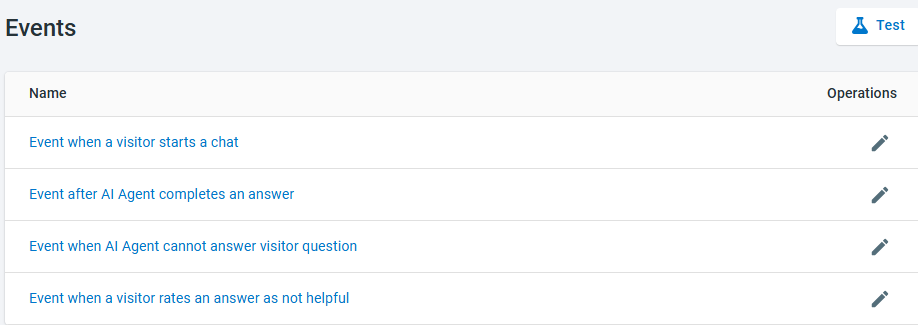
For example, you can use Events to:
- Send a welcome message when a conversation begins.
- Perform follow-up actions after the AI Agent provides an answer.
- Ask the customer to rephrase a question or transfer the conversation when the AI Agent cannot answer.
- Respond appropriately when a customer gives an answer a negative rating.
Pay particular attention to the cannot answer Event. A clear fallback process helps ensure that customers know what to do when the AI Agent cannot resolve their request.
To learn more about how to configure AI Agent Events, see this article.
6. Test the AI Agent
Before deploying the AI Agent to customers, test important scenarios to confirm that Topics are matched correctly and the AI Agent provides appropriate answers.
Go to AI & Automation > AI Agent > Test Center.
Test Center allows you to create reusable Test Cases and execute multiple cases together in a Test Run.
Comm100 supports two types of Test Cases:
Topic Matching
Use a Topic Matching Test Case to verify whether a customer question matches the expected Topic.
This is useful for checking:
- Whether the correct Topic is selected.
- Whether similar Topics are being confused.
- Whether different ways of asking the same question produce the expected match.
- Whether questions that should not match a Topic correctly proceed to Knowledge.
Topic Matching
Use a Response Accuracy Test Case to evaluate whether the AI Agent's answer matches the expected response.
When creating a Test Run, you can configure the Response Accuracy pass threshold.
After the Test Run completes, review failed results and their evaluation rationale. Update the relevant Knowledge, Topic, or configuration, and run the tests again.
When creating Test Cases, consider including:
- Frequently asked customer questions.
- Different ways customers may phrase the same request.
- Important business scenarios.
- Questions that should match specific Topics.
- Questions that should use Knowledge.
- Questions that should intentionally be outside the AI Agent's supported scope.
Re-run important Test Cases whenever you make significant changes to Knowledge, Topics, instructions, or other AI Agent configurations.
To learn more about how to use AI Agent Test Center, see this article.
7. Set Up the AI Agent for Live Chat or Ticketing & Messaging
After configuring and testing the AI Agent, assign it to the customer-facing channel where you want it to operate.
An AI Agent can only be assigned to the channel for which it was created.
Set Up the AI Agent for Live Chat
To use an AI Agent in Live Chat:
- Go to Live Chat > Campaign > AI Configuration.
- Select the Campaign you want to configure.
- Select the AI Agent for the Campaign.
- Configure how conversations should be distributed to the AI Agent.
Depending on your support model, you can configure how the AI Agent handles conversations in relation to human agent availability.
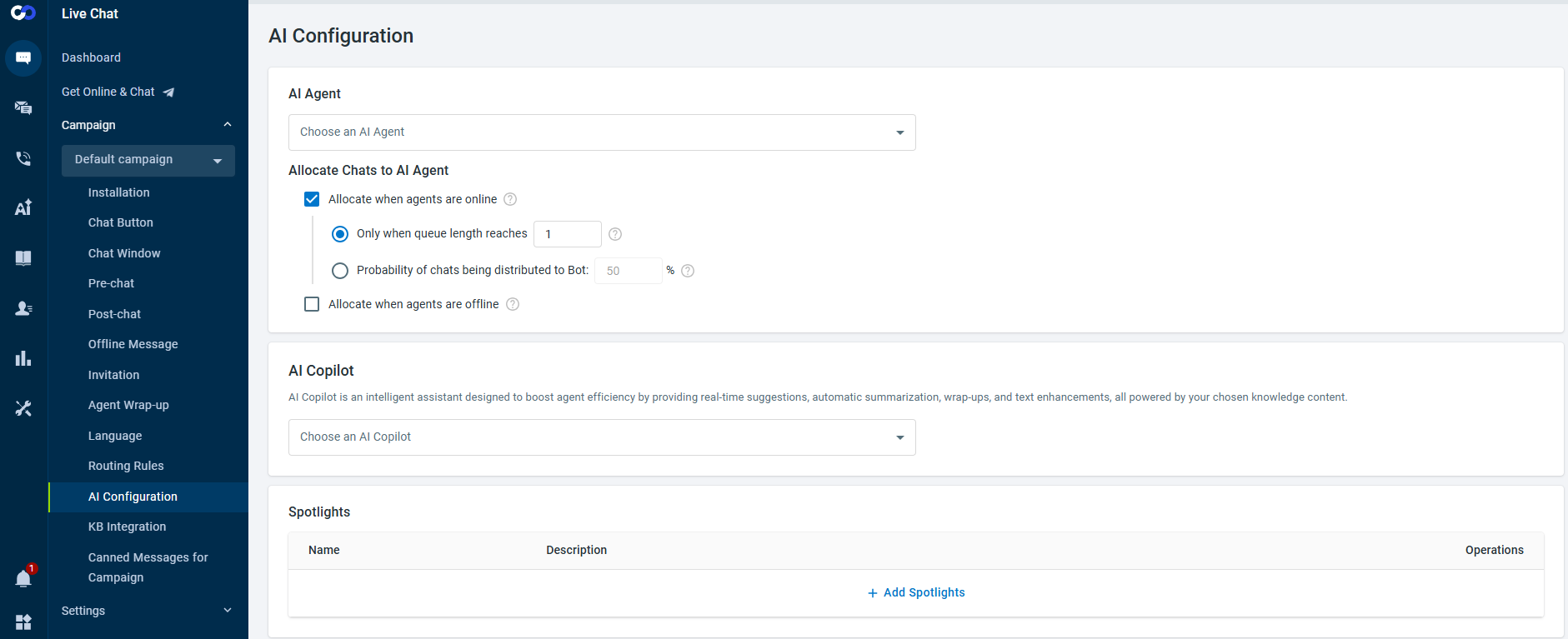
Only AI Agents created for the Live Chat channel can be selected.
Set Up the AI Agent for Ticketing & Messaging
To use an AI Agent in Ticketing & Messaging:
- Go to Ticketing & Messaging > Channels.
- Select the channel you want to configure.
- Go to the AI Configuration tab.
- Edit the applicable Channel Account.
- Select the AI Agent and configure the available distribution settings.
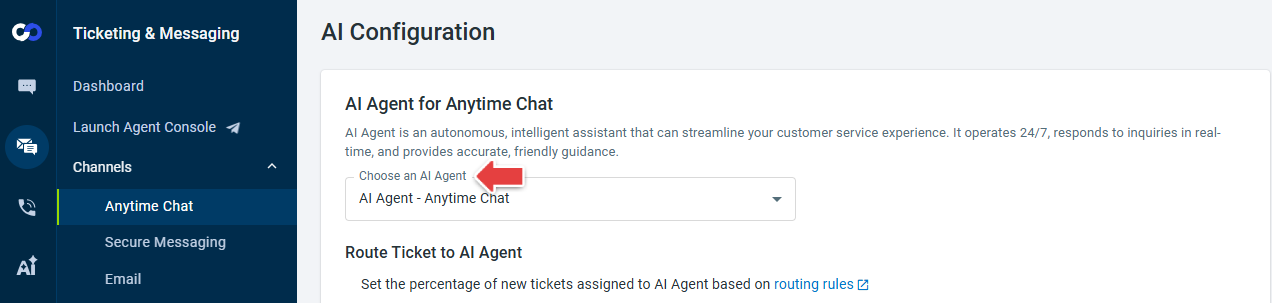
Only AI Agents created for the corresponding channel can be selected.
After deployment, test the AI Agent from the customer-facing channel as well. Verify that:
- The expected AI Agent handles the conversation.
- Common customer questions receive appropriate answers.
- Important Topics are matched correctly.
- Functions and workflows operate as expected.
- Cannot-answer and transfer scenarios behave correctly.
To learn more about how to set up the AI Agent for Live Chat and Ticketing & Messaging Channels, see this article.
8. Improve the AI Agent Using Learning
Customer conversations can reveal questions and scenarios that were not identified during the initial setup.
Use Learning to identify these gaps and continuously improve the AI Agent.
Go to AI & Automation > AI Agent > Learning.
Learning includes areas such as:
Unanswered Questions
When the AI Agent cannot answer a customer question, the question can be collected for review.
Similar unanswered questions are grouped together to help you identify recurring gaps.
Depending on the type of question, you can:
- Create a Topic when the scenario requires customized handling or a defined process.
- Create a Snippet when the AI Agent simply needs additional information to answer the question.
- Mark irrelevant questions as out of scope when they are not something the AI Agent should handle.
Thumbs Down Answers
When a customer rates an AI Agent answer as not helpful, review the original question, the AI Agent's response, and the available conversation context.
Determine whether the issue should be addressed by:
- Updating Knowledge.
- Updating an existing Topic.
- Creating a new Topic or Snippet.
- Adjusting Topic matching.
- Updating instructions or other AI Agent configurations.
After making changes, use Test Center to verify the improved behavior.
To learn more about how AI Agent Learning works, see this article.
Continuously Maintain Your AI Agent
An AI Agent should be reviewed and improved as your products, policies, processes, and customer questions change.
We recommend regularly:
- Reviewing unanswered questions and negative customer feedback in Learning.
- Keeping Knowledge sources accurate and up to date.
- Reviewing Topic coverage and matching behavior.
- Testing important scenarios after making configuration changes.
- Verifying Functions and external integrations when related systems change.
- Reviewing customer conversations to identify new questions or use cases.
- Updating Events and fallback behavior as your support process evolves.
A typical continuous improvement cycle is:
Customer conversations → Learning → update Knowledge, Topics, or configurations → test the changes → deploy improvements
Following this process helps keep the AI Agent aligned with your current business information and the questions your customers actually ask.