Comm100 Live Chat allows you to prevent unwanted visitors from accessing your chat service. Banned visitors cannot see the chat button on your website and do not appear in the Visitors list in the Agent Console. You can ban visitors by Visitor ID or IP address, either temporarily or permanently.
- Visitor ID is planted in the visitor’s browser cookie. If a visitor gets banned by Visitor ID, they cannot see the chat button on your website using the same browser. However, if this visitor switches to another browser, uses another machine, or clears the cookies in the browser they previously used to visit your website, they can see your chat button and initiate chat requests.
- If you ban an IP, all visitors using the same IP address cannot see your chat button. On the Control Panel, Comm100 also provides the option for you to ban visitors through IP Range. However, you should be cautious about using this option as it may keep your live chat away from many other potential valuable clients.
You can manage bans in either of the following ways:
- Agent Console - Ban visitors directly from the Visitors list or during an active chat.
- Control Panel - Add or remove banned Visitor IDs and IP addresses from the Ban List.
- If you want to ban a group of visitors (for example, visitors from specific countries), you can use Routing Rules to route their chat requests to a department without assigned agents or to an agent who remains offline, and configure the offline chat button to be hidden.
- To learn more about routing rules, see this article.
- To learn how to hide the offline chat button, see this article.
- Agents must have the Manage Ban List permission to ban visitors. To learn more about permission settings, see this article.

Ban a Visitor from the Agent Console
In the Agent Console, agents can ban a visitor either from the visitor list or during an active chat.
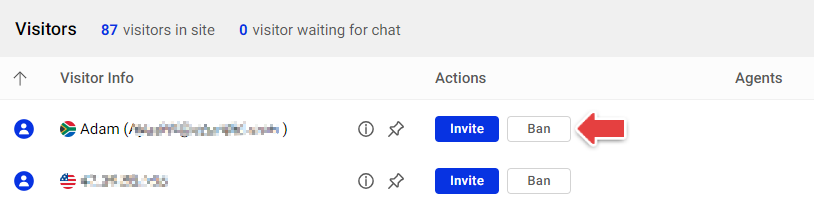
- Under the Visitors tab in the Agent Console, locate the visitor you want to ban.
- Click Ban.
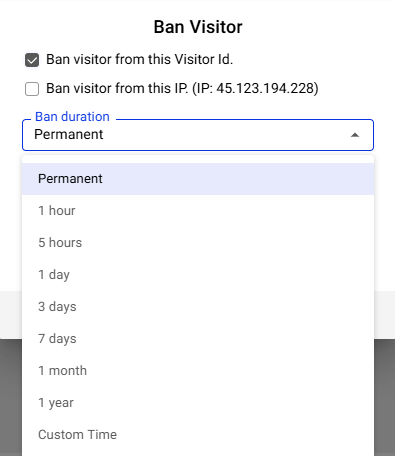
- Choose whether to ban the visitor by Visitor ID, IP address, or both, then specify Ban Duration.
- Click OK.
Agents can also ban a visitor during an ongoing chat in the Agent Console.
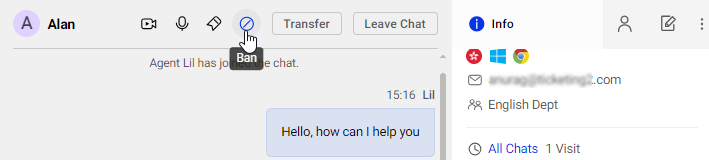
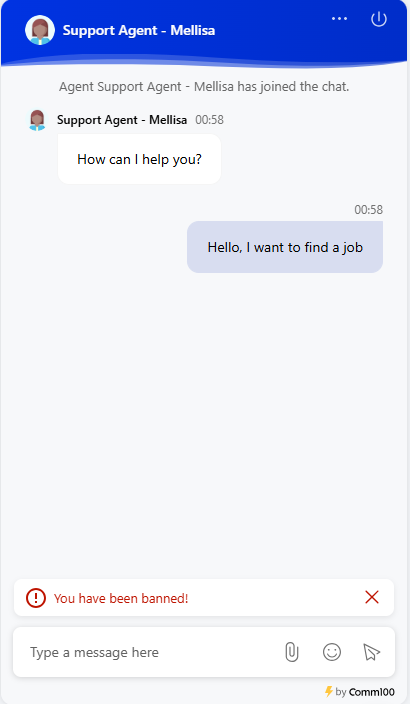
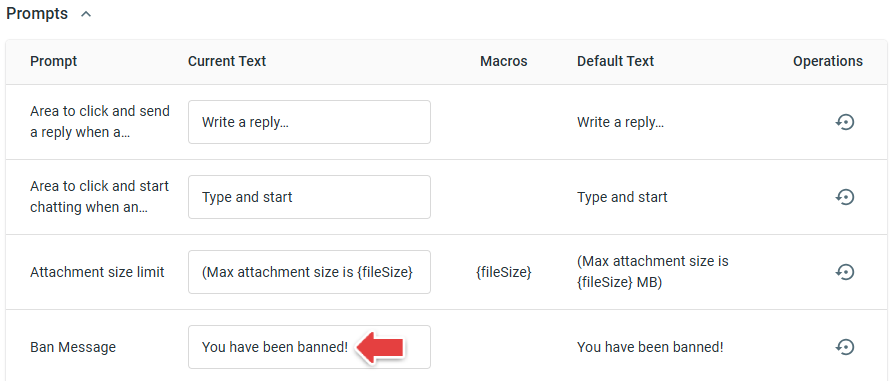
After the visitor is banned, they immediately lose access to the chat service, receive a ban notice, and disappear from the Visitors list. If the visitor is currently chatting with an agent, the chat closes automatically and is removed from the Agent Console.
Manage the Ban List from the Control Panel
The Ban List allows you to manually add or remove banned Visitor IDs and IP addresses, as well as review existing bans.
To manage the ban list, follow these steps:
- Log in to your Comm100 Control Panel.
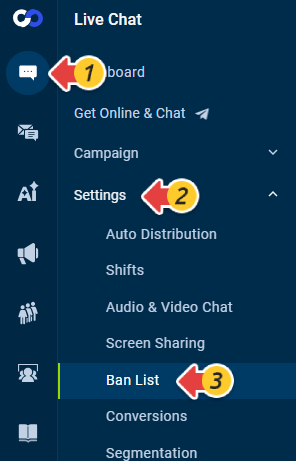
- From the left navigation menu, go to Live Chat > Settings > Ban List.
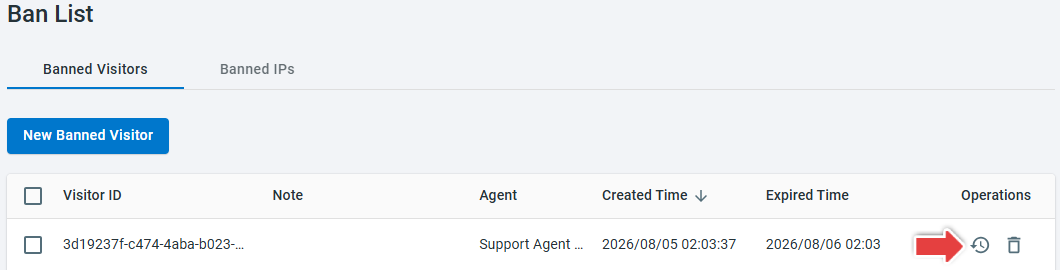
- The Ban List page displays all banned visitors.
- To add visitors to the ban list, add either their visitor IDs or IP addresses.
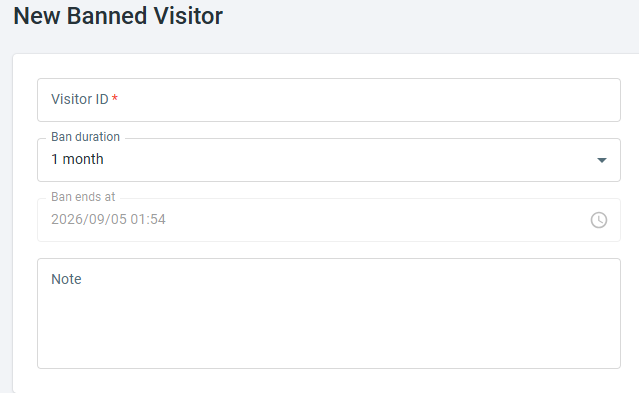
- To ban a visitor using Visitor ID, go to the Banned Visitors tab, click New Banned Visitor, enter the Visitor ID, select the Ban duration and click Save.
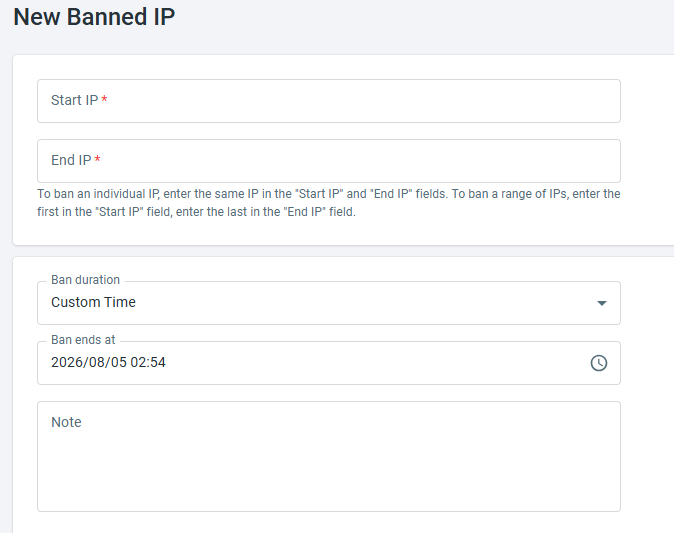
- To ban visitors using IP addresses, go to the Banned IPs tab, click New Banned IP, enter the IP range you wish to ban, select the Ban duration, and click Save.
- To ban a visitor using Visitor ID, go to the Banned Visitors tab, click New Banned Visitor, enter the Visitor ID, select the Ban duration and click Save.
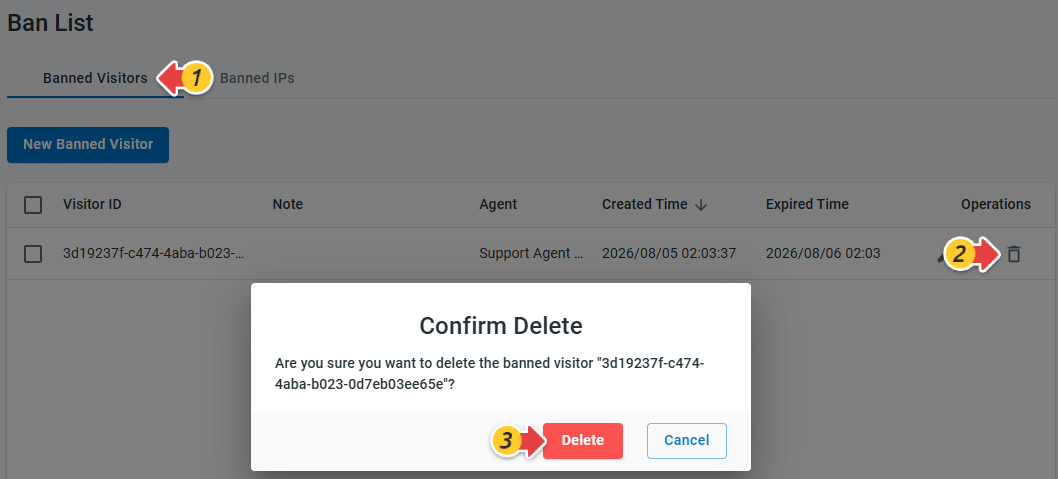
- To unban a visitor or IP address, go to the Banned Visitors or Banned IPs tab, locate the corresponding entry, and delete it from the list.
Once removed from the ban list, the visitor will be able to see the chat button and initiate chat requests again.
When a temporary ban reaches its expiration time, the ban is automatically lifted. The expired ban record remains in the Ban List for future reference.
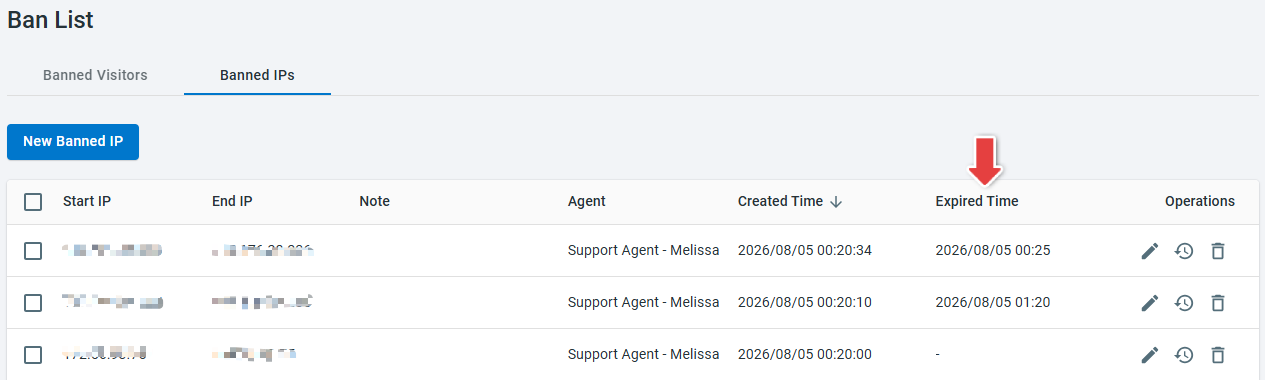
To understand why a visitor was banned, click the History icon in the Operations column to view the communication records with that visitor.