Comm100 Live Chat allows you to customize the interface text displayed on visitor-side windows, including the Pre-Chat Window, Chat Window, Post-Chat Window, and Offline Message Window. You can either change the text to a different language or manually edit the wording to better match your branding and communication style.
By default, chat buttons and visitor-side windows are displayed in English. Comm100 also provides predefined button images and interface text in multiple languages to simplify customization and support localized visitor experiences.
If your preferred language is not included in this list, or if you want to further personalize the interface text, you can manually customize the visitor-side language and wording as needed.
Change Visitor-Side Language
- Log in to your Comm100 Control Panel.
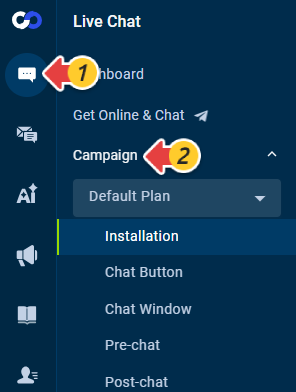
- From the left navigation menu, go to Live Chat > Campaign.
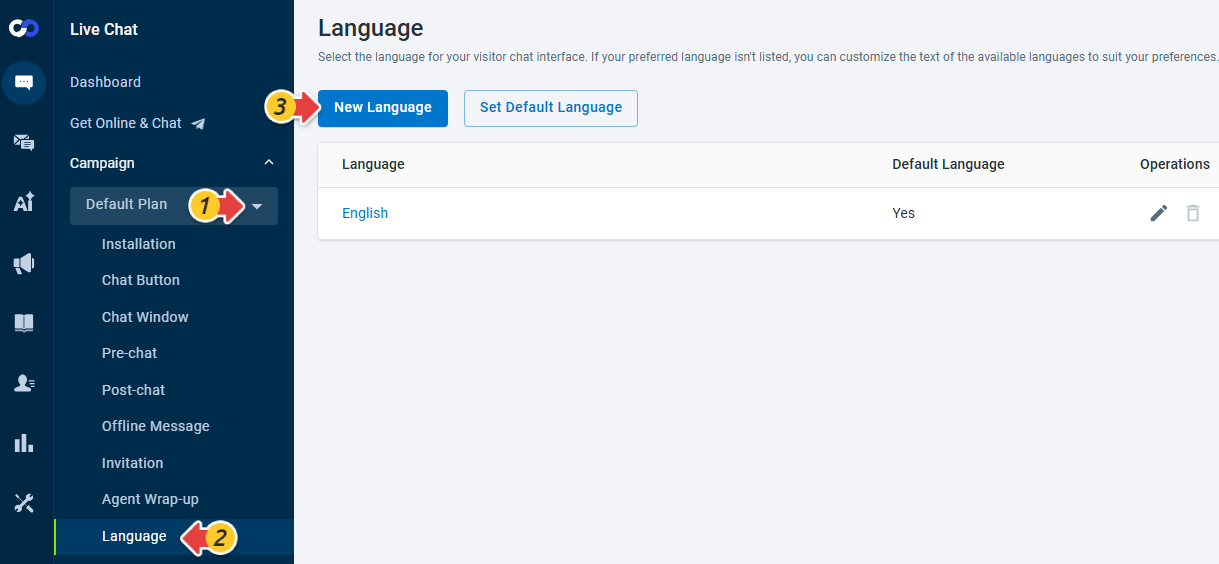
- Select your Campaign from the drop-down list, click Language, then click New Language.
- Select the language you want to use for your campaign and click Save.
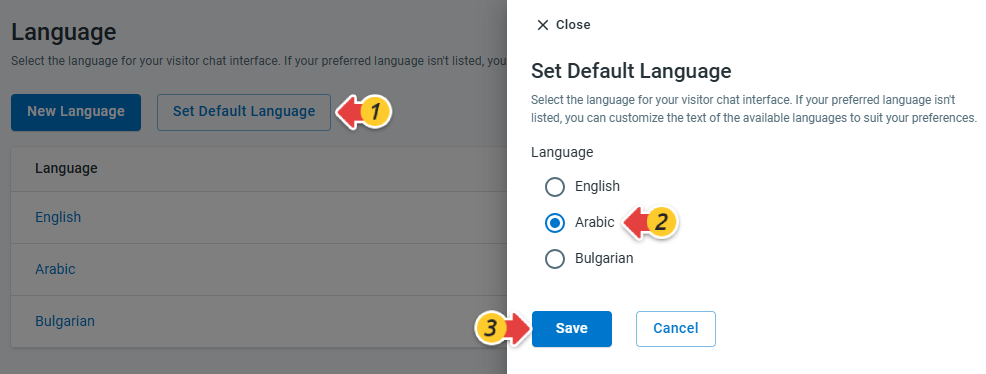
- Click Set Default Language and choose the language you just added.
- Click Save.
Customize Visitor-Side Interface Text
- Log in to your Comm100 Control Panel.
- From the left navigation menu, go to Live Chat > Campaign.
- Select your Campaign from the drop-down list and click Language.
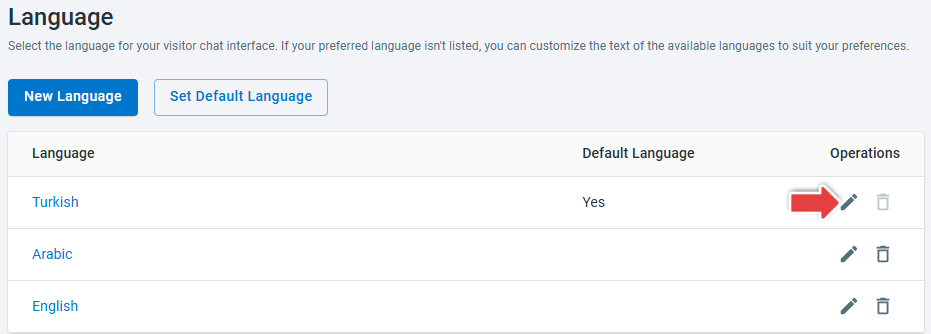
- On the Language page, click Edit under the Operations column for the language whose wording you want to modify.Note: If you are using multiple languages for a campaign, customizing the text for the Default Language will automatically trigger translations for the other selected languages. You can further refine these translations as needed. To learn more about how to add multiple languages to a campaign, see this article.
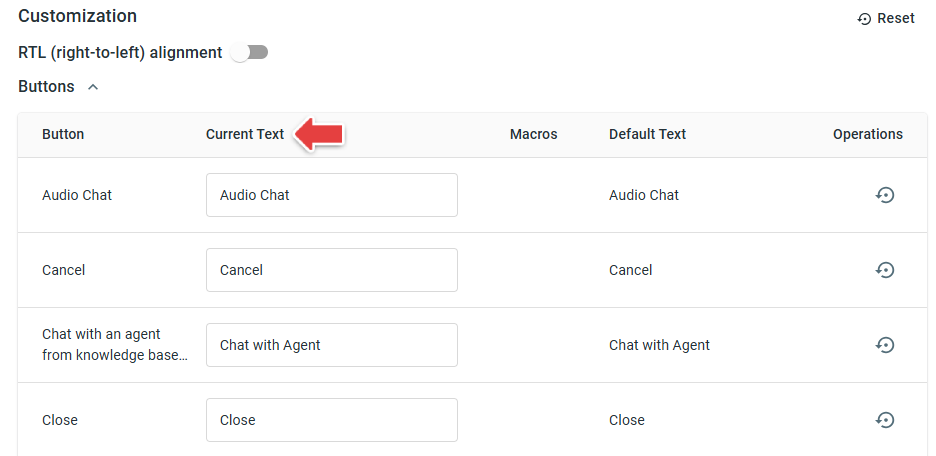
- Locate the text you'd like to change and enter your updates in the Current Text column.
- Click Save. The changes will take effect immediately.