It’s live! Access exclusive 2026 AI live chat benchmarks & see how your team stacks up.

Unlock the insights
Why Can't I See Email Tickets in the Agent Console

Problem

I have integrated an email account with Comm100 Ticketing & Messaging, but incoming emails are not appearing as tickets in the Agent Console.


Cause 

This issue can occur for one of the following reasons:

  • The email has not arrived in the Inbox of the integrated email account, or an email rule has moved it to another folder.
  • The Email Channel Account is disabled or the email integration is not working properly.
  • The sender's email address or domain is configured under Blocked Senders. Depending on the configuration, messages from the sender may be moved to Junk or rejected.
  • A Ticketing & Messaging Trigger automatically deletes the ticket after it is created.
  • The sender and recipient email accounts use the same domain and both accounts are integrated with Comm100. For example, if support@comm100.com and sales@comm100.com are both integrated, an email sent between these two accounts does not generate a ticket.
  • The email has been received recently and Comm100 has not yet completed its check for missed emails.


Solution

To troubleshoot the issue, follow these steps:

  1. Verify that the email reached the integrated mailbox.

    Open the email account that is integrated with Comm100 and confirm that the email is in the Inbox.

    If the email is in Spam/Junk or another folder, check the rules and filtering settings in your email provider. Comm100 creates email tickets from emails received in the Inbox.

  2. Check the Email Channel Account status in Comm100.

    Log in to your Comm100 Control Panel, and go to Ticketing & Messaging > Channels > Email.

    Confirm that:

    • The Email Channel Account is enabled.
    • The integration status is Succeeded.
    emailintegration.png
  3. Send a test email to the integrated email account.

    Send a new email from an email address that is not integrated with Comm100 to the affected Email Channel Account.

    Confirm that the email arrives in the mailbox Inbox, and then check whether a corresponding ticket is created in the Agent Console.

    Using an external sender helps rule out the behavior that applies when both the sender and recipient accounts from the same domain are integrated with Comm100.

  4. Check Blocked Senders and the Junk list.

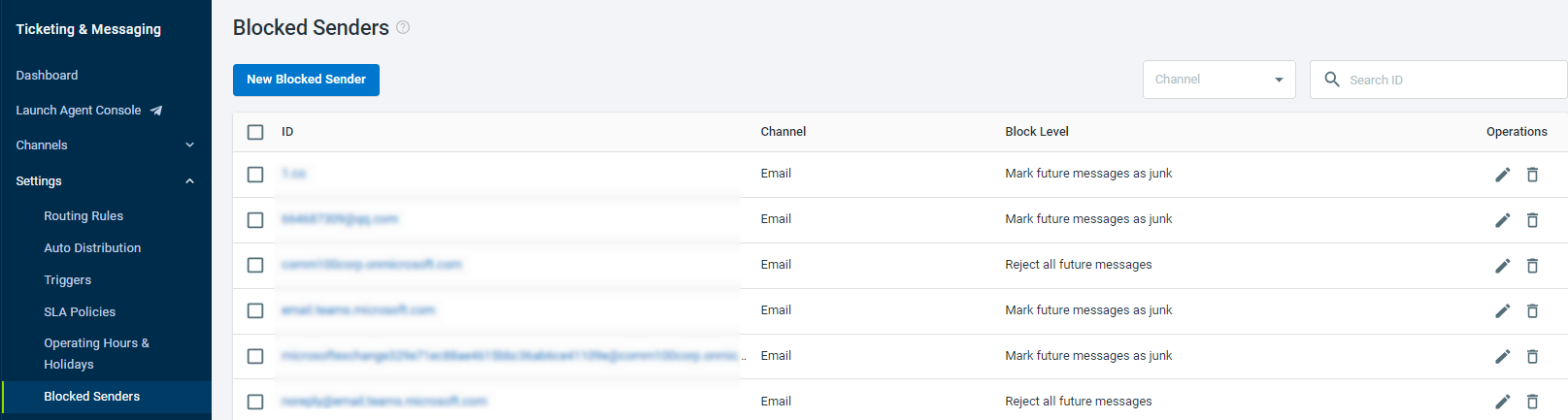
    In the Comm100 Control Panel, go to Ticketing & Messaging > Settings > Blocked Senders and check whether the sender's email address or domain is blocked.
    Blocked Senders.png

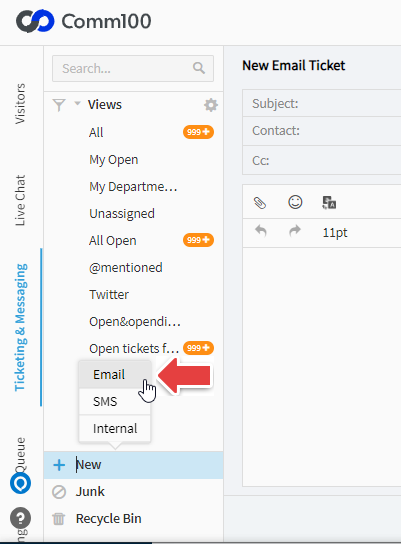
    Depending on the Blocked Senders configuration, messages from a blocked sender can be moved to the Junk list or rejected. If the messages are configured to be moved to Junk, check Junk in the Agent Console.
    T&M Junk.png

  5. Check the Recycle Bin and your Triggers.

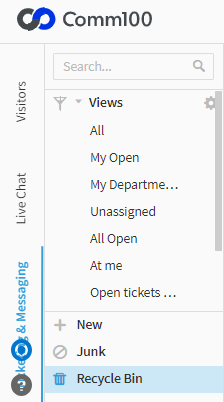
    In the Agent Console, open Recycle Bin and check whether the missing ticket is there.
    T&M Recycle Bin.png

    If the ticket is in the Recycle Bin and was not manually deleted by an agent, review your Ticketing & Messaging Triggers to determine whether a Trigger automatically deleted it.

    Go to Ticketing & Messaging > Settings > Triggers and check for Triggers that use the Delete the ticket action.
    Delete the ticket action.png

    To learn more about Ticketing & Messaging Triggers, see this article.

  6. Check the sender and recipient email addresses.

    If the sender and recipient email addresses use the same domain and both email accounts are integrated with Comm100, a ticket is not generated for the email.

    For example, if both support@comm100.com and sales@comm100.com are integrated with Ticketing & Messaging, an email sent from support@comm100.com to sales@comm100.com does not create a ticket. You can still view the email in the recipient's mailbox.

  7. Allow time for Comm100 to check for missed emails.

    If the email arrived recently, wait up to five minutes and check the Agent Console again. Comm100 periodically checks for missed emails, so a ticket may appear after the next check.

If the email is present in the Inbox, the Email Channel Account shows a successful integration status, and the ticket still does not appear after completing these checks, contact Comm100 Support. When contacting Support, provide the sender address, recipient address, email subject, and approximate sent/received time to help with further investigation.