
Problem
When chatting with website visitors, I see their IP addresses displayed in the Agent Console instead of their names.
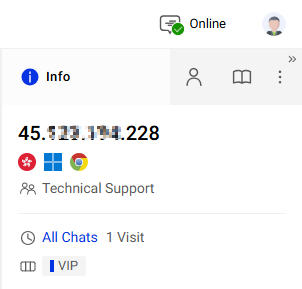
Cause
This issue may occur for one or more of the following reasons:
- The pre-chat window is disabled, and visitors have no opportunity to enter their names before starting a chat.
- The pre-chat window is enabled, but the Name field is either set to Invisible or not marked as Required. If a visitor does not provide their name, the system displays the visitor’s IP address instead.
- You replaced the default system Name field with a custom field, so the Agent Console will not recognize the custom field value as the visitor’s name.
- You are using custom variables to automatically pass visitor name information from your website, but the configuration may not be set up correctly.
Solution
- Log in to the Comm100 Control Panel.
- From the left navigation menu, go to Live Chat > Campaign.
- Select the correct campaign from the drop-down list.
- Go to Pre-chat and ensure the pre-chat toggle is turned on.
- Configure the fields you want your visitors to fill in and mark them as Visible. Make sure to mark mandatory fields as Required.
- Set the name field as both Visible and Required.Note: Make sure you are using the system default Name field on your pre-chat survey to capture visitor names instead of a custom field. Only by assigning value to the system default Name fields can Agent Console display the visitors’ Name. If you disable the system Name field and create a custom field instead for your visitors to input, Agent Console will not display it as a visitor name.Note: System fields cannot be deleted. However, custom fields can be removed (a Bin icon appears next to them).
- If you are using custom variables to automatically get information using data from your website, make sure this has been configured correctly. To learn how to set up custom variables, see this article.
