The Offline Message Window allows your website visitors to leave messages when no agents are available to respond to their chat requests. This typically occurs when the chat button is offline, or when visitors choose to switch to the offline message window instead of waiting in the queue for an agent to reply.
Offline messages can be viewed directly in your Comm100 account, and you can also configure the system to forward these messages to designated email addresses for follow-up.
Follow the instructions below to configure and customize your offline message window.
Step-by-Step Instructions
- Log in to your Comm100 account.
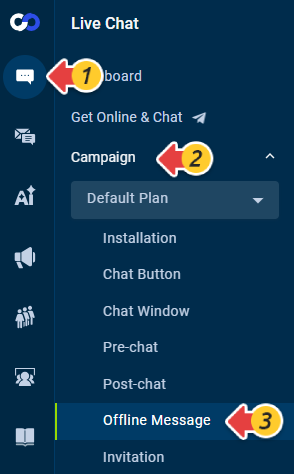
- From the left navigation menu, go to Live Chat > Campaign.
- Select a campaign from the drop-down list and go to Offline Message.
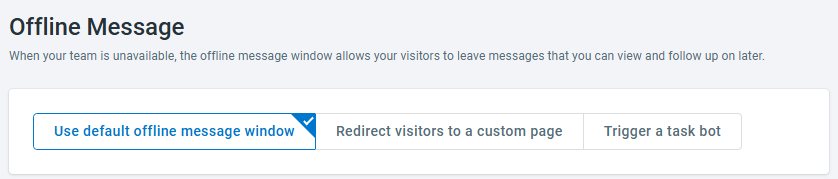
- Choose how you want your visitors to interact with offline message window: Use default offline message window, Redirect visitors to a custom page, or Trigger a Task Bot.
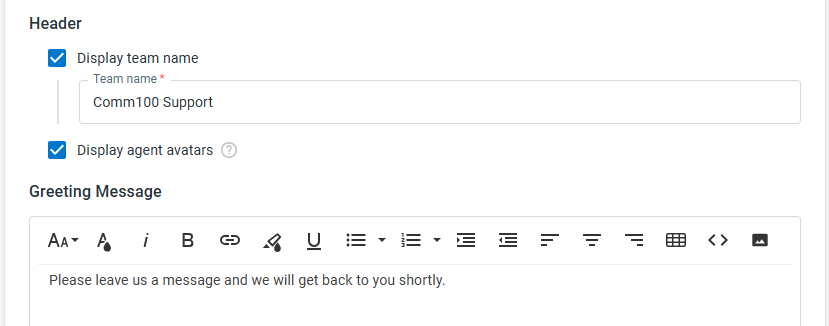
- Set your team name, avatars, and greeting message displayed at the top of the offline message window.
- Set which fields are visible and which are required to collect visitor information based on your needs.Note: There are character limits for both the field name length and the visitors' input area.
- The maximum length for the field name is 256 characters.
- For a text box type field, the maximum input area length is 128 characters.
- For a text area type field, the maximum input area length is 2048 characters.
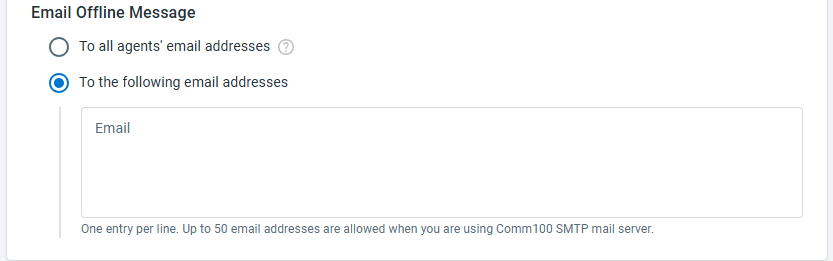
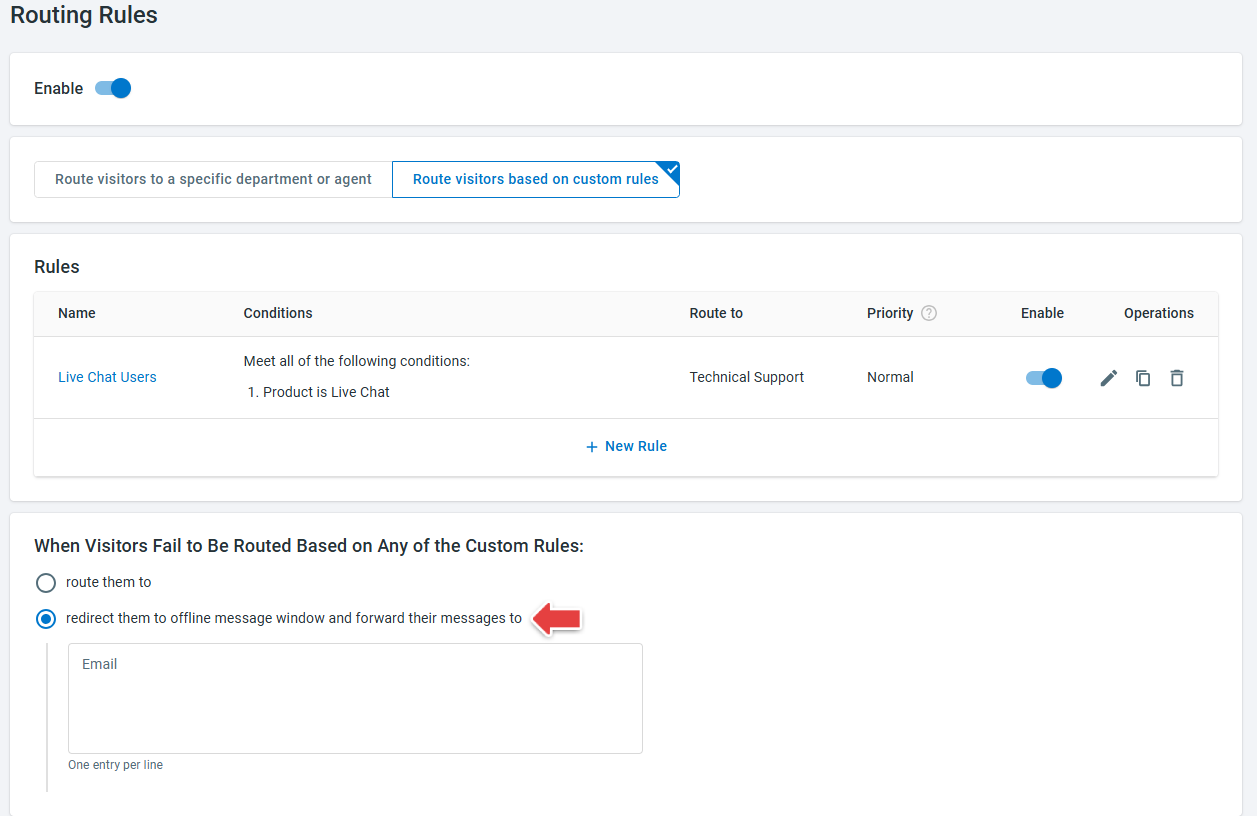
- Specify the email address(es) to receive offline message notifications. By default, offline messages are sent to all agents' email addresses.Note: If you have routing rules turned on, you will see the Check out your routing rules link to configure the offline message depending on your routing rules.
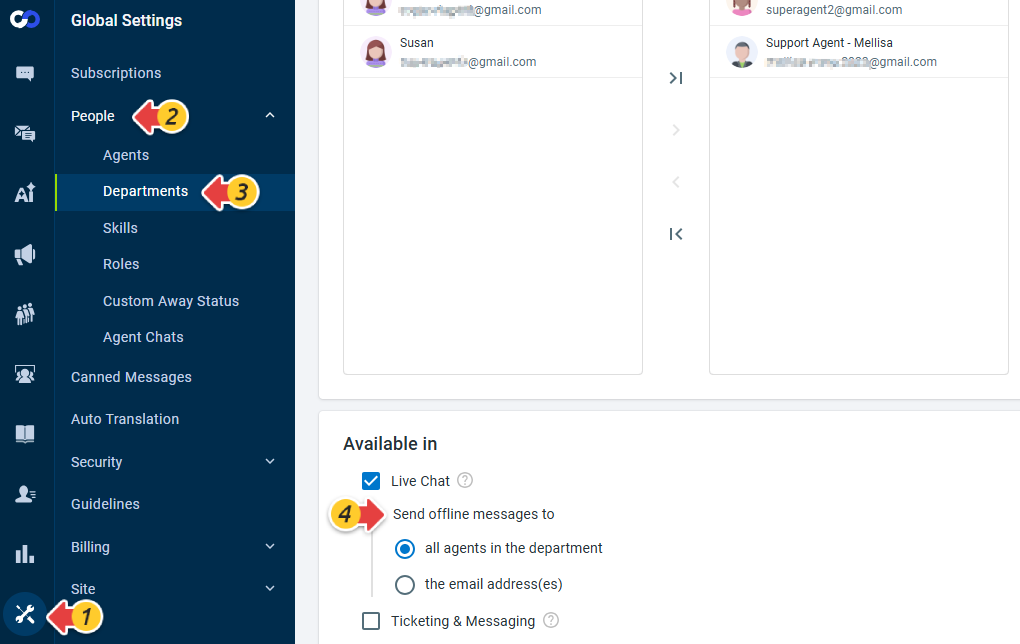
- If the Campaign is bound with a department, the offline messages are sent to all agents in the department. This configuration can be modified under Global Settings > People > Departments.
- If the Campaign is bound with an agent, the offline messages are sent to that specific agent only.
- If you are using custom rules, you can configure email recipients by selecting the option "redirect them to offline message window and forward their messages to".
- If the Campaign is bound with a department, the offline messages are sent to all agents in the department. This configuration can be modified under Global Settings > People > Departments.
- Click Save.