
This release adds Audio Chat, Video Chat, and Screen Sharing to Anytime Chat and introduces a new Service Account connection option for Google Drive.
Audio Chat, Video Chat, and Screen Sharing for Anytime Chat
Agents can now start Audio Chat, Video Chat, or Screen Sharing directly from an Anytime Chat Ticket. Screen Sharing can be used on its own or alongside an Audio Chat or Video Chat session.
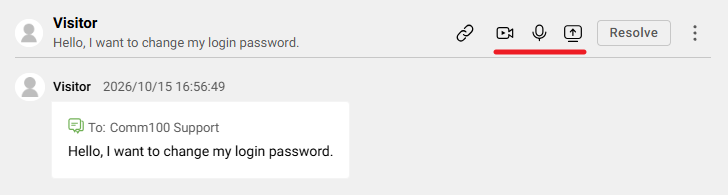
Visitors can accept or decline incoming requests while continuing their Anytime Chat conversation. Agents can also continue working on other tickets while a session remains active.
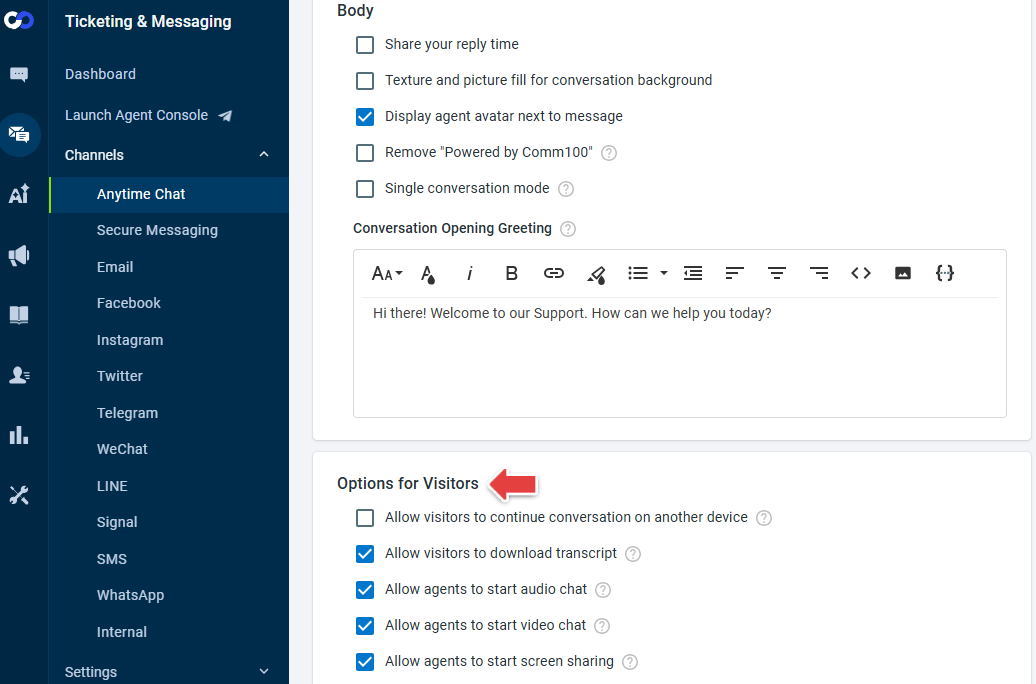
Each feature can be enabled separately for each Anytime Chat Window under Control Panel > Ticketing & Messaging > Channels > Anytime Chat > Chat Window.
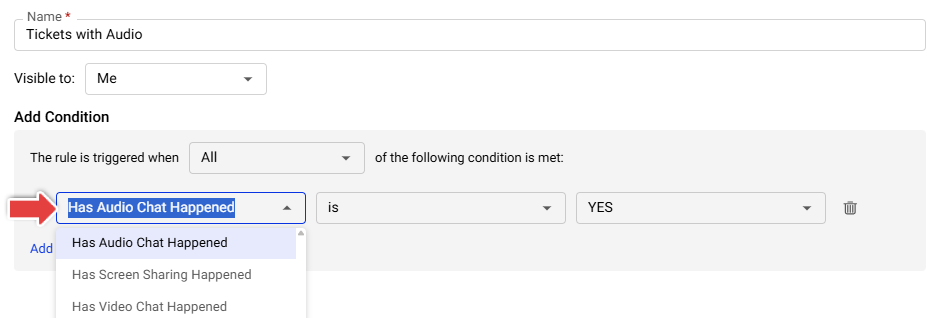
These activities are recorded in the ticket and conversation history and are also available as conditions in Ticket Views, SLA Policies, Triggers, Routing Rules, and other supported Ticketing & Messaging configurations.
Google Drive Service Account Connection
You can now connect Google Drive to Comm100 using a Google Service Account as an alternative to connecting through an individual Google account.
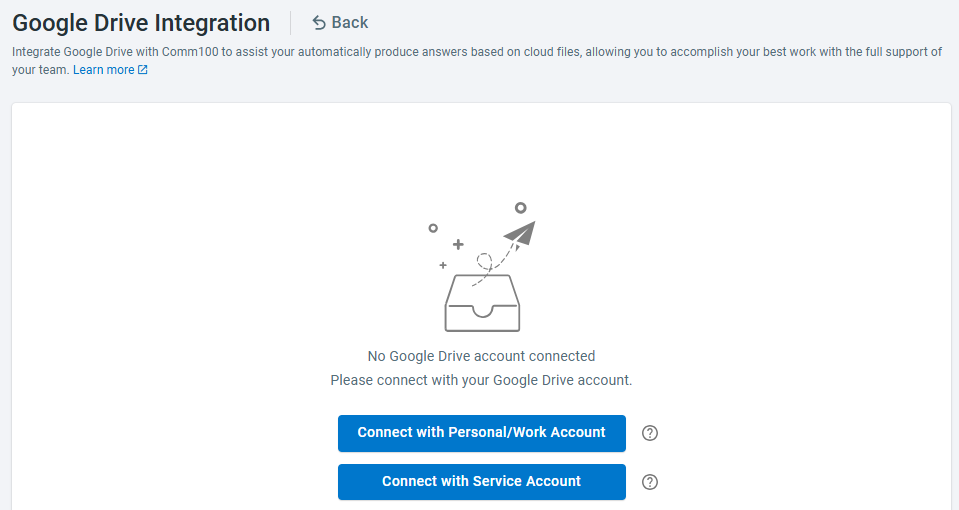
When setting up the integration, choose either Connect with Personal/Work Account or Connect with Service Account. With a Service Account, you can upload a Google Service Account JSON key to establish the connection without signing in with an individual Google account.
Comm100 can access only the Google Drive files and folders that the Service Account has permission to access. Existing folder selection, file synchronization, and Knowledge Management workflows remain unchanged.