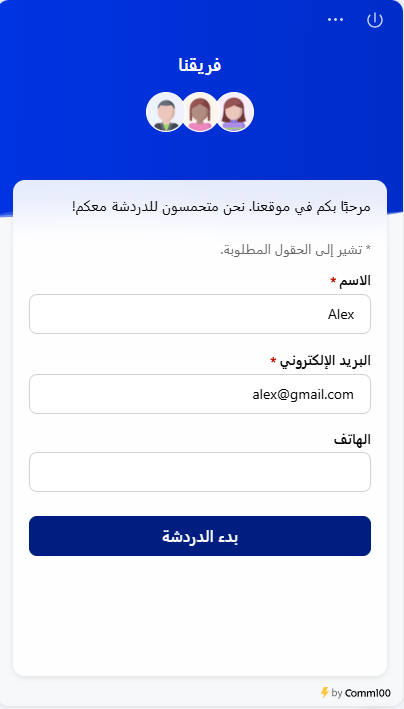
Yes, Comm100 Live Chat fully supports Arabic on the visitor side. You can enable Arabic by editing the language settings of an existing campaign or by creating a new campaign with Arabic selected as the display language.
Edit Campaign Language
- Log in to your Comm100 account.
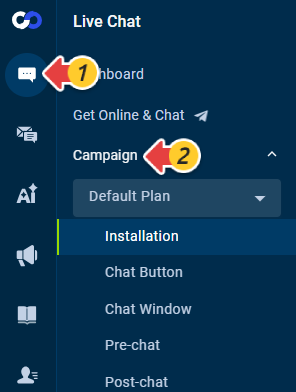
- From the left navigation menu, go to Live Chat > Campaign.
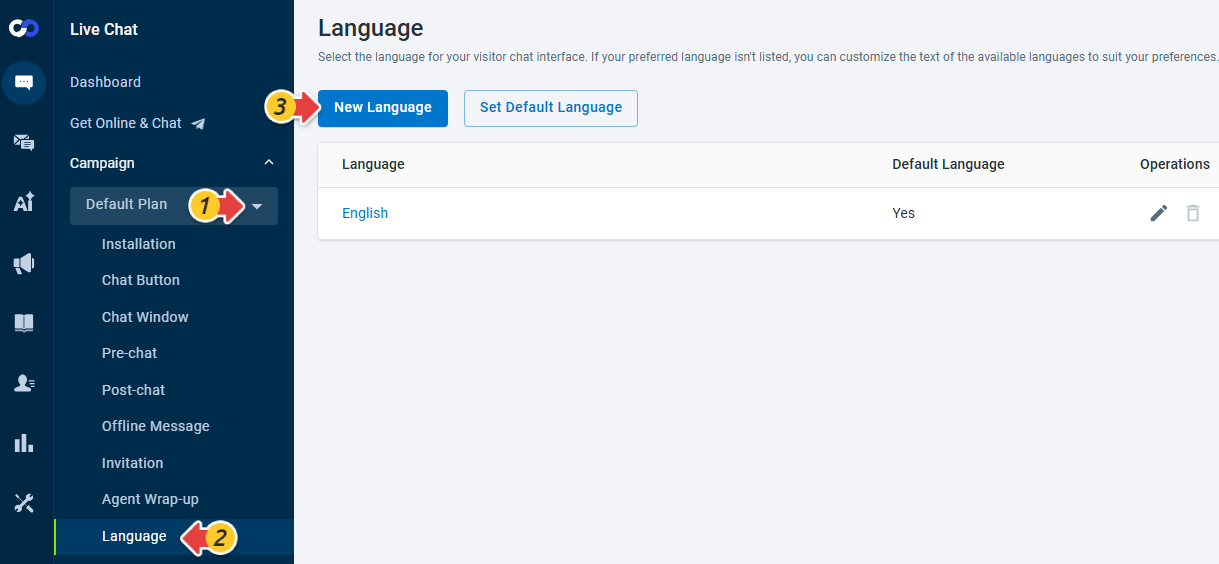
- Select the campaign from the drop-down list, click Language and New Language.
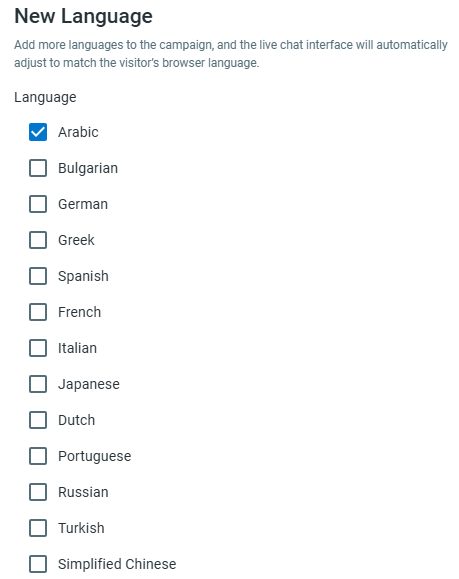
- In the New Language drawer, select Arabic and click Save.
- Click Set Default Language, choose Arabic and click Save.
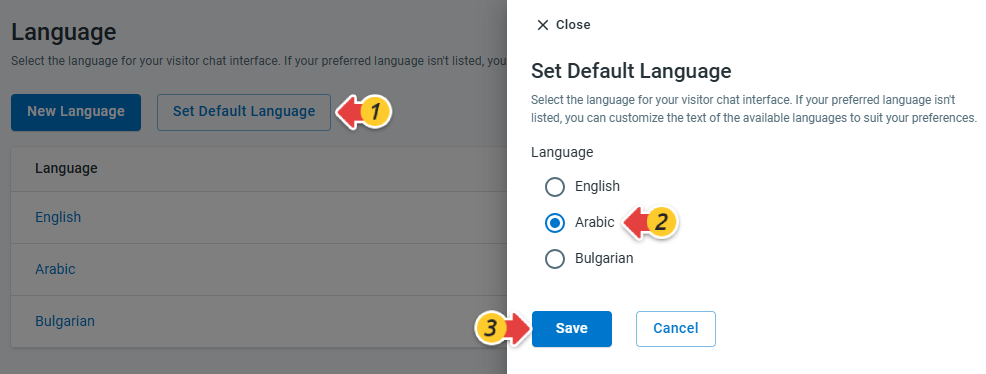
Create a New Campaign
- Log in to your Comm100 account.
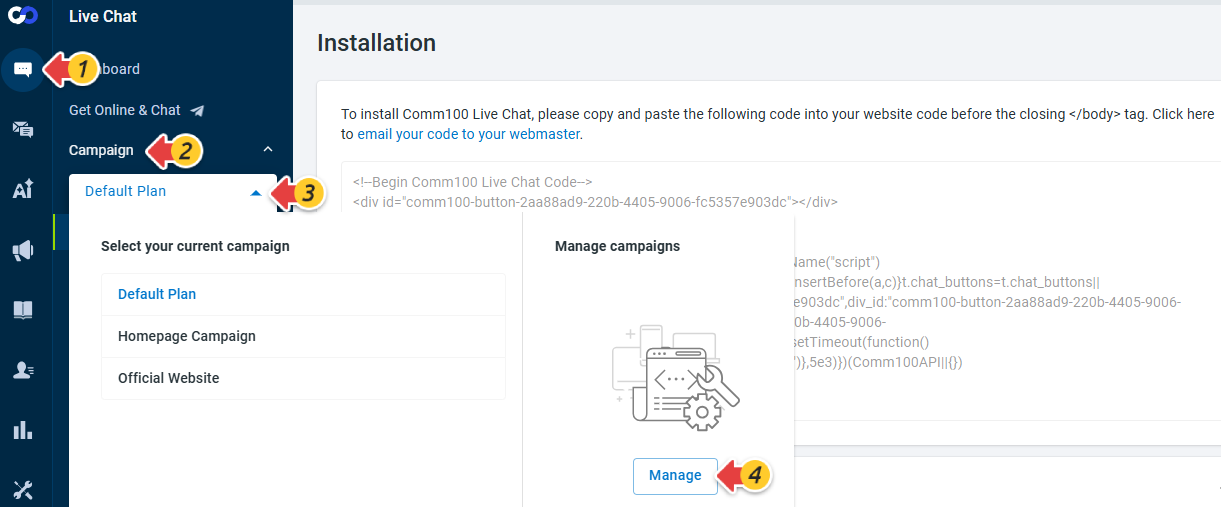
- From the left navigation menu, go to Live Chat > Campaign, expand the Campaign list and click Manage.
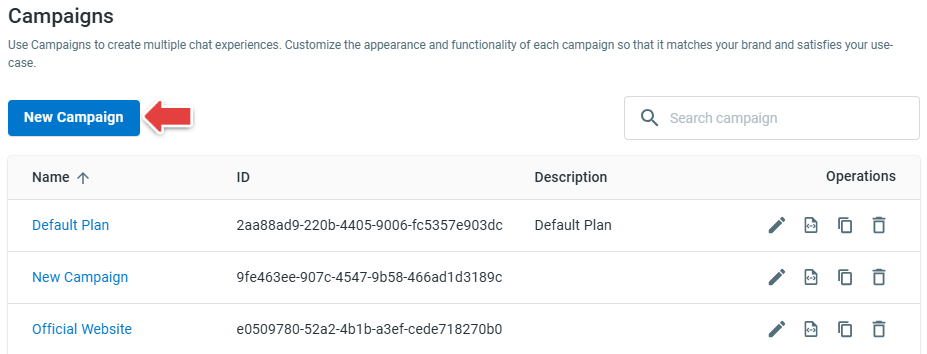
- In the Campaigns drawer, click New Campaign.
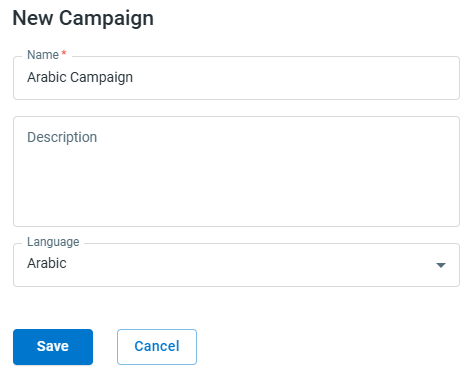
- Enter a campaign name, add a description if needed and select Arabic from the Language list.
- Click Save.
Once Arabic is enabled, all visitor-facing elements of Live Chat—such as chat buttons, system messages, and chat windows—will display in Arabic based on your campaign settings.
You can further customize the text and layout as needed to ensure a seamless right-to-left experience for your visitors. To learn how to edit the interface text of visitor side windows for different wordings, see this article.