
The Availability Change Log records changes to agent availability statuses, including the default Online, Away, and Offline statuses, as well as any custom away statuses configured for your account.
You can use the Change Log to view an individual agent’s status timeline and see the exact time of each status change.
Note: The Availability report and Custom Away Status feature are available in the Live Chat Ultra plan. To learn more about Comm100 products and packages, visit our pricing page.
Step-by-Step Instructions
To view an agent’s status changes, follow these steps:
- Log in to your Comm100 Control Panel.
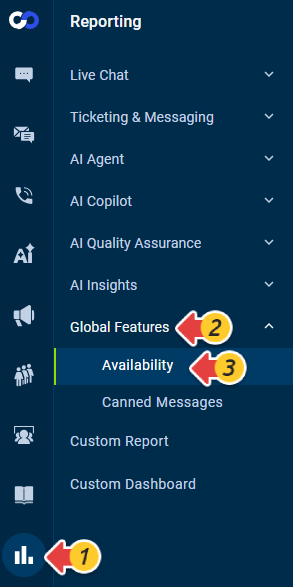
- From the left navigation menu, go to Reporting > Global Features > Availability.
- Set the Time range you want to review.
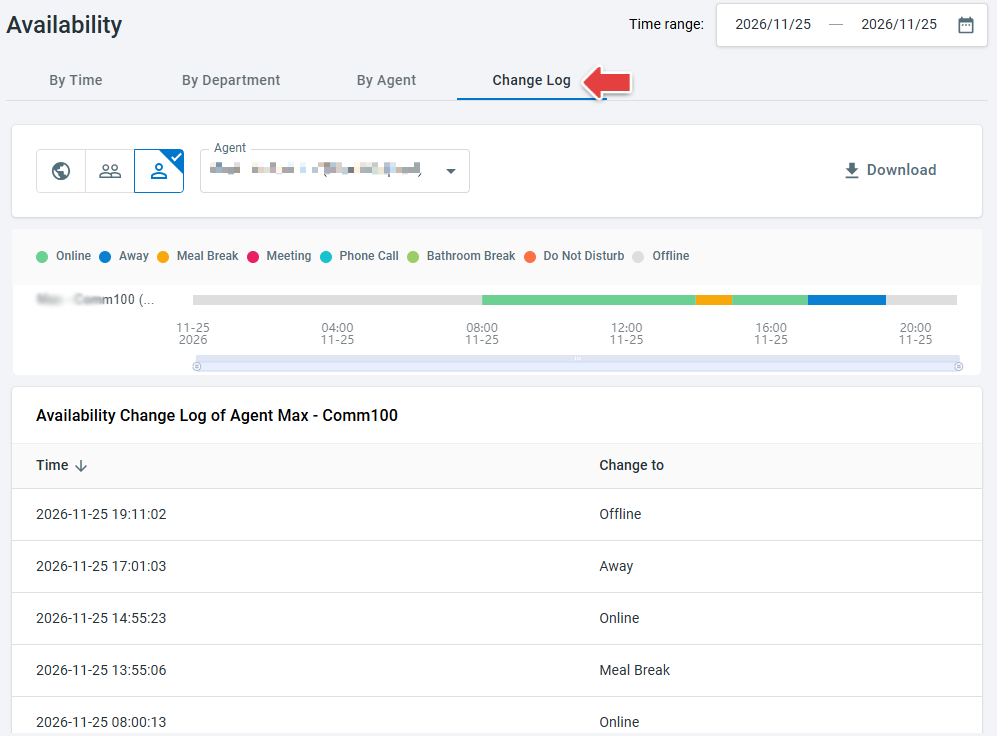
- Click the Change Log tab.
- Select the Agent view, and then choose an agent from the Agent drop-down list.
The agent’s status information appears in two formats:- The timeline shows how the agent’s status changed throughout the selected period. Each status is represented by a different color, as shown in the legend. Custom away statuses appear under their own names.
- The Availability Change Log table shows the exact time of each change and the status the agent changed to. By default, changes are listed with the newest first. The agent stays in each status until the next change.
- (Optional) To export the change log, click Download.
If you want to view an agent’s total online and away time rather than each individual status change, use the By Agent tab of the Availability report.
To learn more about Comm100 reports, see this article.
