
Custom Away Status allows you to create additional Away statuses to indicate why agents are unavailable, such as Meal Break, Meeting, or Phone Call. These statuses help agents communicate their availability more accurately and provide more detailed agent status data in Reporting.
Step-by-Step Instructions
To set up Custom Away Status, follow these steps:
Log in to your Comm100 Control Panel.
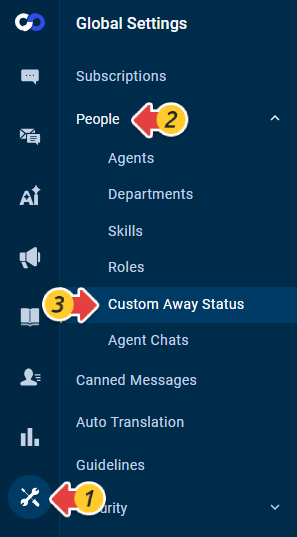
From the left navigation menu, go to Global Settings > People > Custom Away Status.
Turn on the Custom Away Status toggle.
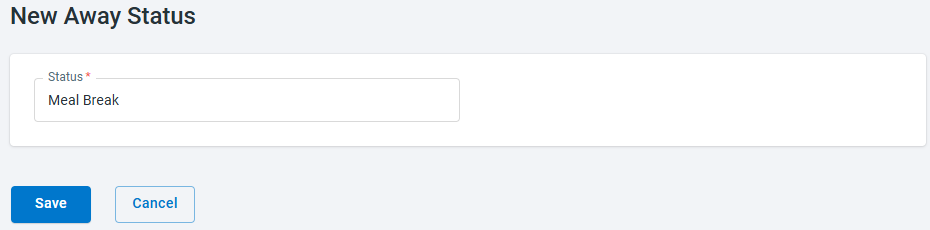
Click New Away Status.
Enter a name for the status, such as Meal Break, Meeting, or Phone Call, and click Save.
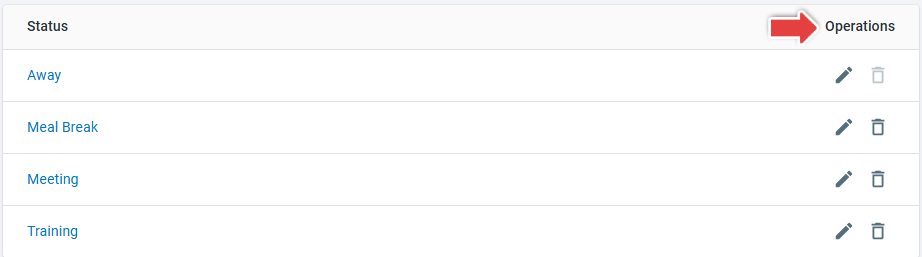
To update an existing Custom Away Status, click the Edit icon in the Operations column. To remove one, click the Delete icon. The default Away status cannot be removed.
How Custom Away Status Appears in the Agent Console
After Custom Away Status is enabled and statuses are created, they are available in the agent status list in the Agent Console.
Agents can click their current status and select a Custom Away Status when they are temporarily unavailable.
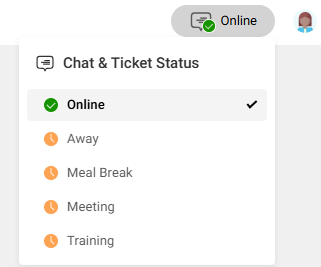
A Custom Away Status works as an Away status. When an agent selects one, the agent remains logged in but is not available for auto-distributed chats. For Ticketing & Messaging, away agents are excluded from auto distribution when Automatically distribute tickets to online agents only is enabled. Existing chats and tickets assigned to the agent are not affected.
When the agent is ready to receive new conversations again, they can change their status back to Online.
How Custom Away Status Appears in Reporting
Custom Away Status provides more detailed information about how agents spend their logged-in time.
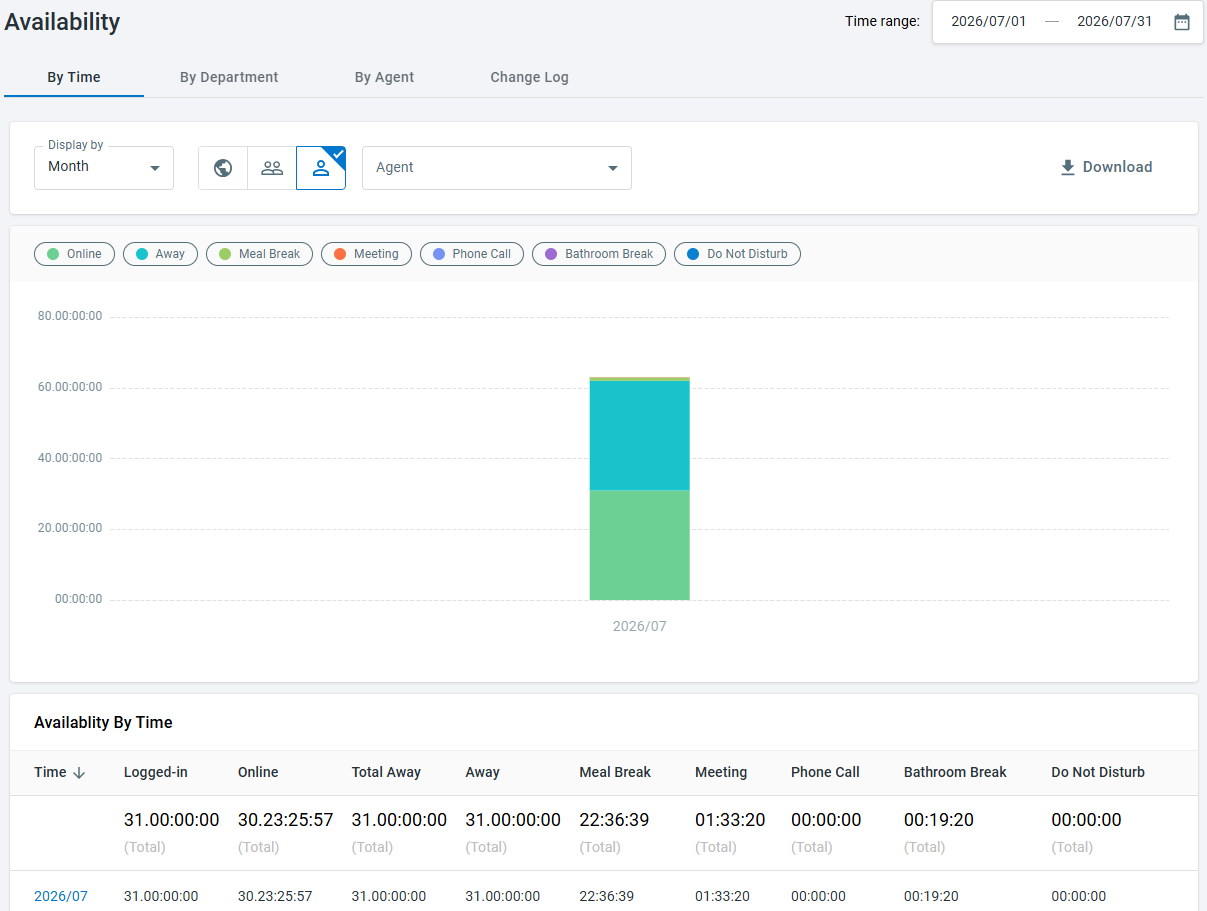
In the Availability report, the time spent in each Custom Away Status is displayed separately. The report also includes:
Online: The length of time an agent is Online.
Logged-in: The total time the agent is logged in, including Online and Away time.
Total Away: The total time the agent spends in the default Away status and any Custom Away Status.
Away: The time spent specifically in the default Away status.
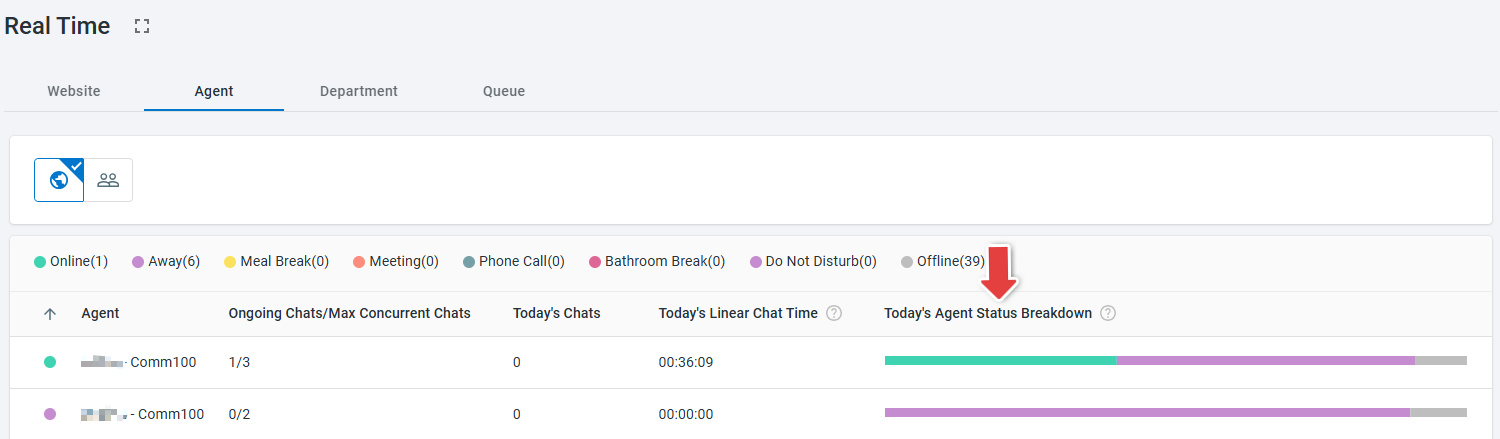
Custom Away Statuses are also reflected in Today’s Agent Status Breakdown in the Live Chat Real-Time (Agent) report, helping you review how an agent’s status has changed throughout the day.
To learn more about Comm100 reports and agent status metrics, see this article.