
Comm100 Spotlights uses AI to identify important customer behaviors, intents, and risk signals in Ticketing & Messaging conversations, such as Churn Risk, Escalation, and Sales Opportunity.
For Ticketing & Messaging, you can link Spotlights to individual Channel Accounts. When a new eligible customer message is received, Comm100 analyzes the message and supported recent conversation context using the Spotlights linked to that Channel Account. When a Spotlight is detected, it appears as a label beside the corresponding message in the Agent Console, helping agents quickly identify important customer signals.
This article shows you how to create or manage Spotlights, link them to Ticketing & Messaging Channel Accounts, and view detected Spotlights in the Agent Console.
Creating or Managing Spotlights
You can use existing Spotlights or create new ones based on the behaviors, intents, or scenarios you want to identify.
- Log in to the Comm100 Control Panel.
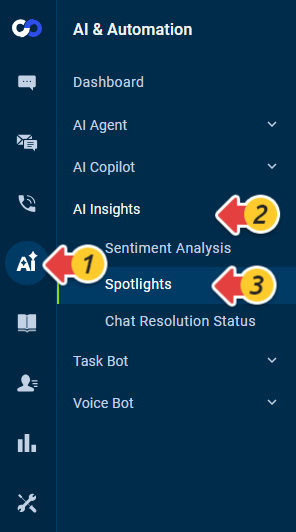
- From the left navigation menu, go to AI & Automation > AI Insights > Spotlights.
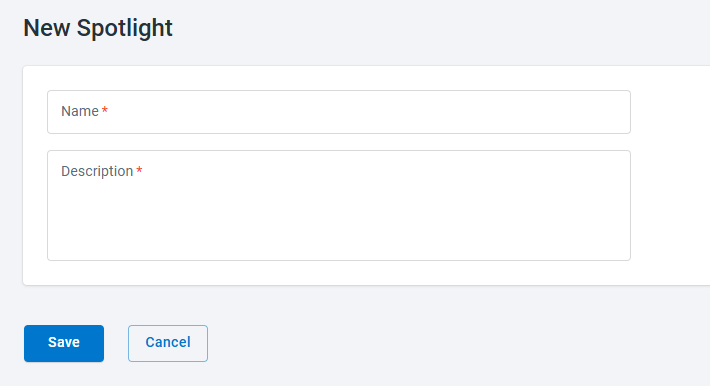
- On the Spotlights page, click New Spotlight.
- Enter the name and description for the Spotlight.
- Click Save.
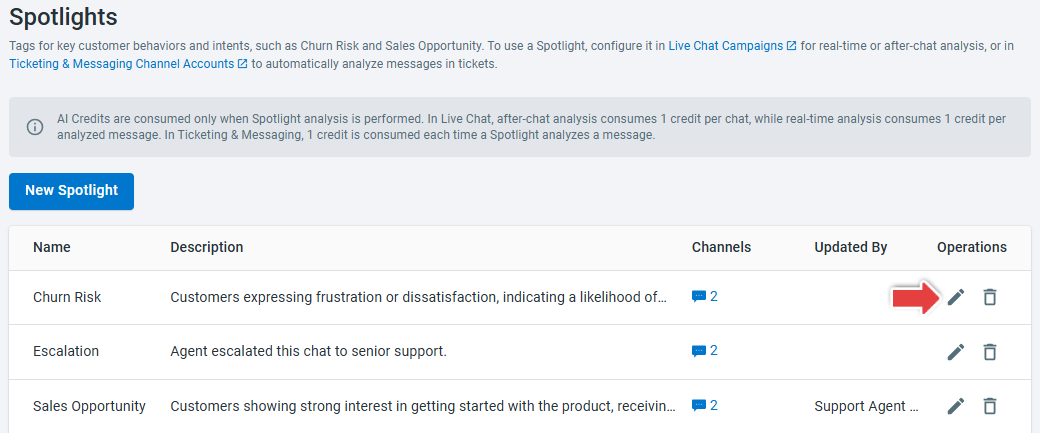
You can also edit or delete existing Spotlights from the Spotlights page.
Linking Spotlights to a Channel Account
Spotlights are configured separately for individual Ticketing & Messaging Channel Accounts. This allows you to choose which Spotlights should be used for messages received through each account.
The following example uses an Email Channel Account. To link Spotlights to a Channel Account, follow these steps:
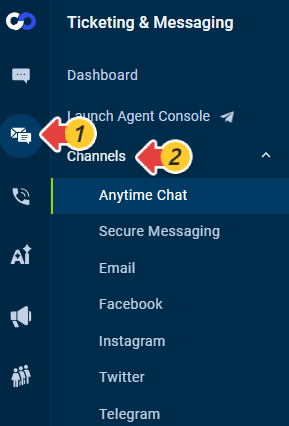
- Go to Ticketing & Messaging > Channels.
- Select the channel you want to manage, such as Email.
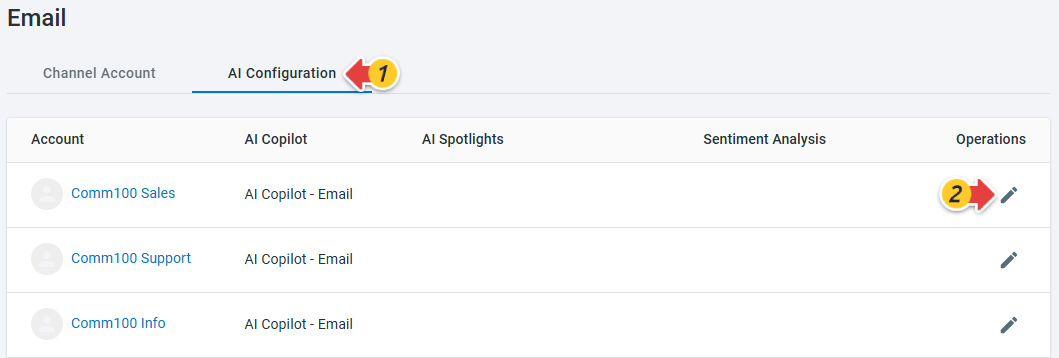
- Go to the AI Configuration tab.
- Locate the Channel Account and click the Edit icon under Operations.
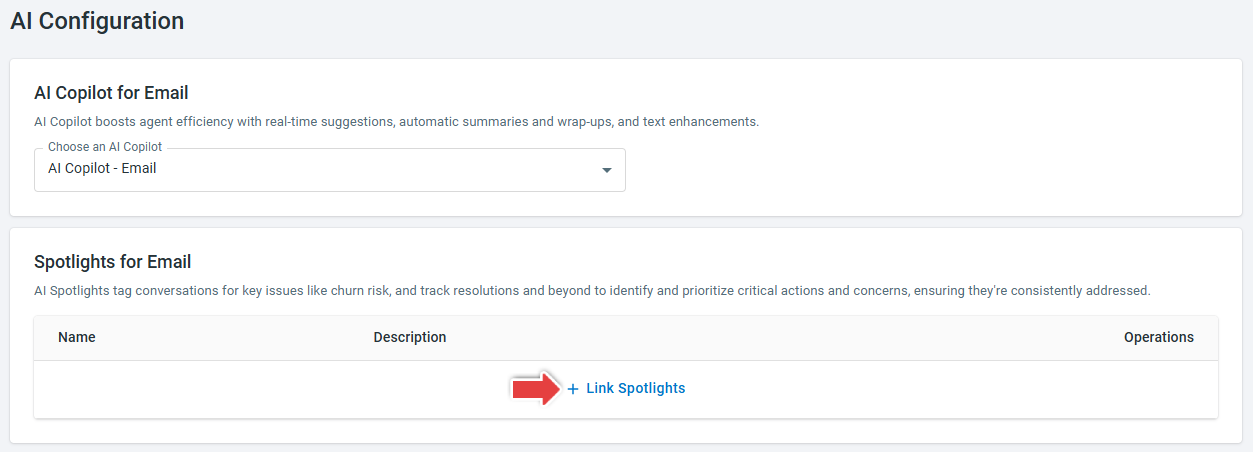
- On the AI Configuration page, click Link Spotlights in the Spotlights for Email section.
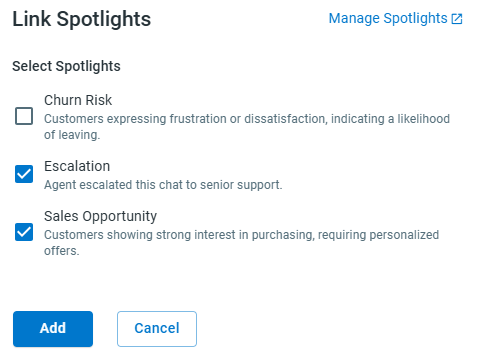
- In the Link Spotlights drawer, select the Spotlights you want to link to the Channel Account, and click Add. If the Spotlight you need is not available, click Manage Spotlights to
create a new Spotlight or update an existing one.
The linked Spotlights appear in the AI Spotlights column on the channel's AI Configuration tab.
Viewing Detected Spotlights in the Agent Console
When a new eligible customer message is received through a Channel Account with Spotlights linked, Comm100 analyzes the message and supported recent conversation context against those Spotlights.
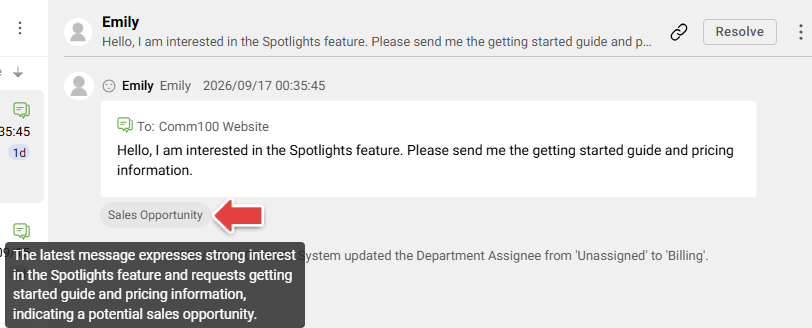
When a Spotlight is detected, it appears as a label beside the corresponding message in the Agent Console. You can hover over the Spotlight label to view the reason it was detected.
- Spotlight detection is triggered only by new eligible customer messages received after the Spotlight is linked to the corresponding Channel Account. Messages received before the feature was released are not analyzed.
- Unlinking a Spotlight stops it from being evaluated for future eligible messages received through that Channel Account. Previously detected Spotlight results are retained.