Comm100 Spotlights uses AI to identify important customer behaviors, intents, and scenarios in Live Chat conversations, such as churn risk, escalation, and sales opportunities. Spotlights helps you surface important customer signals, take appropriate follow-up actions, and gain insights that can improve customer retention, sales opportunities, and customer service.
For Live Chat, you can configure Spotlight Rules to determine when and under what conditions Spotlights are evaluated. A Spotlight Rule can evaluate conversations in real time during an active chat or after the chat ends.
When a Spotlight is detected, it is displayed with the corresponding conversation, helping agents and supervisors quickly identify important customer signals and take appropriate follow-up actions.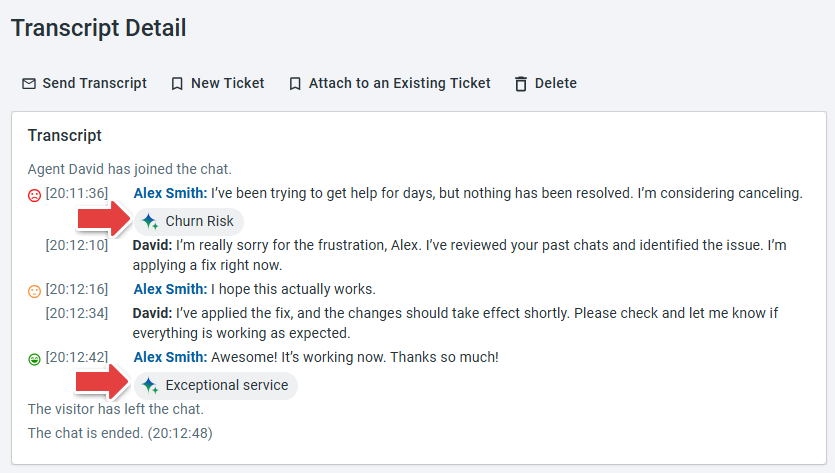
Comm100 provides predefined Spotlights such as Churn Risk, Sales Opportunity, and Escalation. You can update them or create new Spotlights based on the customer behaviors, intents, or scenarios you want to identify.
This article shows you how to create or manage Spotlights, configure Spotlight Rules for Live Chat Campaigns, and view detected Spotlights.
Creating or Managing Spotlights
You can use existing Spotlights or create new ones based on the behaviors, intents, or scenarios you want to identify.
- Log in to the Comm100 Control Panel.
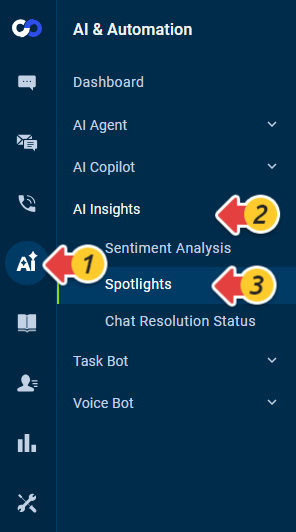
- From the left navigation menu, go to AI & Automation > AI Insights > Spotlights.
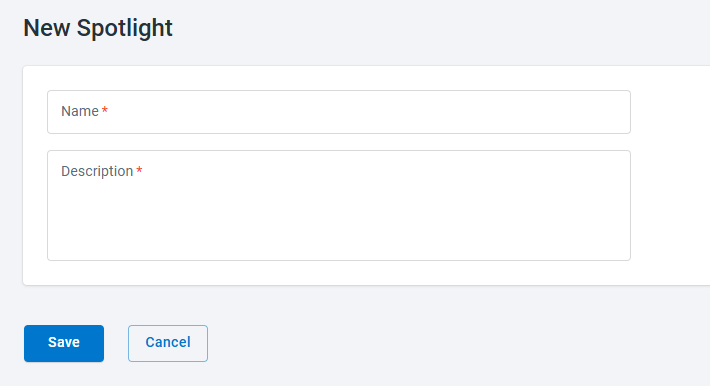
- On the Spotlights page, click New Spotlight.
- Enter the name and description for the Spotlight.
- Click Save.
You can also edit or delete existing Spotlights from the Spotlights page.
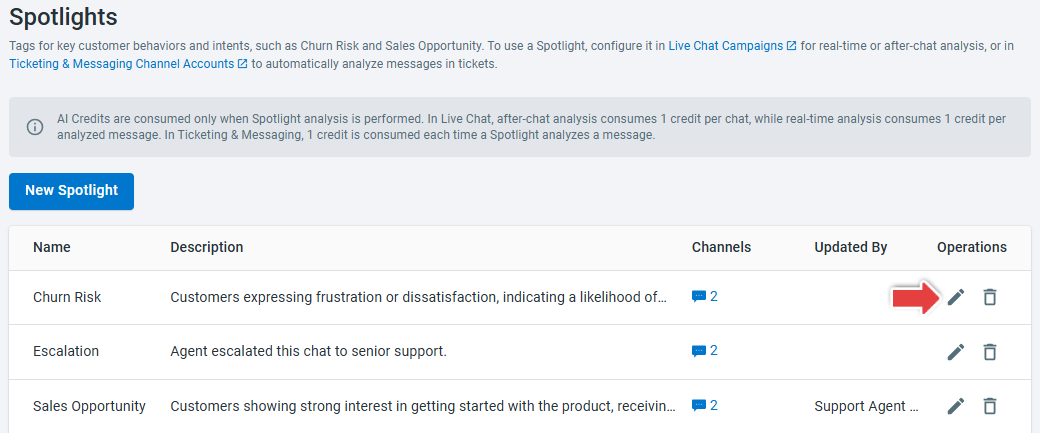
Configuring Spotlight Rules for a Live Chat Campaign
Spotlight Rules determine which Spotlights are evaluated for a Live Chat Campaign, when the evaluation occurs, and any conditions that must be met. To configure a Spotlight Rule, follow these steps:
- Navigate to Live Chat > Campaign > AI Configuration.If you have multiple Live Chat Campaigns, select the Campaign you want to manage from the drop-down list.
- In the Spotlight Rules section, click New Spotlight Rule.
- On the New Spotlights Rule drawer, configure the following:
- Enter a Name for the Spotlight Rule.
- Turn on Enable.
- From the Detection Mode drop-down list, select one of the following:
- Real Time: Evaluates the target Spotlights during an active chat.
- After Chat Ends: Evaluates the target Spotlights after the chat ends.
- In the Conditions section, add conditions as needed to control when the rule applies. If no conditions are added, the rule applies without additional filtering.
- In Target Spotlights, select the Spotlights you want the rule to evaluate.
- Click OK.
- Click Save.
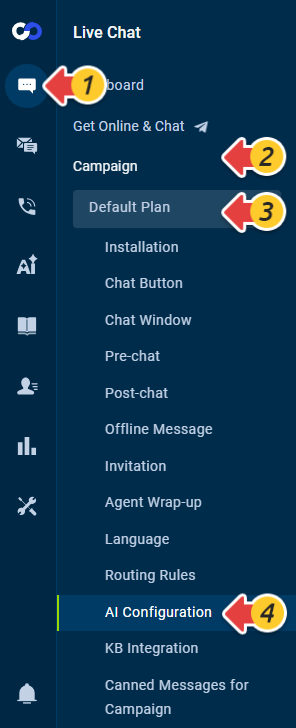

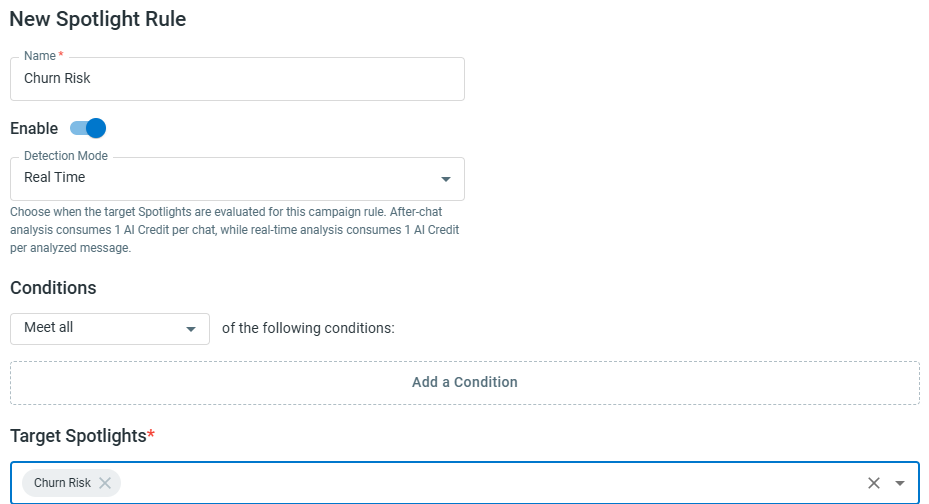
You can create multiple Spotlight Rules for a Campaign and configure different detection modes, conditions, and target Spotlights for each rule.
Viewing Detected Spotlights
When a Spotlight Rule uses Real Time detection, Comm100 evaluates the target Spotlights during the active chat. When a Spotlight is detected, it appears with the corresponding message in the Agent Console. You can hover over the Spotlight to view the reason it was detected.
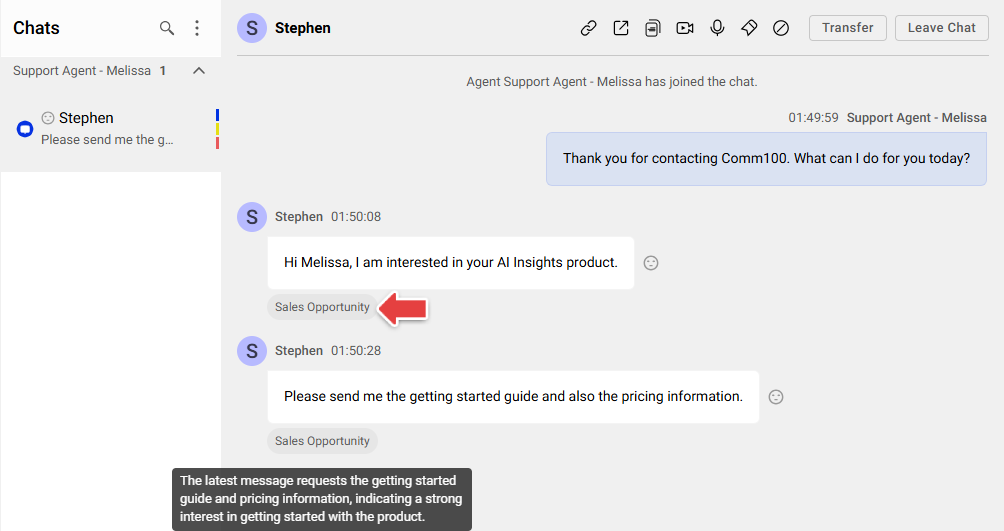
When a Spotlight Rule uses After Chat Ends detection, the target Spotlights are evaluated after the conversation ends.
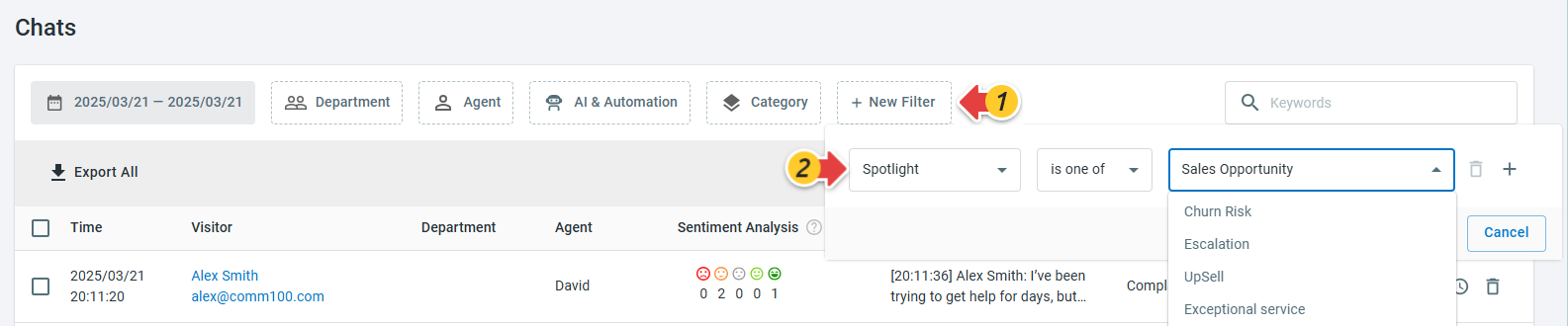
You can also go to Live Chat > History > Chats in the Comm100 Control Panel to review detected Spotlights for completed chats. From the list, you can:
- Click a chat to review its transcript and view the detected Spotlights.
- Filter the chat list by Spotlight to find chats where specific Spotlights were detected.