
Comm100 Sentiment Analysis uses AI to analyze incoming customer messages in Ticketing & Messaging and identify their sentiment as Very Negative, Negative, Neutral, Positive, or Very Positive.
When Sentiment Analysis is enabled, the detected sentiment is displayed with the corresponding customer message in the Agent Console. The most recent successfully analyzed customer sentiment is also displayed as the ticket's Latest Sentiment, helping agents quickly understand the customer's latest sentiment.
Sentiment Analysis must first be enabled for Ticketing & Messaging at the account level. Once enabled, Sentiment Analysis is enabled for all Channel Accounts by default, and you can disable it for individual Channel Accounts as needed.
Enabling Sentiment Analysis for Ticketing & Messaging
To enable Sentiment Analysis for Ticketing & Messaging, follow these steps:
- Log in to the Comm100 Control Panel.
- From the left navigation menu, go to AI & Automation > AI Insights > Sentiment Analysis.
- On the Sentiment Analysis page, turn on Enable Sentiment Analysis for Ticketing & Messaging.
- Click Save.
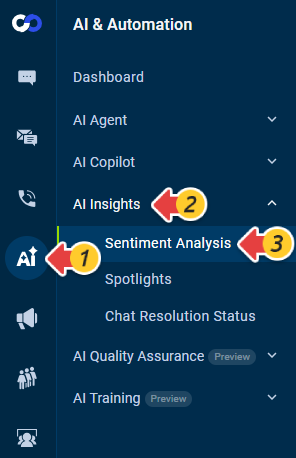
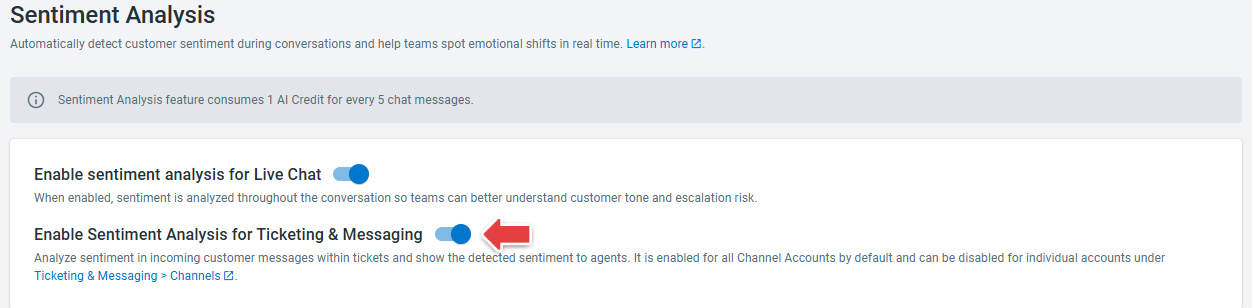
Sentiment Analysis is now enabled for Ticketing & Messaging. By default, it is enabled for all Channel Accounts. You can disable it for individual Channel Accounts as needed.
Managing Sentiment Analysis for Individual Channel Accounts
You can control Sentiment Analysis separately for each Channel Account. The following example uses the Email channel. The same setting is available for other supported Ticketing & Messaging channels.
To enable or disable Sentiment Analysis for a Channel Account, follow these steps:
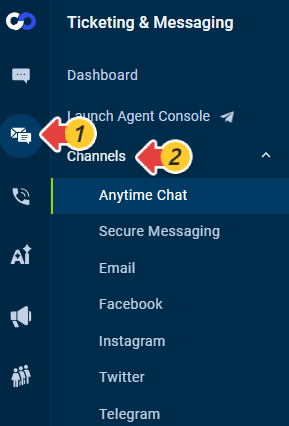
- Go to Ticketing & Messaging > Channels.
- Select the channel you want to manage, such as Email.
- Go to the AI Configuration tab.
- In the Sentiment Analysis column, turn the switch on or off for the corresponding Channel Account.
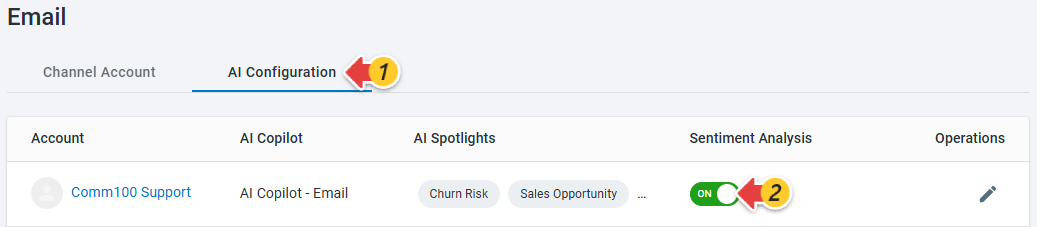
The change is saved for the selected Channel Account without affecting the Sentiment Analysis settings of other Channel Accounts.
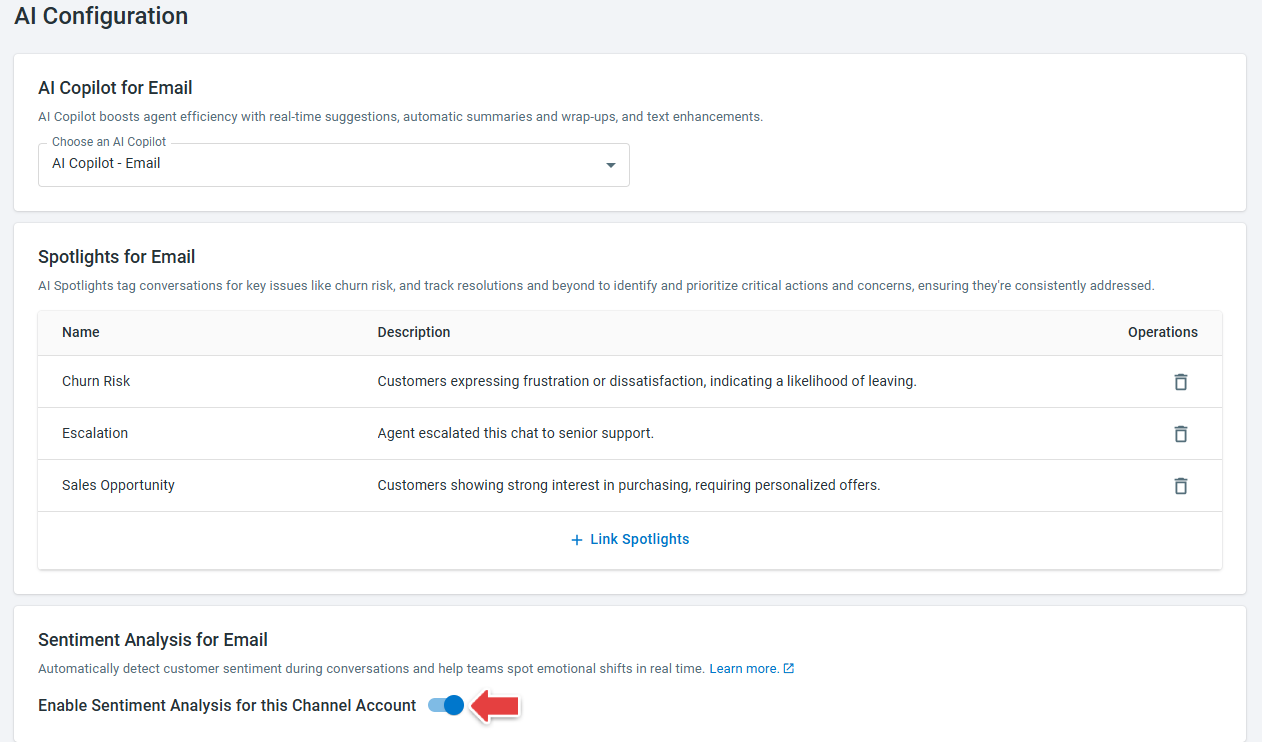
You can also click the Edit icon under Operations for a Channel Account. On the AI Configuration page, in the Sentiment Analysis for Email section, turn Enable Sentiment Analysis for this Channel Account on or off, and save your changes.
Viewing Sentiment Analysis Results
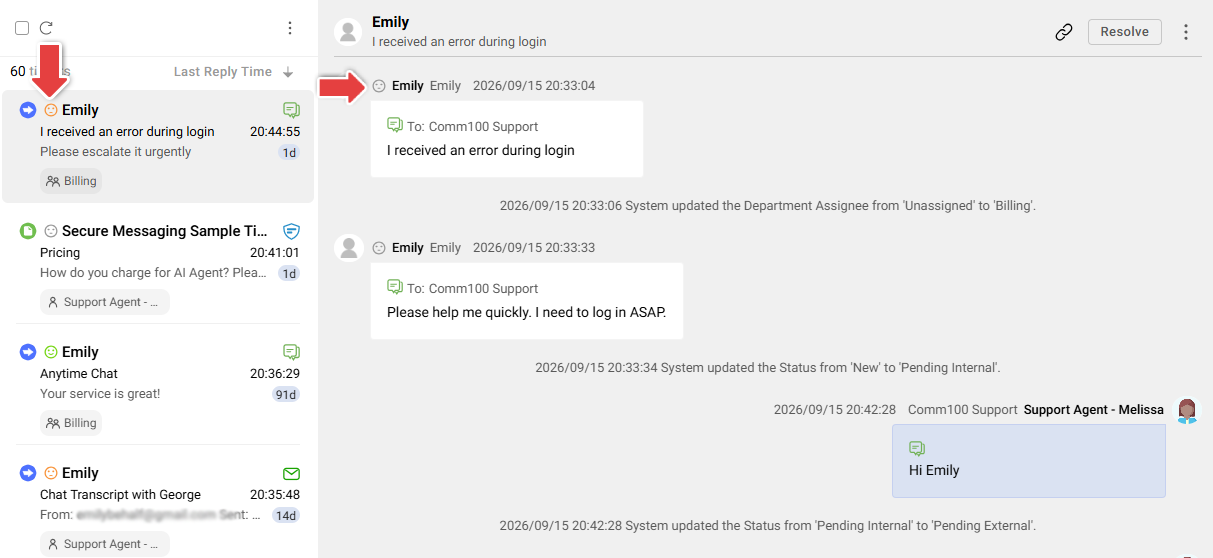
When a new eligible customer message is received through a Channel Account with Sentiment Analysis enabled, Comm100 analyzes the message and displays the detected sentiment with the corresponding message in the Agent Console.
The ticket's Latest Sentiment is based on the most recent successfully analyzed customer message. It does not represent the overall sentiment or sentiment trend of the entire ticket.
- Sentiment Analysis applies only to new eligible incoming customer text messages received after the feature was released and while Sentiment Analysis is enabled for both Ticketing & Messaging and the corresponding Channel Account. Messages received before the feature was released are not analyzed.
- Disabling Sentiment Analysis does not remove previously detected sentiment results.
- Sentiment Analysis applies only to eligible incoming text messages from contacts or visitors. Agent messages, internal notes, internal tickets, system events, and messages containing only attachments, images, audio, video, files, or reactions are not analyzed for sentiment.
- If a message cannot be successfully analyzed, no sentiment value is displayed; it is not treated as Neutral.