Comm100 Sentiment Analysis uses AI to analyze visitor messages during Live Chat and identify their sentiment in real time. It helps agents understand visitor sentiment and changes throughout a conversation, tailor their responses accordingly, and identify areas where the customer experience can be improved.
Sentiment Analysis categorizes visitor sentiment as Very Positive, Positive, Neutral, Negative, or Very Negative. With Sentiment Analysis enabled, you can:
- Identify a visitor's sentiment and sentiment changes in real time during a chat.
- Monitor visitor sentiment across all ongoing chats from the chat list.
- Review sentiment changes in chat transcripts to better understand past conversations and improve future service.
This article shows you how to enable Sentiment Analysis for Live Chat and view sentiment results in the Agent Console and chat history.
Enabling Sentiment Analysis
Sentiment Analysis for Live Chat is turned off by default. To enable Sentiment Analysis for Live Chat, follow these steps:
- Log in to the Comm100 Control Panel.
- From the left navigation menu, go to AI & Automation > AI Insights > Sentiment Analysis.
- On the Sentiment Analysis page, turn on Enable Sentiment Analysis for Live Chat.
- Click Save.
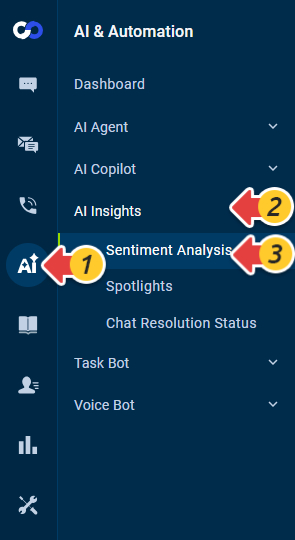
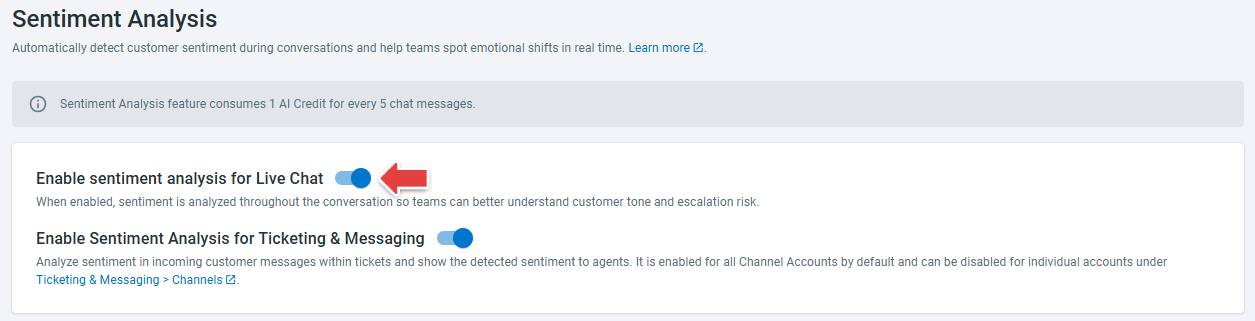
After Sentiment Analys is enabled, agents can view visitor sentiment during chats in the Agent Console.
Viewing Sentiment Analysis in the Agent Console
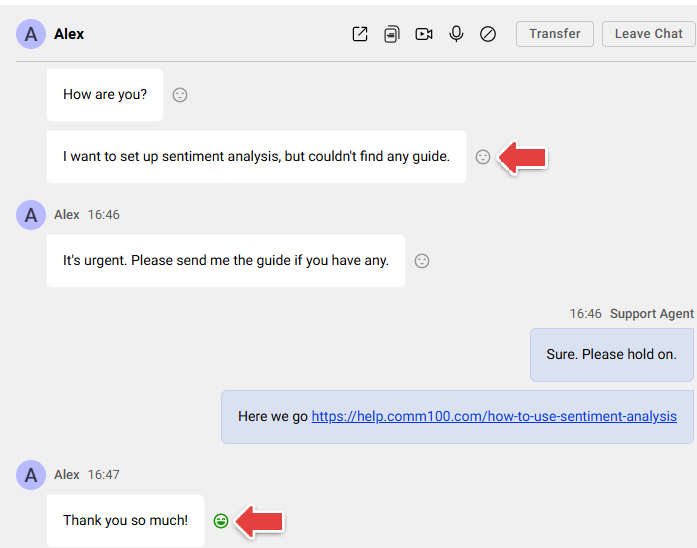
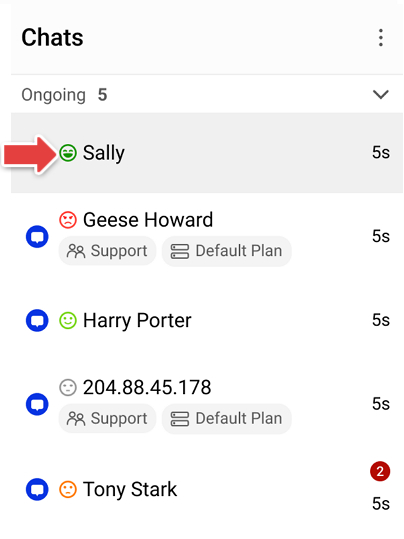
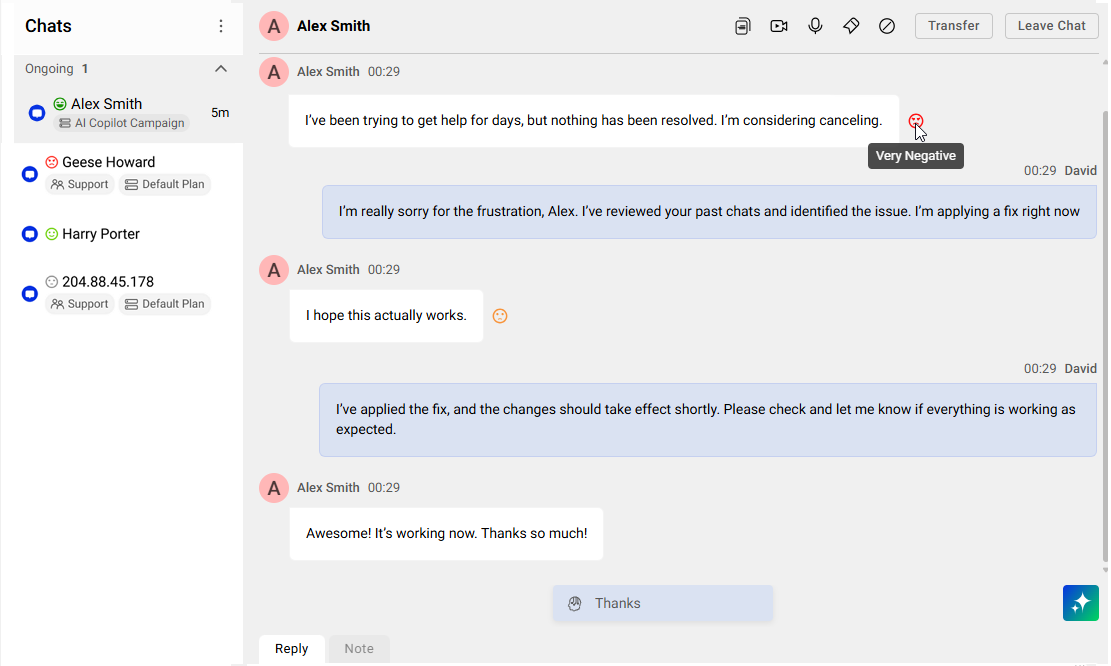
Sentiment Analysis analyzes visitor messages and displays the detected sentiment using color-coded sentiment icons. You can view visitor sentiment both in the chat area and from the ongoing chat list.
- In the chat area, a sentiment icon appears next to each analyzed visitor message.
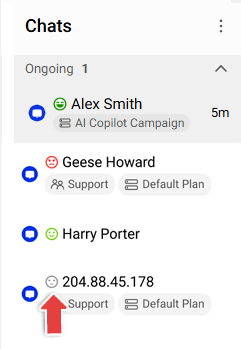
- In the chat list, you can see the sentiment detected from the visitor's most recent message.
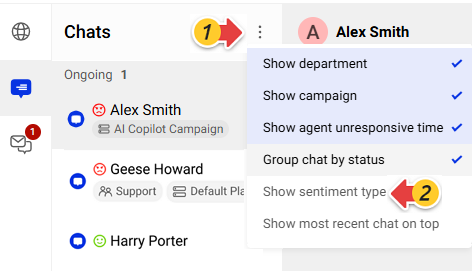
- You can choose to hide sentiment icons from the chat list. Click the three-dot icon in the upper-right corner of the list, then clear the Show sentiment type option. This setting does not affect the sentiment icons displayed in the chat area.
Viewing Sentiment Analysis Results in Chat History
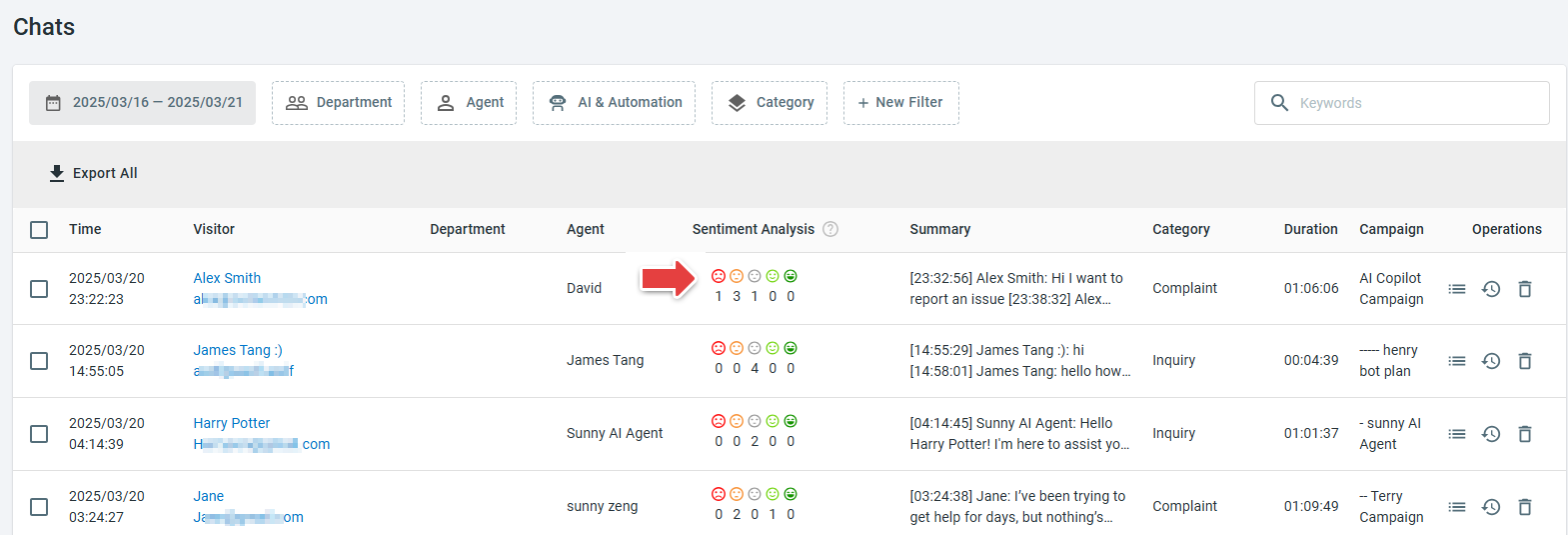
You can navigate to Live Chat > History > Chats in the Control Panel to review Sentiment Analysis results for historical chats. The Sentiment Analysis column shows how many times each sentiment was detected during a chat. Hover over the icons to view the sentiment changes throughout the conversation.
To view the details of each detected sentiment, click the Details icon in the Operations column to review the transcript. A sentiment icon appears next to each analyzed visitor message.
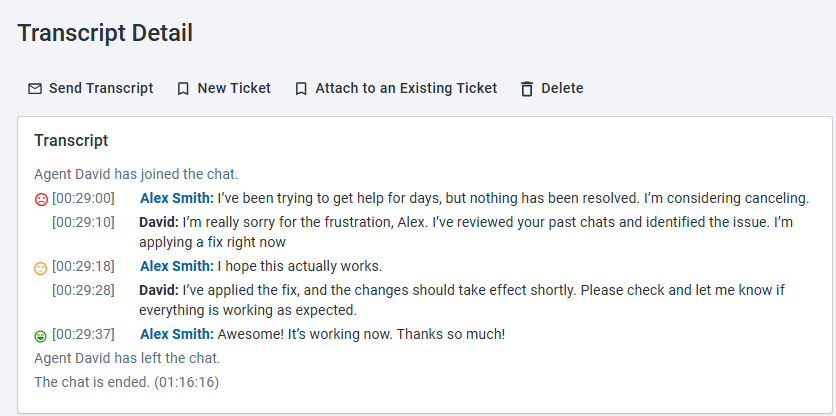
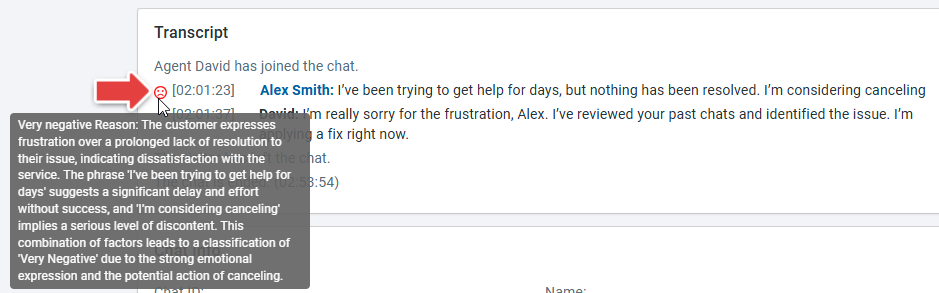
You can mouse over the sentiment icon to view the reason the sentiment was identified.