Introduction to Visitor-Contact Match
In Comm100, a visitor is an online user who lands on a Live Chat–enabled website, while a contact represents a known individual with unified identity information, such as name, email address, phone number, and more.
With Comm100 Live Chat, when a visitor comes to your site, agents can view visitor information, such as name, status, and number of visits, directly in the Agent Console.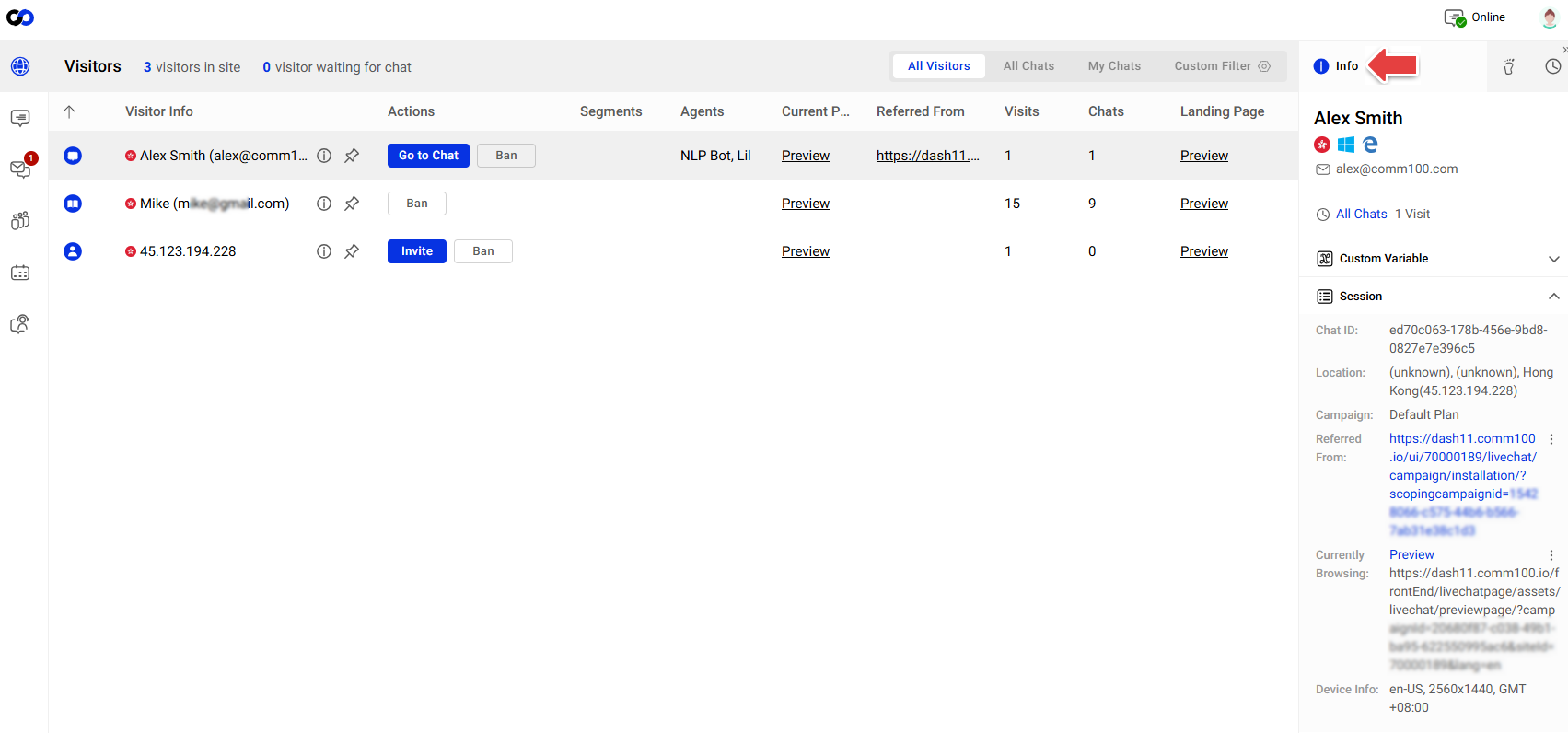
In Ticketing & Messaging, the system automatically creates a contact when it receives messages from Email, SMS, or social channels. Contacts allow you to track and manage a customer’s complete communication history across multiple channels. For example, if a customer sends both an email and a Telegram message, saving them as a contact enables you to view all past interactions in one place. To learn more about managing contacts in Ticketing & Messaging, see this article.
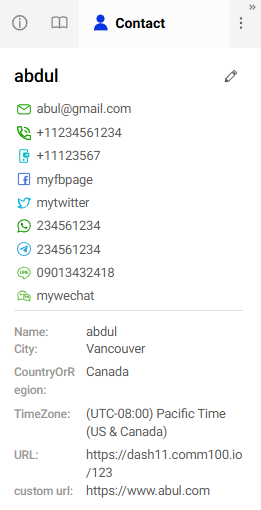
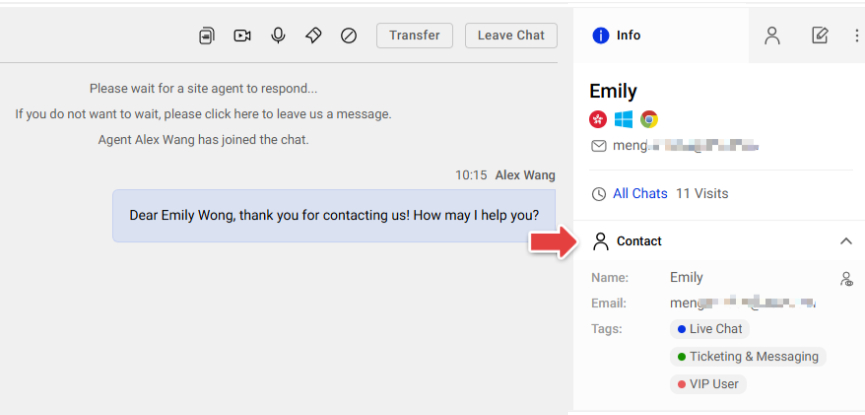
Visitor–Contact Match automates the process of identifying visitors and linking them to existing contacts or creating new contacts when no match is found. When properly configured, the system uses mapped fields (such as email) to match visitors to contacts at the start of a chat. Contact Match brings several key advantages:
- Streamlined workflows: Automatically matches visitors to contacts, eliminating the need for manual searches or contact creation.
- Improved personalization: Agents can access a visitor’s complete history and profile, enabling more contextual and personalized conversations.
- Accurate contact records: Field mapping and update strategies help keep contact information consistent and up to date.
- Operational efficiency: Reduces repetitive data entry and supports seamless integration between Live Chat and your contact database.
- Updating a visitor’s information during a chat does not trigger contact matching. Matching occurs only at the start of the chat based on mapped fields.
- Visitor–Contact Match is available only on the Live Chat Ultra plan. To learn more about Comm100 products and plans, visit here.
- Comm100 provides a Contact Management module for Outreach Management. To learn more about Contact Management in Outreach Management, see this article.
Visitor-Contact Match is designed to automate the contact identification process. With Contact Match properly configured, the system automatically identifies and links a visitor to an existing contact, or creates a new one when necessary.
Step-by-Step Instructions
To use visitor-contact match, you need to set up field mapping between visitor fields and contact fields, and the rules to update contacts. To set up visitor-contact match, follow these steps:
- Log in to the Comm100 Control Panel.
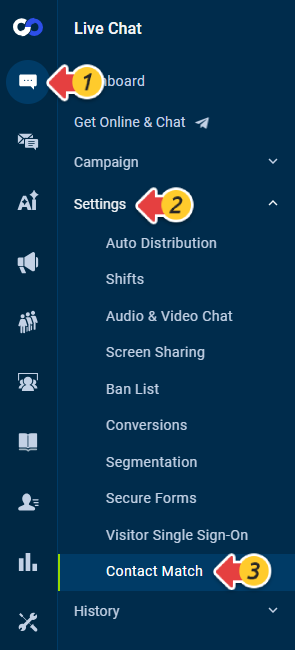
- From the left navigation pane, go to Live Chat > Settings > Contact Match.
- Set up the field mapping and contact update strategies. To learn the details, see Reference: Configuration for Visitor-Contact Match.
- Click Save.
Reference: Configuration for Visitor-Contact Match
To configure visitor-contact match, you need to complete the following settings:
- Field Mapping between Contacts and Live Chat data: Map Contact fields with Live Chat fields. When creating or updating a Contact, the system automatically populates Contact fields with the values from Live Chat.
- Contact Information Update Strategy for Chat: Whether to update a Contact’s information using Live Chat data.
- Do nothing: The Contact’s information will not be updated using Live Chat data. However, agents can still manually update the Contact details directly within the Agent Console.
- Update Contact from mapped fields: Update a Contact's information with all mapped fields.
- Only auto-update empty fields from mapped fields: Keep a Contact’s existing information, and update new fields from Live Chat.
- Operation if No Contact Matched for Chat: When the system finds no match for a visitor from Live Chat, whether to create the visitor as a Contact.
- Do nothing: The system does not create a Contact, but agents can manually create the visitor as a Contact.
- Automatically create a new contact: Automatically create the visitor as a Contact.
- Contact Information Update Strategy for Offline Message: Whether to update a Contact’s information when receiving an offline message.
- Do nothing: Do not update a Contact’s information.
- Update Contact from mapped fields: Update a Contact's information with all mapped fields.
- Only update empty fields from mapped fields: Keep a Contact’s existing information, and update new fields from offline messages.
- Operation if No Contact Matched for Offline Message: When the system finds no match for a visitor from Offline Message, whether to create the visitor as a Contact.
- Do nothing: The system does not create a Contact, but agents can manually create the visitor as a Contact.
- Automatically create a new contact: Automatically create the visitor as a contact.
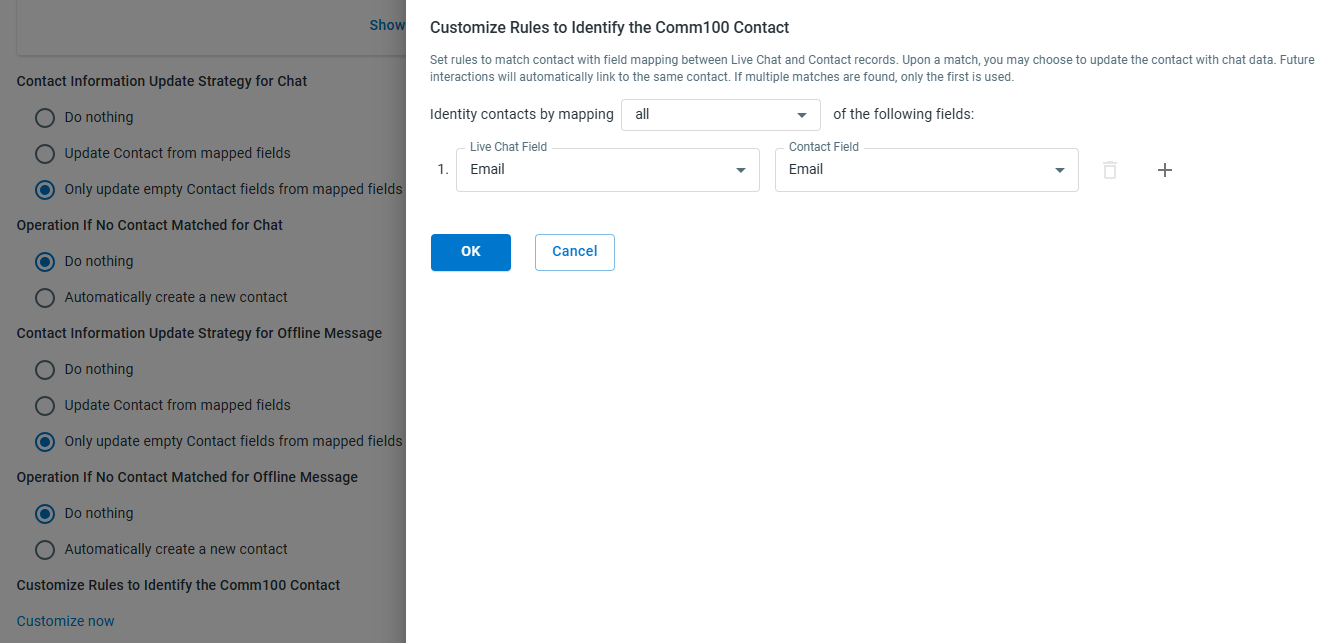
- Customize Rules to Identify the Comm100 Contact: The Contact can only be identified when the mapping fields are matched. By default, Email is used to identify a Contact. You can click Customize Now to set up your own rules.Note:
- If you choose to automatically create a Contact, ensure that all Required Fields in the contact profile are correctly populated using data collected from the live chat.
- Whether you're updating contact fields or creating contacts automatically, all mapped live chat fields must contain valid and complete values. An error in a single field can cause the entire operation to fail.
- SMS and Phone Fields: A "+" sign must precede the country code (e.g., +1, +44). Phone numbers submitted without the "+" will not be saved or updated in the Contact record.
- Field Data Type Matching: Even if the values are the same, mismatched data types between mapped fields (e.g., Text vs. URL) will also result in a failure.