
You can hide the Live Chat button on mobile websites when, for example, your desktop and mobile websites use different designs or your mobile website is not ready for visitors.
The method you use depends on how your website is built:
- If your desktop and mobile websites use separate code bases:
Add the Live Chat code to the desktop site only. The chat button will not appear on your mobile website. - If your desktop and mobile websites share the same code:
Use one of the following methods:- Customize the Mobile View of an Image-type chat button. This method is available only when you use the Image type of chat button.
- Add custom JavaScript. This method works with Adaptive, Image, and Text Link types of chat buttons.
Note: The Custom JavaScript feature is available on the Live Chat Ultra plan. To learn more about Comm100 product packages, visit here.
If your desktop and mobile websites share the same code, follow one of the methods below.
Customize the Image-Type Chat Button
If you use the Image type of chat button, you can hide it on mobile websites by customizing its Mobile View.
To hide the Image-type chat button on mobile websites, follow these steps:
- Log in to your Comm100 Control Panel.
- From the left navigation menu, go to Live Chat > Campaign > Chat Button.
Note: If you are using multiple campaigns, ensure that you select the correct campaign. To learn more about multiple Campaigns, see this article.
- On the Chat Button page, make sure the chat button type is Image.
- Under Mobile View, clear the Online text and Offline text fields. Make sure both fields are completely blank and contain no spaces.
- Click Save.
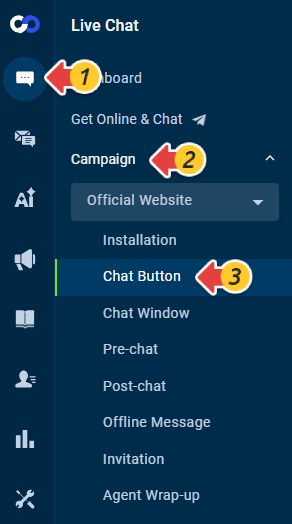
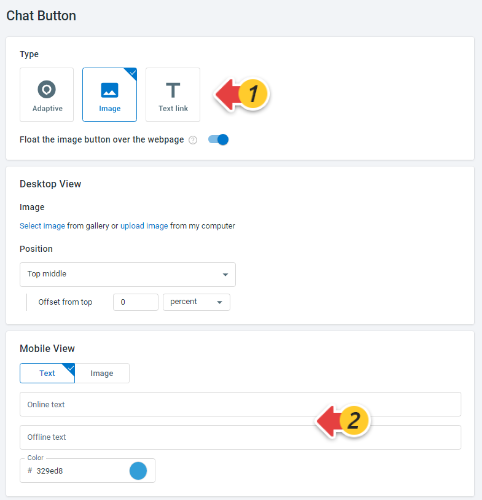
The chat button is hidden on mobile websites.
Add Custom JavaScript Code
You can also use custom JavaScript to hide the chat button on mobile websites. This method works with Adaptive, Image, and Text Link types of chat buttons.
To add the custom JavaScript, follow these steps:
- Log in to your Comm100 Control Panel.
- From the left navigation menu, go to Live Chat > Campaign > Chat Window.
Note: If you are using multiple campaigns, ensure that you select the correct campaign. To learn more about multiple Campaigns, see this article.
- Expand the Advanced menu.
- Select Add custom JavaScript to my chat window and paste the following code.
var ifmobile = /mobile/i.test(navigator.userAgent); if (ifmobile) { Comm100API.onReady = function () { Comm100API.set('livechat.button.isVisible', false); }; } - Click Save.
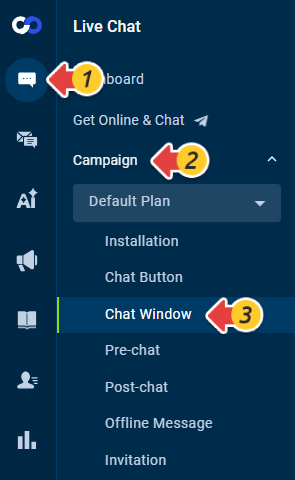

The Live Chat button is hidden when visitors access your website from a mobile device.