
You can update an agent’s profile information, including their email address, name, display name, departments, roles, permissions, and other settings. The display name is the name shown to visitors when the agent handles chats.
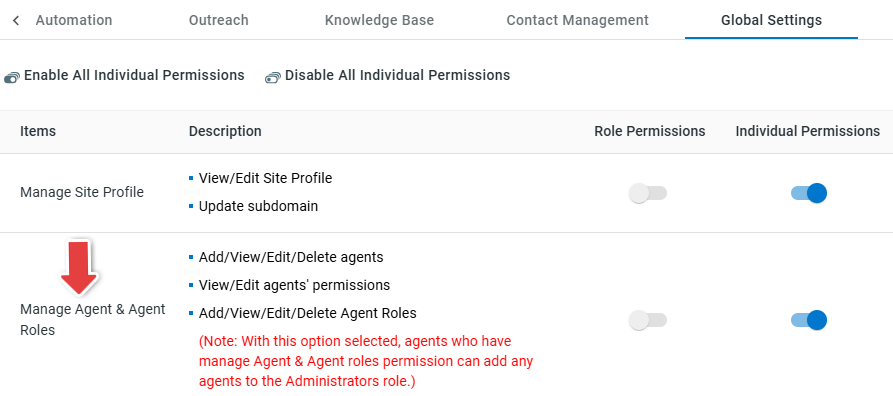
Note: To edit another agent’s information, you need to be a site administrator or have the Manage Agent & Agent Roles permission. To learn more about how to manage agent permissions, see this article.
Step-by-Step Instructions
To edit an agent's information, follow these steps:
- Log in to the Comm100 account.
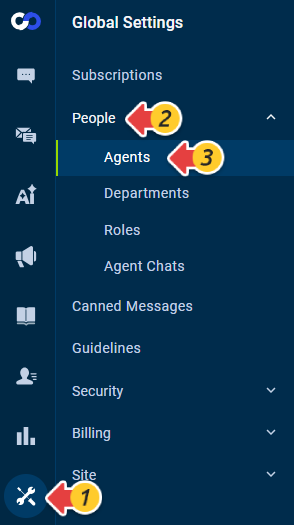
- From the left navigation menu, go to Global Settings > People > Agents.
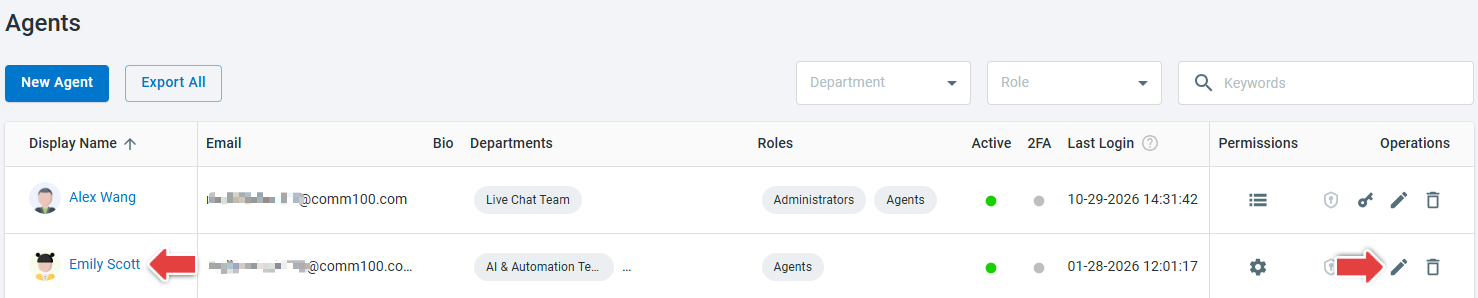
- On the Agents page, locate the agent you want to edit, and click the Edit icon in the Operations column or click the agent's Display Name.
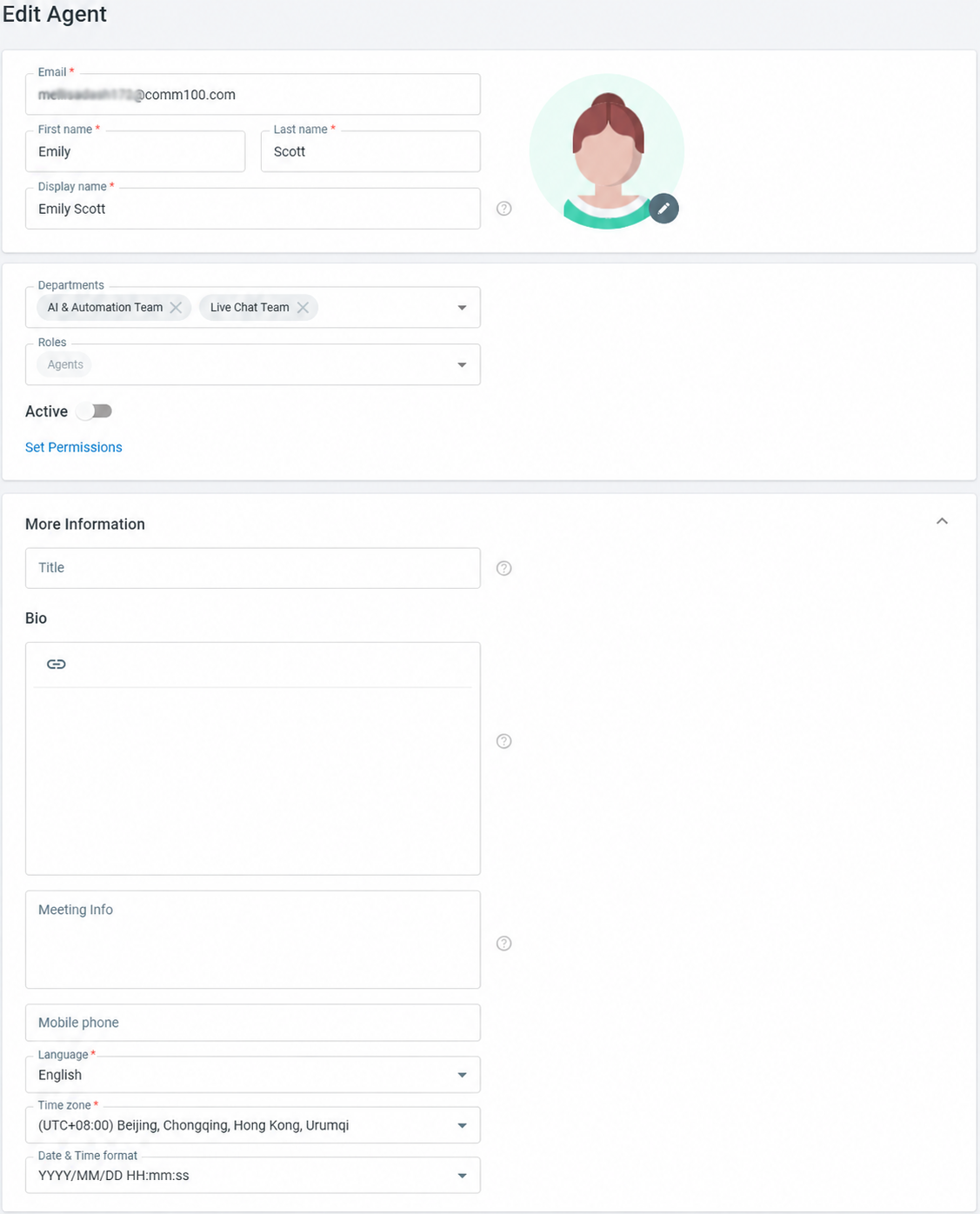
- On the Edit Agent page, update the following information as needed:
- Email: The email address the agent uses to log in to Comm100.
- First name and Last name: The agent's name.
- Display name: The name shown to visitors when the agent handles chats. It can be different from the agent’s first and last name.
- Password: The password for the agent's account.
- Departments: The business unit that the agent belongs to. To learn more about departments, see this article.
- Roles: The roles assigned to the agent in your team. To learn more about roles, see this article.
- Active: Whether the agent account is active. Only active agents can log into Comm100 account.
- Set Permissions: Configure individual permissions for the agent based on their responsibilities.
- More Information: In this section, edit the agent's additional profile information, including Title, Bio, Meeting Information, Mobile phone, Language, Time Zone and Date & Time format. Meeting Information can be a physical location or a virtual meeting URL, such as a Zoom link, and can be inserted into Booking email notifications sent to invitees.
- Click Save.
The agent's information is updated.