
If your organization uses multiple Live Chat campaigns, you may want to display different greeting messages based on the website, brand, language, or business scenario. For example, you may want visitors on different regional websites or product pages to receive greetings that better match their needs.
By default, greeting messages are configured at the agent level, meaning each agent has their own greeting message. If you want agents to send a unified greeting message for each campaign, you can use Custom JavaScript together with a Custom Variable to dynamically display a campaign-specific greeting message.
This approach helps provide a more personalized visitor experience while allowing different campaigns to display greetings that best match their audience or use case.
Step-by-Step Instructions
Define a Custom Variable for the Greeting Message
- Log in to your Comm100 Control Panel.
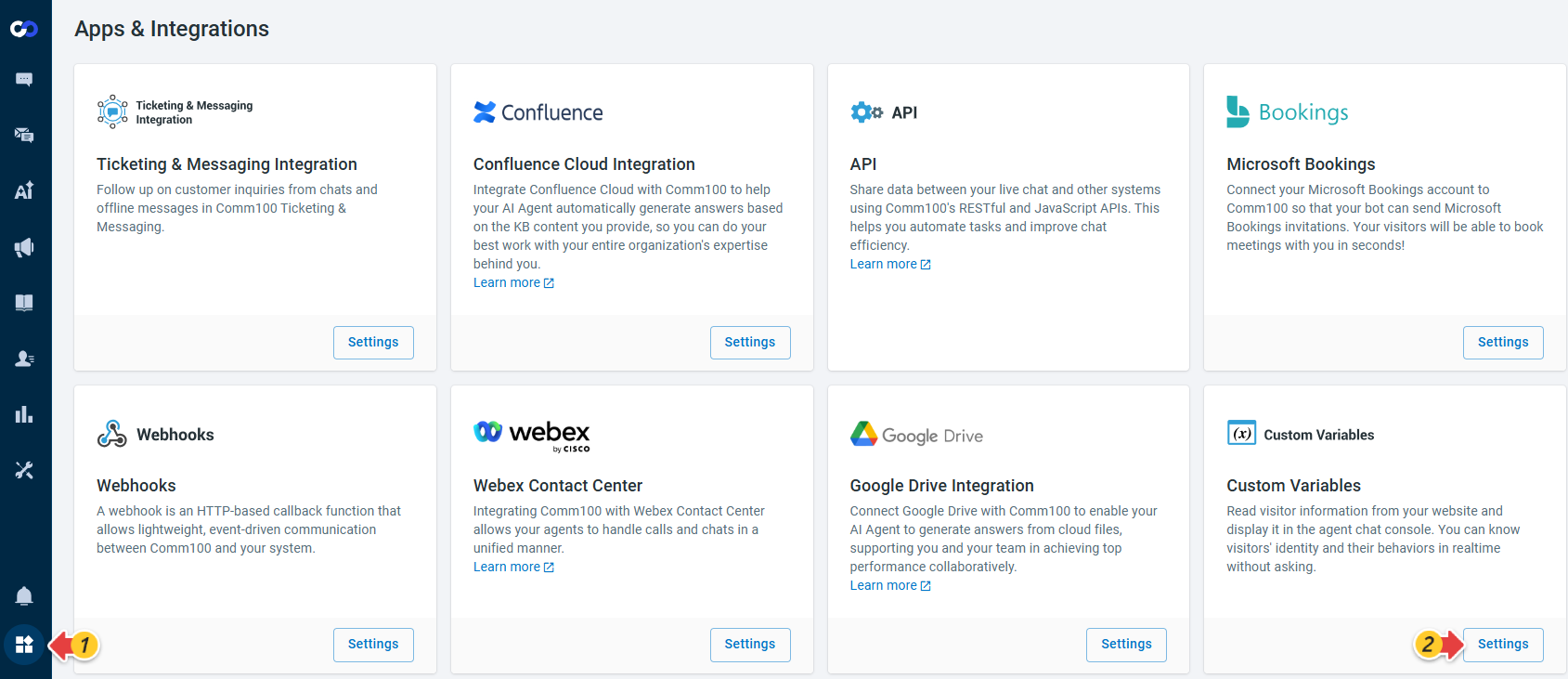
- From the left navigation menu, go to Apps & Integrations.
- Locate the Custom Variables card and click Settings.
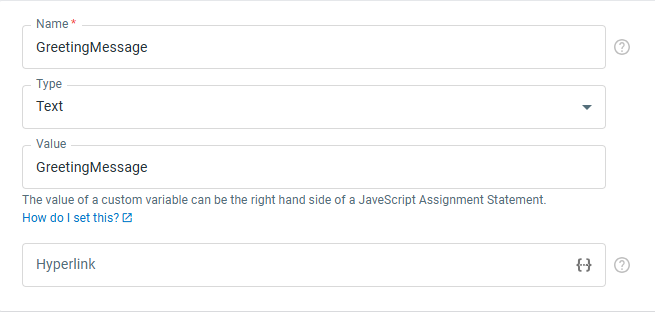
- Click New Variable and create a custom variable for the greeting message as shown below.
- Click Save.
Configure the Greeting Message for Each Campaign
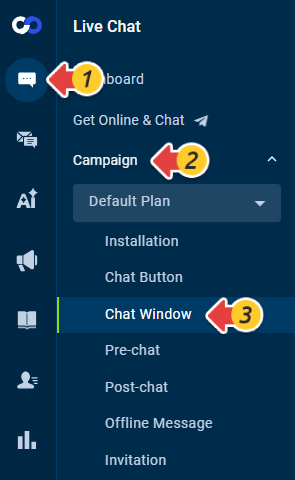
- From the left navigation menu, go to Live Chat > Campaign > Chat Window. If you have multiple campaigns, select the campaign you want to configure from the drop-down list.
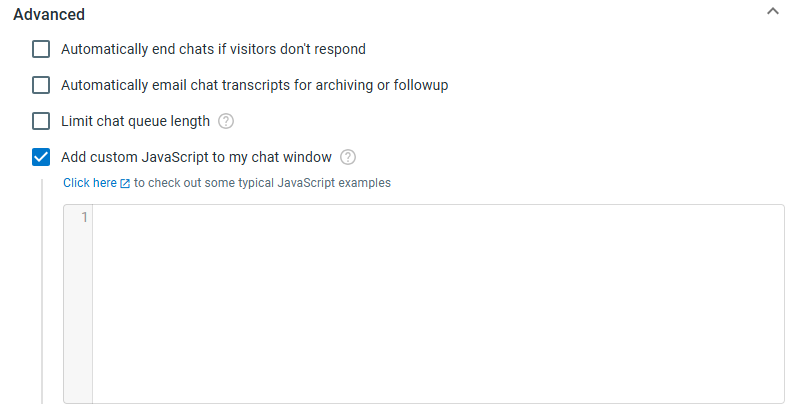
- Expand the Advanced section.
- Check the option Add custom JavaScript to my chat window, and add the following JavaScript:
const GreetingMessage = 'Input your Greeting Message here' const values = [{ name: 'GreetingMessage', value: GreetingMessage, }]; Comm100API.onReady = function () { Comm100API.set('livechat.customVariables', values); }; Comm100API.on('livechat.prechat.display', function() { Comm100API.set('livechat.customVariables', values); }); - Click Save.
- If your greeting message contains single quotation marks ('), use double quotation marks (") for the GreetingMessage value.
const GreetingMessage = "Input your 'Greeting Message' here" - If your greeting message contains multiple paragraphs, change the first line to:
const GreetingMessage = `Greeting Message First Line Second Line Third Line`; - You need to configure the Custom JavaScript separately for each campaign using its corresponding greeting message.
Configure the Greeting Message in Agent Console
- Log in to the Agent Console.
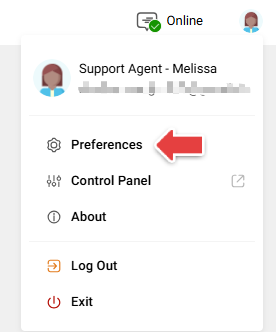
- Click your profile avatar in the upper-right corner and click Preferences.
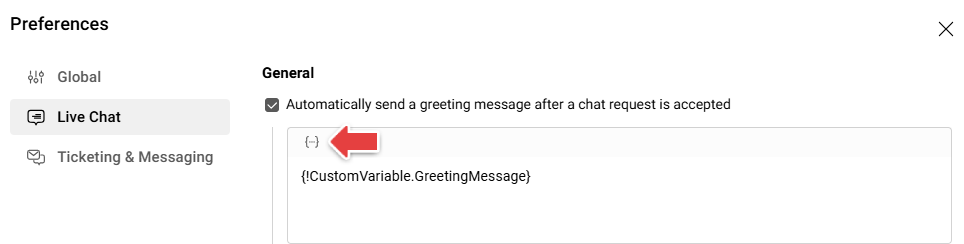
- Go to Live Chat.
- Insert the macro {!CustomVariable.GreetingMessage} into your greeting message.
After completing the above configurations, you can simplify greeting message management while allowing different Live Chat campaigns to deliver greetings tailored to their own websites, brands, languages, or business scenarios.