
A department represents a business unit in your organization with specific responsibilities. Departments help you group agents and route incoming chats or tickets to the appropriate team, making customer requests easier to manage.
Step-by-Step Instructions
- Log in to your Comm100 Control Panel.
- From the left navigation menu, go to Global Settings > People > Departments.
- Turn on the Departments, and click New Department.
- On the New Department page, enter the department name and add agents to the department. You can add a description to help identify the department.
- Choose whether the department is available in Live Chat and Ticketing & Messaging. By default, a newly created department is available in both products.
- Available in Live Chat: When selected, the department is available for Live Chat and can be used in features such as the Pre-Chat window, offline messages, chat transfers, routing rules, and auto-distribution. If deselected, the department is unavailable in Live Chat and does not appear as an option in these configurations.
- Available in Ticketing & Messaging: When selected, the department appears as an option in Ticketing & Messaging configurations such as auto distribution rules and triggers.
- Click Save.
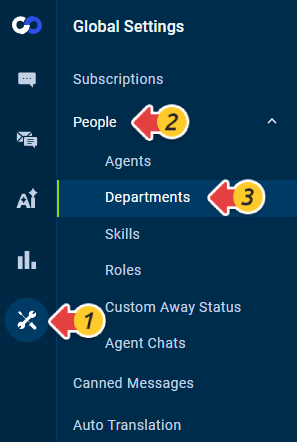

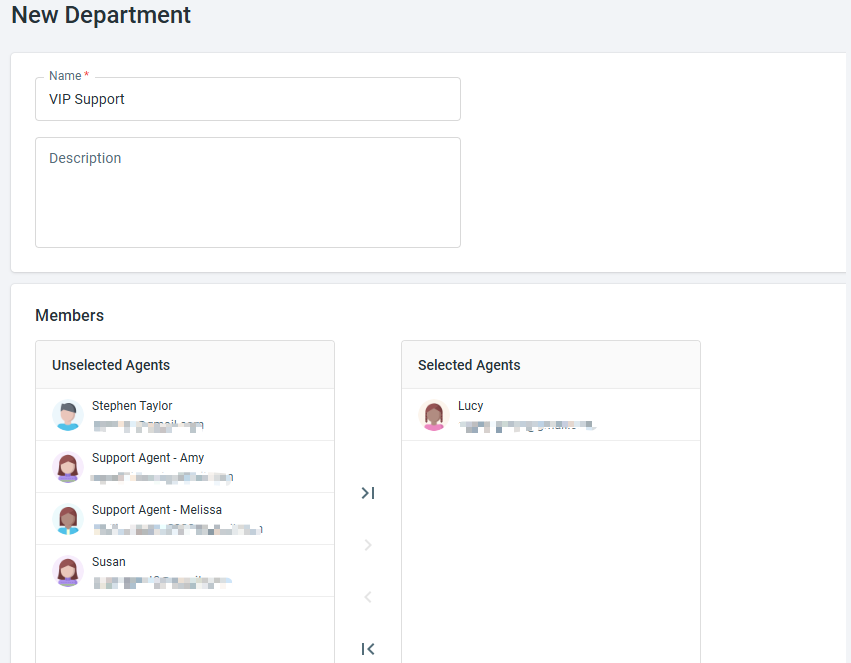

The department is now created and can be used in the enabled Live Chat or Ticketing & Messaging configurations.
Use Department in the Pre-Chat Window
After you create a department and make it available in Live Chat, Department becomes available as a system field in the pre-chat field list.
To allow visitors to select a department before starting a chat, follow these steps:
- From the left navigation menu, go to Live Chat > Campaign > Pre-chat. If you use multiple campaigns, make sure you select the correct campaign.
- In the Fields section, configure whether the Department field is visible or required.
- Click Save.
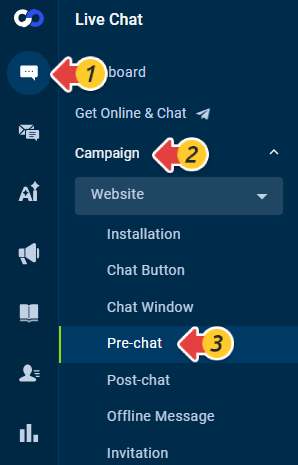
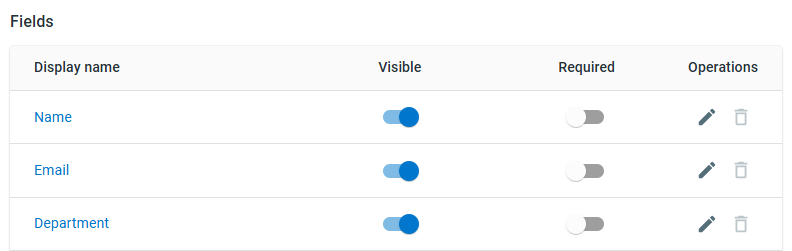
When the Department field appears in the pre-chat window, all departments available for Live Chat are listed with their current status, such as online or offline.

When a visitor selects an online department and submits the chat request, the request is automatically routed to agents in the selected department. The visitor-selected department is also retained as part of the chat information.
To learn how to enable and customize the pre-chat window, see this article.