
Comm100 allows agents to set a preferred time zone so that chat and ticket timestamps display based on the time zone configured in the agent’s profile.
An agent’s time zone setting affects all message timestamps in chats and tickets, including the following scenarios:
- Agent Console
Messages sent and received are displayed in the individual agent’s time zone, regardless of the visitor’s time zone.
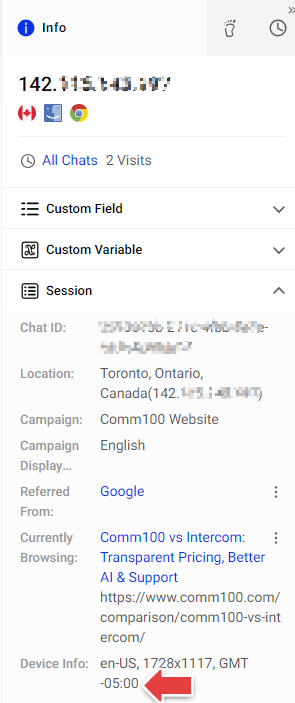
Note: To view a visitor’s time zone, you can go to Visitors > Info > Session on the Agent Console.
- Control Panel
Chat requests, offline messages, and chat transcripts in both History and Reporting are displayed using the agent’s time zone.
To change an agent’s time zone, you need to have the required permission. By default, the site administrator has permission to manage all agents’ information, and agents have permission to change their own time zone through My Profile. This article explains how to change agents’ time zones in two ways:
- By editing an agent’s profile (administrators or authorized agents)
- By editing your own profile
Edit Agents’ Time Zone
The site administrator or agents with the Manage Agent & Agent Roles permission can change the time zone for any agent.
To edit agents’ time zone, follow these steps:
- Log in to the Comm100 Control Panel.
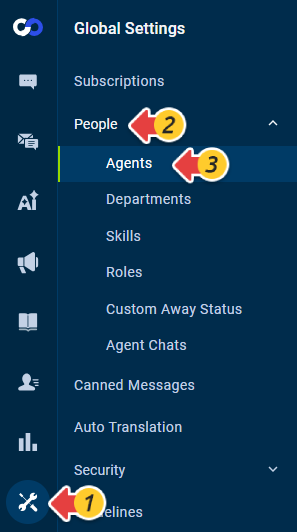
- From the left navigation menu, go to Global Settings > People > Agents. The page lists all the agents in the site.
- Click the agent’s name to open their dedicated information page.
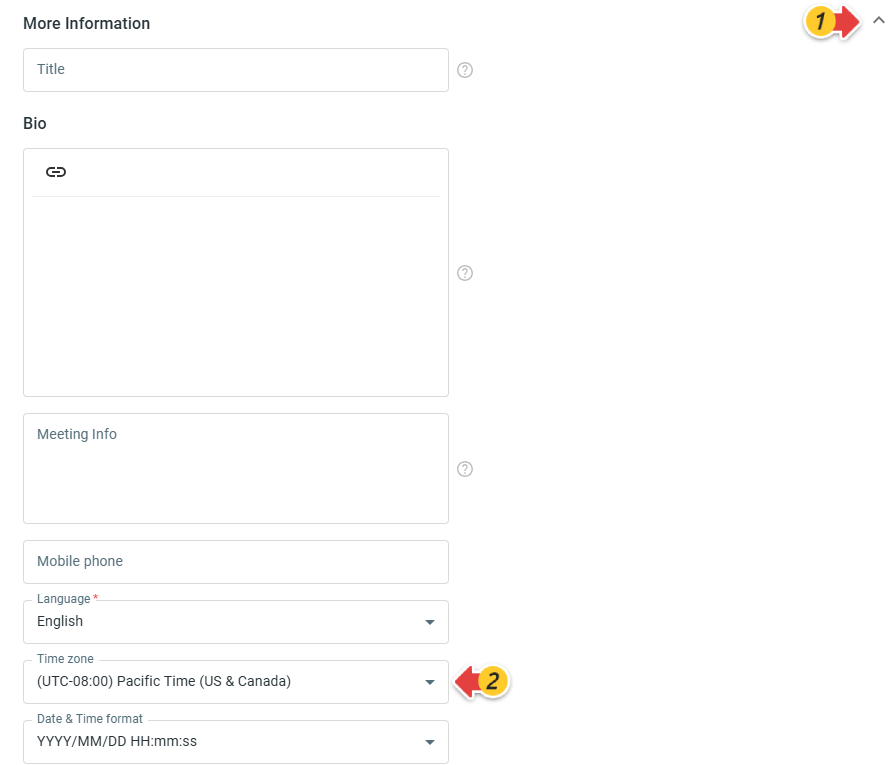
- On the Edit Agent page, expand the More Information section, and select the appropriate time zone.
- Click Save.
The agent’s time zone is updated successfully.
Edit My Own Time Zone
Agents can update their own time zone through My Profile.
To edit an agent’s own time zone, follow these steps:
- Log in to the Comm100 Control Panel.
- Hover over your avatar in the lower-left corner and click your name.
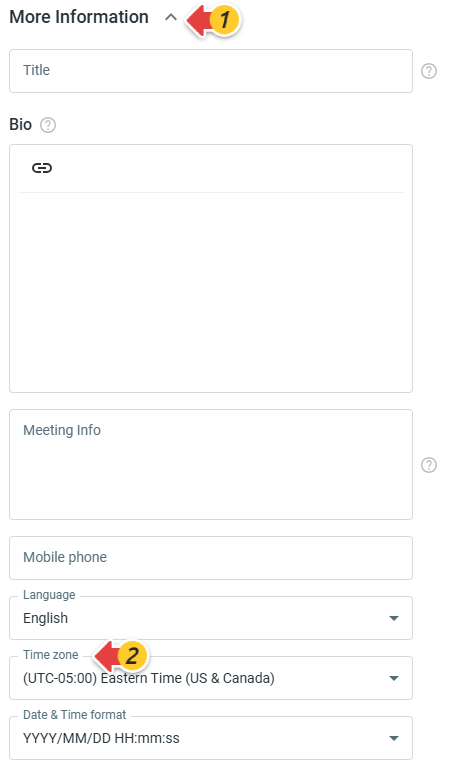
The My Account drawer opens from the right. - On the Profile tab, expand the More Information section, and change the time zone setting according to your needs.
- Click Save.

Your time zone is updated successfully.