
Comm100 allows each agent to set a preferred time zone. The time zone configured in an agent’s profile determines how chat and ticket timestamps are displayed and affects time-based data in Reporting.
An agent’s time zone setting applies in the following areas:
- Agent Console
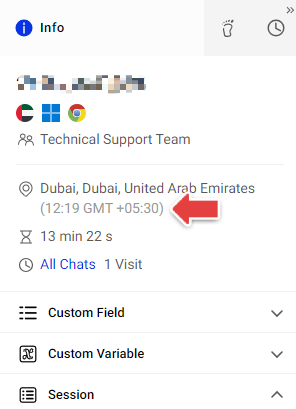
Message timestamps in chats and tickets are displayed in the individual agent’s time zone, regardless of the visitor’s time zone.Note: To view a visitor’s time zone, you can go to Visitors > Info on the Agent Console. - Control Panel - History
Chat requests, offline messages, and chat transcripts are displayed using the agent’s time zone. - Reporting
Report data is displayed and grouped according to the agent’s time zone. Changing the time zone can affect the date or time period under which data is displayed and the data included in a selected time range.
To change another agent’s time zone, you must be the site Administrator or have the Manage Agent & Agent Roles permission. Agents can also change their own time zone through their profile.
This article explains how to change an agent’s time zone in the following ways:
- By editing an agent’s profile
- By editing your own profile
Changing an Agent’s Time Zone
The site Administrator or an agent with the Manage Agent & Agent Roles permission can change the time zone for any agent.
To change an agent’s time zone, follow these steps:
- Log in to the Comm100 Control Panel.
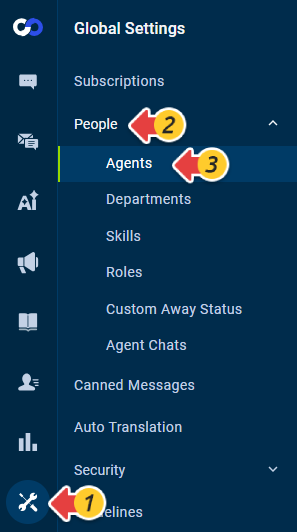
- From the left navigation menu, go to Global Settings > People > Agents. The page lists all the agents in the site.
- Click the name of the agent whose time zone you want to change.
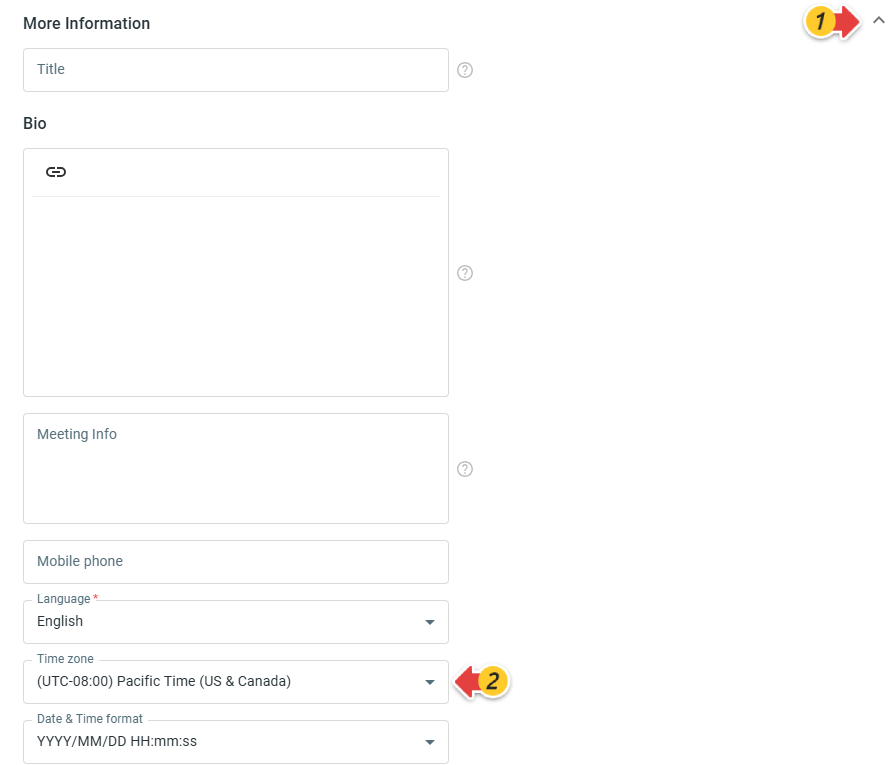
- On the Edit Agent page, expand the More Information section, and select the appropriate time zone.
- Click Save.
The agent’s time zone is updated successfully.
Changing Your Own Time Zone
Agents can change their own time zone through their profile.
To change your own time zone, follow these steps:
- Log in to the Comm100 Control Panel.
- Hover over your avatar in the lower-left corner and click your name.
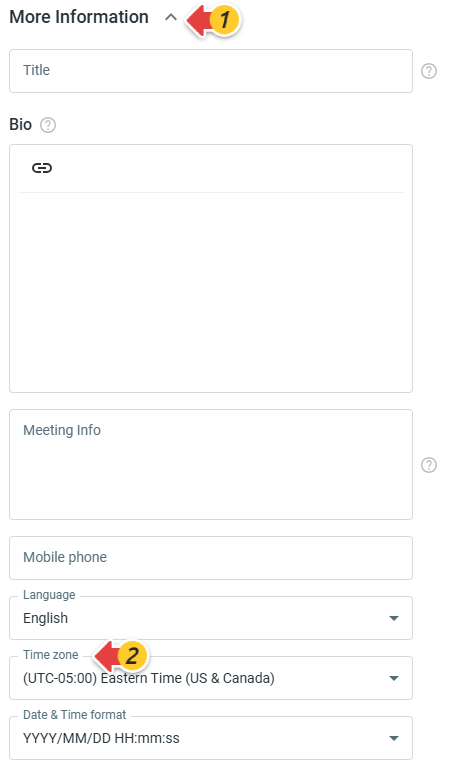
- The My Account drawer. On the Profile tab, expand the More Information section and select your preferred time zone.
- Click Save.

Your time zone is updated successfully.