
With Comm100 Live Chat, your chat transcripts are automatically saved in your Comm100 account. You can also configure the system to automatically email transcripts to designated recipients after each chat ends, making follow-ups and archiving more efficient.
Step-by-Step Instructions
To set up automatic transcript emails, follow these steps:
- Log in to your Comm100 account.
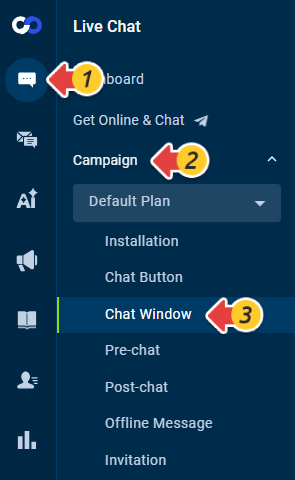
- From the left navigation menu, go to Live Chat > Campaign > Chat Window. If you have multiple campaigns, select the correct campaign from the drop-down list.
- On the Chat Window page, scroll down and expand the Advanced menu.
- Select the Automatically email chat transcripts for archiving or followup checkbox.
- Enter the email address(es) that should receive the chat transcripts.Note: By default, the automatic transcript emails are sent from livechat@Comm100.com. If you want to change the sender address, expand the Options for Visitors menu, and change the SMTP server settings under Allow visitors to email chat transcripts option.
- Enter the subject for the transcript email.
- Click Save.

After configuration, chat transcripts will be automatically sent to the specified email address(es) when each chat ends.