Auto Distribution in Ticketing & Messaging enables you to auto distribute tickets to agents to make sure the workload is distributed optimally. Once tickets are auto-distributed, agents do not need to pick up tickets manually. You can define distribution rules of how tickets are assigned to agents and the maximum tickets an agent can accept automatically.
How Auto Distribution Works
- Auto distribution happens only on newly created tickets. If the same ticket needs to be allocated to another agent, then you can do it manually.
- Tickets are auto distributed to agents who are logged in to the Comm100 Agent Console. By default, the system distributes tickets to online agents only. You can change the setting to distribute tickets to agents in Away or any custom away statuses.
- Once tickets are distributed before the distribution rule is set up, they cannot be auto-distributed again irrespective of the ticket's status. Only agents who have the permission can manually assign those tickets to the agent or re-assign them to another agent.
- Each ticket can only be auto-distributed once. If you manually change an auto-distributed ticket's assignee to Unassigned, it cannot be auto-distributed again.
Where to See Assigned Tickets
With the default Agents role permissions, agents can view tickets assigned to themselves or their department by checking the All, My Open and My Department Open views in the Agent Console.
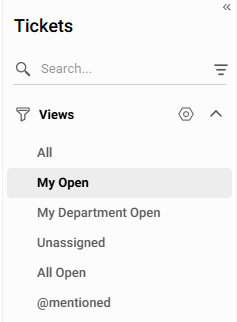
In addition, agents or administrators can create custom Views to categorize tickets for easier tracking and management.
To learn how to manage agent permissions, see this article.
To learn how to manage Views, see this article.
How Agents Manage Tickets During Shifts
In some cases, agents work in shifts. They continue to get applicable tickets as per their maximum ticket capacity during their shift. When they log out, no new tickets are auto distributed to them.
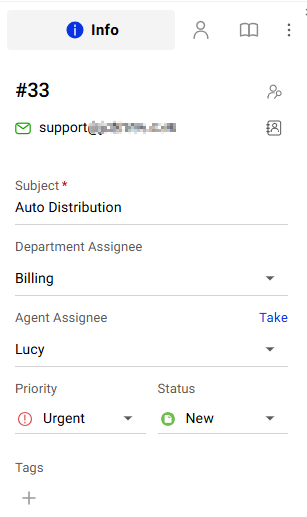
For tickets that require Urgent or High priority resolution, agents can manually allocate the currently assigned tickets to someone available in the shift to have a faster response time and better customer satisfaction.
What Happens If All Agents Go Offline
If all agents go offline at a given time, new tickets will be auto distributed after agents log in. There is no time lag for the allocated tickets to push out to agents. As long as new tickets and agents do not reach their maximum ticket count, the ticket will be auto-pushed out to the logged-in agent. When all agents reach their capacity, then new tickets will be in a ticket queue waiting to be allocated.
Auto Distribution Rules
Comm100 Ticketing & Messaging follow two types of auto distribution rules—Load Balancing and Round Robin. Load balancing distributes tickets to the least loaded agent with lowest capacity utilization rate, while Round Robin allocates tickets to agents one after the other based on the order they get online.
Step-by-Step Instructions
- Log in to the Comm100 Control Panel.
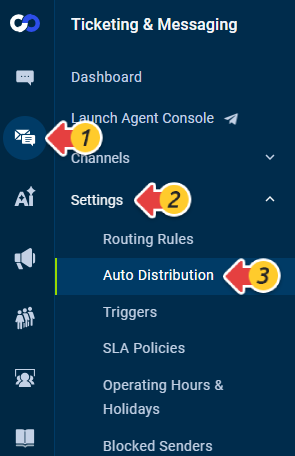
- From the left navigation menu, go to Ticketing & Messaging > Settings > Auto Distribution.
- In the Auto Distribution page, turn on the Auto Distribution toggle. The following sections appear on the page:
- Auto Distribution Method/Rule
- Maximum Number of Auto Assigned Tickets
- Excluded Status
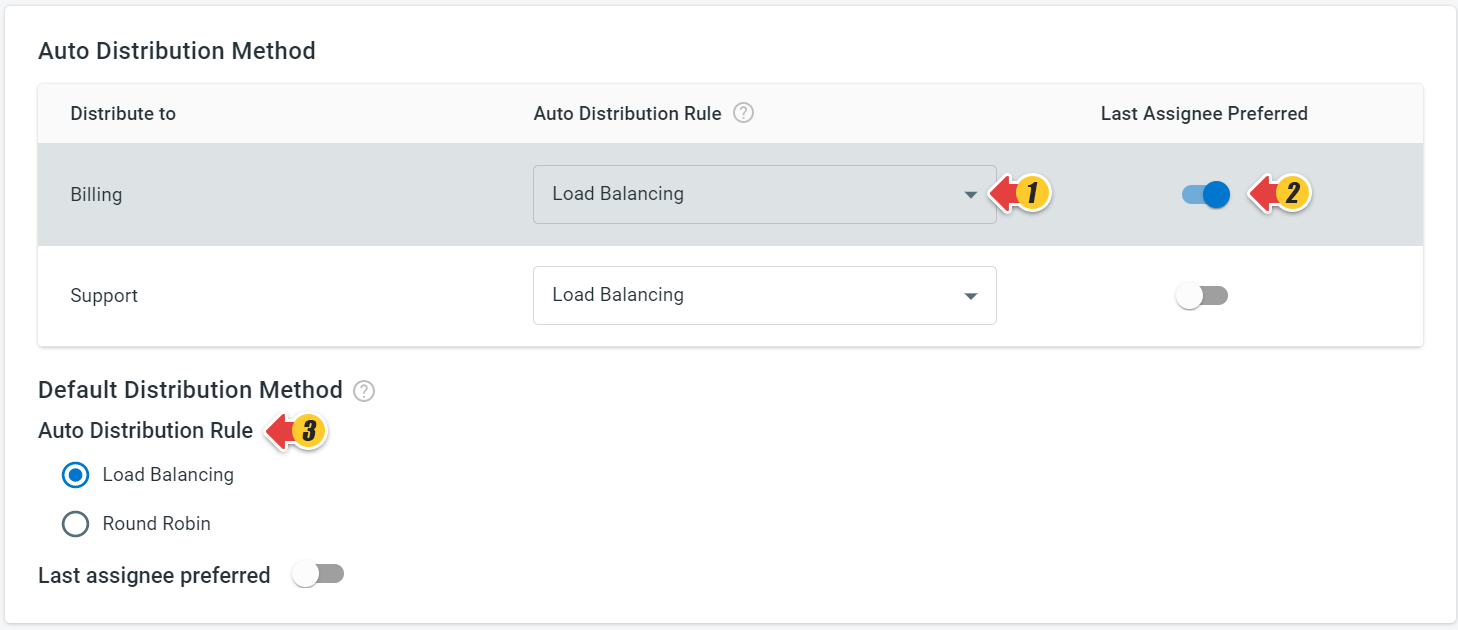
- In the Auto Distribution Method/Rule section, you can do the following:
- Select the distribution rule for each department or your account if you haven't set up the Department yet.
- Turn on the Last Assignee Preferred toggle for each department or your account if you prefer assigning the tickets to their last assignee.
- Select the Auto Distribution Rule for the Default Distribution Method. When tickets are not assigned to any department, the ticket will be auto distributed to agents based on the default rule.
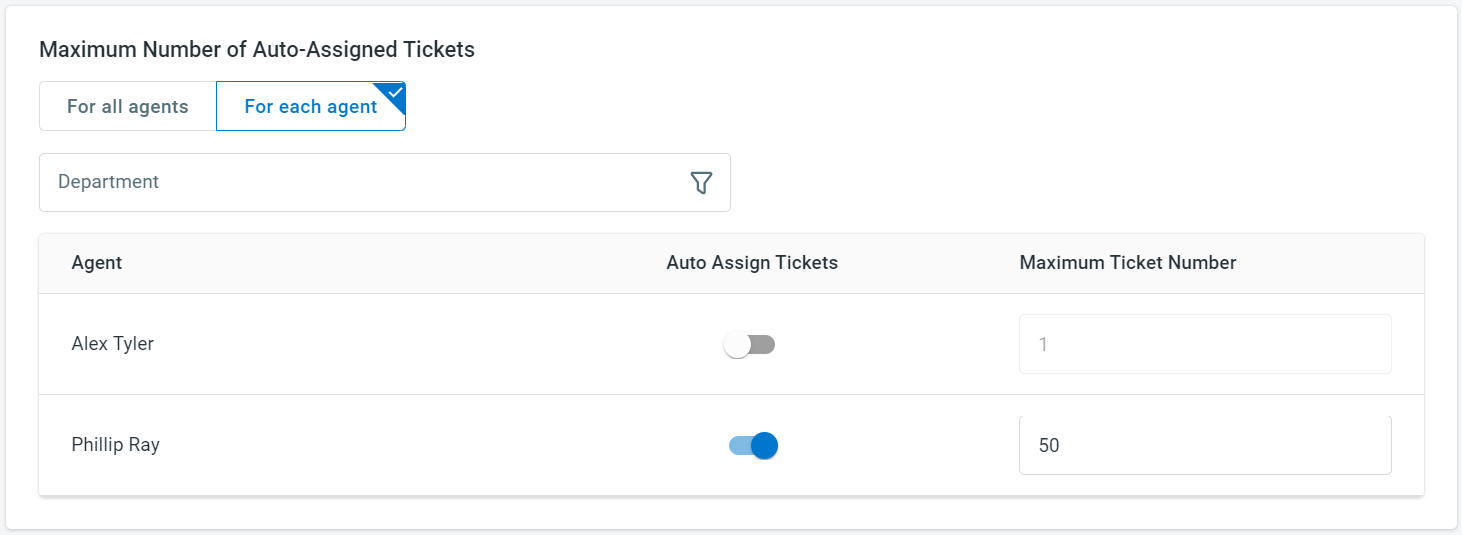
- In the Maximum Number of Auto-Assigned Tickets section, you can do one of the following:
- Set the maximum number of auto-assigned tickets for all agents.
- Set the maximum number of auto-assigned tickets for each agent. You can filter the agents by department.
- Turn off the Auto Assign Tickets toggle if you do not want to auto-assign tickets to an individual agent.
- Set the maximum number of auto-assigned tickets for all agents.
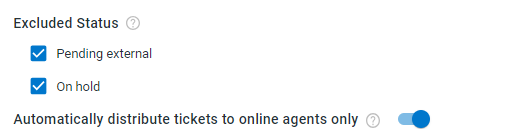
- Select Pending external or On hold or both statuses in the Excluded Status section. Tickets marked with both statuses are not counted when the Comm100 Ticketing & Messaging verify if an agent has reached their predefined maximum number of tickets.
To auto distribute tickets to agents in Away or any other custom away statuses, turn off the Automatically distribute tickets to only tickets only toggle. - Click Save.
Congratulations, you have successfully set up Auto Distribution. Your tickets will be automatically assigned to the agents.