
Starting with the Nov 5, 2026 release, an AI Agent can support one or more channels. Previously, each AI Agent could be used for only one channel. The new structure allows shared AI Agent configuration to be reused across enabled channels while retaining channel-specific settings where needed.
Existing AI Agents are upgraded automatically, with their existing configuration, publishing assignments, permissions, and historical data retained.
Changes to Creating and Editing an AI Agent
Before this release, each AI Agent was created for a single channel.
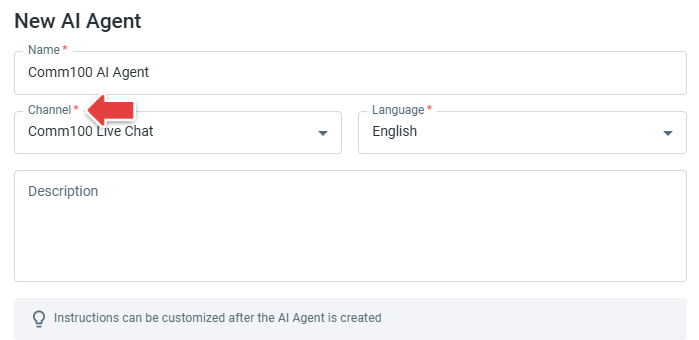
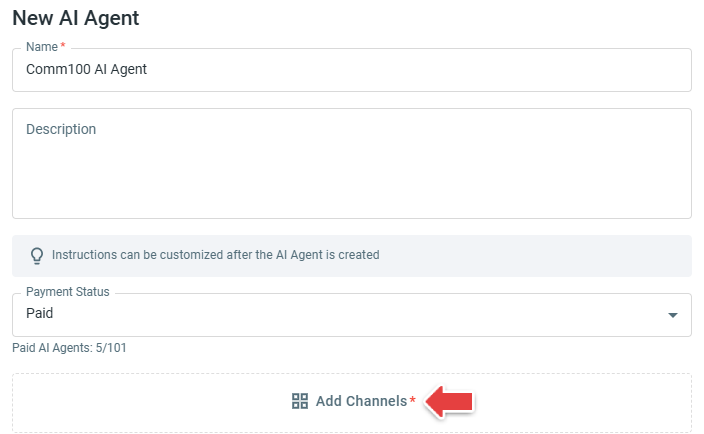
With this release, an AI Agent can support one or more channels. The previous Channel selection is replaced by Add Channels, allowing multiple supported channels to be enabled for the same AI Agent.
Live Chat has its own channel-specific configuration. If Live Chat is added, you can configure Live Chat-specific settings such as Enable Visitor Feedback, Auto-fill wrap-up fields when chat ends, Auto-generate summary upon transfer chat to human, Reference URL Suffix, and Send Options Style.
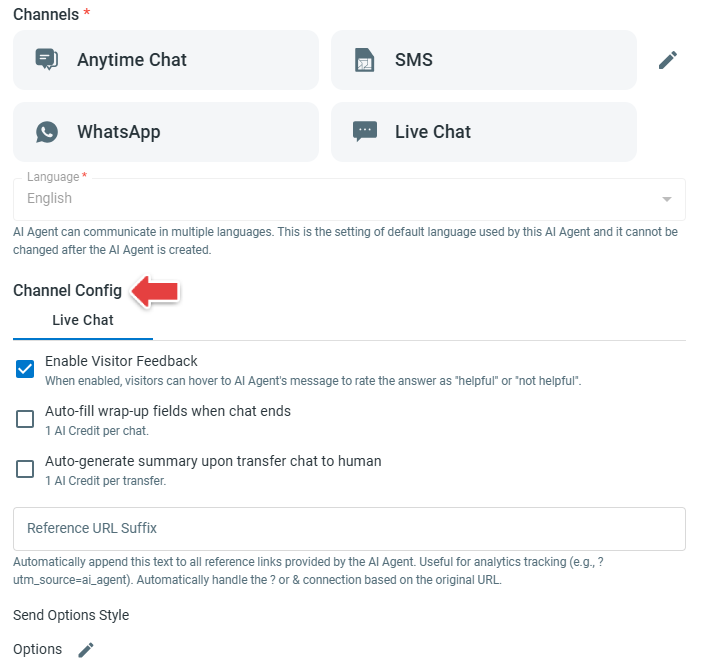
The AI Agent's name, description, payment status, avatar, default language, Knowledge, Topics, Variables, Functions, and MCP Servers are shared across its enabled channels rather than configured separately for each channel.
Changes to Instructions
For a single-channel AI Agent, Instructions continue to appear in one list and apply to that channel.
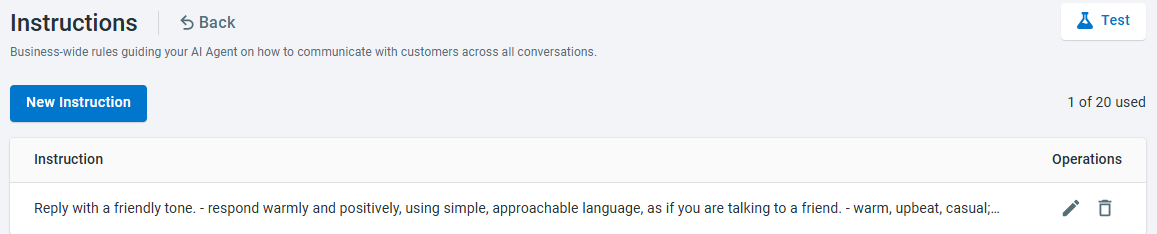
For a multi-channel AI Agent, Instructions can now be configured at two levels:
- Instructions for all enabled channels apply to every enabled channel.
- Channel-specific Instructions apply only to the selected channel.
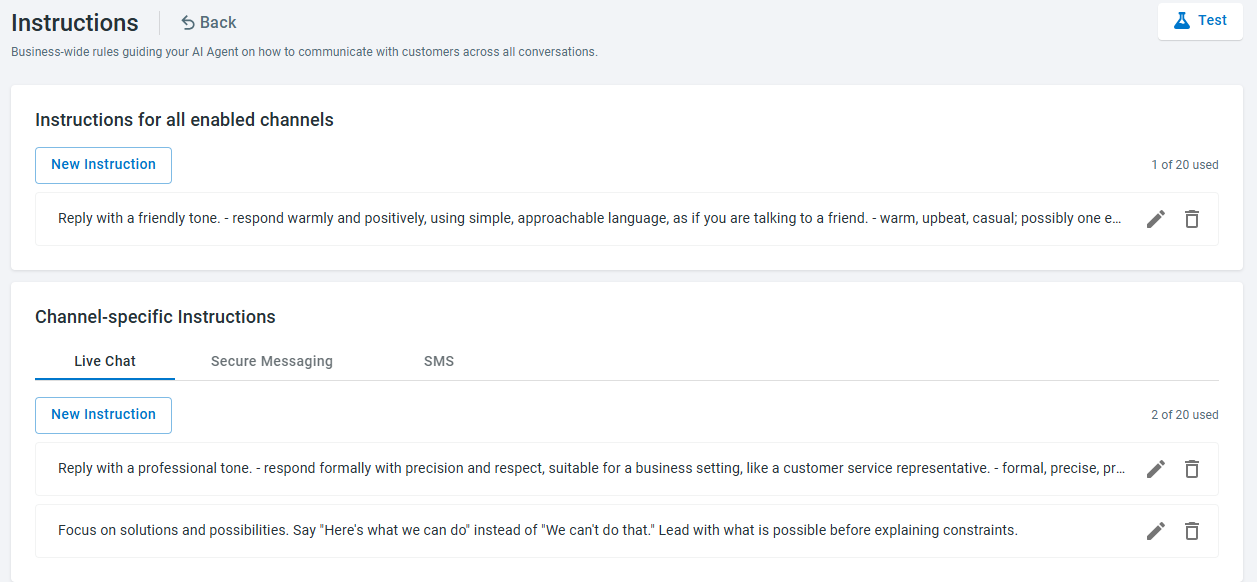
The Instructions page displays Instructions for All Enabled Channels first, followed by one tab for each enabled channel. Each section has its own New Instruction option.
For existing AI Agents, current Instructions are retained as channel-specific Instructions for their original channel. They are not automatically moved to Instructions for All Enabled Channels.
Changes to Topics and Events
Before this release, each Topic or Event had one Response because the AI Agent worked on only one channel. For a multi-channel AI Agent, each Topic or Event can have:
- A Default Response, which is used when a channel does not have its own Response.
- An optional channel-specific Response, which takes precedence over the Default Response for that channel.
For a single-channel AI Agent, the Default Response is not displayed, and the interface continues to show a single Response editor. For a multi-channel AI Agent, the editor displays the Default tab first, followed by tabs for channels that have channel-specific Responses. Channels without a channel-specific Response use the Default Response.
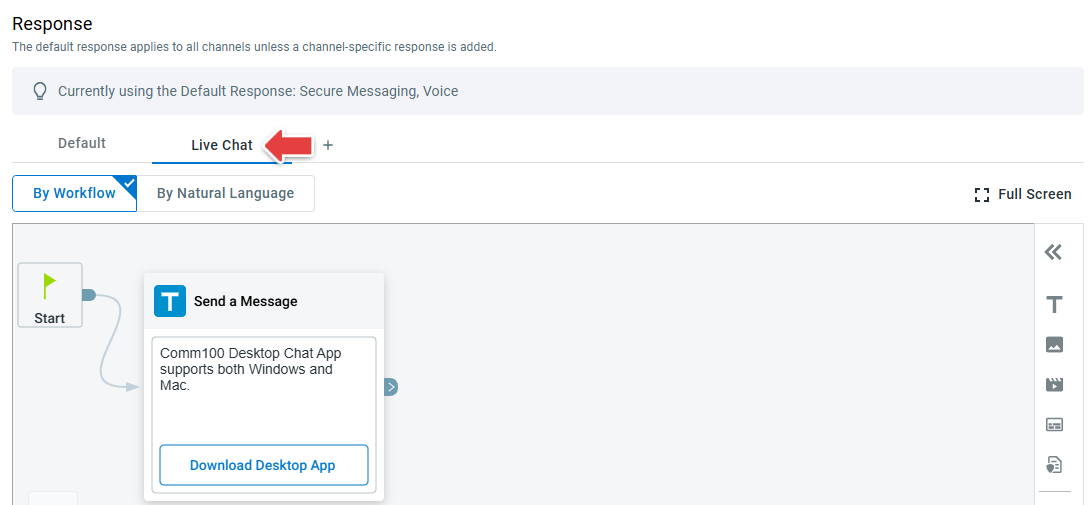
When a second channel is added to an existing single-channel AI Agent, the existing Topic and Event Responses remain under their original channel and are not copied to Default.
The newly added channel uses its own channel-specific Response when one is configured. Otherwise, it uses the Default Response. If the Default Response is empty or does not contain valid configuration for the new channel, you need to configure the Default Response or create a channel-specific Response for that channel.
Changes to Actions
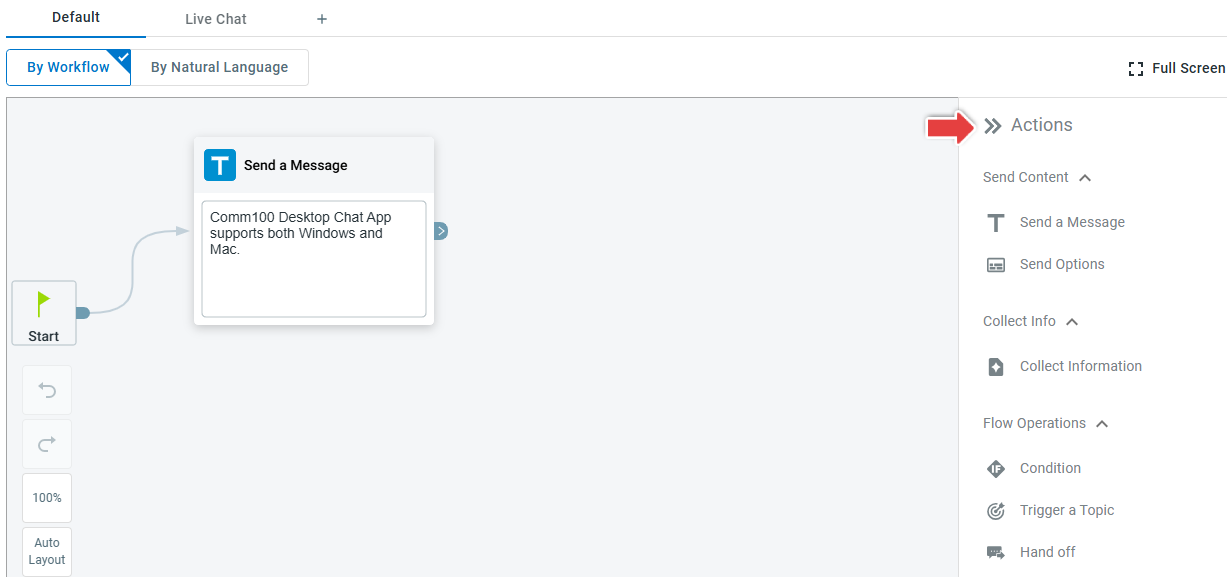
Available Actions now depend on where the Response is configured. For a Default Response, the Action list shows only Actions that are supported in Default.
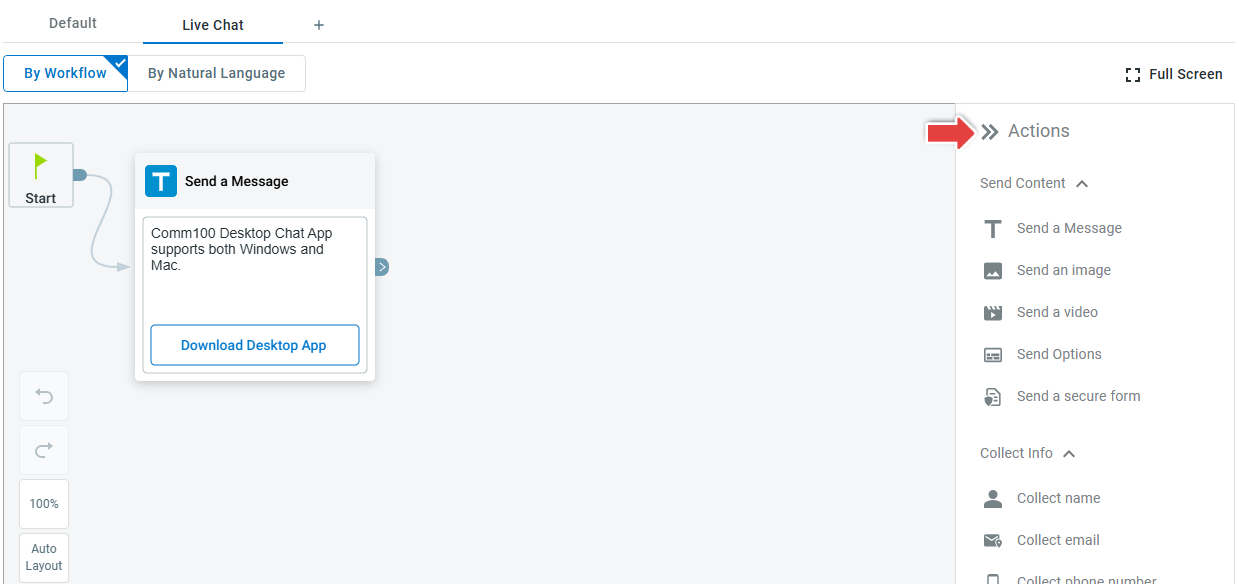
For a channel-specific Response, the Action list shows only Actions and settings supported by that channel.
Some existing Actions are also consolidated into shared Actions that can work across multiple channels. Examples include:
Before | After |
Send Quick Reply Options / Send Numeric Menu / IVR Menu | Send Options |
Transfer Chat / Reassign Ticket | Hand Off |
Go to Topic | Trigger a Topic |
Changes to Send Options Style
Previously, the display style for quick reply options was configured within the Send Quick Reply Options Action in a Topic.
With this release, the setting is moved to the AI Agent's channel configuration. When creating or editing an AI Agent with Live Chat enabled, you can configure Send Options Style and choose whether options are displayed to visitors as Options or Buttons.
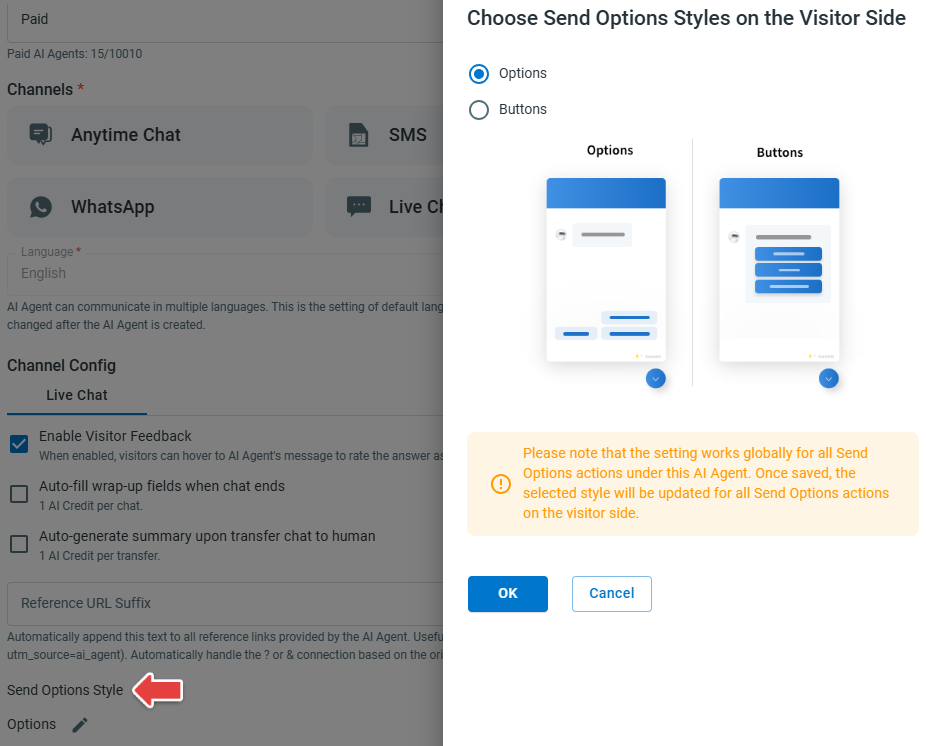
The selected style applies globally to all Send Options Actions under the AI Agent for Live Chat. Once the setting is saved, all Send Options Actions use the selected style on the visitor side.
Existing configurations are retained during the upgrade.
Changes to Learning
Unanswered Questions and Thumbs Down Answers now identify the channel where the interaction occurred. The channel information remains with the historical record even if that channel is later disabled.

Changes to Test Center
For a single-channel AI Agent, Test Runs automatically use its only enabled channel.
For a multi-channel AI Agent, a Channel must be selected when creating a Test Run. The selected channel determines which channel configuration is used when running the test.
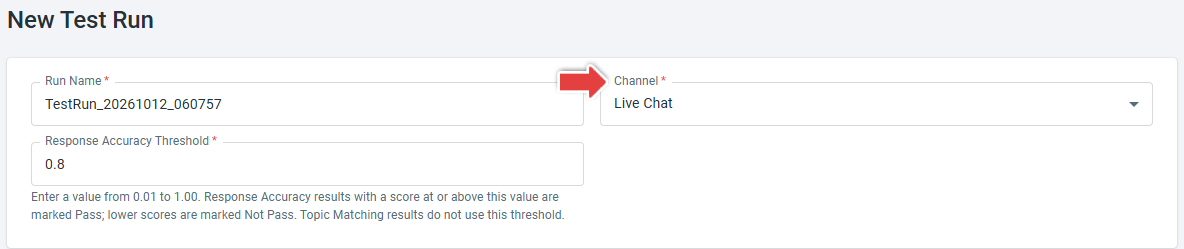
Completed Test Runs retain the channel that was used even if that channel is later disabled.
Changes for Existing AI Agents
Existing AI Agents are upgraded automatically. If you previously had separate AI Agents for different channels, they remain separate AI Agents after the upgrade and are not automatically combined.
The upgrade retains the AI Agent's existing identity, payment status, default language, description, avatar, applicable channel settings, Instructions, Topics, Events, Actions, publishing assignments, permissions, reporting access, and historical records.
If an AI Agent continues to use only its original channel, the interface remains similar to the existing single-channel experience. Additional multi-channel configuration becomes visible when another channel is added.