
Comm100 Live Chat provides sound notifications and popup notifications for various chat events, including new visitor, new chat, new response, chat ended, transferring chat, agent message, and more.
You can customize these notifications in your Agent Console.
Note:
- The Agent Console supports multiple levels of customization. To learn more about customizing your Agent Console settings, see this article.
- Comm100 also provides mobile apps, allowing you to take chats from anywhere.
Step-by-Step Instructions
- Log in to your Comm100 Agent Console.
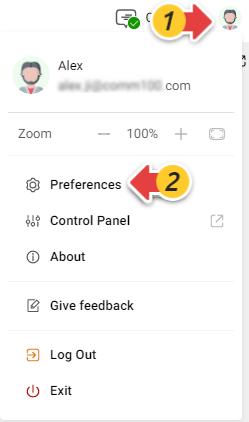
- Click your avatar in the top-right corner of the Agent Console, then click Preferences.
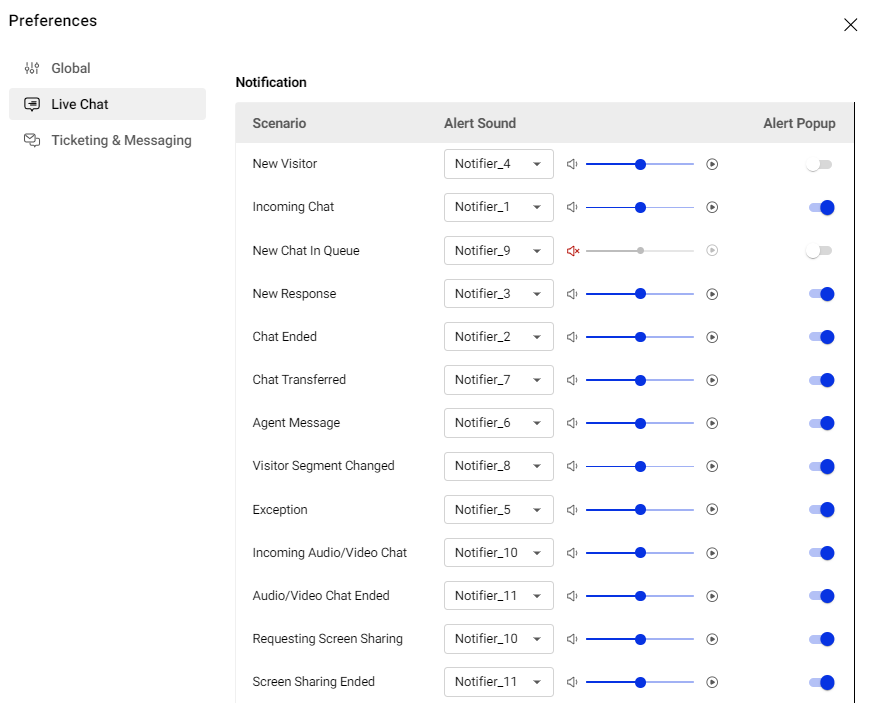
- In the Preferences popup, click the Live Chat tab and scroll down to the Notification area.
- Enable or disable the Alert Sound or Alert Popup for different scenarios. You can use different alert sounds for different scenarios and adjust the volume of the notification sound as needed.
Enable Browser Notifications
When using the Web App on a browser that supports HTML5 notifications (such as Chrome, Safari, or Firefox) for the first time, the browser will ask whether to allow Comm100 to send notifications. If you accidentally block notifications, you can enable them again by following the steps below.
Notifications in Chrome
- Click the Chrome menu icon in the top-right corner of the browser.
- Go to Settings.
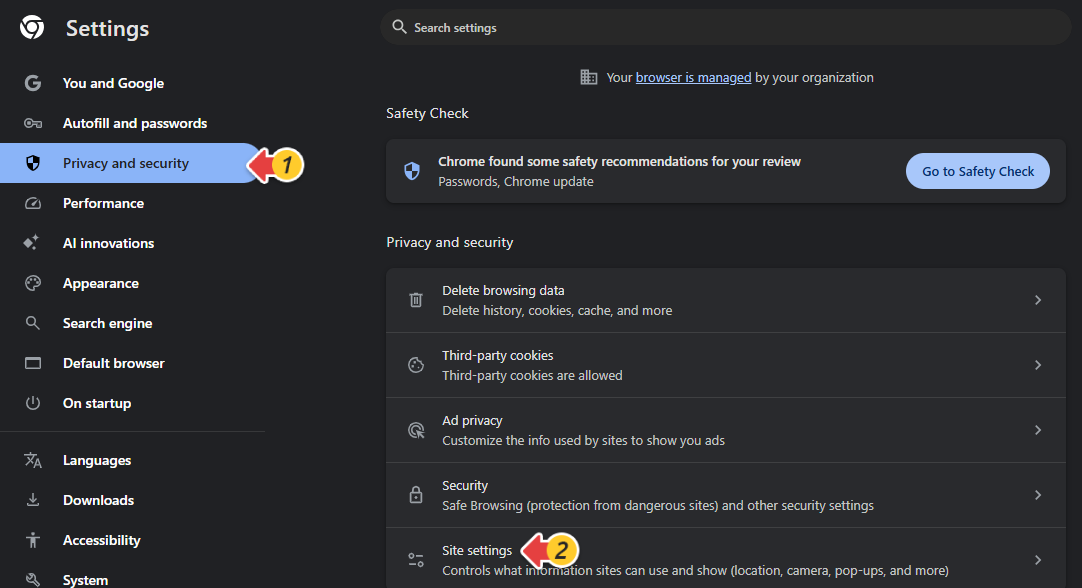
- Click Privacy and security.
- Click Site Settings.
- Scroll down to the Notifications section.
- Check whether comm100.io domain (For example, https://dash11.comm100.io:443) appears in the blocked list. If yes, please remove the record.
- Refresh the Comm100 Web App page and enable notifications again.
Notifications in Safari
- Click Safari in the top-left corner of the menu bar.
- Select Preferences.
- Go to the Notifications section.
- Allow comm100.io domain to display alerts in Notification Center.