With Comm100 Live Chat, visitors can leave offline messages that include file attachments through the offline message window.
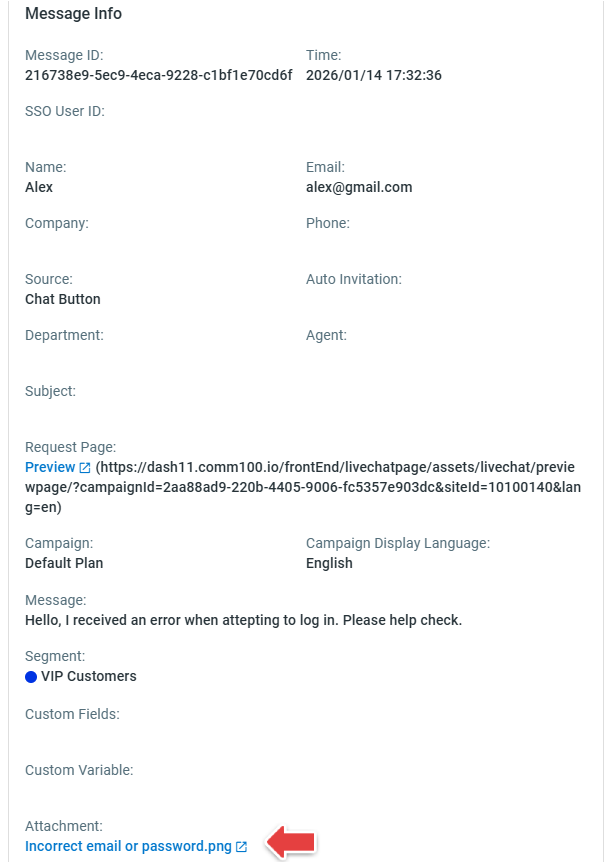
When you receive an offline message, you can click the attachment name to open image files in a new browser tab for viewing, or download non-image files (such as Excel files) from either the email notification or the History menu in your Live Chat account.
Step-by-Step Instructions
- Log in to the Comm100 control panel.
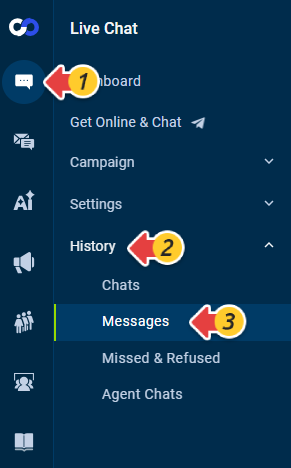
- From the left navigation menu, go to Live Chat > History > Messages.
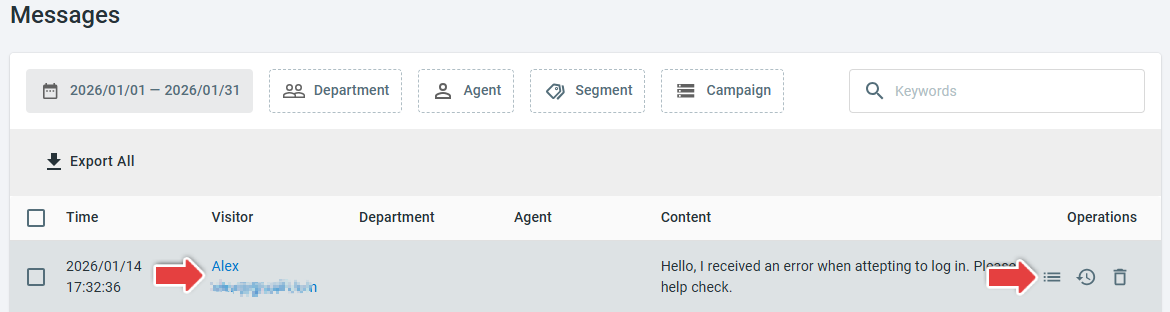
- Locate the message you'd like to view, and click the visitor information or the Details icon in the Operations column to open the message details.
- Scroll down to the Attachment section and click the name of the attachment to view or download the file.