
Comm100’s Knowledge Base solution allows you to create and manage multiple knowledge bases, each operating independently.
This is especially useful when supporting different products, teams, or audiences. Instead of placing all articles in a single knowledge base, which can become cluttered and confusing, you can organize content into separate, focused knowledge bases for a better user experience.
Create Multiple Knowledge Bases
To create a new knowledge base, follow these steps:
- Log in to your Comm100 account.
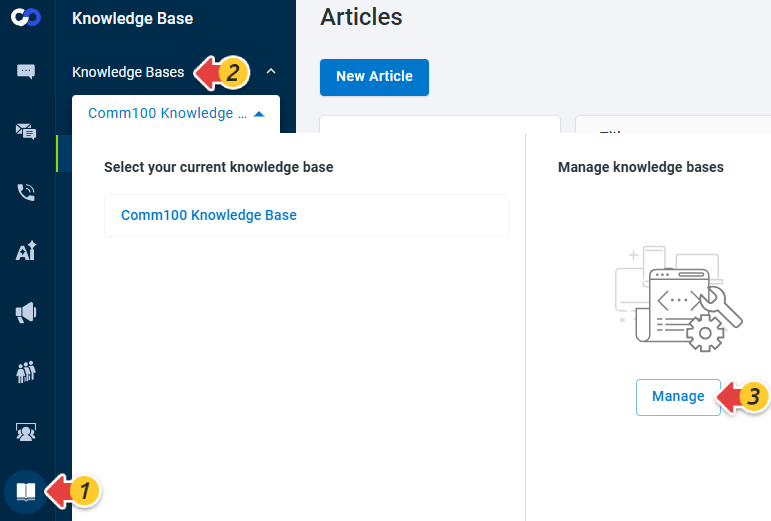
- From the left navigation menu, go to Knowledge Base > Knowledge Bases.
- Click the Knowledge Base drop-down list and navigate to the Manage knowledge bases area.
- Click Manage.
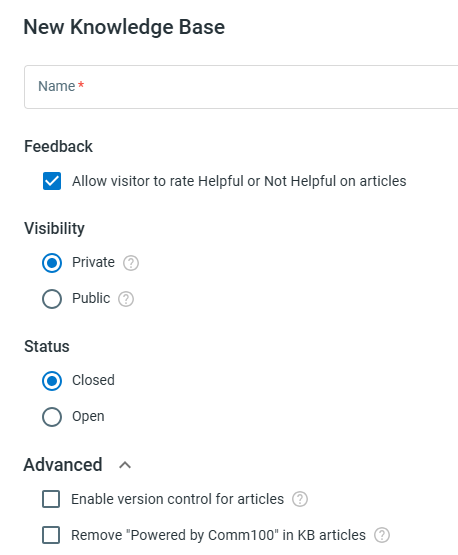
- In the Knowledge Bases drawer, click New Knowledge Base.
- Configure the settings for your new knowledge base.
- Click Save.

Each Knowledge Base Is Independent
Each knowledge base is fully independent and maintains its own configuration, including:
- Feedback: Helpful or Not Helpful
- Visibility: Public or Private
- Status: Open or Closed
- Home page, categories, articles, tags, images, and custom pages
- Integrated live chat campaigns
When to Use Multiple Knowledge Bases
- Product separation: Create a dedicated knowledge base for each product or service
- Internal vs. external use:
- Internal knowledge base for employees (private)
- Public knowledge base for customers
- Department-specific content: Separate content for Sales, Support, HR, etc.
- Regional or language support: Maintain different knowledge bases for different languages or regions
- Customer segmentation: Tailor content for different user groups or customer tiers