
This release update provides an overview of the new feature, Agent Login History, which is designed to give you deeper visibility into agent account activity and enhance overall security monitoring.
It offers detailed records of login-related actions, helping you detect unusual access behavior, verify authentication outcomes, and ensure account integrity.
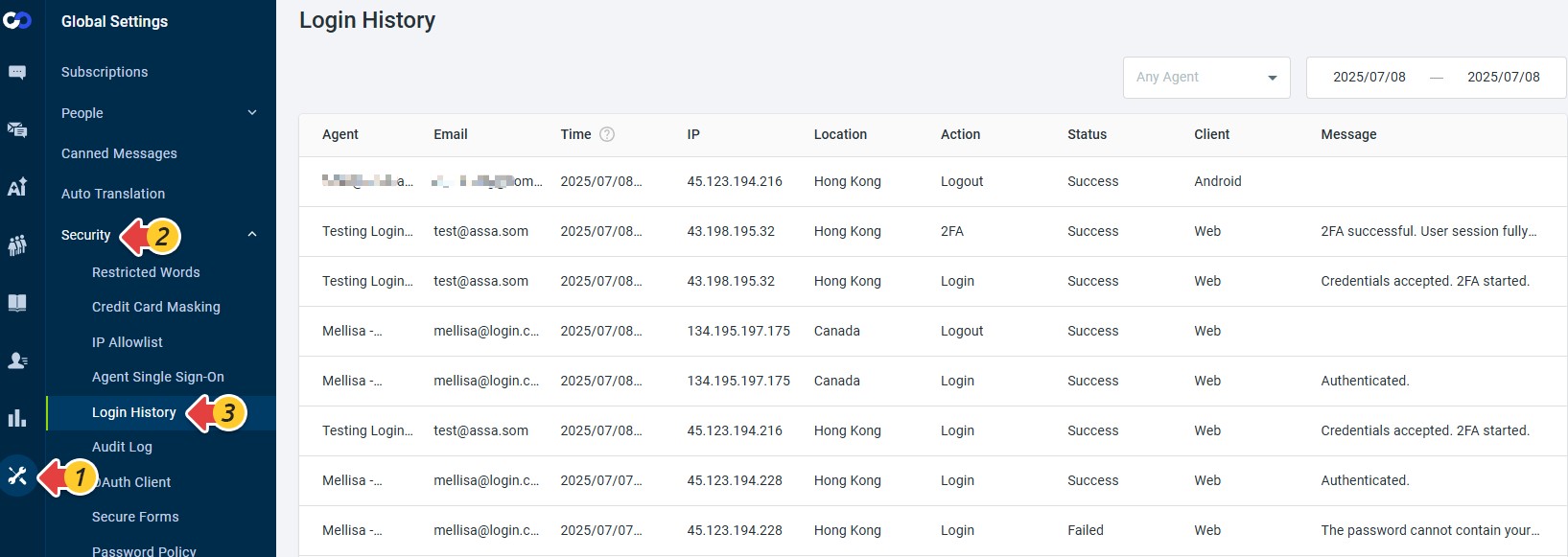
To view the login history, you must have the “View All Login History” permission. Once granted, you can access it by navigating to Global Settings > Security > Login History.
Note: This feature is available to all users, regardless of plan. Agents without the “View All Login History” permission will still be able to view their own login records.
To learn how to manage agent permissions, see this article.
Login History Includes the Following Details:
| Field | Description |
| Agent | The agent’s Display Name. To learn how to change the display name, see this article. |
| The agent’s login email address | |
| Time | Timestamp of the action, adjusted based on your time zone setting. To learn how to change the time zone, see this article. |
| IP | The IP address used when the action was performed |
| Location | Country or region associated with the IP address |
| Action | The login-related event: Login, Logout, or 2FA |
| Status | Outcome of the action: Success or Failed |
| Client | Platform used: Web (Web Agent Console or Control Panel), iOS, Android, or Desktop |
| Message | Details for login attempts or contextual info like “SSO Login”, "SAML SSO Login (Mobile App)" or “Authenticated” |