Comm100 AI Insights offers data-driven analysis for customer sentiment, query resolution status, and other key business insights to optimize business operational efficiency. Sentiment Analysis monitors customer emotions throughout a conversation, identifies negative sentiment in real time, and helps you tailor responses or uncover areas that need improvement.
Sentiment Analysis categorizes customer emotions into "Very positive", "Positive", "Neutral", "Negative", and "Very negative". With Sentiment Analysis enabled, you can:
- Identify a visitor’s emotions and emotional changes in real time during a chat.
- Monitor visitor sentiment across all ongoing chats from the chat list.
- Review sentiment trends in chat transcripts to improve future service.
This article walks you through the operations to enable and use the Sentiment Analysis.
Enable Sentiment Analysis
Sentiment Analysis is available for Live Chat and is turned off by default.
To enable Sentiment Analysis, follow these steps:
- Log in to the Comm100 Control Panel.
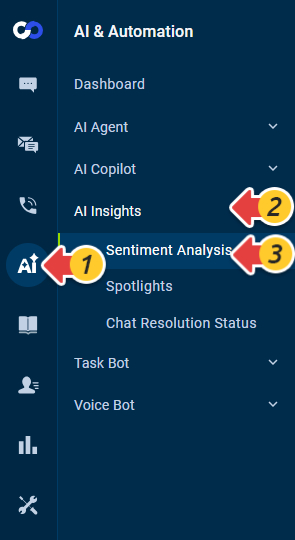
- From the left navigation menu, go to AI & Automation > AI Insights > Sentiment Analysis.
- On the Sentiment Analysis page, turn on the Enable Sentiment Analysis for Live Chat toggle.
- Click Save.
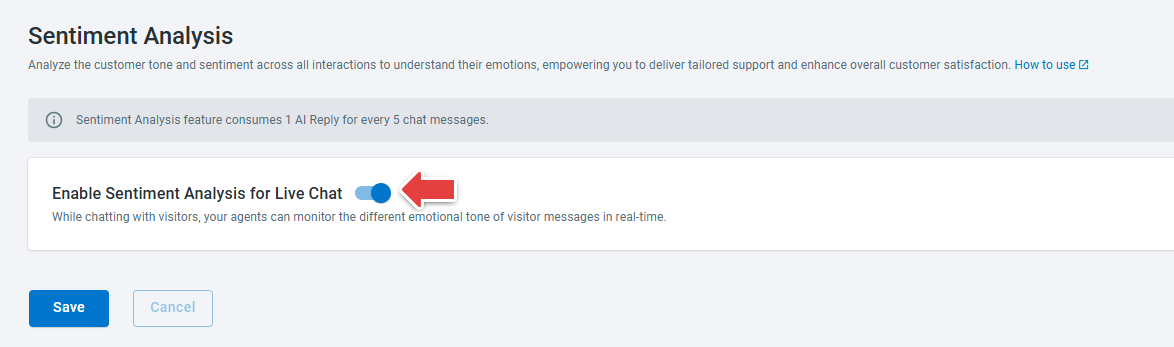
After Sentiment Analys is enabled, agents can view customer emotions in a chat from the Agent Console.
View Customer Emotions from the Agent Console
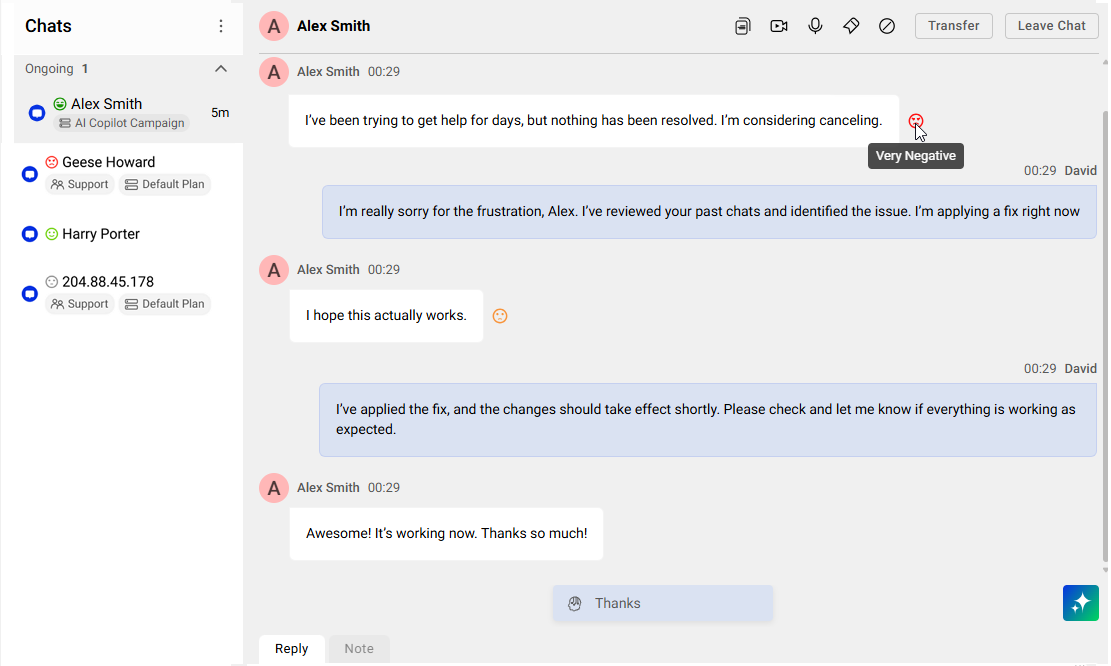
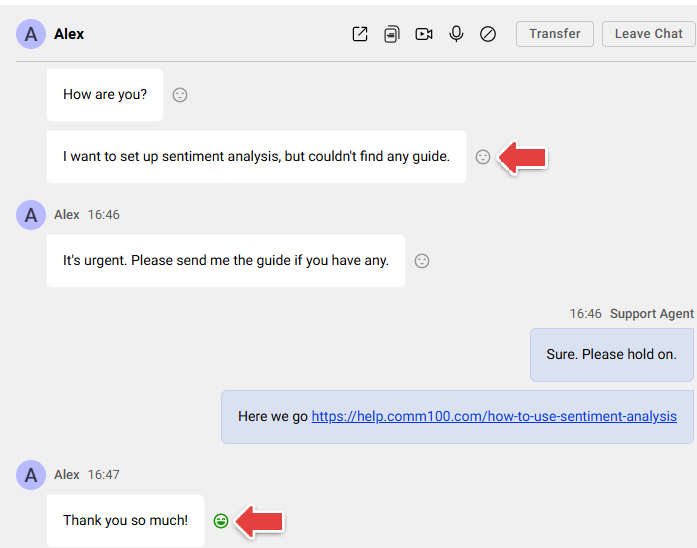
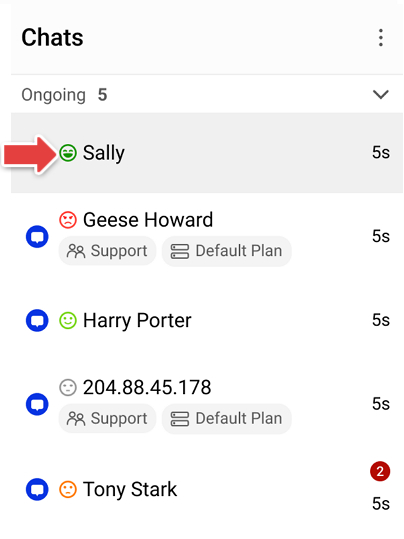
Sentiment Analysis detects the visitor’s emotion by analyzing the messages they send and attaches a sentiment type for each message. The sentiment types Very positive, Positive, Neutral, Negative, and Very negative are displayed using color-coded emoji icons. You can check visitor sentiments both from within the chat window and from the ongoing chat list.
- Within the chat window, you can see different color icons representing different emotions right after the message.
- From the chat list, you can see the sentiment icon detected from the visitor’s most recent message.
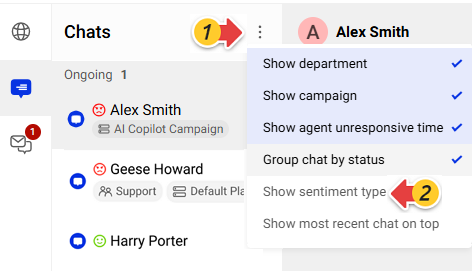
You can also choose not to display sentiment icons in the chat list. To hide the sentiment icons in the chat list, click the three dots icon in the upper right of the list, then uncheck the Show sentiment type option. The sentiment icons inside the chat window will not be impacted.
Check Visitor Sentiments in History Chats
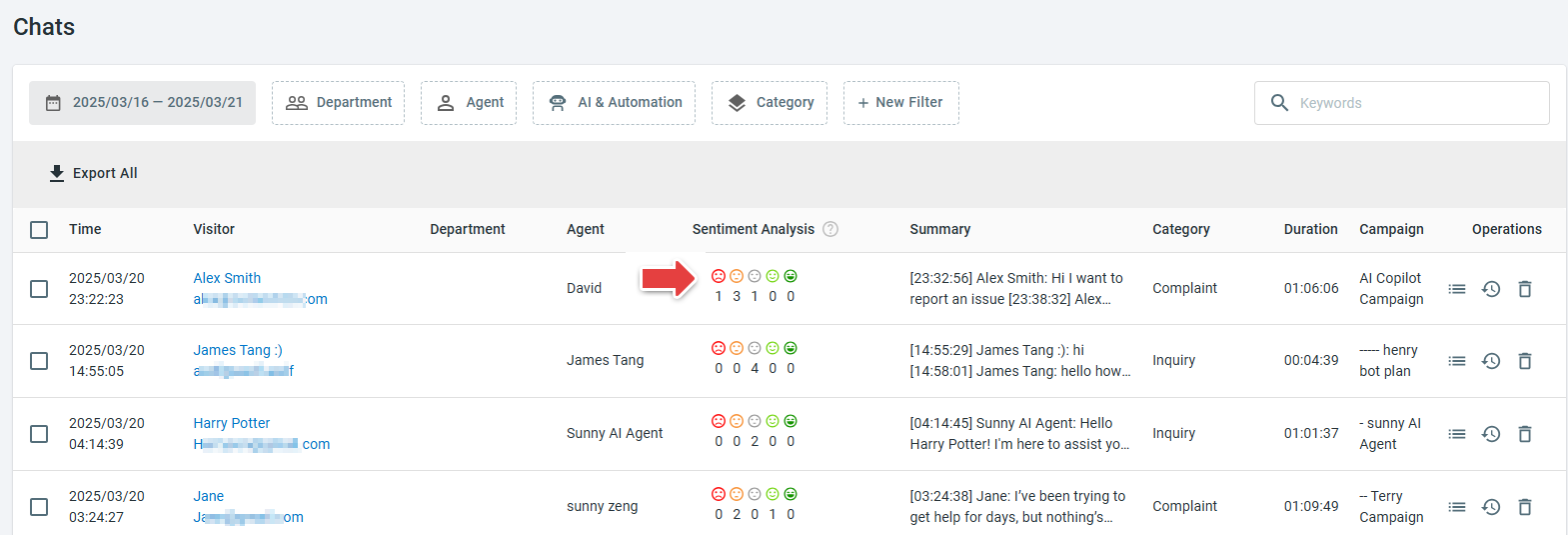
You can navigate to Live Chat > History > Chats in the Control Panel to check the Sentiment Analysis of history chats. The Sentiment Analysis column shows the number of times that each sentiment has been detected during the chat. You can mouse over the icons to view the sentiment trends throughout the conversation.
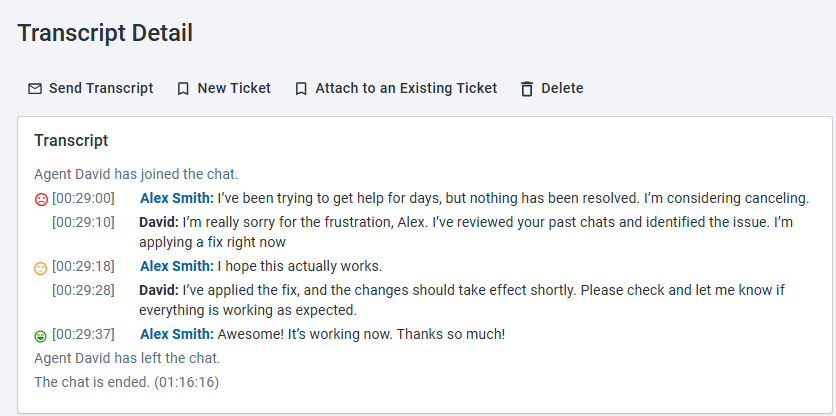
To view the details of each detected sentiment, click the Details icon in the Operations column to review the transcripts. An emotion icon shows before each visitor message in the transcript.
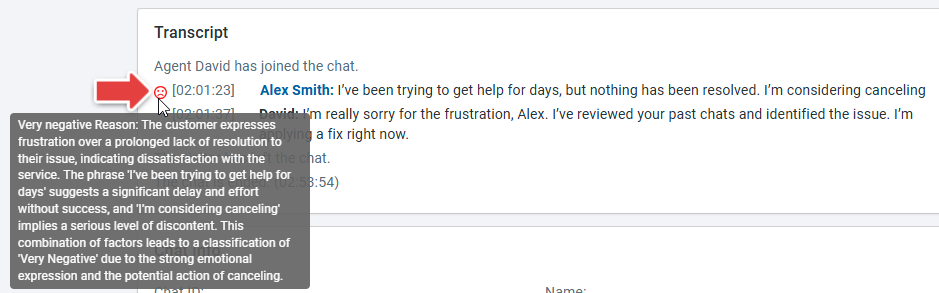
You can mouse over the emoji icon to view the reason that the sentiment type is decided.
Note: The sentiment is not only based on the latest message alone, but also earlier messages in the conversation. The goal is to provide a comprehensive understanding of the overall sentiment throughout the conversation.