
The Audio & Video Chat feature in Comm100 Live Chat allows your agents and your customers to talk over chat at any time. The solution offers more efficient and effective communication, speeds up resolution time, and improves customer experiences for higher satisfaction rates and increased sales.
Enable Audio & Video Chat
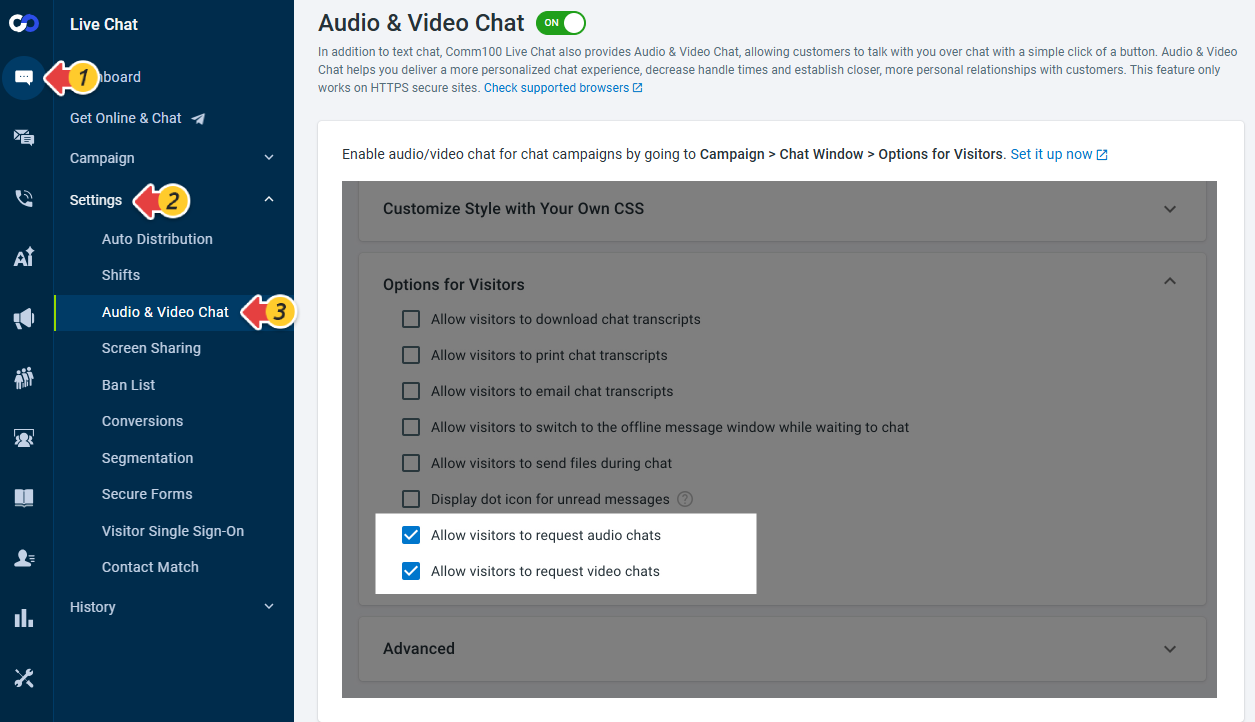
- Log in to the Comm100 Control Panel.
- From the left navigation menu, go to Live Chat > Settings > Audio & Video Chat.
- Turn on the Audio & Video Chat toggle.
Allow Visitors to Request Audio & Video Chat
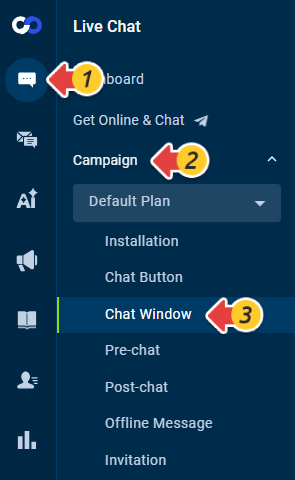
- From the left navigation menu, go to Live Chat > Campaign > Chat Window.
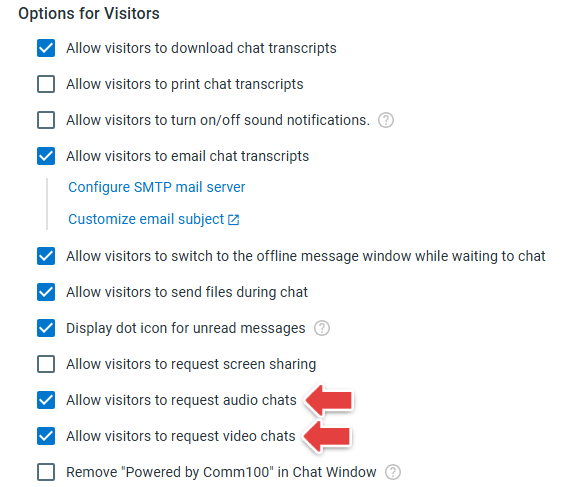
- Expand the Options for Visitors section.
- Enable the Allow visitors to request audio chats and Allow visitors to request video chats options.
- Click Save.
Request Audio & Video Chat from Visitor Side Chat Window
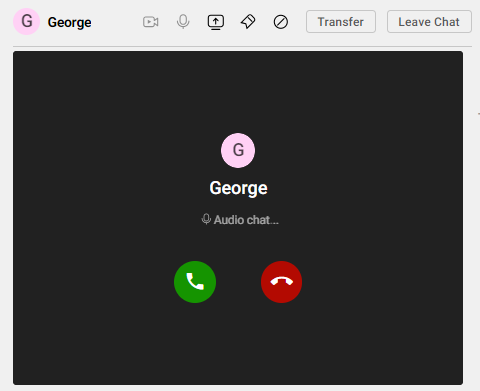
After a chat starts, the visitor can click the More icon in the chat window and click Audio Chat or Video Chat icon to request a call.
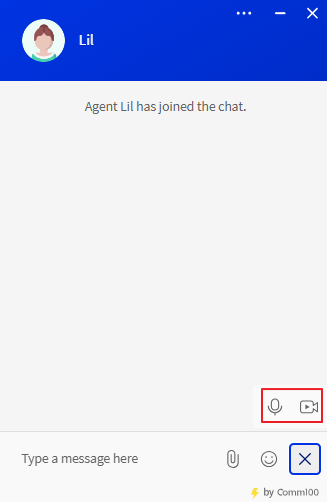
The agent will receive a request and can choose to accept or decline the audio/video chat. After the call is established, the agent can still send live chat messages with the audio/video chat going on.
Request Audio & Video Chat from Agent Console
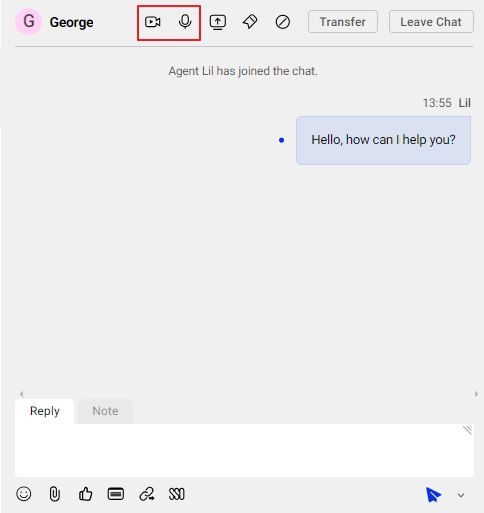
Agents can also initiate audio or video chat from the Agent Console by locating the audio or video icons within the chat interface, clicking the desired icon to send a request to the visitor, after which the visitor can choose to accept or decline the
request.
Audio & Video Chat is currently allowed at the one-on-one session, which means direct talking between one visitor and one agent. Another visitor will not be able to start an audio or video chat with the same agent. Another agent cannot join an
ongoing audio or video chat, but the agent can join in sending text messages as usual.