Triggers allow you to automate actions during Live Chat conversations based on predefined events and conditions.
When a selected event occurs, Comm100 evaluates the configured conditions and automatically performs the specified actions when the conditions are met. Triggers help automate escalations, notify supervisors, monitor important conversations, and streamline operational workflows.
Each trigger consists of the following three components:
- Event
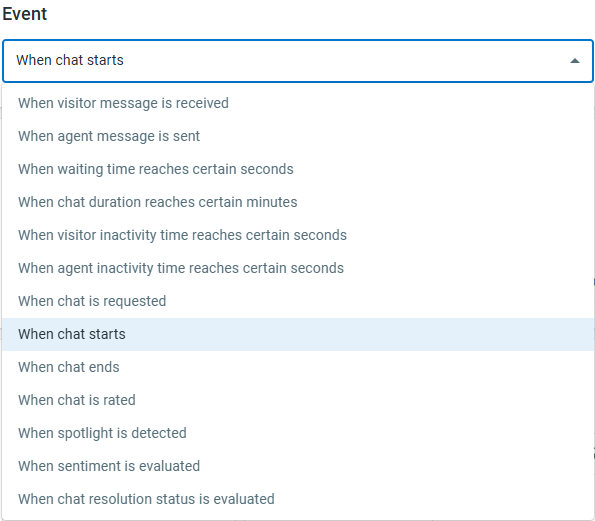
An event defines when the trigger is evaluated. Comm100 supports the following trigger events:- When visitor message is received
- When agent message is sent
- When waiting time reaches certain seconds
- When chat duration reaches certain minutes
- When visitor inactivity time reaches certain seconds
- When agent inactivity time reaches certain seconds
- When chat is requested
- When chat starts
- When chat ends
- When chat is rated
- When spotlight is detected
- When sentiment is evaluated
- When chat resolution status is evaluated
- Conditions
Conditions determine whether the trigger should execute. You can configure conditions using Visitor, Chat, Custom Variable, Pre-Chat, Contact, and Third-Party CRM/Integration fields. The configured actions are executed only when the trigger conditions are met. - Actions
Actions define what happens when the trigger conditions are met. Comm100 supports the following trigger actions. For details, see Trigger actions below.- Send Popup Notification
- Add Chat to Agent's Monitor List
- Transfer Chat
Add Internal Note
Send Email Notification
Send Channel Message
Trigger Webhook
This article introduces how to create and configure Live Chat Triggers.
Step-by-Step Instructions
To set up a trigger, follow these steps:
- Log in to your Comm100 Control Panel.
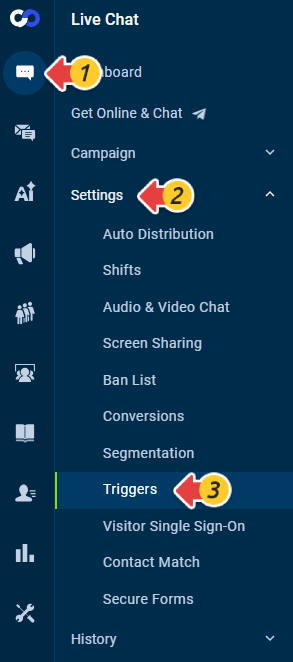
- From the left navigation menu, go to Live Chat > Settings > Triggers.
- Click New Trigger.
- On the New Trigger page,
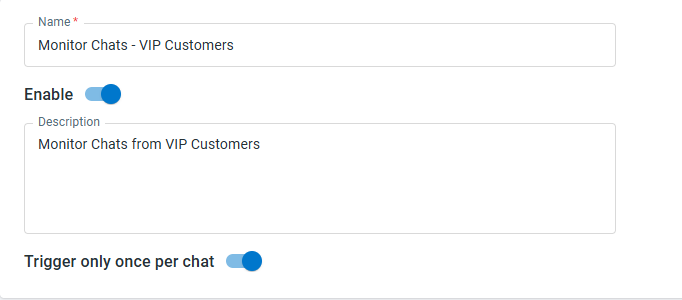
- Enter a Name for the trigger
- Turn on the Enable toggle if you want the trigger to become active immediately.
- (Optional) Enter a Description explaining the purpose of the trigger.
- Turn on Trigger only once per chat if you want the trigger to execute only once during a chat. If this option is off, the trigger can execute multiple times in the same chat when the event and conditions are matched again.
- Select the Event that activates the trigger.
- Configure the Conditions for the trigger. When the configured conditions are met, the actions configured in the next step are executed. You can add multiple conditions by clicking the Plus icon.
- Configure the Actions that should occur when the conditions are met.
- Click Save.
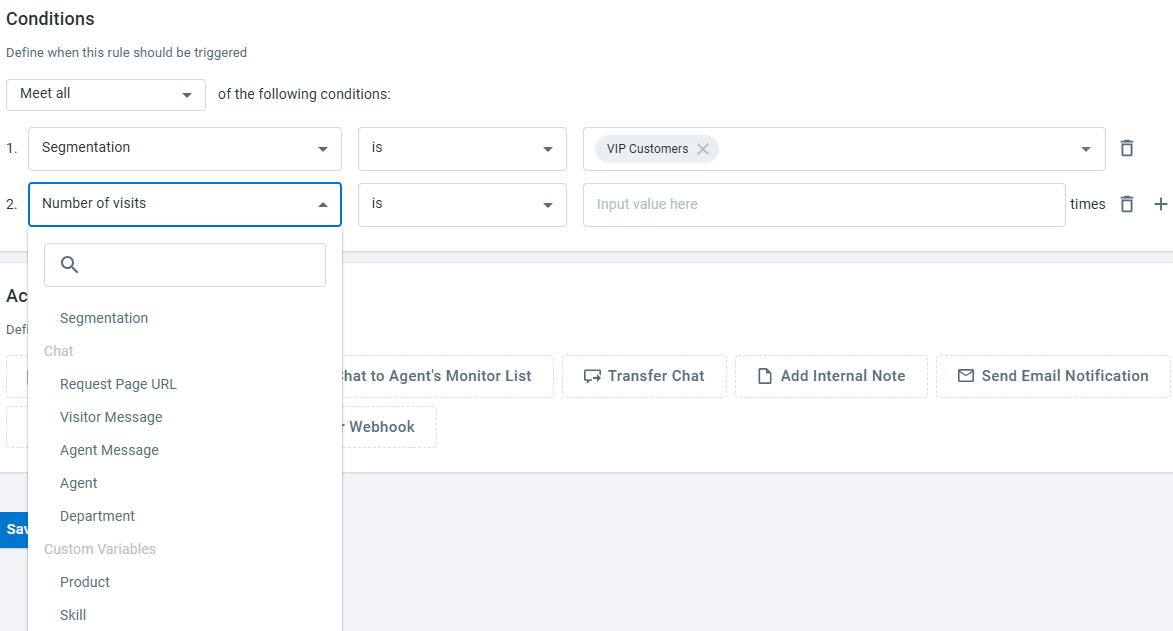

The trigger is created successfully. You can create multiple triggers with different events, conditions, and actions, and manage them by enabling, disabling, editing, copying, or deleting them as needed.
Trigger actions define the operations that are performed automatically when a trigger is executed.
Send Popup Notification
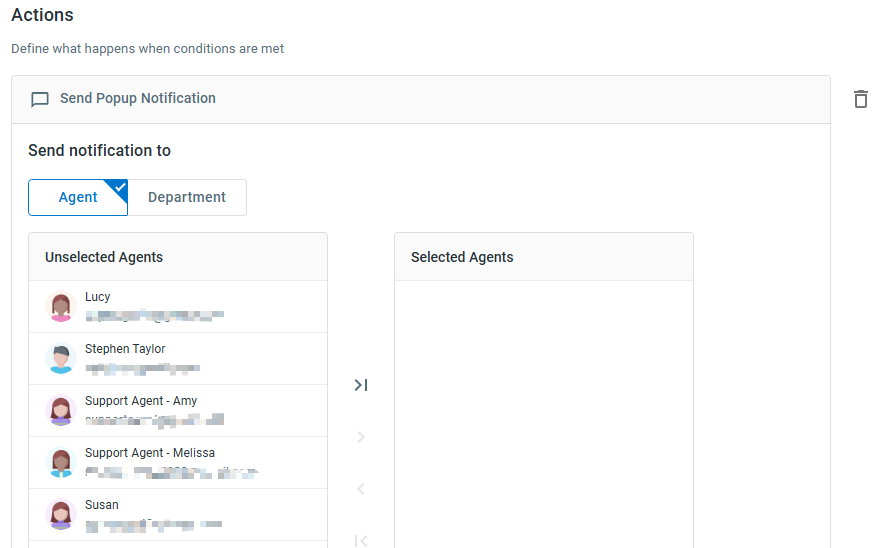
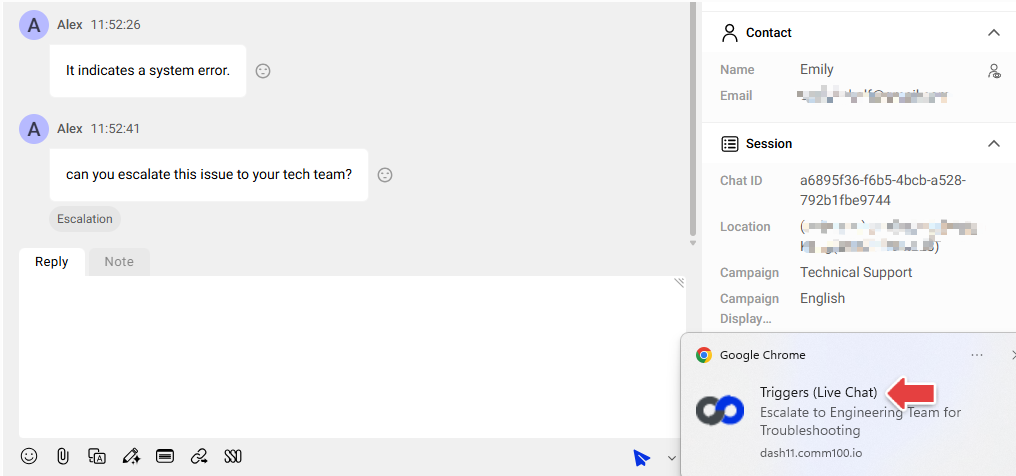
The Send Popup Notification action sends a popup notification to selected agents or departments.
How it appears in the Agent Console:
Add Chat to Agent's Monitor List
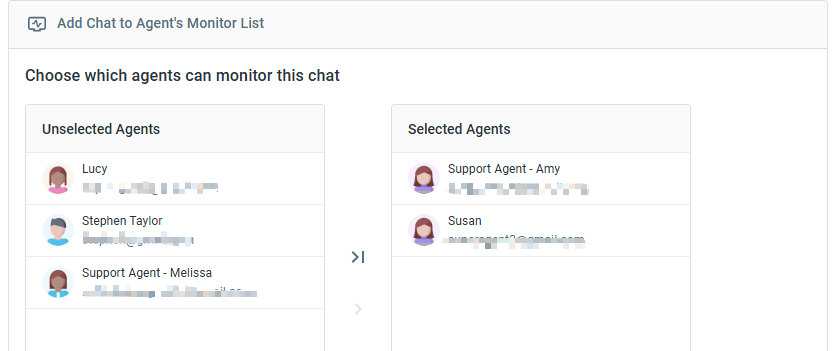
The Add Chat to Agent's Monitor List action automatically adds the chat to an agent's monitor list for real-time supervision.
Transfer Chat
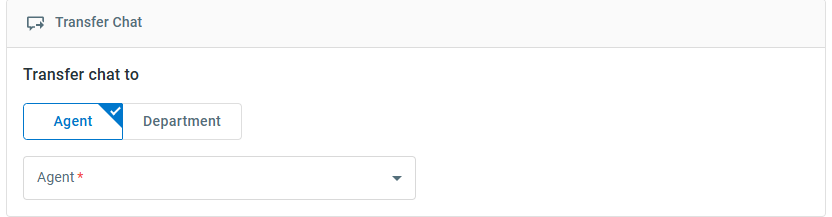
The Transfer Chat action automatically transfers the chat to a specific agent or department.
Add Internal Note
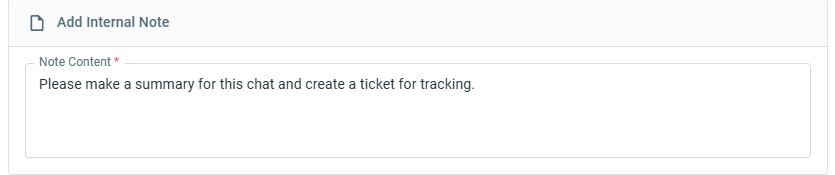
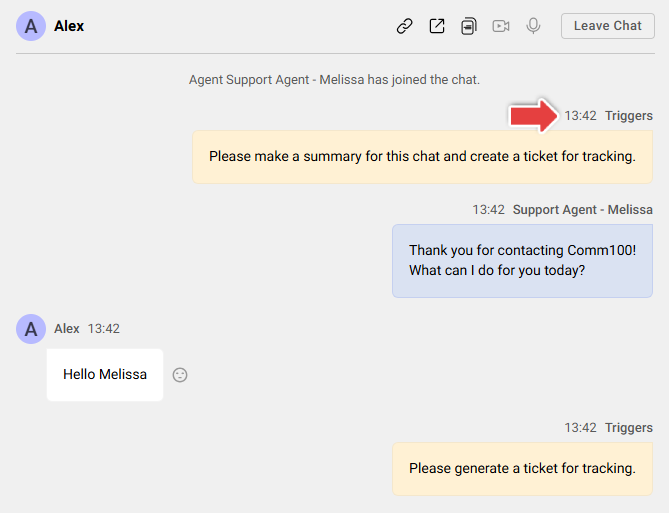
The Add an Internal Note action automatically adds an internal note to the current chat.
How it appears in the Agent Console:
Send Email Notification
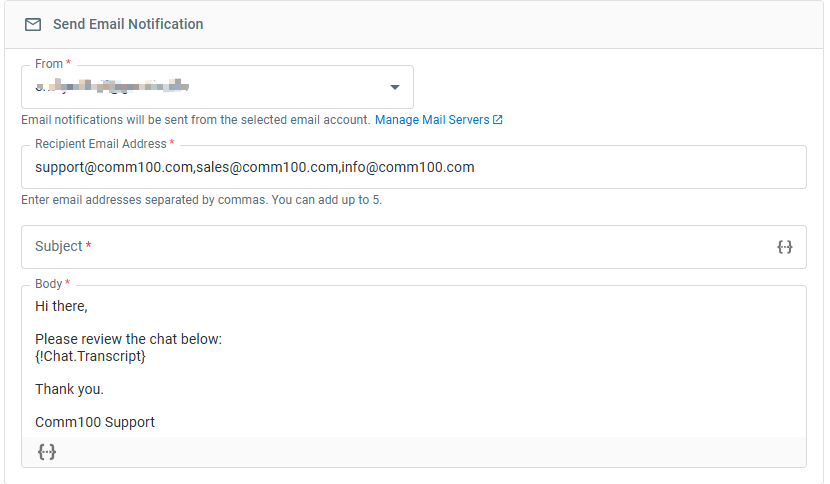
The Send an email notification action sends an email notification to selected recipients.
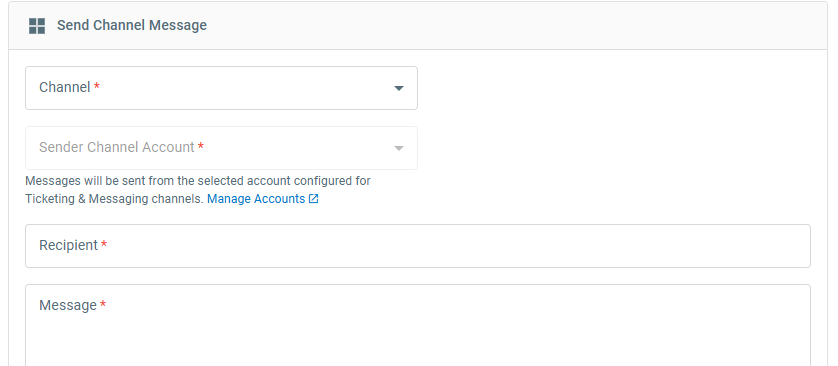
Send Channel Message
The Send Channel Message action sends a notification through a configured SMS or WhatsApp channel. One recipient can be configured for this action. Only Ticketing & Messaging channels that have already been integrated with Comm100 are available for selection.
To learn how to add Ticketing & Messaging channels, see this article.
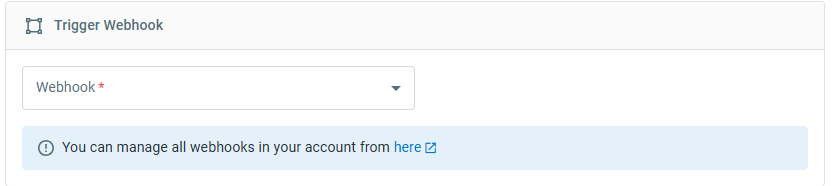
Trigger Webhook
The Trigger Webhook action sends a request through a webhook configured under Apps & Integrations > Webhooks when the trigger is executed.
- Triggers are evaluated for current chat sessions only and do not process historical chats.
- Some actions are only available for specific event types.
Event Supported Actions Note When visitor message is received - Send Popup Notification
- Add Chat to Agent’s Monitor List
- Transfer Chat
- Add Internal Note
- Send Email Notification
- Send Channel Message
- Trigger Webhook
For ongoing chats. When agent message is sent - Send Popup Notification
- Add Chat to Agent’s Monitor List
- Transfer Chat
- Add Internal Note
- Send Email Notification
- Send Channel Message
- Trigger Webhook
For ongoing chats. When waiting time reaches X seconds - Send Popup Notification
- Send Email Notification
- Trigger Webhook
For chats that are still in waiting stage. When chat duration reaches X minutes - Send Popup Notification
- Add Chat to Agent’s Monitor List
- Transfer Chat
- Add Internal Note
- Send Email Notification
- Send Channel Message
- Trigger Webhook
For ongoing chats When visitor inactivity time reaches X seconds - Send Popup Notification
- Add Chat to Agent’s Monitor List
- Transfer Chat
- Add Internal Note
- Send Email Notification
- Send Channel Message
- Trigger Webhook
The chat remains active while the visitor is inactive. When agent inactivity time reaches X seconds - Send Popup Notification
- Add Chat to Agent’s Monitor List
- Transfer Chat
- Add Internal Note
- Send Email Notification
- Send Channel Message
- Trigger Webhook
The chat remains active while the agent is inactive. When chat is requested - Send Popup Notification
- Send Email Notification
- Trigger Webhook
For chats that have not started yet. When chat starts - Send Popup Notification
- Add Chat to Agent’s Monitor List
- Transfer Chat
- Add Internal Note
- Send Email Notification
- Send Channel Message
- Trigger Webhook
For active chats. When chat ends - Send Email Notification
- Trigger Webhook
Executed after chat ends. When chat is rated - Send Popup Notification
- Add Chat to Agent’s Monitor List
- Transfer Chat
- Add Internal Note
- Send Email Notification
- Send Channel Message
- Trigger Webhook
Visitors provide ratings during active chats. When spotlight is detected - Send Popup Notification
- Add Chat to Agent’s Monitor List
- Transfer Chat
- Add Internal Note
- Send Email Notification
- Send Channel Message
- Trigger Webhook
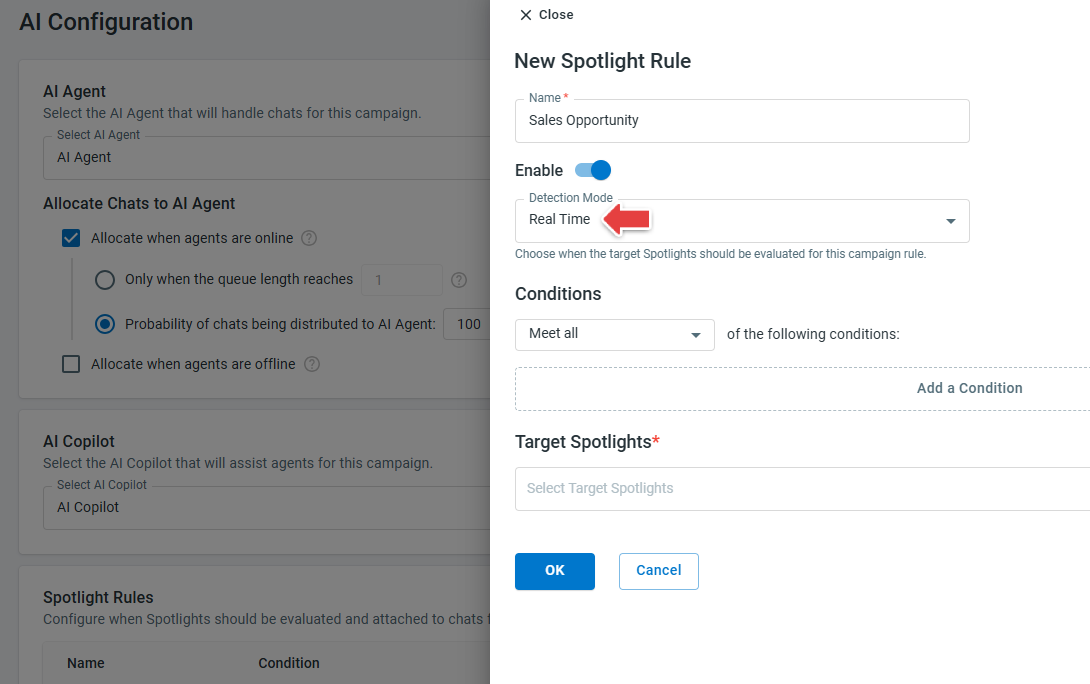
The spotlight detection mode must be configured as Real Time. When sentiment is evaluated - Send Popup Notification
- Add Chat to Agent’s Monitor List
- Transfer Chat
- Add Internal Note
- Send Email Notification
- Send Channel Message
- Trigger Webhook
Real-time AI event during active chats. When chat resolution status is evaluated - Send Email Notification
- Trigger Webhook
Executed after chat ends.