Canned message are predefined responses that agents can quickly reuse when handling chats and tickets. They are commonly used for greetings, frequently asked questions, troubleshooting steps, and other frequently sent responses. Using canned messages helps agents respond more efficiently while maintaining consistent communication.
When creating a canned message, you can assign one or more shortcuts to quickly locate it while handling chats or replying to tickets. To locate a canned message, type the pound (#) key followed by a shortcut.
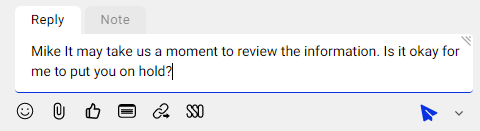
For example, you have a canned message “It may take us a moment to review the information. Is it okay for me to put you on hold?” and the shortcut is set to “hold”. You can type “#hold” to send out the message. If you don't remember the shortcut, you can also locate canned messages by category or search keyword.
Send Canned Messages by Shortcuts
You can insert canned messages using shortcuts while handling chats or tickets in the Agent Console. To send a canned message using shortcuts, follow these steps:
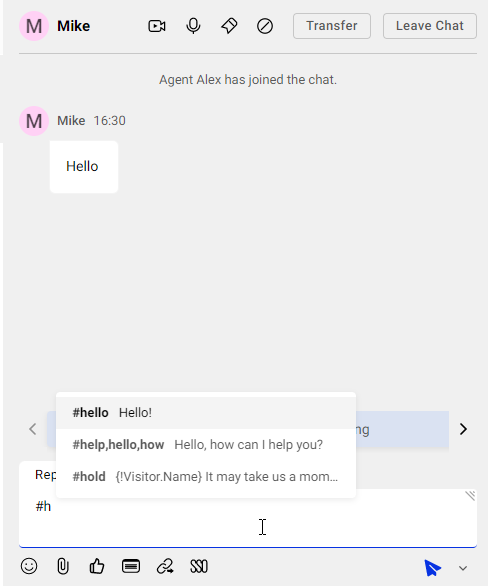
- In the typing area of your chats or tickets, type the pound key (#) and the shortcut to bring up the canned message. A list of matching canned messages and their shortcuts appear.
- Click the canned message, or press the Tab or Enter key on your keyboard to insert the message to your typing area.Note:
- If the canned message contains dynamic information, such as {!Visitor.Name}, the placeholder is automatically replaced with the corresponding information when the message is inserted into the editor.
- If you want to send the # key as a normal character in your message, you can click anywhere outside the suggestion list or press the Esc key on your keyboard to close the popup list.
- Edit the message if needed, then send it to the visitor.
Locate Canned Messages by Category or Search Keyword
If you don't remember the shortcut, you can locate canned messages by category or search keyword. To locate a canned message, follow these steps:
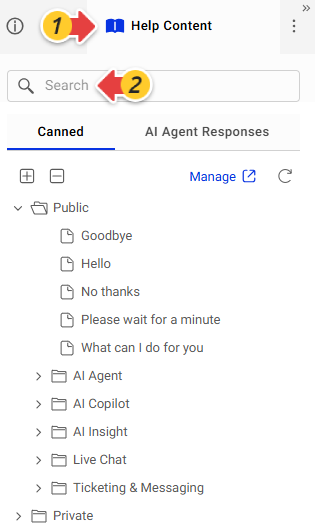
- When handling a chat or ticket, click the Help Content tab on the right side of the Agent Console.
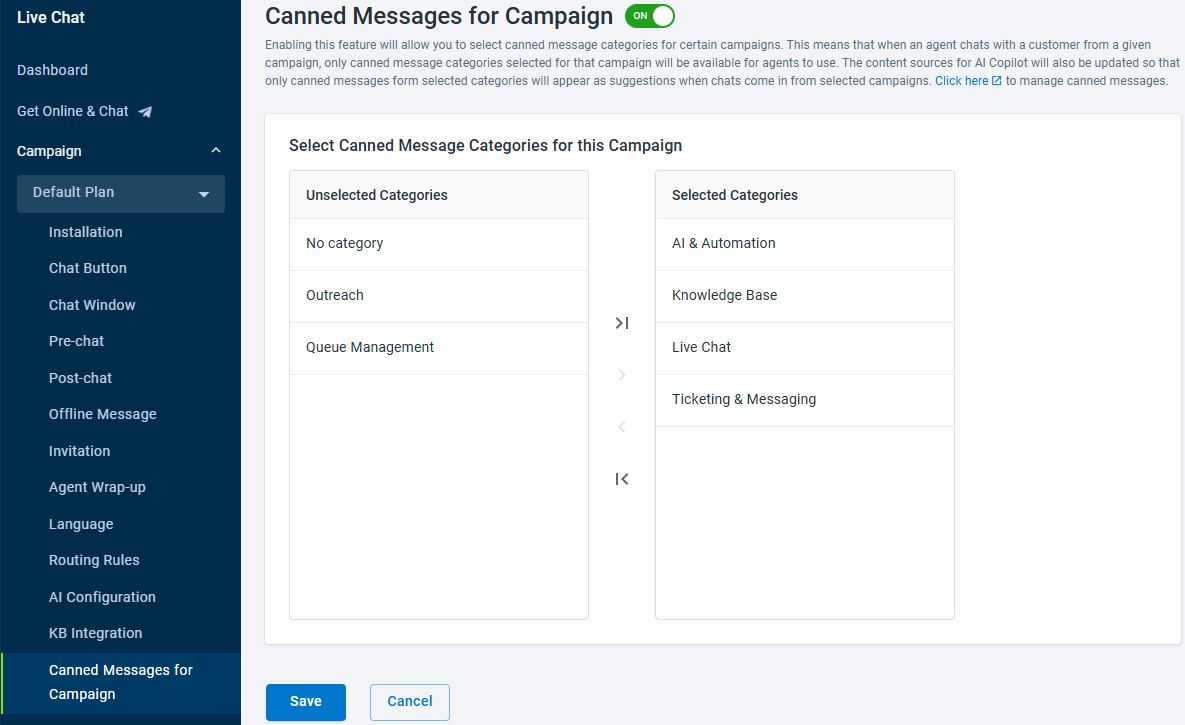
- To locate a message by category, click on the category the message belongs to and locate the message.Note: If you've enabled the Canned Messages for Campaign feature, only the canned message categories selected for that specific campaign will be available for agents to use.
- To locate a message by keyword, enter a keyword in the search box.Note: If canned messages or shortcuts are updated while you are signed in to the Agent Console, click the Refresh icon in the upper-right corner of the Canned tab to load the latest changes.
- Double-click a canned message to send it immediately, or click it once to insert it into the editor for further editing before sending.