Introduction
Comm100 offers multiple security measures to help protect your data and prevent unauthorized access. One of these features is the IP allowlist, which restricts account access to a predefined set of trusted IP addresses.
When IP allowlist is enabled, only users connecting from approved IP addresses can log in to your Comm100 account. This helps reduce the risk of unauthorized access and potential data breaches. For example, you can restrict access to your office network by allowing only your office IP addresses.
Step-by-Step Instructions
To add authorized IP addresses, follow these steps:
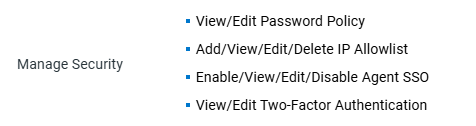
- Log in to the Comm100 Control Panel.Note: You need to use an account with the Manage Security permission. Using an admin account is recommended. To learn how to manage agent permissions, see this article.
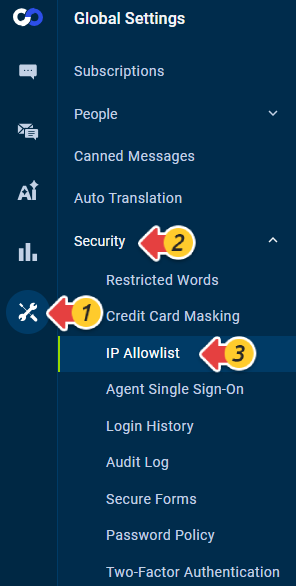
- From the left navigation menu, go to Global Settings > Security > IP Allowlist.
- Turn on the IP Allowlist toggle.
- Under the Allowed IP List tab, click New IP Range, then enter the Start IP and End IP.Note:
- Add your current IP address first. Otherwise, you may lose access after logging out.
- If IP Allowlist is enabled without any IP addresses added, access will still be allowed from all IPs.
- To apply IP restrictions to the Comm100 mobile app, go to the Advanced tab and enable IP Allowlist for mobile access.Note:
- Mobile access refers specifically to the Comm100 mobile app.
- To block all access from the Comm100 mobile app, enable this function and make sure that Allowed IP List is not empty. You can add an IP that will not be used by your agents, for example, "1.1.1.1".
- To allow mobile access only from trusted networks, add the corresponding mobile IP addresses to the allowlist.


Notice about the Use of IP Allowlist
After IP Allowlist is enabled, only authorized IP addresses on the allowlist have access to your Comm100 account. Your agents cannot log in to Comm100 if their IP address changes, for example, when they work remotely.
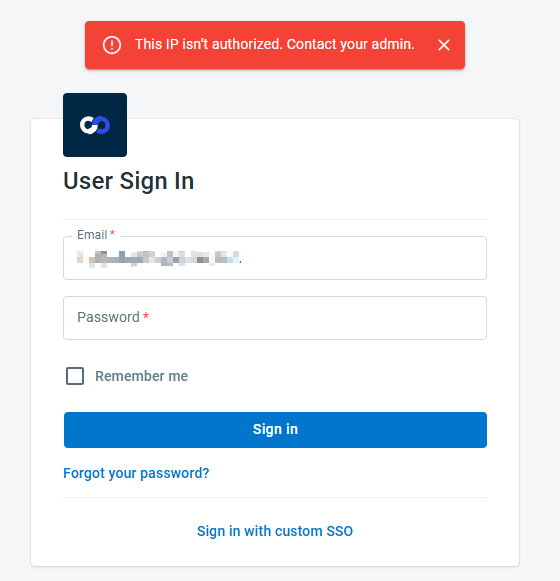
- When agents log in to the Comm100 Control Panel or Agent Console from an unauthorized IP, they are prompted to contact admins.
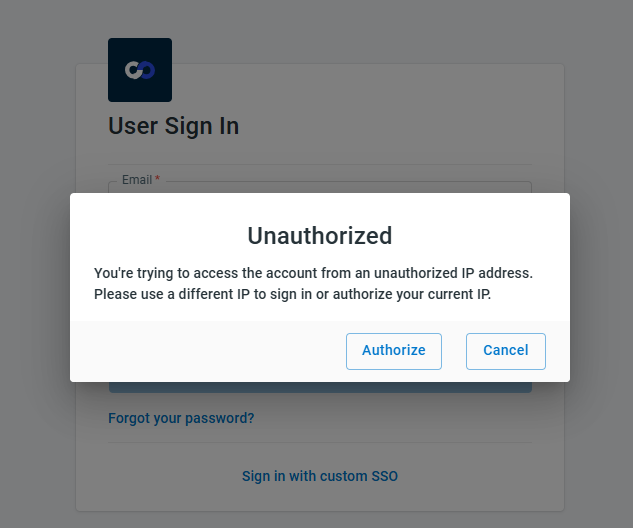
- When admins log in to the Comm100 Control Panel or Agent Console from an unauthorized IP, they have the option to authorize the current IP.
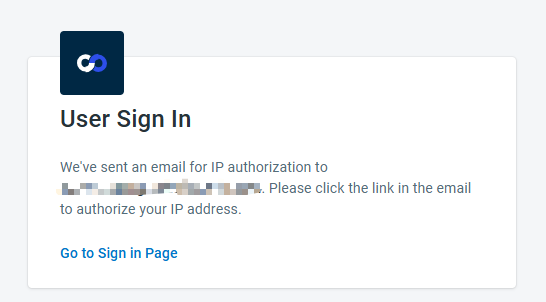
If the admin chooses the authorize option, the system sends an email for IP authorization to the admin, and the admin can click the link in the email to authorize the IP.
If the IP addresses of all agents’ have changed, the admin can authorize the current IP first, then add the new IP addresses of agents to the allowlist.