Smartico is a platform commonly used in the iGaming industry to manage player information and engagement. By integrating Smartico with Comm100, agents can view current Smartico player information directly while handling Live Chat conversations and Ticketing & Messaging tickets.
After the integration is configured, a Smartico tab appears in the Agent Console. The tab displays the player properties you choose to make available to agents and allows agents to refresh the information when needed.
Smartico player information in Comm100 is read-only. Agents cannot create or update Smartico players or upload conversation transcripts to Smartico.
To connect Smartico with Comm100, follow these steps:
- Log in to your Comm100 Control Panel.
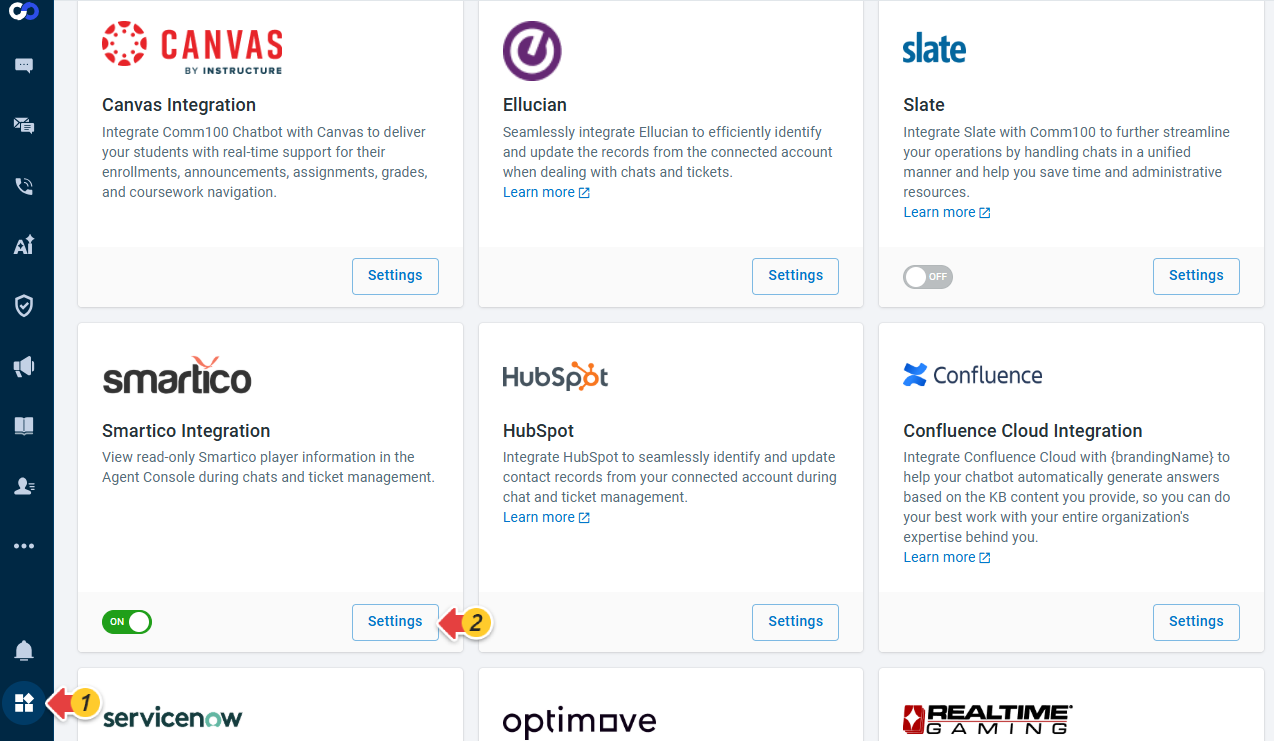
- From the left navigation menu, go to Apps & Integrations.
- Go to the Smartico Integration card, and click Settings.
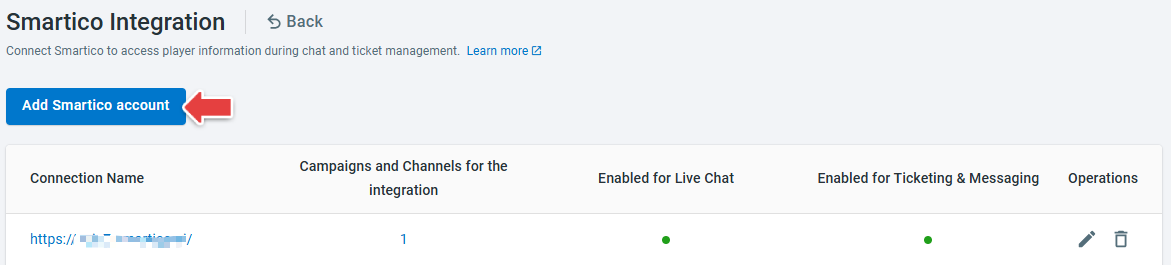
- On the Smartico Integration page, click Add Smartico account.
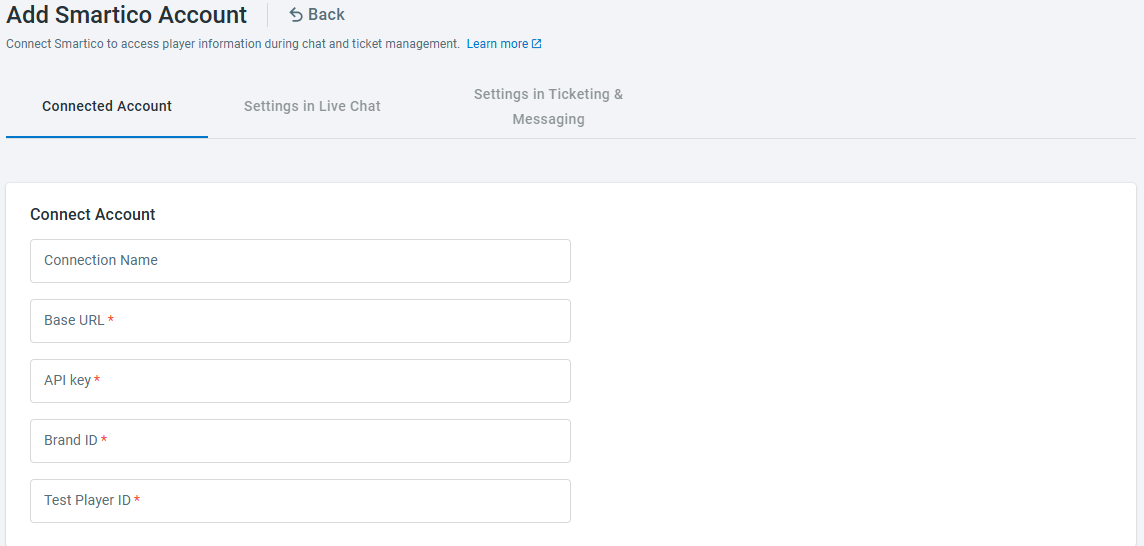
- On the Connected Account tab, configure the following settings:
- Connection Name: An optional name to help you identify the Smartico connection in Comm100.
- Base URL: The base URL of your Smartico account used for the integration.
- API key: The API key used to authenticate the Smartico connection.
- Brand ID: The Smartico Brand ID associated with the players you want to retrieve.
- Test Player ID: A known Smartico Player ID used to verify the connection.
- Click Connect Smartico Account.
- To integrate Smartico with Live Chat, select Settings in Live Chat tab, turn on Enable Smartico integration in Live Chat, and complete the integration settings. For details, see Reference: Configurations for Smartico Integration.
- To integrate Smartico with Ticketing & Messaging, select Settings in Ticketing & Messaging tab, turn on Enable Smartico integration in Ticketing & Messaging, and complete the integration settings. For details, see Reference: Configurations for Smartico integration.
- Click Test to verify that Comm100 can connect to Smartico and retrieve the player properties.
- Click Save. The integration settings are saved successfully.

After the Smartico integration is properly set up, agents can identify Smartico players when handling chats or tickets in the Agent Console.
For Smartico to be available for an interaction, the corresponding Live Chat campaign or Ticketing & Messaging channel account/chat widget must be assigned to a Smartico integration.
When Comm100 can identify the player, the Smartico tab displays the properties enabled for Display in Agent Console.
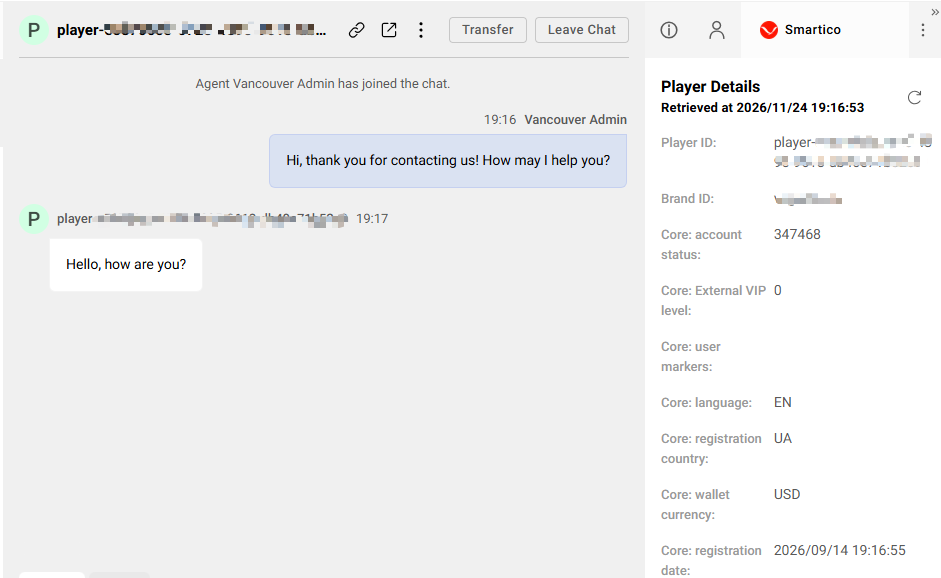
Under the Smartico tab, agents can:
- View the current player's Smartico information.
- View when the information was retrieved.
- Click Refresh to retrieve the latest player information.
Configurations for Live Chat Integration
If you enable Smartico integration in Live Chat, complete the following configurations:
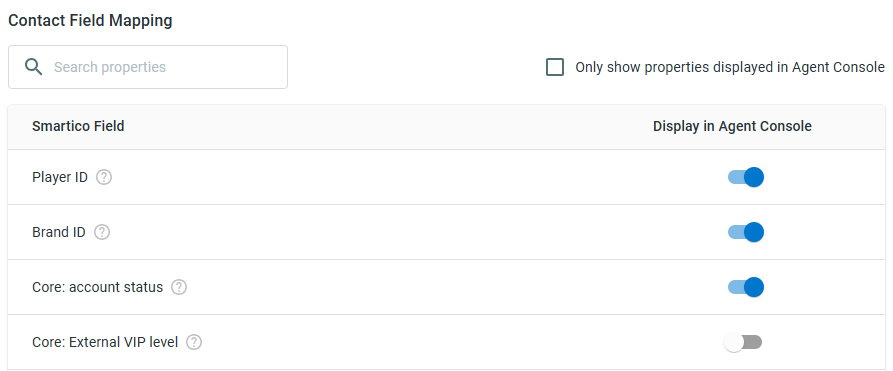
- Contact Field Mapping
You can choose which properties to display in the Agent Console. - Customize Rules to Identify the Smartico Contact
Select the Comm100 field that contains the Smartico Player ID (user_ext_id) and map it to the Smartico Player ID field. Comm100 uses the selected field value to identify the Smartico player during a chat.Note: The saved Test Player ID is used only to verify the Smartico connection. It is not used to identify the player during an agent conversation. - Test Smartico connection and properties
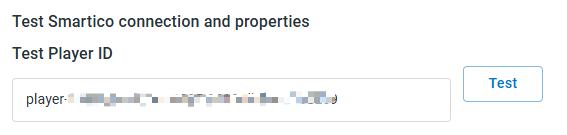
The Test Player ID entered when connecting the Smartico account is populated automatically. Click Test to verify that Comm100 can connect to Smartico and retrieve the player properties.Note: If you enable or change properties for Display in Agent Console, a successful test is required before you can save the selections. - Assign Smartico Integration to Campaigns
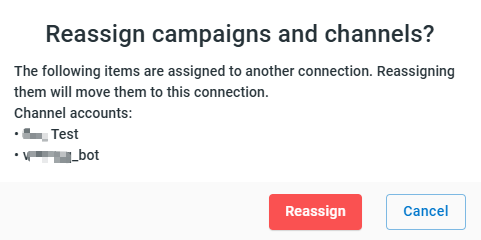
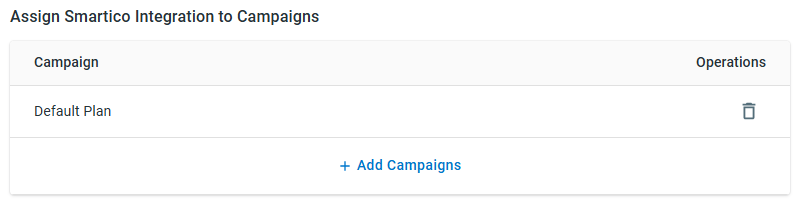
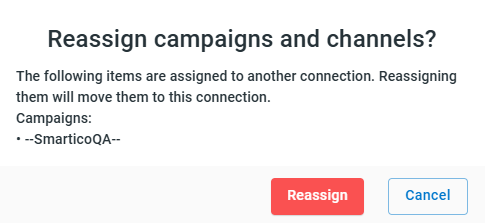
You can assign the Smartico integration to one or more Live Chat campaigns. Chats and offline messages from an assigned campaign use this Smartico integration when accessing Smartico data.Note: One Smartico integration can be assigned to multiple campaigns, but a campaign can be assigned to only one Smartico integration. If a selected campaign is already assigned to another Smartico integration, Comm100 prompts you to confirm the reassignment. Once confirmed, the campaign is reassigned to the current Smartico integration.
If a campaign is not assigned to any Smartico integration, Smartico is unavailable for chats and offline messages associated with that campaign.

Configurations for Ticketing & Messaging Integration
If you enable Smartico integration in Ticketing & Messaging, complete the following configurations:
- Contact Field Mapping
You can choose which properties to display in the Agent Console. - Customize Rules to Identify the Smartico Contact
Select the Comm100 field that contains the Smartico Player ID (user_ext_id) and map it to the Smartico Player ID field. Comm100 uses the selected field value to identify the Smartico player when handling a ticket. - Test Smartico connection and properties
The Test Player ID entered when connecting the Smartico account is populated automatically. Click Test to verify that Comm100 can connect to Smartico and retrieve the player properties.Note: If you enable or change properties for Display in Agent Console, a successful test is required before you can save the selections. - Assign Smartico Integration to Ticketing & Messaging Channels
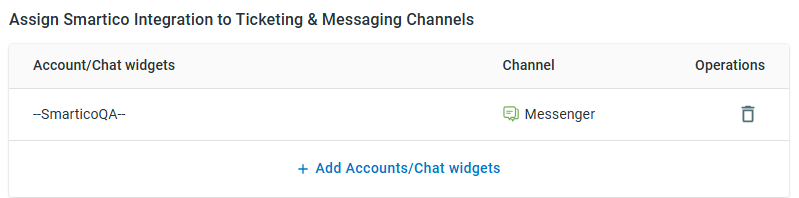
You can assign the Smartico integration to one or more Ticketing & Messaging channel accounts or chat widgets. Tickets from an assigned channel account or chat widget use this Smartico integration when retrieving Smartico player information.Note: One Smartico integration can be assigned to multiple channel accounts or chat widgets, but each channel account or chat widget can be assigned to only one Smartico integration. If a selected channel account or chat widget is already assigned to another Smartico integration, Comm100 prompts you to confirm the reassignment. Once confirmed, it is reassigned to the current Smartico integration.
If a channel account or chat widget is not assigned to any Smartico integration, Smartico information is not available for its tickets.