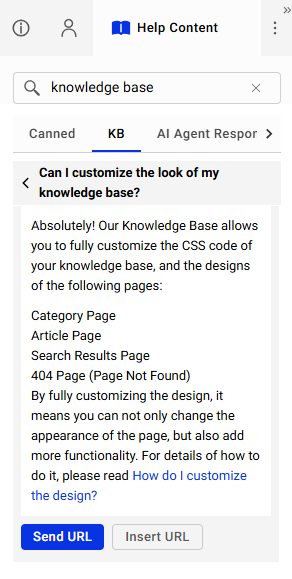
Comm100 Knowledge Base can be integrated with Comm100 Live Chat to help visitors find answers through the Live Chat window. Visitors can search for relevant Knowledge Base articles from Home, while agents can search and access articles directly from the Agent Console.
This provides visitors with a self-service option and helps agents provide accurate and consistent responses during chats.
Step-by-Step Instructions
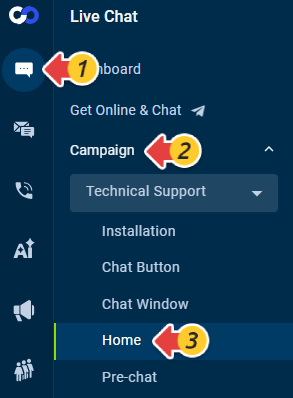
- Log in to your Comm100 Control Panel.
- From the left navigation menu, go to Live Chat > Campaign > Home.
- Turn on the Home toggle.
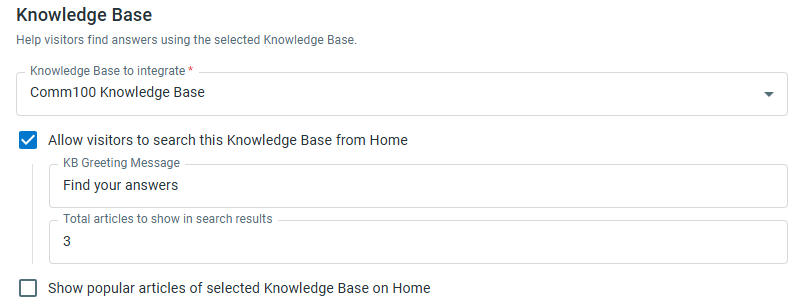
- Under the Knowledge Base section, configure the following settings:
- Knowledge Base to integrate: Select the Knowledge Base you want visitors to access.
- Allow visitors to search this Knowledge Base from Home: Enable this option to display Knowledge Base search.
- KB Greeting Message: Enter the greeting text displayed above the Knowledge Base search.
- Total articles to show in search results: Specify the maximum number of articles displayed in search results.
- Show popular articles of selected Knowledge Base on Home: Enable this option to display up to three popular articles.
- Click Save.
How Visitors Can Search Knowledge Base Articles from Home
When Knowledge Base search is enabled, visitors can search the selected Knowledge Base directly from Home. They can enter keywords in the search box and click the Search icon or press the Enter key to view matching articles.
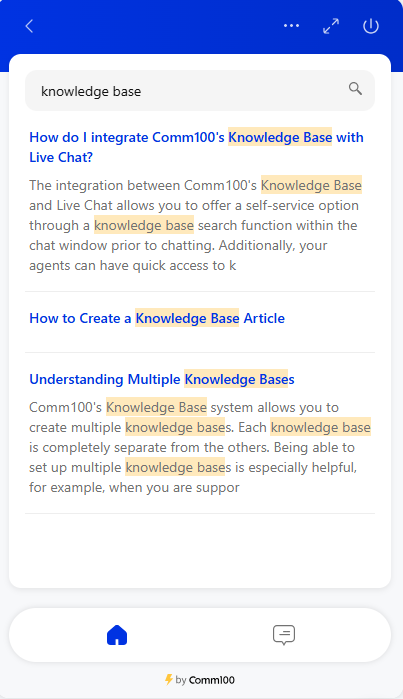
Visitors can click an article title to view the article within the Live Chat window. If popular articles are enabled, up to three popular articles from the selected Knowledge Base are also displayed on Home.
How Agents Can Search Knowledge Base Articles in the Agent Console
When the Knowledge Base is integrated, a KB tab appears under the Help Content section in the Agent Console. Agents can search for articles using keywords and insert the article URL into
the chat input box or send the article URL directly to visitors.
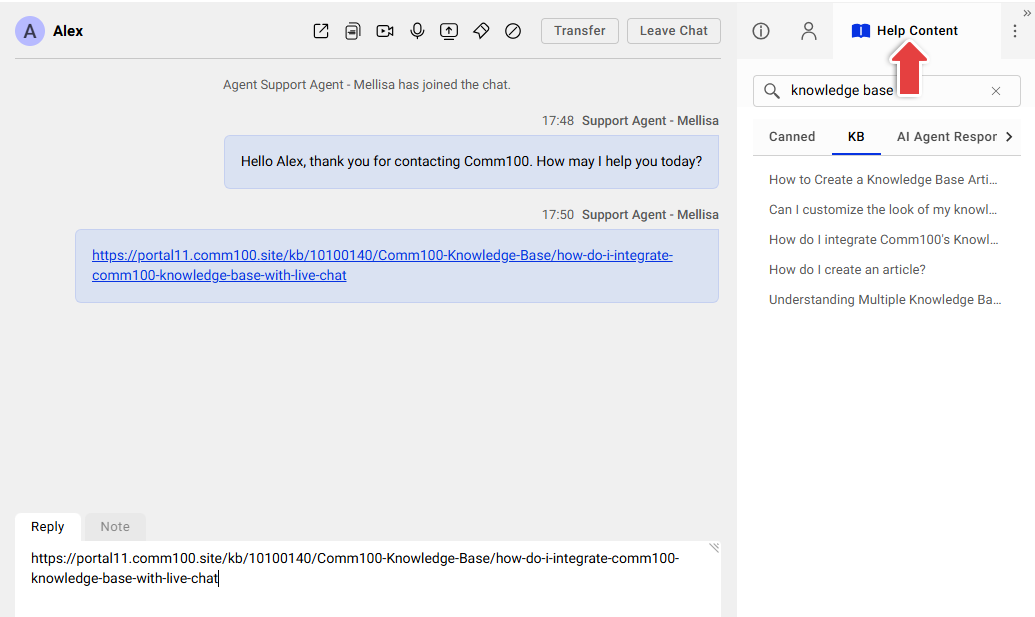
Agents can also click an article title to view its full content within the KB tab. They can copy text or images from the article and paste them into the chat input box. The Send URL and Insert URL options
are also available at the bottom of each article for quick sharing.