Comm100 Knowledge Base can be integrated with Comm100 Live Chat to help visitors find answers before starting a chat. This allows customers to search for relevant knowledge base articles directly within the chat window, which can reduce the number of common questions handled by agents.
In addition, agents can search and access knowledge base articles directly within the Agent Console, making it easier to provide accurate and consistent responses during chats.
Step-by-Step Instructions
- Log in to your Comm100 Control Panel.
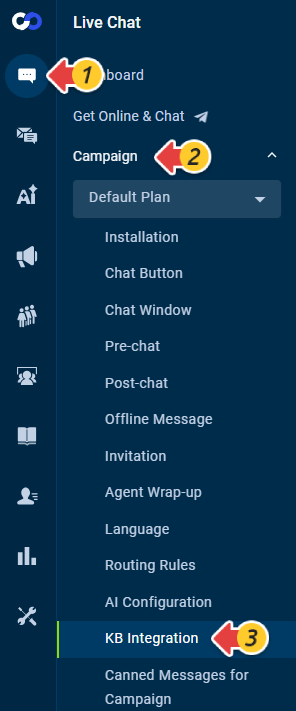
- From the left navigation menu, go to Live Chat > Campaign > KB Integration.
- On the KB Integration page, turn on the Enable toggle.
- Select the Knowledge Base to Integrate with your current campaign.
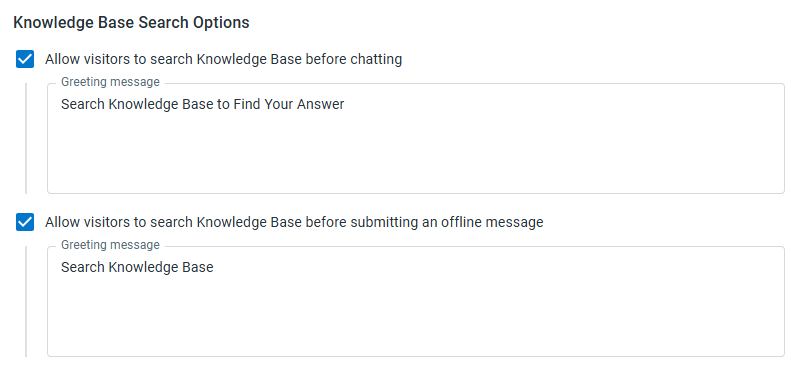
- Under Knowledge Base Search Options, configure the following settings:
- Allow visitors to search the knowledge base before chatting.
- Allow visitors to search the knowledge base before leaving an offline message.
- Customize the greeting message displayed on the knowledge base search page.
- Set the maximum number of articles to display in search results.
- Click Save.
How Visitors Can Search KB Articles Before Chatting
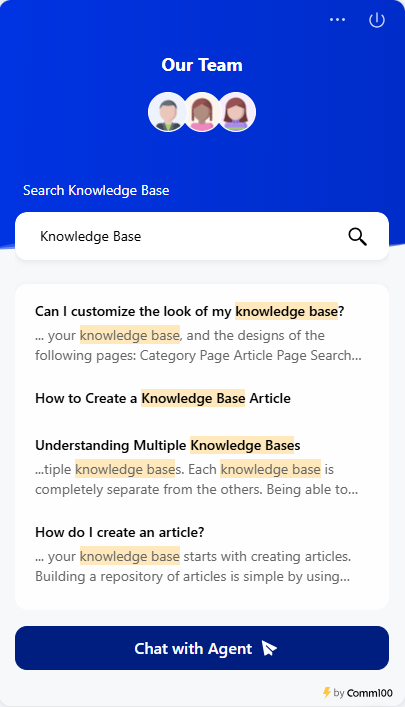
When the search option is enabled, visitors will see a knowledge base search window before starting a chat or submitting an offline message. Once visitors enter keywords in the search box and click the Search icon or press the Enter key, articles with highlighted keywords will be listed. After a visitor clicks on the article title, the article will be opened in a new extended window on the left-hand side of the chat window.
How Agents Can Search KB Articles in the Agent Console
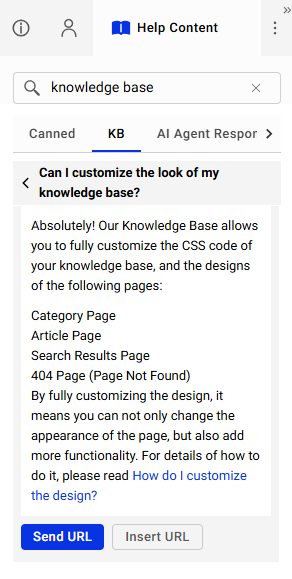
When the integration is enabled, a KB tab appears under the Help Content section. Agents can search for articles using keywords and then insert the article URL into the chat input area
or send the article URL directly to visitors as messages.
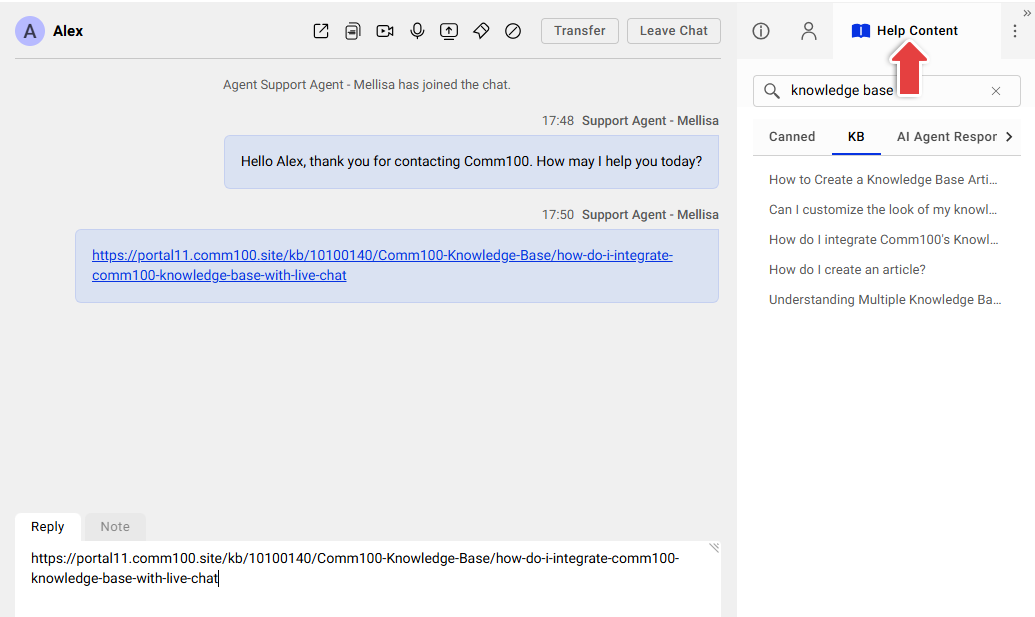
Additionally, agents can click an article title to view the full content within the KB tab. They can also copy any texts or images from the article, paste them into the chat input box, and send them to visitors. The Send URL and Insert URL options are also available at the bottom of each article for quick sharing.