
Comm100 allows you to add Viber Accounts to Ticketing & Messaging so that messages sent to your Viber Bots can be handled as tickets in Comm100. After the integration is completed, agents can receive and reply to Viber messages from the Agent Console.
Step-by-Step Instructions
To add a Viber account to Comm100, follow these steps:
- Log in to your Comm100 Control Panel.
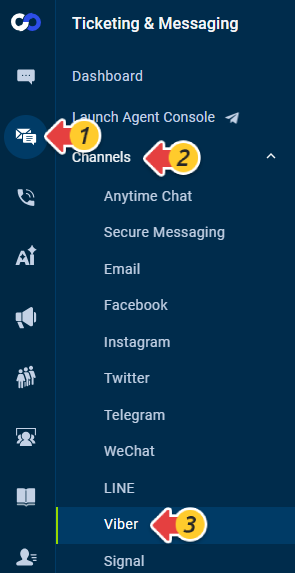
- From the left navigation menu, go to Ticketing & Messaging > Channels > Viber.
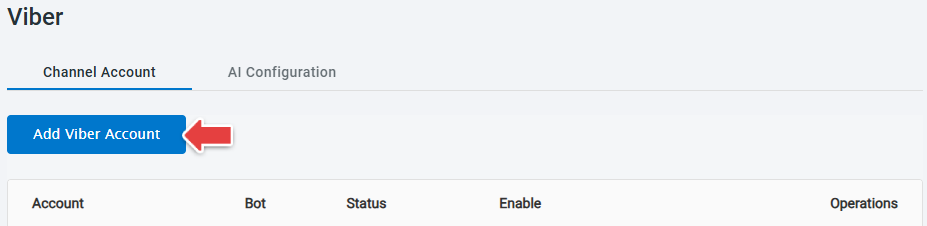
- On the Channel Account tab, click Add Viber Account.
- Configure the following settings:
- Enable: Whether the Viber Account is enabled. This option is enabled by default for a new account.
- Name: The name used to identify the Viber account in Comm100.
- Bot token: The token used to authenticate your Viber Bot. In Viber, go to More > Settings > Bots > Edit Info and copy the APP KEY.
- Click Save.
Comm100 validates the Bot token and connects the Viber Bot. After the connection is successfully verified, the Viber Account appears on the Channel Account list.
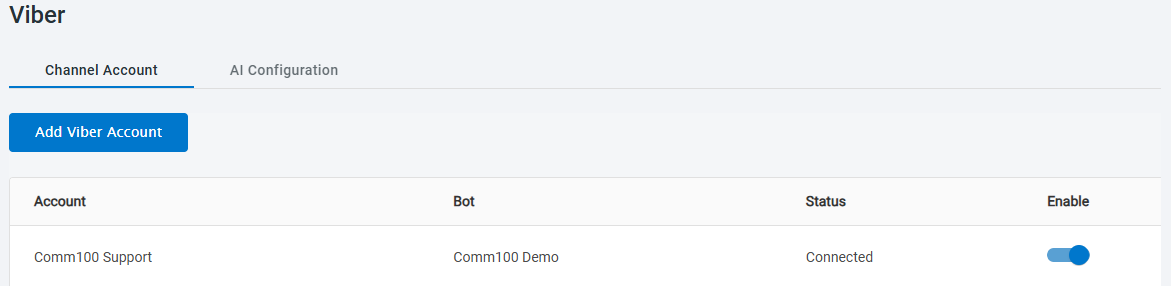
You can add multiple Viber Accounts to the same Comm100 account. However, the same Viber Bot cannot be added more than once or be actively connected to multiple Comm100 accounts.
How Viber Messages Are Handled in the Agent Console
When a customer sends a one-to-one message to a connected Viber Bot, Comm100 creates a Viber ticket or adds the message to the customer's existing unresolved Viber ticket.
Agents can view and reply to Viber messages from the Ticketing & Messaging module in the Agent Console. The Viber integration supports the following message content:
- Incoming messages: Text, images, videos, files, locations, stickers, and URLs.
- Agent replies: Text and emojis, images, videos, and files.
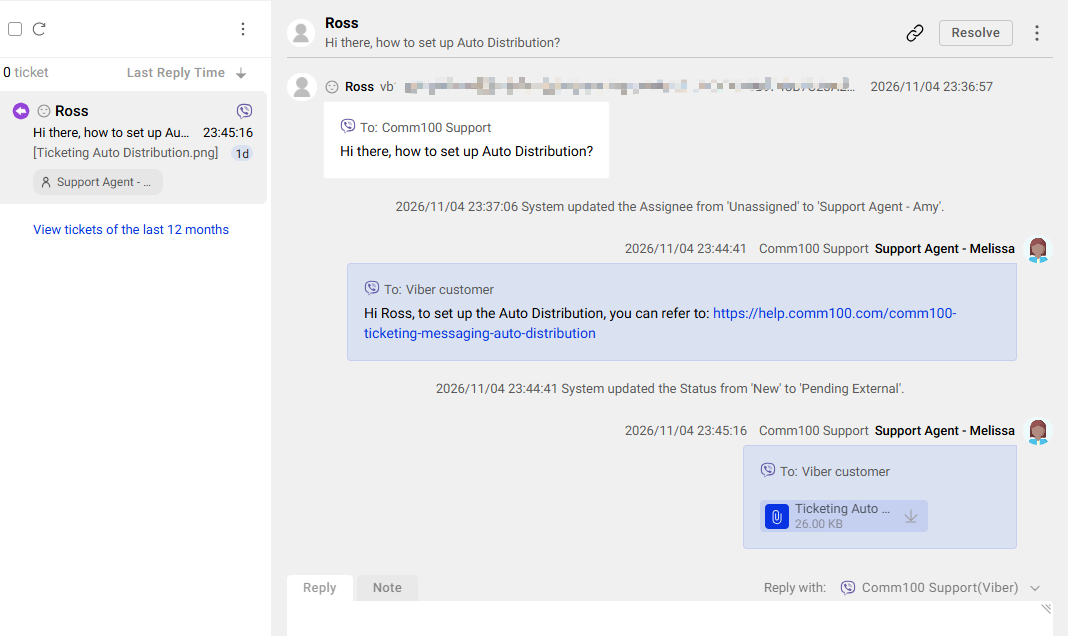
Contact cards (shared contact information) are not supported and appear as unsupported content in the conversation.
Viber 24-Hour Session
A 24-hour Viber session begins when Comm100 receives a customer message and there is no current 24-hour session for that customer and Viber Bot. Messages received during the 24-hour period do not restart or extend the session.
If the session has ended, the following notice appears in the reply area:
The 24-hour session has ended. You can still reply, but Viber charges may apply.
The notice does not prevent agents from sending a reply. Actual charges are determined by Viber.