Realtime Gaming (RTG) is a platform commonly used in the online gaming industry to manage player accounts, transactions, and gameplay data. By integrating RTG with Comm100, you can access and manage player information directly within your chat and ticket workflows, enabling more efficient and personalized support.
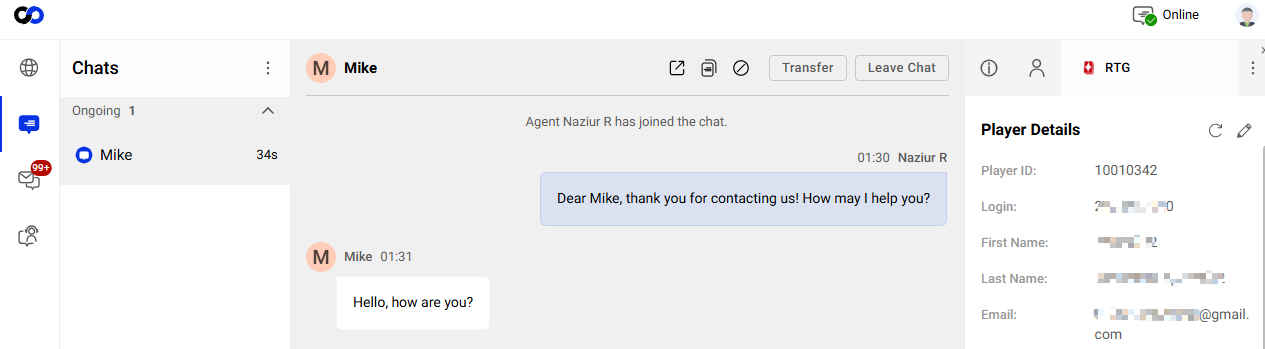
With the RTG integration, an RTG tab appears under the Live Chat and Ticketing & Messaging tabs in the Agent Console. This tab displays player data synced from RTG, allowing you to view relevant information in real time, while updates made during conversations can be synchronized back to the RTG system automatically.
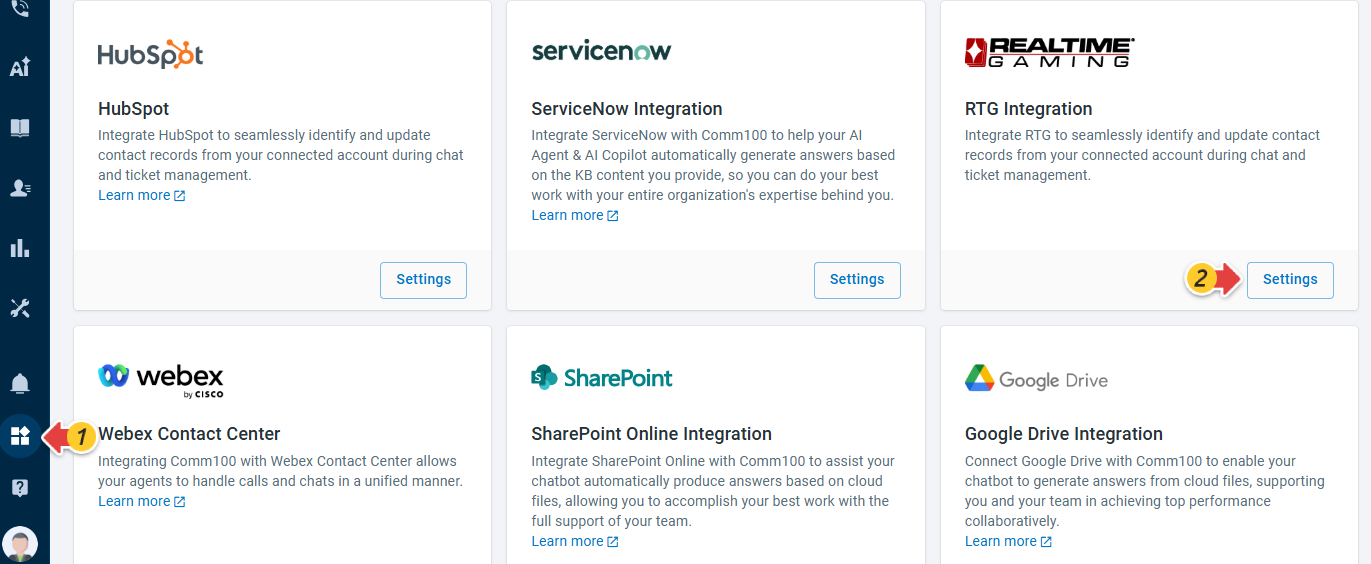
To connect your RTG account, follow these steps:
- Log in to the Comm100 Control Panel.
- From the left navigation menu, go to Apps & Integrations.
- Go to the RTG Integration card, and click Settings.
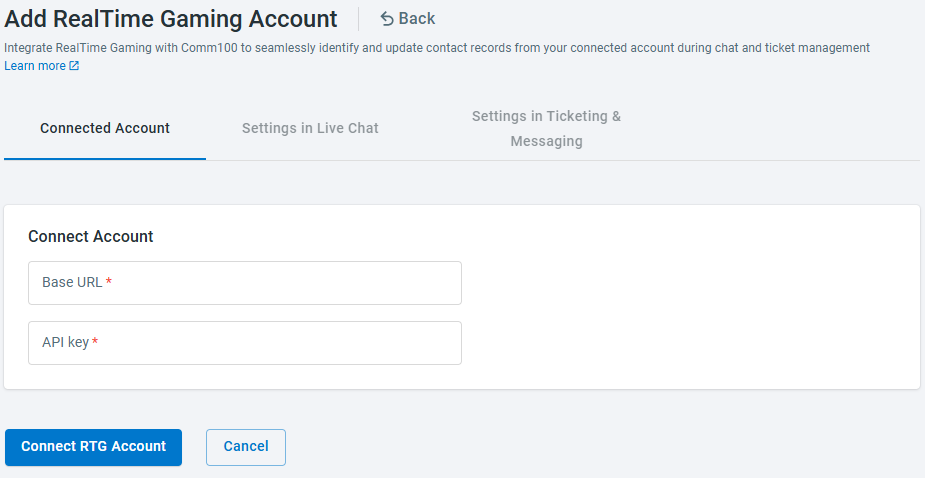
- On the RealTime Gaming Integration page, click Add RealTime Gaming account.
- Under Connected Account tab, enter your account's Base URL and API key, and click Connect RTG Account.Note: When creating the RTG API key, make sure the key has access to the following RTG API endpoints.
- GET /api/service/currencies
- GET /api/casino/clients
- GET /api/casino/users
- GET /api/casino/skins
- GET /api/casino/country-availability
- GET /api/casino/countries/{countryId}/states
- GET /api/service/types?isActive=true
- GET /api/service/categories
- GET /api/service/categories?typeId={typeId}
- GET /api/service/statuses?isActive=true
- GET /api/accounts/playerid?login={login}
- GET /api/players/{playerId}
- PUT /api/players/{playerId}
- POST /api/service/comments
If your RTG environment restricts access by IP address, you also need to allowlist the Comm100 outbound IP address for the platform hosting your Comm100 site:- Control Panel domain – dash11.comm100.io: 44.228.238.128/32
- Control Panel domain – dash12.comm100.io: 44.228.238.128/32
- Control Panel domain – dash13.comm100.io: 15.222.111.154/32
- Control Panel domain – dash15.comm100.io / dash15.lively-chat.com: 52.77.155.182/32
- Control Panel domain – dash17.comm100.io / dash17.lively-chat.com: 3.124.236.148/32
- To integrate RTG with Live Chat, select Settings in Live Chat tab, turn on Enable RTG integration in Live Chat, and complete the integration settings. For details, see Reference: Configurations for RTG Integration.
- To integrate RTG with Ticketing & Messaging, select Settings in Ticketing & Messaging tab, turn on Enable RTG integration in Ticketing & Messaging, and complete the integration settings. For details, see Reference: Configurations for RTG integration.
- Click Save. The integration settings are saved successfully.

After the RTG integration is properly set up, agents can identify RTG players when handling chats or tickets in the Agent Console.
For RTG to be available for an interaction, the corresponding Live Chat campaign or Ticketing & Messaging channel account/chat widget must be assigned to an RTG integration.
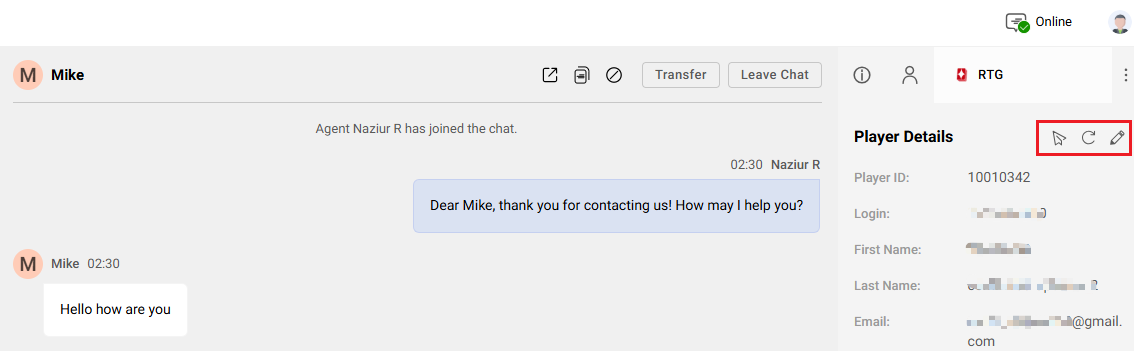
Under the RTG tab, agents can:
- Add a chat transcript as a Service Comment in RTG.
- Refresh to retrieve the latest player information from RTG.
- Edit player information, with updates automatically synced to RTG based on your integration settings.
Configurations for Live Chat Integration
If you enable RTG integration in Live Chat, complete the following configurations:
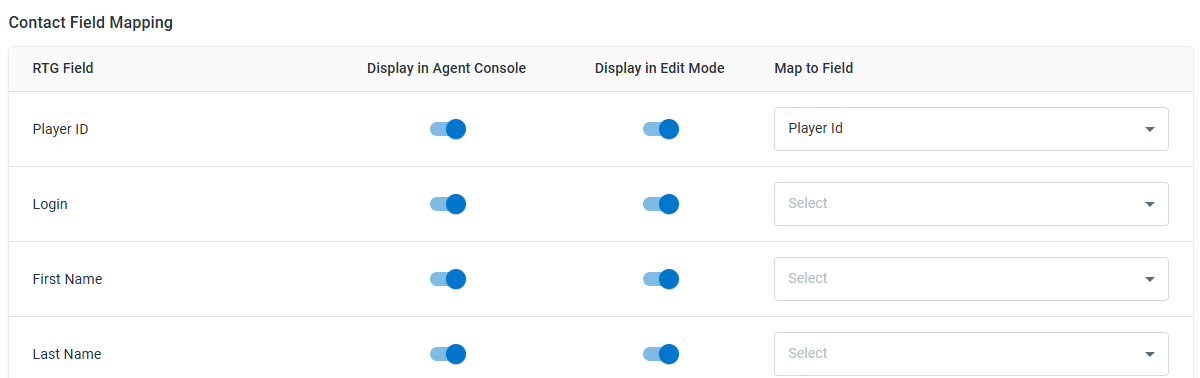
- Contact Field Mapping
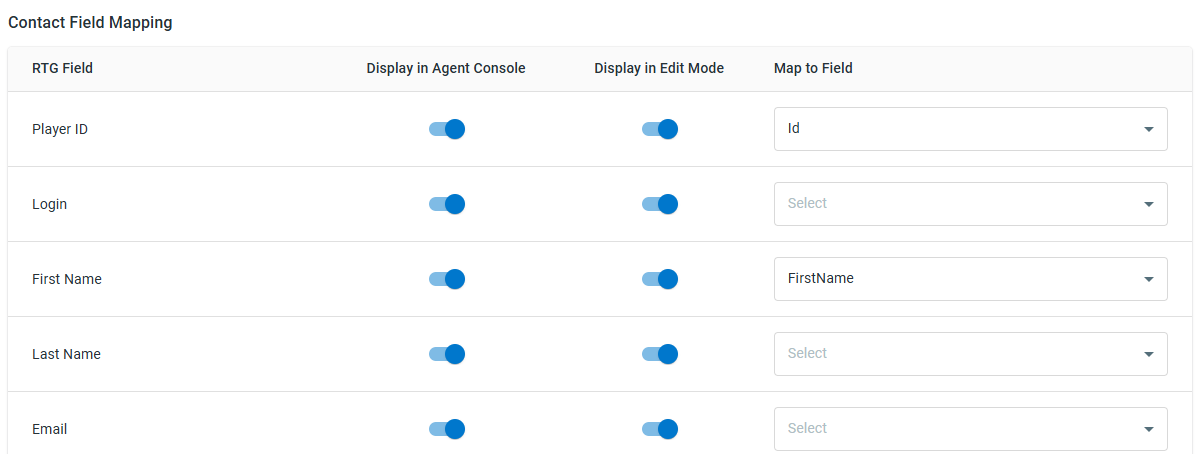
Map RTG fields to Comm100 Live Chat fields. You can also choose the fields to display in the Agent Console. When updating an RTG contact, the system populates RTG contact fields with values from the mapped Live Chat fields. - Contact Information Update Strategy in RTG When Chat Ends
- Do not auto-update: Does not automatically update the contact's information in RTG.
- Update Contact with mapped fields: Updates the contact's information in RTG with values from all mapped fields.
- Only auto-update empty fields in RTG from mapped fields: Keeps existing values in RTG and populates only empty RTG fields with values from the mapped Live Chat fields.
- Contact Information Update Strategy in RTG For Offline Message
- Do not auto-update: Does not automatically update the contact's information in RTG.
- Update Contact with mapped fields: Updates the contact's information in RTG with values from all mapped fields.
- Only auto-update empty fields in RTG from mapped fields: Keeps existing values in RTG and populates only empty RTG fields with values from the mapped Live Chat fields.
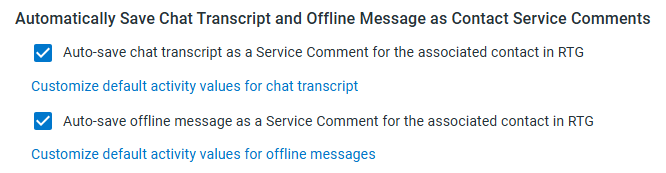
- Automatically Save Chat Transcript and Offline Message as Contact Service Comments
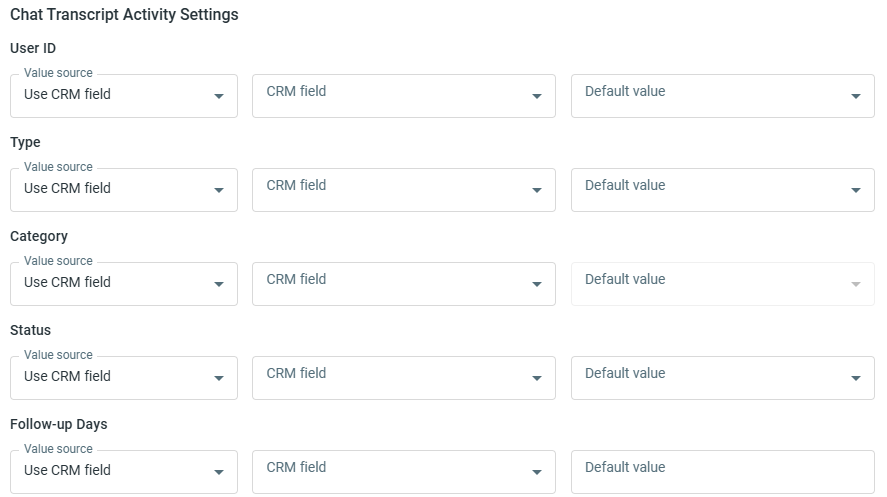
- Auto-save chat transcript as a Service Comment for the associated contact in RTG.
Click Customize default activity values for chat transcript to configure the activity values used when a chat transcript is saved. You can configure User ID, Type, Category, Status, and Follow-up Days, and specify whether each value comes from an RTG field or a default value. - Auto-save offline message as a Service Comment for the associated contact in RTG.
Click Customize default activity values for offline messages to configure the activity values used when an offline message is saved.
- Auto-save chat transcript as a Service Comment for the associated contact in RTG.
- Customize Rules to Identify the RTG Contact
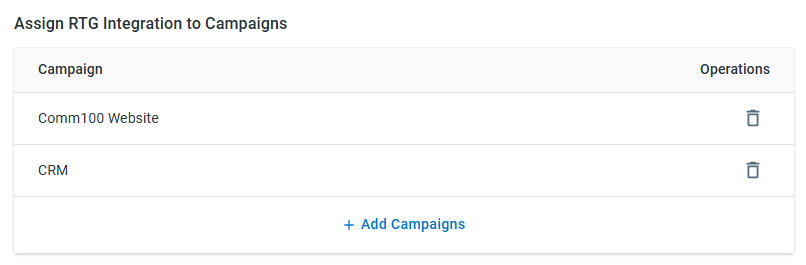
To identify the corresponding contact in RTG, select the Comm100 field that contains the CCID, and map it to the corresponding RTG Field. - Assign RTG Integration to Campaigns
You can assign the RTG integration to one or more Live Chat campaigns. Chats and offline messages from an assigned campaign use this RTG integration when accessing RTG data.Note: One RTG integration can be assigned to multiple campaigns, but a campaign can be assigned to only one RTG integration. If a selected campaign is already assigned to another RTG integration, Comm100 prompts you to confirm the reassignment. Once confirmed, the campaign is moved to the current RTG integration. If a campaign is not assigned to any RTG integration, RTG is unavailable for chats and offline messages associated with that campaign.

Configurations for Ticketing & Messaging Integration
If you enable RTG integration in Ticketing & Messaging, complete the following configurations:
- Contact Field Mapping
Map RTG fields to Comm100 Contact Fields or Contact Identities. - Contact Information Update Strategy in RTG When the Ticket is Created
- Do not auto-update: Does not automatically update the contact's information in RTG.
- Update Contact with mapped fields: Updates the contact's information in RTG with values from all mapped fields.
- Only auto-update empty fields in RTG from mapped fields: Keeps existing values in RTG and populates only empty RTG fields with values from the mapped Ticketing & Messaging fields.
- Customize Rules to Identify the RTG Contact
To identify the corresponding contact in RTG, select the Comm100 field that contains the CCID, and map it to the corresponding RTG Field. - Assign RTG Integration to Ticketing & Messaging Channels
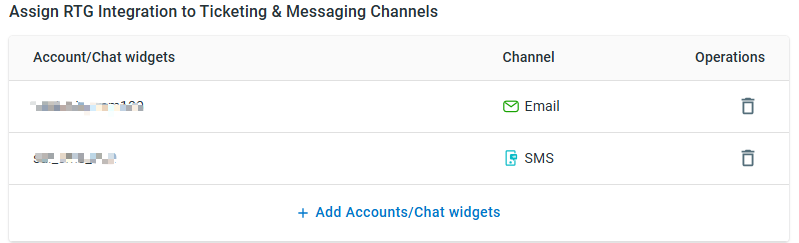
You can assign the RTG integration to one or more Ticketing & Messaging channel accounts. Tickets from an assigned channel use this RTG integration when accessing RTG data.Note: One RTG integration can be assigned to multiple channel accounts, but a channel account or chat widget can be assigned to only one RTG integration. If a selected channel account or chat widget is already assigned to another RTG integration, Comm100 prompts you to confirm the reassignment. Once confirmed, it is moved to the current RTG integration. If a channel account or chat widget is not assigned to any RTG integration, RTG is unavailable for tickets associated with it.