
Installing Anytime Chat is the first step to getting it up on your website. To do so, you need to obtain the installation code from Comm100 and add it to your website's HTML.
This article walks you through the steps to install Anytime Chat on your website.
Step-by-Step Instructions
- Log in to your Comm100 Control Panel.
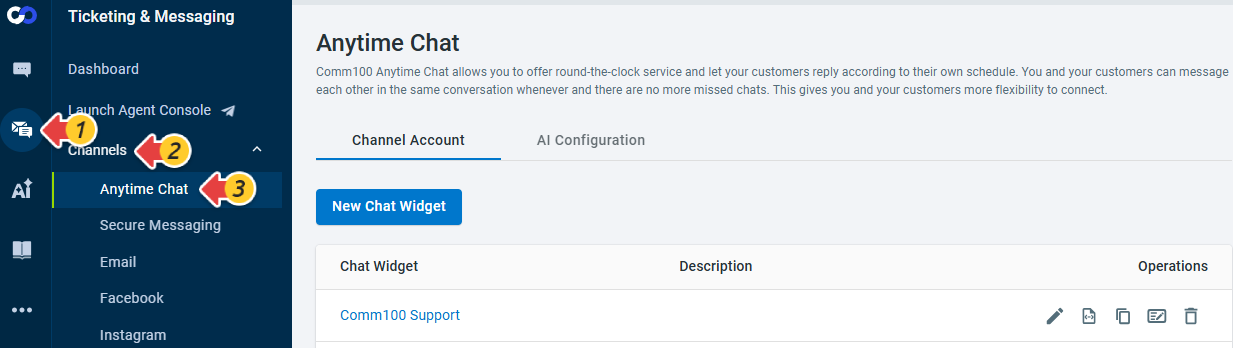
- From the left navigation menu, go to Ticketing & Messaging > Channels > Anytime Chat.
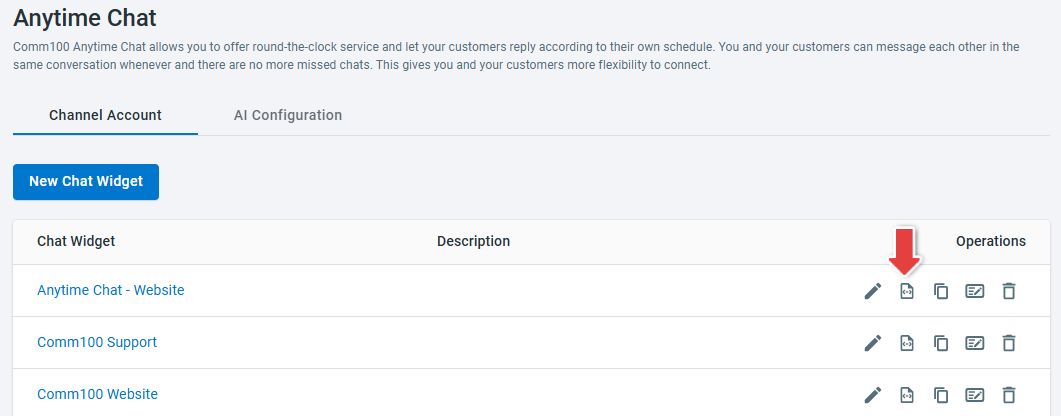
- Locate the Anytime Chat you want to install and click the Install Code icon in the Operations column.
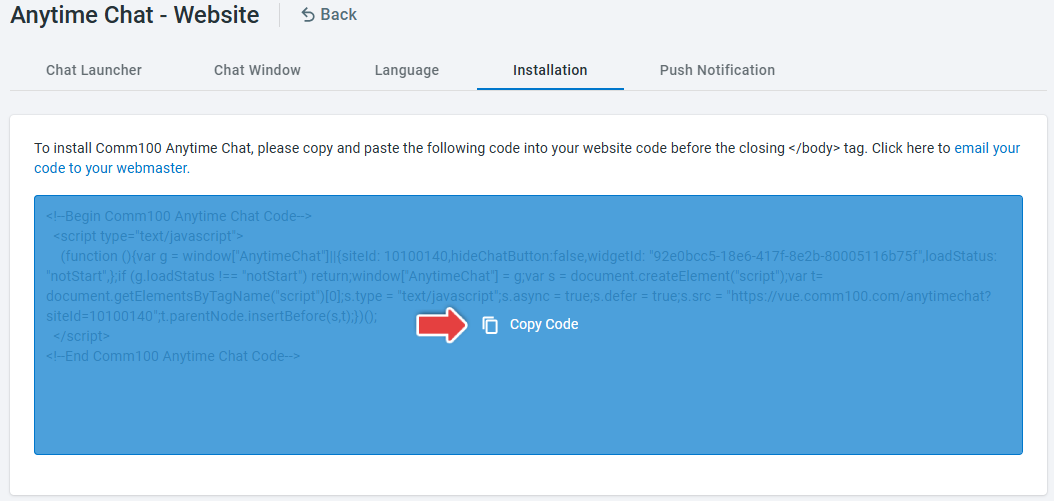
- On the Installation tab, click Copy Code.
- Paste the entire installation code into your website's HTML before the closing </body> tag.
- (Optional) Click Live Preview to see how Anytime Chat will appear on your website.
Note: You can also send the installation code to your webmaster by clicking email your code to your webmaster.
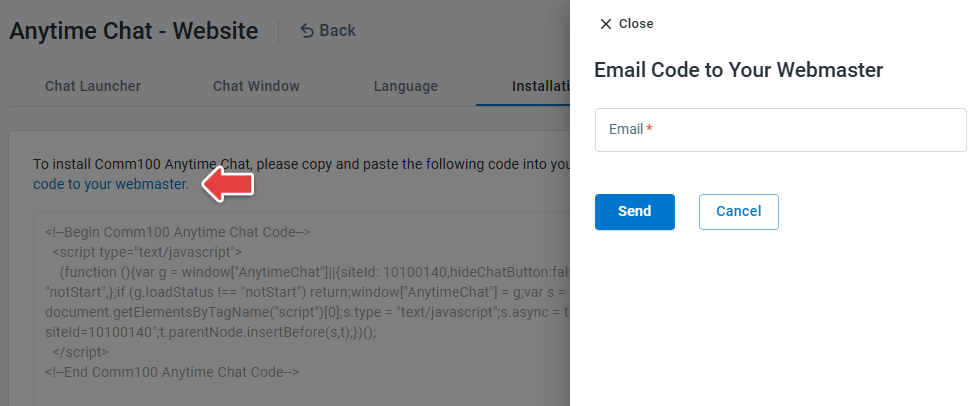
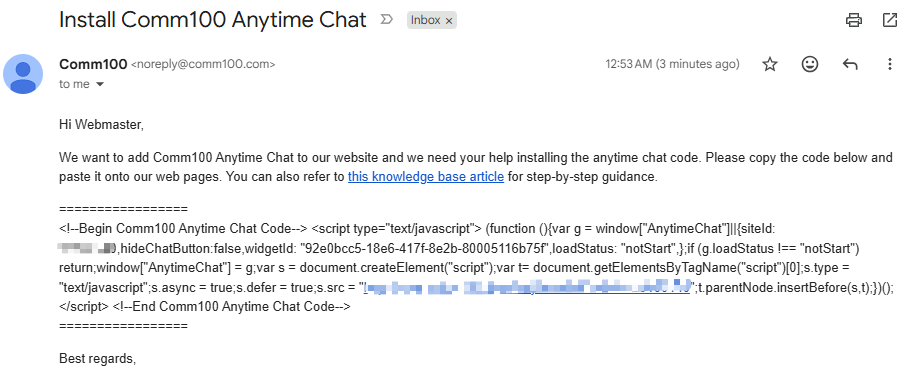
When you email the installation code to your webmaster, the email contains only a brief explanation of the request and the installation code required to add Anytime Chat to your website. No additional account information or sensitive data is included.
When you email the installation code to your webmaster, the email contains only a brief explanation of the request and the installation code required to add Anytime Chat to your website. No additional account information or sensitive data is included.