
The Anytime Chat Window is the interface displayed to visitors when they interact with Anytime Chat. You can customize its appearance and behavior to match your website branding and communication preferences.
Step-by-Step Instructions
To customize the Anytime Chat Window, follow these steps:
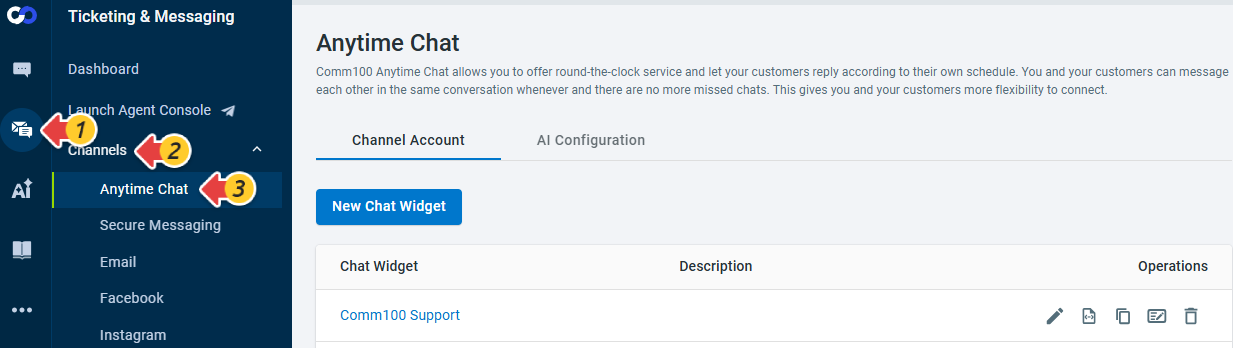
- Log in to your Comm100 Control Panel.
- From the left navigation menu, go to Ticketing & Messaging > Channels > Anytime Chat.
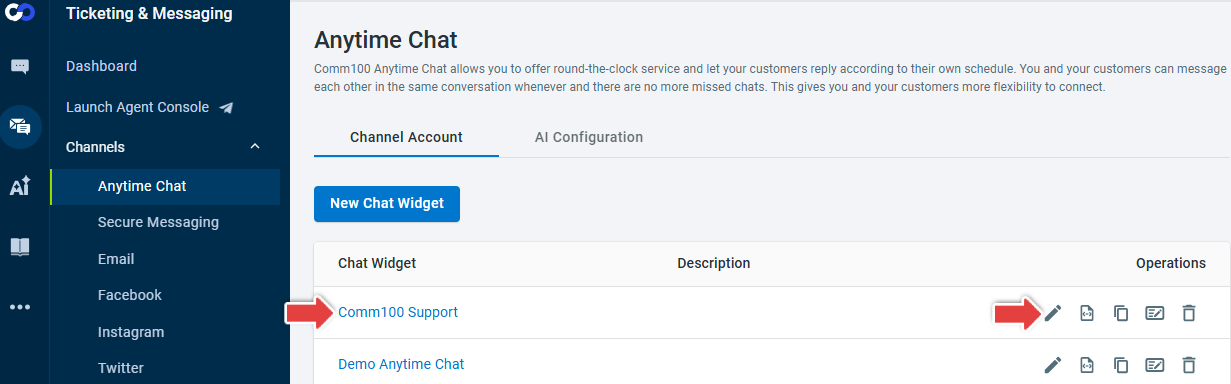
- Locate the Anytime Chat you want to customize and click the Chat Widget link or the Edit icon in the Operations column.
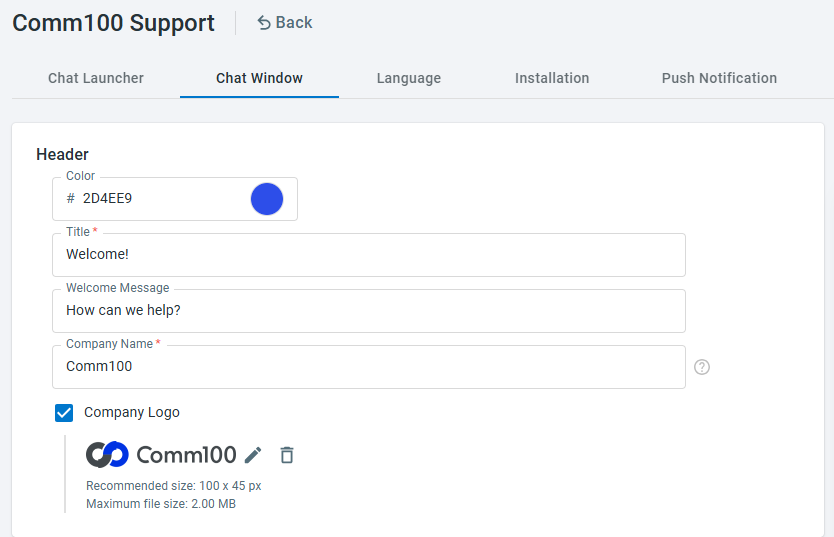
- Go to Chat Window tab.
- In the Header Section, do the following:
- Select a theme Color using the color picker.
- Configure the Title, Welcome Message, and Company Name.
Note: Company Name is used when an anytime chat conversation is not assigned to an agent.
- Upload a company logo by selecting Company Logo and clicking Upload.
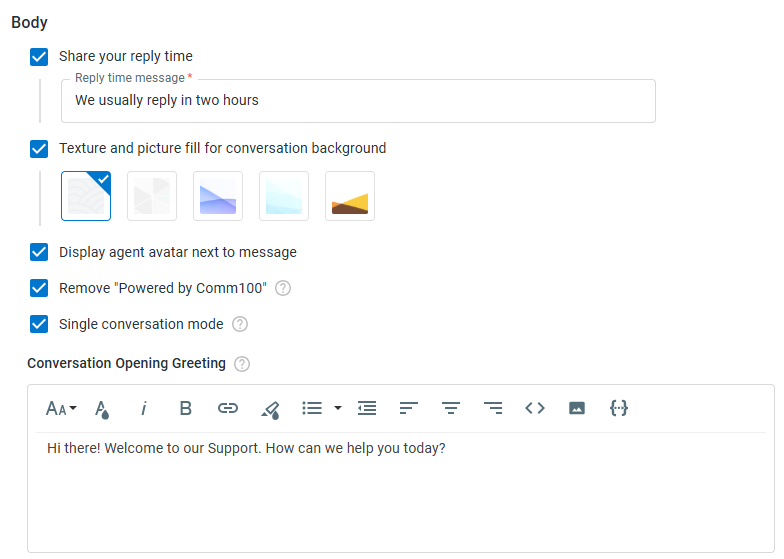
- (Optional) In the Body section, you can configure the following options based on your requirements:
- Share your reply time: Display a reply time message to let visitors know when they can expect a response.
Note: Adding reply time can let your visitor know how soon they can expect a reply. You can set the response time based on your team’s operating hours.
- Texture and picture fill for the conversation background: Select a background style for the chat window.
- Display agent avatar next to message: Show the assigned agent's avatar beside each agent message.
- Remove “Powered by Comm100”: Hide the Powered by Comm100 link from the chat window.
- Single conversation mode: Display all conversations in a continuous conversation thread, allowing visitors to view previous interactions in a single history.
- Conversion Open Greeting: Customize the greeting message displayed when visitors start a new Anytime Chat conversation.
- Share your reply time: Display a reply time message to let visitors know when they can expect a response.
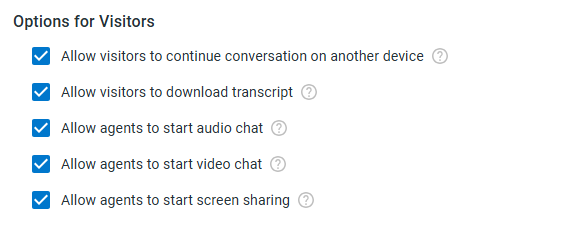
- (Optional) In the Options for Visitors section, do the following based on your requirements:
- Allow visitors to continue the conversation on another device: Enables visitors to continue existing conversations on a different device without logging in. To learn more about the continue conversation feature, see section Continue Conversation in Another Device.
- Allow visitor to download transcript: Allows visitors to download conversation transcripts as PDF files.
- Allow agents to start audio chat: Allows agents to start an audio chat with visitors.
- Allow agents to start video chat: Allows agents to start a video chat with visitors.
- Allow agents to start screen sharing: Allows agents to start a screen sharing session with visitors.
- Click Save.
Changes are applied automatically after saving. You can also use Live Preview to view the latest saved version of the Anytime Chat Window on a dedicated preview URL.
Continue Conversation in Another Device
The Continue conversation in another device feature enables visitors to maintain conversations on another device without login. Once enabled, your visitor can see the action from the Anytime Chat Window’s drop-down menu.
If the Anytime Chat requires SSO login, this feature is not available because the visitor need to login to see their conversations in another device.
Upon selecting the Continue conversation in another device action, the page navigates to the next level where your visitor can:
- Copy the link URL and send it to another device.
- Open the link URL on another device and authenticate it using the dynamic security code to continue the conversation.

When a visitor uses the link URL on another device for the first time, it opens the web page where they can see their conversations.
If a need arises, your visitor can re-generate a new URL in the Anytime chat window. Once re-generated, the previous link URL expires immediately.
Moreover, if your visitor’s multiple devices are in sync, then adding a new conversation to any device auto-syncs the same conversation in another device(s). However, if the visitor already has old conversations in a device. When they try to use the Continue Conversation link in that device, the old conversations will disappear and cannot be recovered any more.
