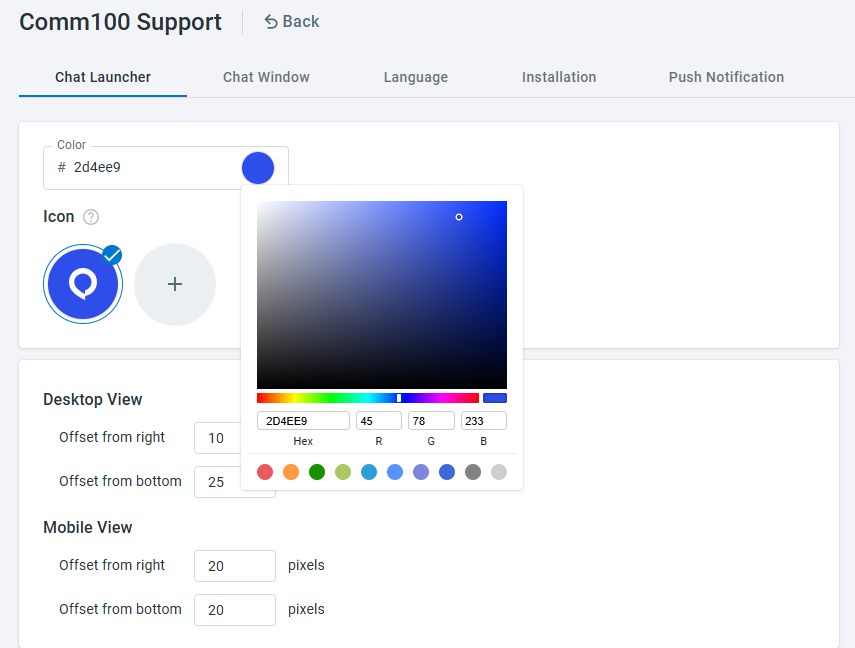
The Chat Launcher tab allows you to customize the appearance and position of the Anytime Chat launcher for both desktop and mobile devices. You can change the launcher color, upload a custom icon, and adjust its floating position to better match your website design.
Step-by-Step Instructions
To customize the Anytime Chat Launcher, follow these steps:
- Log in to your Comm100 Control Panel.
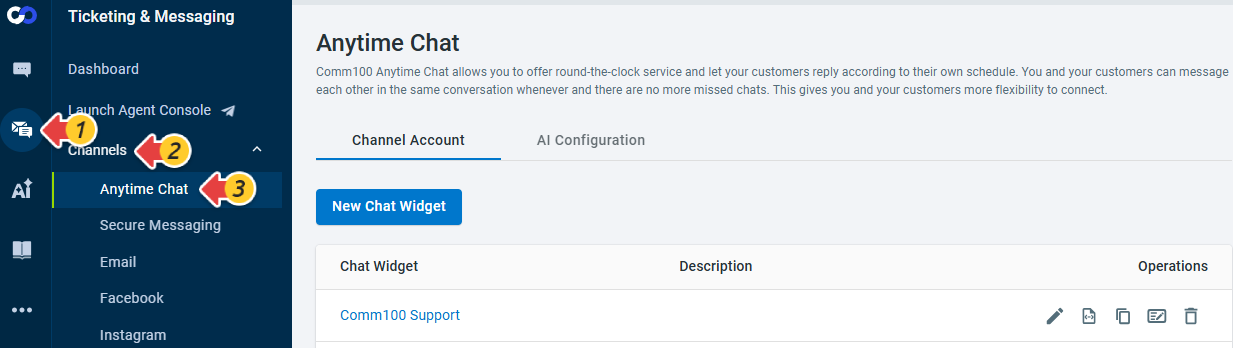
- From the left navigation menu, go to Ticketing & Messaging > Channels > Anytime Chat.
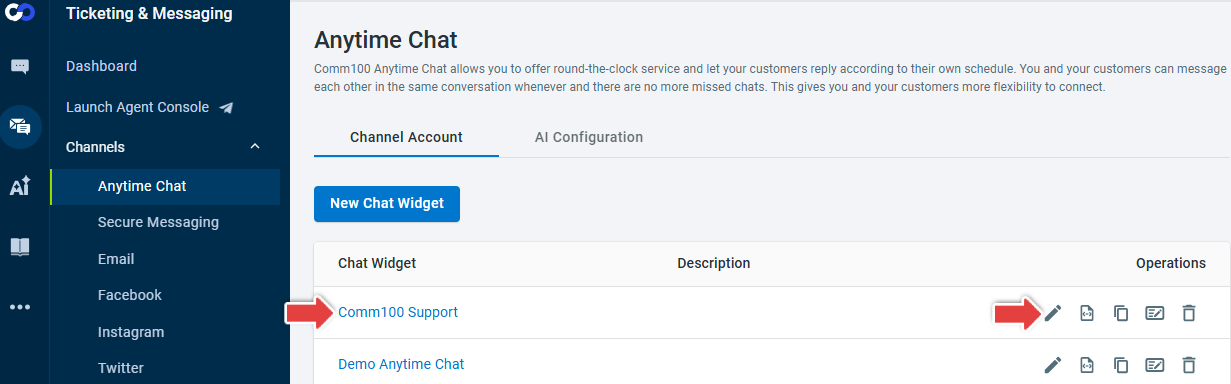
- Locate the Anytime Chat you want to edit by clicking its name or the Edit icon in the Operations column.
- On the Chat Launcher tab, configure the following settings:
- Set the launcher color using the Color Picker or by entering a HEX or RGB value.
- Upload a custom icon to display inside the launcher. The icon must be an SVG file no larger than 20 KB.
- For Desktop View, specify the launcher offset position in pixels.
- For Mobile View, specify the launcher offset position in pixels.
You can then use the preview area to see how the launcher will appear on desktop and mobile devices. - Click Save.