With Comm100 Live Chat, the chat button is fully customizable. You can customize the type, color, icon, text, and position for your chat button. Comm100 Live Chat provides three types of chat buttons: Adaptive, Image, and Text link. The settings available vary depending on the button types. Before customizing your chat button, learn the differences among the three types of chat buttons through Comm100 Chat Button Types and decide the chat button type and style that you want.
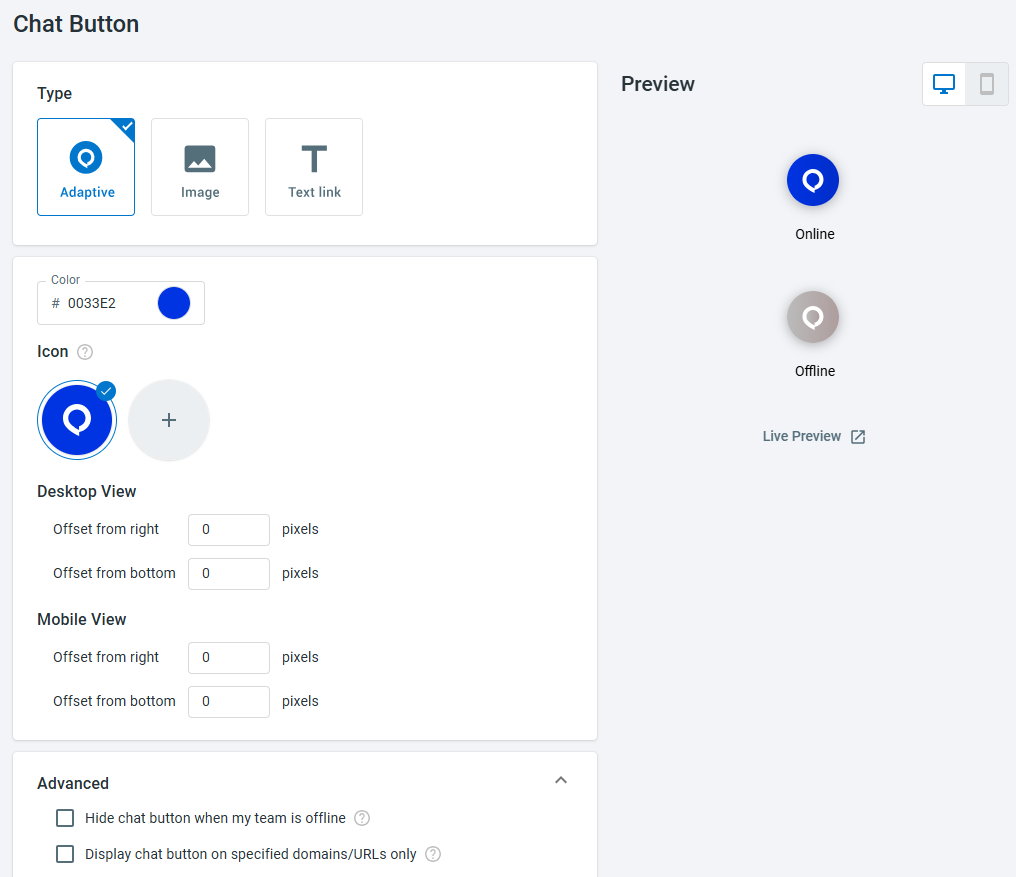
Apart from the customization of visual elements, Comm100 Live Chat also allows you to hide or show your chat button using following conditions:
- Hide chat button when my team is offline
Hide your chat button when none of your agents is online. This feature is only available for websites implemented with JavaScript Live Chat code. - Display chat button on specified domains/URLs only
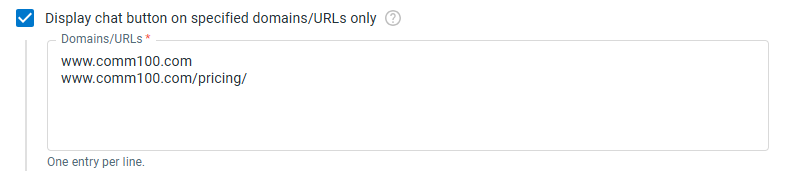
If your website contains multiple pages and you want the chat button to appear on only certain pages, you can specify the allowed domains or URLs here. When configuring a domain or URL, the value must match the host portion exactly. For example, in the URL https://www.comm100.com/, the host is www.comm100.com, so you must enter www.comm100.com at minimum. Using only comm100.com will not work.
Before using this option, make sure the Live Chat installation code has already been added to your website.
Step-by-Step Instructions
To customize your chat button, follow these steps:
- Log in to the Comm100 Control Panel.
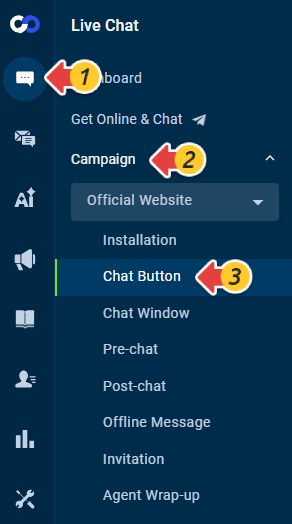
- From the left navigation menu, go to Live Chat > Campaign > Chat Button.
- Choose Adaptive, Image or Text link as your button type.
- Complete the color, position and other settings for your chat button. When making the changes, you can preview the chat button on the right side in real-time.
- (Optional) To hide your chat button when your team is offline or on some of your webpages, expand the Advanced menu, and complete your settings according to your requirements.
- To hide your chat button when none of your agents is online, select the Hide chat button when my team is offline checkbox.
- To show your chat button on some of the webpages that are implemented with Live Chat code, select the Display chat button on specified domains or URLs only checkbox and input the URL list.
- Click Save.