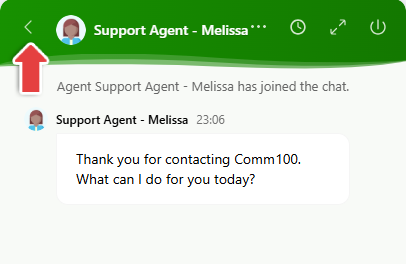
Home provides a customizable starting page inside the Live Chat window where visitors can start a chat, search Knowledge Base articles, review recent conversations, and access other support options.
You can customize Home for each Live Chat campaign, including its branding, chat entry, Knowledge Base content, recent chats, and shortcuts.
Step-by-Step Instructions
To customize Home, follow these steps:
- Log in to your Comm100 Control Panel.
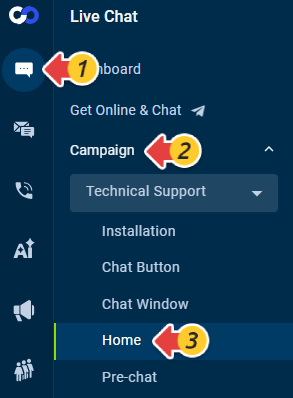
- From the left navigation menu, go to Live Chat > Campaign and select the campaign you want to customize.
- Click Home.
- Turn on the toggle to enable Home.
- Customize the following sections:
- Branding
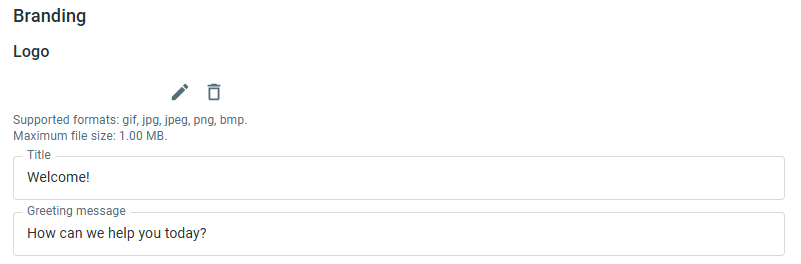
The Branding section defines the logo and welcome text displayed at the top of Home.
- Logo: Upload the logo you want to display.
- Title: Enter a title for Home, such as “Welcome!”
- Greeting message: Enter a welcome message, such as “How can we help you today?”
- Chat
Customize the Title and Description displayed for the chat entry on Home.
- Knowledge Base
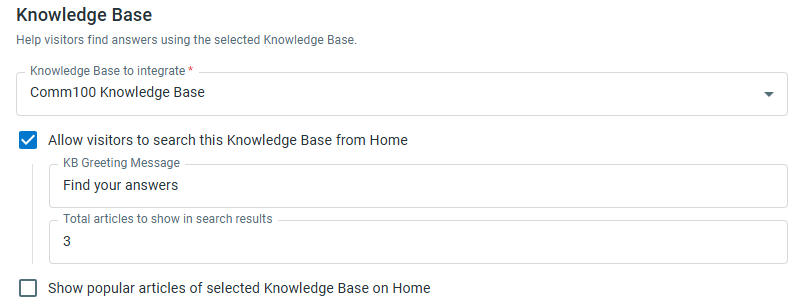
The Knowledge Base section lets visitors search a selected Knowledge Base and view popular articles directly from Home.
- Knowledge Base to integrate: Select the Knowledge Base you want visitors to access.
- Allow visitors to search this Knowledge Base from Home: Enable this option to display Knowledge Base search.
- KB Greeting Message: Enter the greeting text displayed above the Knowledge Base search.
- Total articles to show in search results: Specify the maximum number of articles displayed in search results.
- Show popular articles of selected Knowledge Base on Home: Enable this option to display up to three popular articles.
- Recent Chats
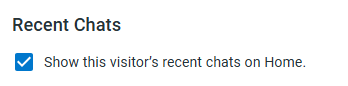
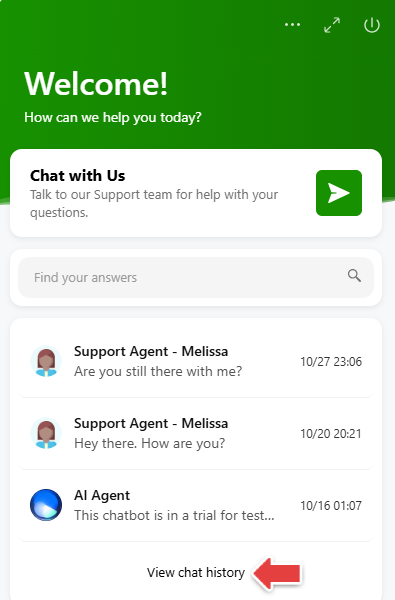
In the Recent Chats section, enable Show this visitor’s recent chats on Home to display up to three recent ended chats.
Visitors can open a recent chat to review its transcript or click View chat history to access additional previous chats. Opening an ended chat does not restart it.
Note: The option Allow visitors to view previous chats under Campaign > Chat Window > Options for Visitors must also be enabled. - Shortcuts
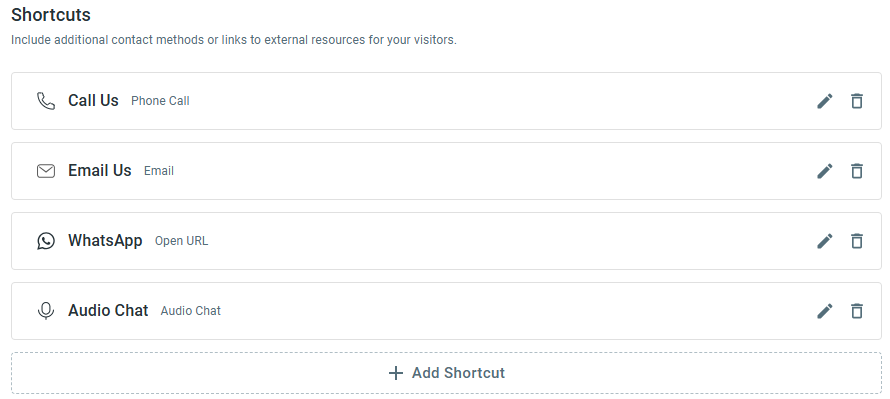
You can add up to six Shortcuts and reorder, edit, or remove them as needed. For each Shortcut, you can customize the Title and select a built-in Icon. Multiple Shortcuts can use the same Action Type.
- Open URL: Opens a webpage or another supported destination. Enter the target URL. Common URL prefixes are available for WhatsApp, Telegram, Messenger, Instagram, and X.
- Phone Call: Opens the visitor's device dialer using the configured phone number.
- Email: Opens the visitor's registered email application using the configured email address.
- SMS: Opens the visitor's messaging application using the configured phone number.
- Audio Chat: Allows the visitor to request an Audio Chat.
- Video Chat: Allows the visitor to request a Video Chat.
- Note: For Audio Chat and Video Chat, the corresponding capability and visitor-request option under Campaign > Chat Window > Options for Visitors must be enabled.
Note: For Audio Chat and Video Chat, the corresponding capability and visitor-request option under Campaign > Chat Window > Options for Visitors must be enabled.
- Branding
- Click Save.

Once saved, visitors who open the Live Chat window without an active chat will see Home by default.
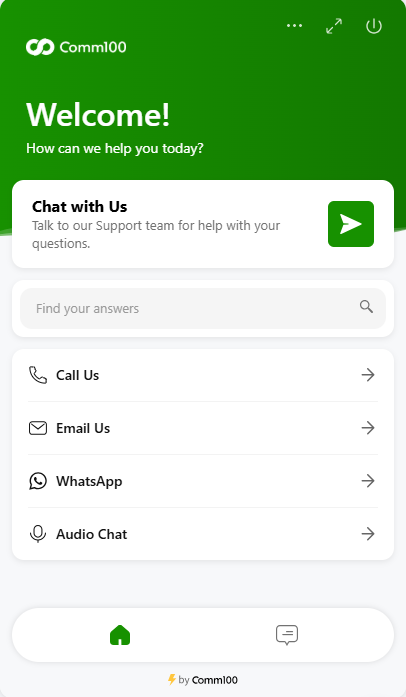
Visitors can switch from Home to Chat to start a conversation. During an active chat, they can return to Home without ending or interrupting the conversation.