
With the Fields & Mappings feature in Comm100 Ticketing & Messaging, you can create custom fields to capture additional information and provide better context for your tickets.
Comm100 includes system fields by default, but you can also create custom fields tailored to your operational or business needs. These are the types of custom fields available: Text box, Text area, Email, URL, Link, Date, Phone, Integer, Float, Agent, Department, Radio button, Checkbox, Dropdown list, and Checkbox list.
You can create custom fields with any of these available field types and map them using mappings to fetch data.
Step-by-Step Instructions
To create a new custom field, follow these steps:
- Log in to Comm100 Control Panel.
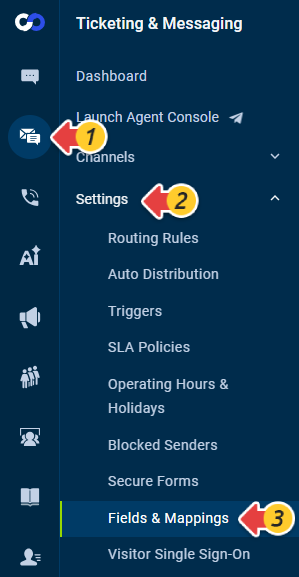
- From the left navigation menu, go to Ticketing & Messaging > Settings > Fields & Mappings.
- On the Fields & Mappings page, click New Field.
- Select a data type as per your need.
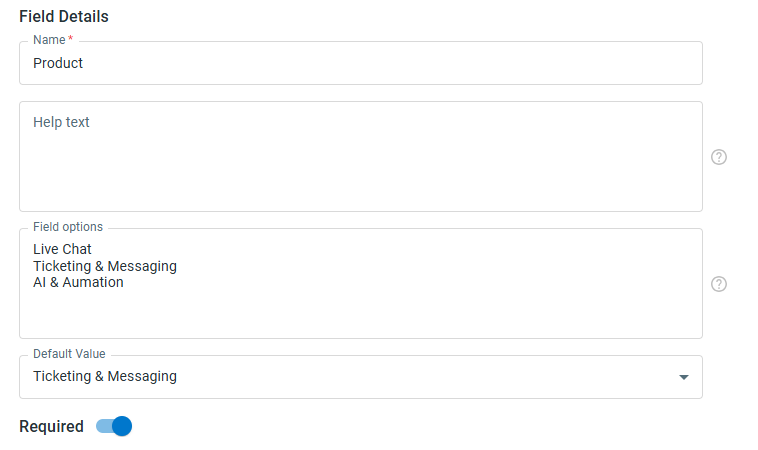
- Provide field details, such as Name, Field length, Help text, or value required. The following example is a Dropdown list type field.
- Click Save to complete the setup.

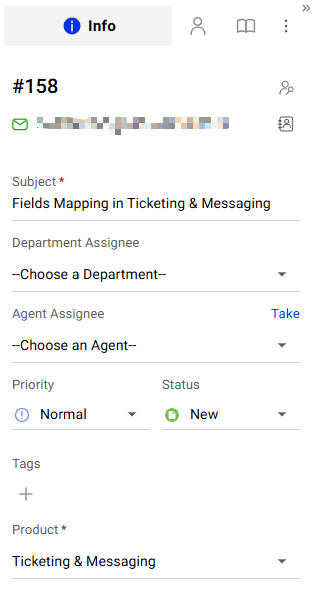
Once created, the custom field will appear in the Agent Console under the Info tab within Ticketing & Messaging.
To create field Mappings, follow these steps:
- Log in to Comm100 Control Panel.
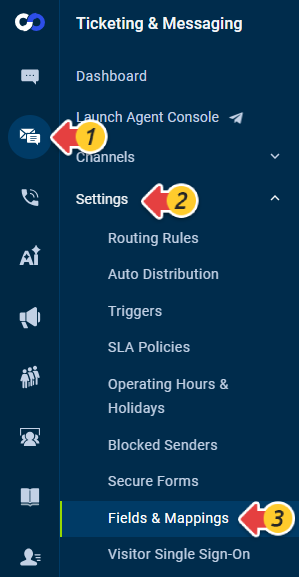
- From the left navigation menu, go to Ticketing & Messaging > Settings > Fields & Mappings.
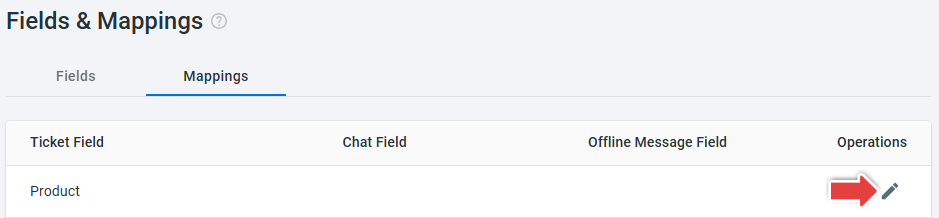
- On the Fields & Mappings page, select the Mappings tab.
- Locate the custom field and click the Edit icon under the Operations column.
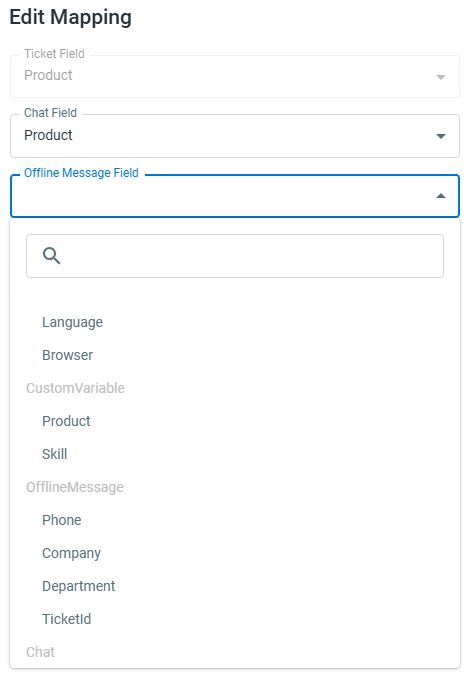
- In the Edit Mapping drawer, choose the mapping field from the Chat Field and/or Offline Message Field. The fields include the ones from Visitor, Chat, Pre-Chat, Offline Message, and Custom Variable. Note: The system obtains the value for the Chat field or Offline message field depending on the channel of the ticket. If the ticket is from Live Chat, it reads the Chat field. If the ticket is from Offline Message, it reads the Offline message fields.
- Click Save.
- If a mapped field has a value during a chat, the corresponding custom field will be automatically populated when the chat is converted into a ticket.
- If a mapped Chat or Offline Message field is later deleted, the corresponding custom field value will appear empty in the Agent Console.