
Comm100 Responsible Gambling uses Markers of Harm to identify behaviors, language, or conversation patterns that may indicate potential gambling harm.
Each Marker of Harm belongs to a Spotlight Category and has a Risk Score from 1 (Informational) to 5 (Critical). You can assign Markers of Harm to Live Chat campaigns and Ticketing & Messaging channels, and configure actions to take when a Marker of Harm is detected.
By default, Comm100 provides 18 predefined Markers of Harm organized into two categories: UK Gambling Commission (UKGC) and Malta Gaming Authority (MGA), with nine Markers of Harm in each category. Each predefined Marker of Harm includes a Description and a default Risk Score. You can use the predefined Markers of Harm or modify them based on your organization's responsible gambling requirements. The Risk Scores assigned to the predefined Markers of Harm are Comm100 product defaults and are not risk ratings assigned by UKGC or MGA.
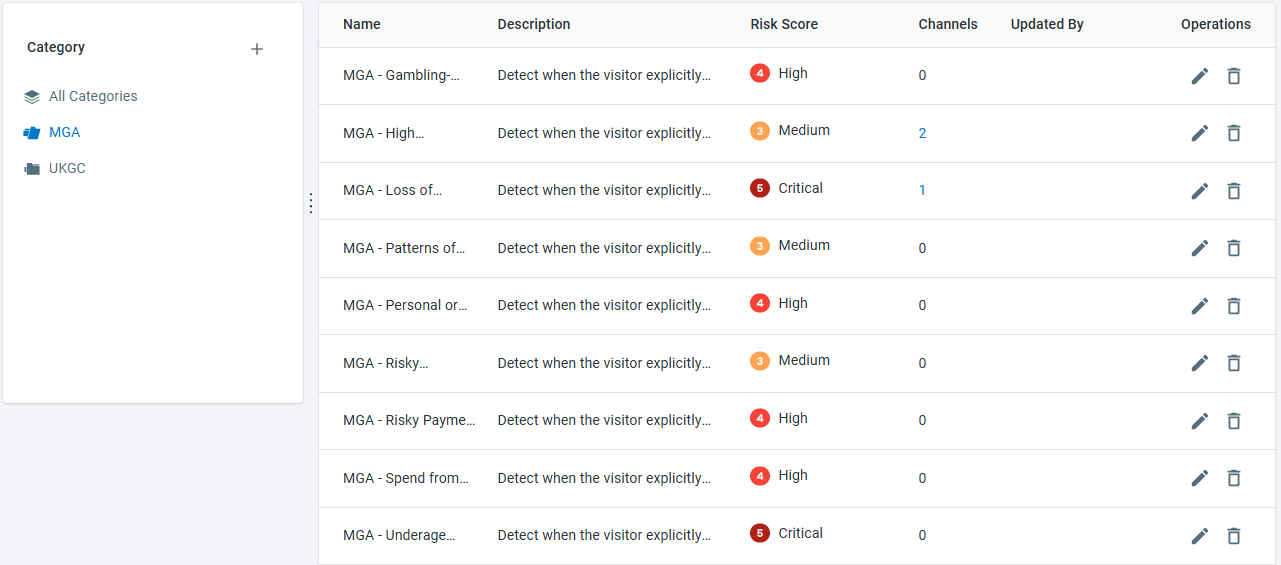
This article shows you how to create and configure Markers of Harm for Live Chat and Ticketing & Messaging.

Creating a Marker of Harm
To create a Marker of Harm, follow these steps:
- Log in to your Comm100 Control Panel.
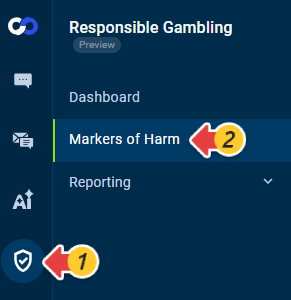
- From the left navigation menu, go to Responsible Gambling > Markers of Harm.
- Click New Marker of Harm.
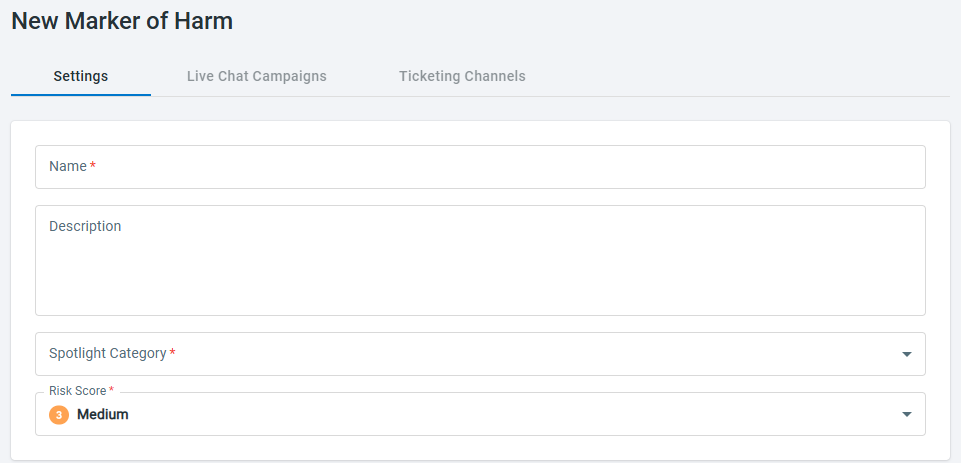
- On the Settings tab, configure the following:
- Name: Enter a unique name for the Marker of Harm.
- Description: Describe the behavior, scenario, or signal that the Marker of Harm should detect.
- Spotlight Category: Select the Responsible Gambling category that the Marker of Harm belongs to.
- Risk Score: Select the risk level for the Marker of Harm. The default value is 3 Medium.
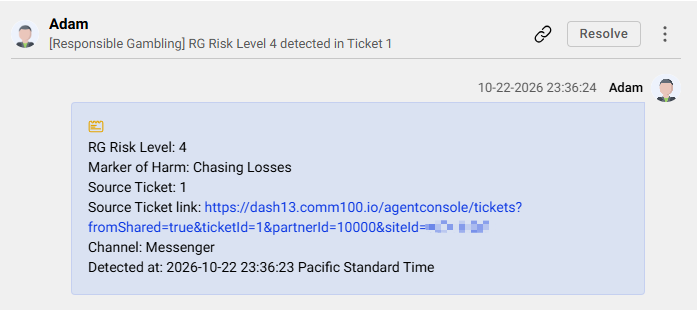
The available Risk Scores are:Risk Score Level Behavior 1 Informational Records a signal for awareness and reporting. No automatic system notifications are sent. 2 Low Identifies a low-risk signal that may need monitoring for recurring patterns. No automatic system notifications are sent. 3 Medium Identifies a moderate-risk signal for review and assessment. No automatic system notifications are sent. 4 High Automatically notifies eligible agents with the RG Manager permission by email and Agent Console popup. For Ticketing & Messaging, an eligible RG Manager also receives an assigned High-priority Internal Ticket. 5 Critical Automatically notifies eligible agents with the RG Manager permission by email and Agent Console popup. For Live Chat detections performed in real time, active chats are also added to eligible agents' monitor lists. For Ticketing & Messaging, an eligible RG Manager receives an assigned Urgent-priority Internal Ticket. Note: The predefined system actions for Risk Scores 4 and 5 are always enabled and run independently from the actions that you configure for the Marker of Harm.
For Live Chat, notifications are sent only to enabled agents who have the RG Manager permission and the required access to the source chat. Adding a Critical chat to an agent's monitor list also requires the applicable monitoring permission and scope.
For Ticketing & Messaging, every enabled agent with the RG Manager permission receives the system email. Agent Console popups are shown to eligible online RG Managers who have access to the source Ticket. An Internal Ticket is also created for the RG Managers.
Click Save.
After the Marker of Harm is created, you can configure it for one or both supported products from the Live Chat Campaigns and Ticketing Channels tabs.
Configuring a Marker of Harm for Live Chat
To configure the Marker of Harm for Live Chat, follow these steps:
- From Responsible Gambling > Markers of Harm, locate and edit the Marker of Harm you want to configure.
- Go to the Live Chat Campaigns tab.
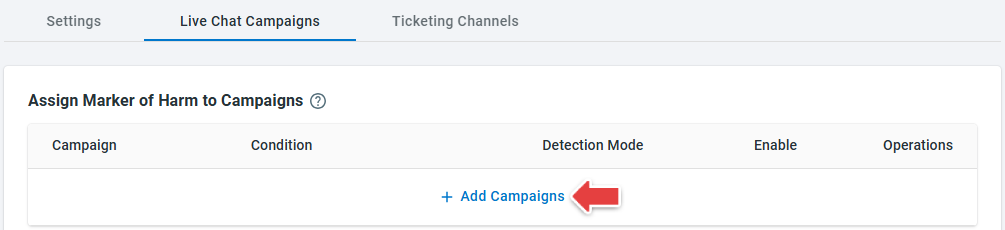
- In the Assign Marker of Harm to Campaigns section, click Add Campaigns and select the campaigns where you want the Marker of Harm to be evaluated.
- Configure the Marker of Harm for each assigned campaign as needed:
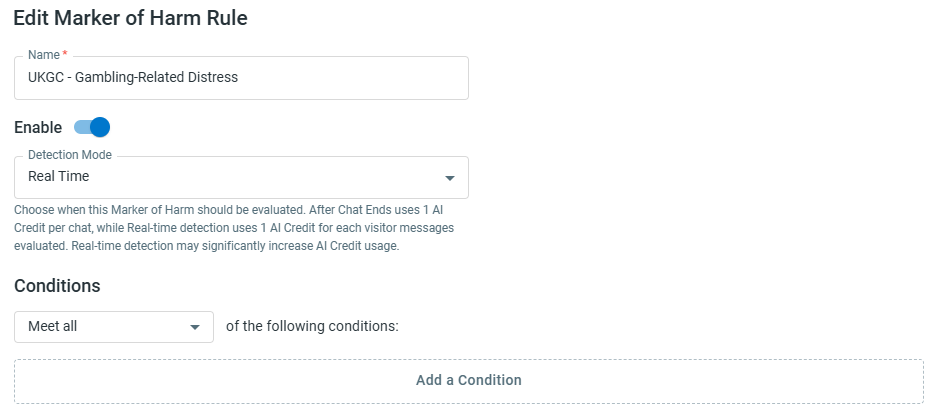
- Enable: Determines whether the Marker of Harm is evaluated for the campaign.
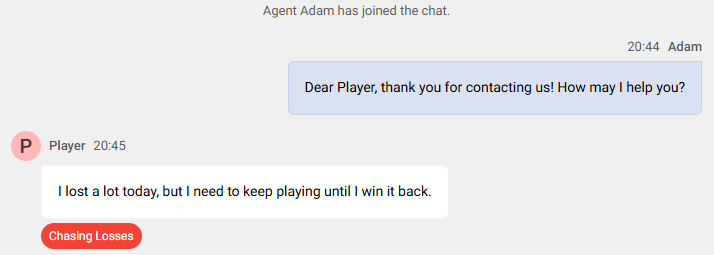
- Detection Mode: Choose whether Comm100 evaluates the Marker of Harm in real time during a chat or after the chat ends.
- Conditions: Define additional conditions that determine when the Marker of Harm is evaluated.
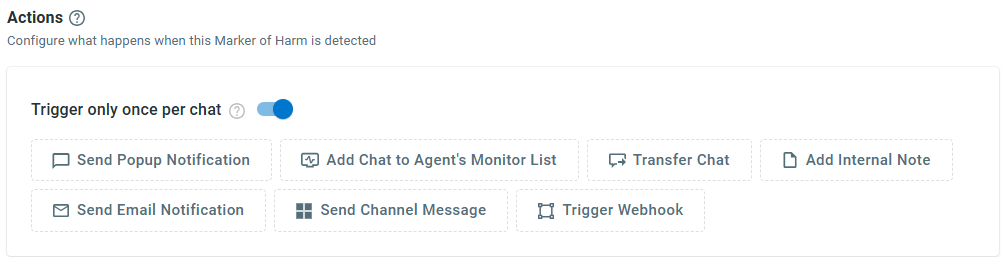
- In the Actions section, configure what Comm100 should do when the Marker of Harm is detected. Available actions include sending a popup or email notification, adding the chat to an agent's monitor list, transferring the chat, adding an internal note, sending a channel message, and triggering a webhook.
You can also use Trigger only once per chat to prevent the configured actions from running repeatedly for the same chat. - Click Save.
Configuring a Marker of Harm for Ticketing & Messaging
To configure a Marker of Harm for Ticketing & Messaging, follow these steps:
- From Responsible Gambling > Markers of Harm, locate and edit the Marker of Harm you want to configure.
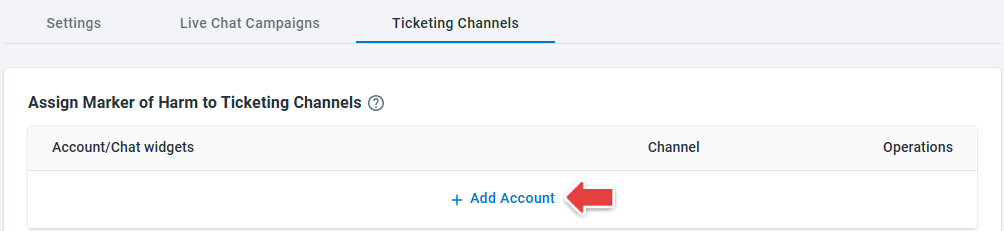
- Go to the Ticketing Channels tab.
- In the Assign Marker of Harm to Ticketing Channels section, click Add Account.
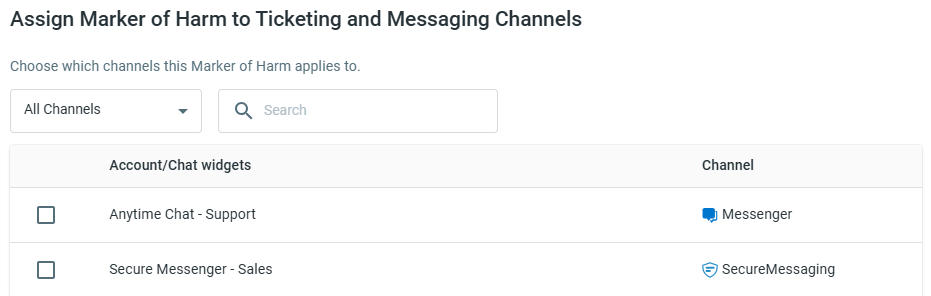
- In the Assign Marker of Harm to Ticketing and Messaging Channels drawer, select the channel accounts where you want the Marker of Harm to analyze new messages, and save your selection. Once assigned, new eligible messages from the selected channel accounts can be evaluated for the Marker of Harm. Messages created before the assignment are not analyzed retroactively.
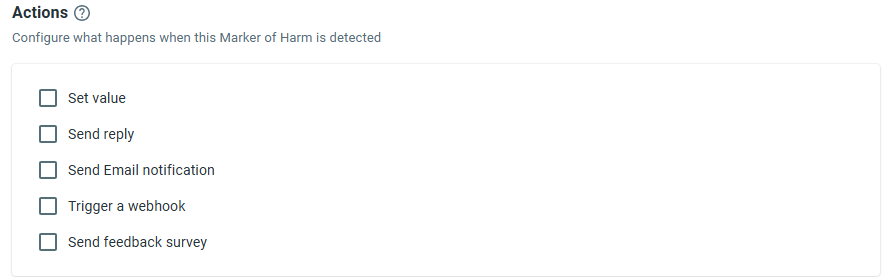
- In the Actions section, select and configure the actions you want Comm100 to perform when the Marker of Harm is detected. Available actions can include Set value, Send reply, Send Email notification, Trigger a webhook, and Send feedback survey.
- Click Save.
Managing Markers of Harm
You can edit or delete existing Markers of Harm from Responsible Gambling > Markers of Harm.
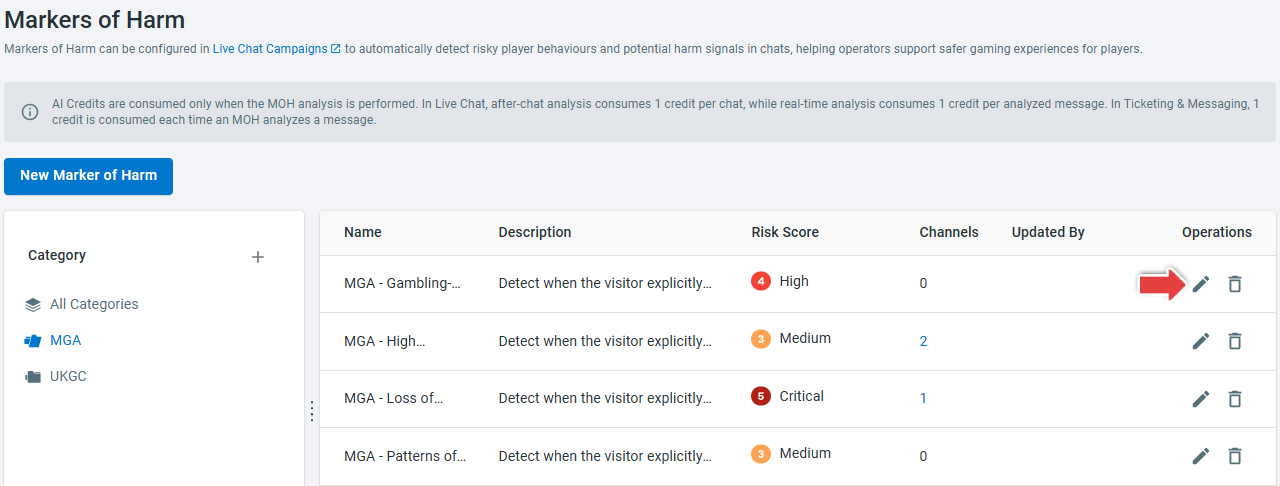
The 18 predefined UKGC and MGA Markers of Harm behave like other site-managed Markers of Harm. You can edit their descriptions, Risk Scores, assignments, and actions, or delete them when they are no longer required.
Before deleting an assigned Marker of Harm, remove its applicable Live Chat campaigns and Ticketing channels first.
When the last assignment for a product is removed, the action configuration associated with that product is also removed. Existing detection history is retained.
AI Credit Consumption
AI Credits are consumed only when Marker of Harm analysis is performed.
| Analysis | AI Credit Consumption |
| Live Chat - After Chat Ends | 1 AI Credit per chat analyzed |
| Live Chat - Real Time | 1 AI Credit per message analyzed |
| Ticketing & Messaging | 1 AI Credit each time a Marker of Harm analyzes a message |
The number of AI Credits consumed therefore depends on the configured channels, Live Chat Detection Mode, and the volume of conversations or messages being analyzed.