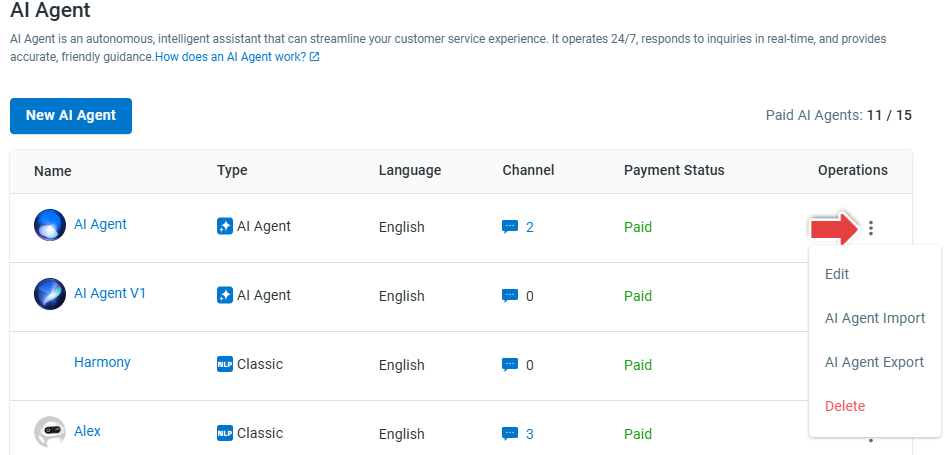
AI Agent is Comm100’s latest generation of intelligent assistant that can further streamline your customer service experience. Evolving from classic AI Agents, Comm100 AI Agent encompasses a wide range of functionalities including natural language understanding, decision-making, problem-solving, and interacting with context awareness.
This article walks you through the steps to create an AI Agent.
Note:
- If you are using Comm100 classic Chatbot, you can upgrade your plan to explore improved intelligence and adaptability. Please contact your account manager for details. Our team is here to help you transit seamlessly. To learn more about the differences between AI Agents and traditional chatbots, visit here.
- After creating an AI Agent, you need to add support content before deploying in your desired channel. To learn all the essential steps to get started, see getting started guide for AI Agent. To learn how to deploy an AI Agent, see how to set up the AI Agent for Live Chat and Ticketing and Messaging channels.
To create a Comm100 AI Agent, follow these steps:
- Log in to your Comm100 Control Panel.
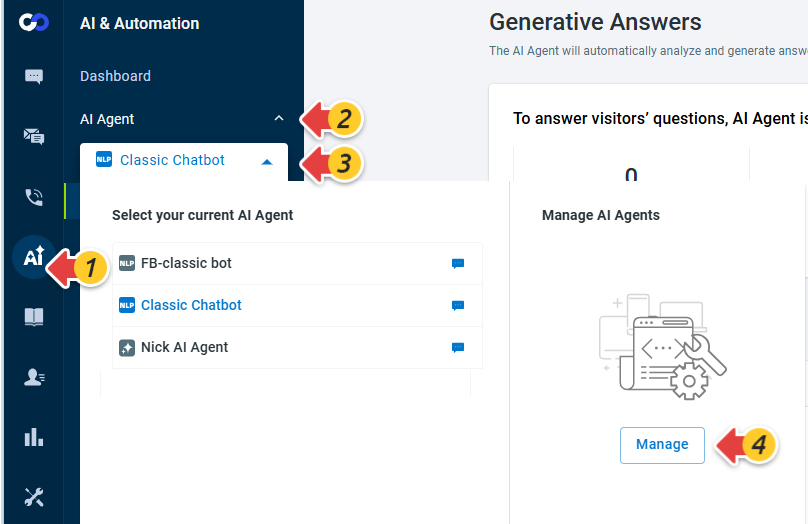
- From the left navigation menu, go to AI & Automation > AI Agent.
- Expand the AI Agent drop-down list and click Manage under the Manage AI Agents section. The AI Agent drawer appears on the right.
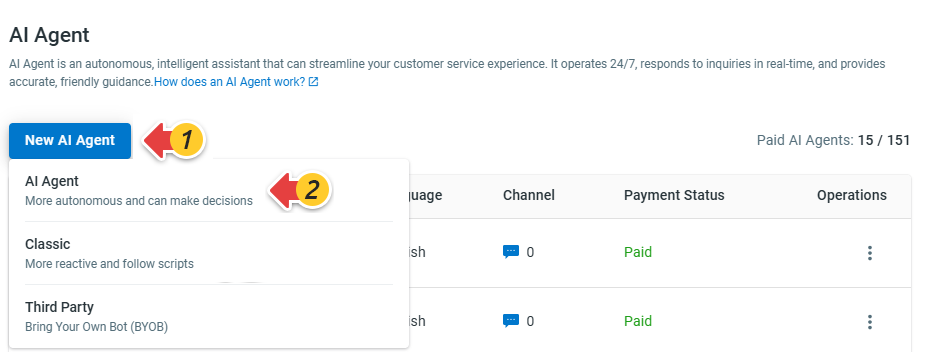
- In the AI Agent drawer, click New AI Agent, and choose AI Agent from the drop-down menu.
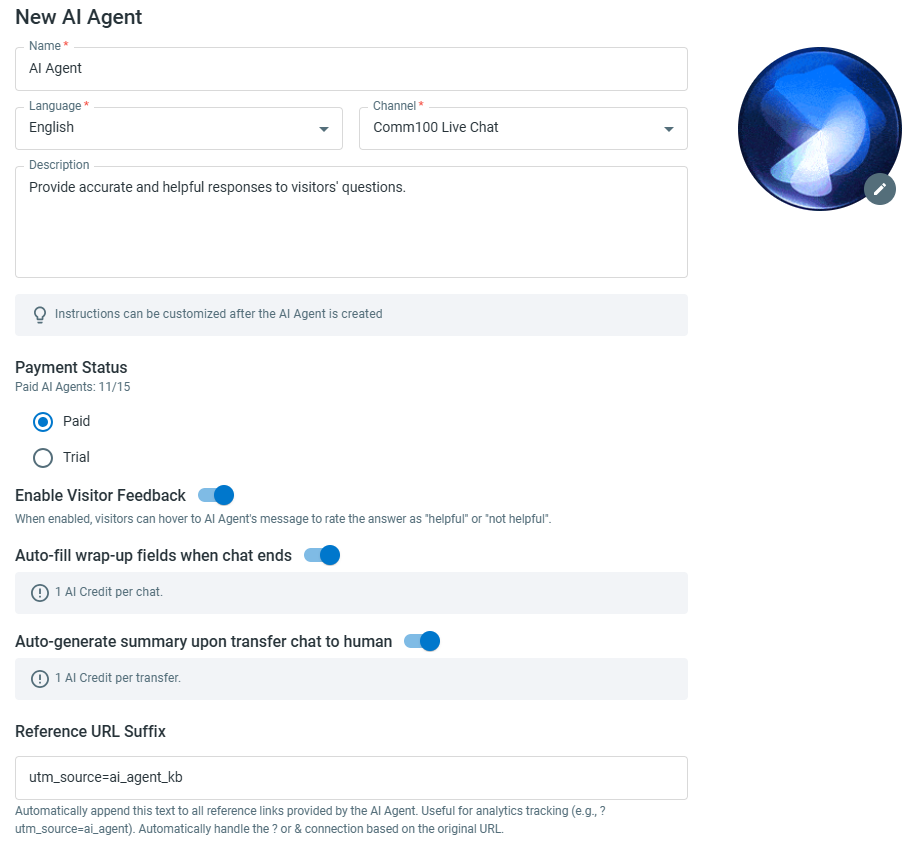
- In the New AI Agent drawer, complete the following settings. The AI Agent's language and channel cannot be changed once it's created.
- Name: The AI Agent’s name displayed to customers during conversations.
- Language: Choose the primary language for the AI Agent. AI Agents are multilingual. When the AI Agent receives user input in other languages, it will provide answers using translation APIs.
- Channel: Choose the channel in which you want to deploy the AI Agent.
- Payment Status: Select Paid or Trial. The number of paid AI Agents is subjected to your subscription. Up to three Trial AI Agents can be created. Contact your Account Manager at Comm100 or email sales@comm100.com if you wish to create more paid AI Agents.
- Enable Visitor Feedback: When enabled, visitors can hover to AI Agent's message to rate the answer as "helpful" or "not helpful". This option is enabled by default.
- Auto-fill wrap-up fields when chat ends: When enabled, AI Agent automatically fills the wrap-up fields when AI Agent-only chat ends. This option applies to the Live Chat channel only. Each successful auto wrap-up consumes 1 AI Credit.
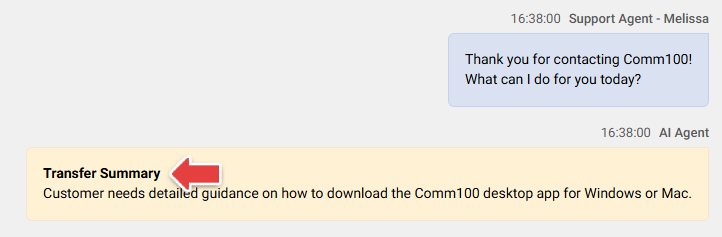
- Auto-generate summary upon transfer chat to human: When enabled, the system automatically generates a summary and adds it as a Transfer Summary note in the chat timeline when an AI Agent transfers a chat to a human agent. This option applies to the Live Chat channel only. Each successful transfer summary consumes 1 AI Credit.
- Reference URL Suffix: The suffix automatically appended to reference links provided by the AI Agent. This helps track user interactions and measure traffic from AI-generated responses in analytics tools.
- Click Save. Your AI Agent is created successfully.
After creating an AI Agent, you can edit or delete it as needed.