
The Chat Window is where visitors chat with your agents. You can customize its appearance and choose the window type that best fits your website.
Comm100 provides two types of chat windows:
- Embedded Chat Window - Displays directly on your web page, allowing visitors to chat with your agents without leaving the page.
- Popup Chat Window - Opens in a separate window when visitors click the chat button.
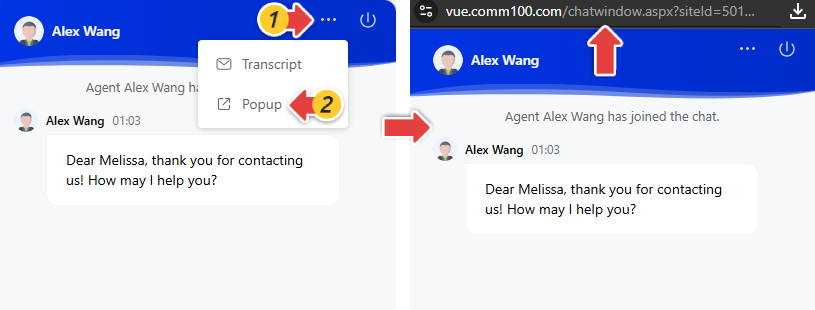
Note: If you need a direct chat link to place on your website, in emails, or elsewhere, you can open the popup chat window to copy its URL. If you are using the Embedded Chat Window, you can click the three-dot menu in the visitor-side chat window to open it in popup view and copy the chat link without changing the configured chat window type.
Step-by-Step Instructions
- Log in to the Comm100 Control Panel.
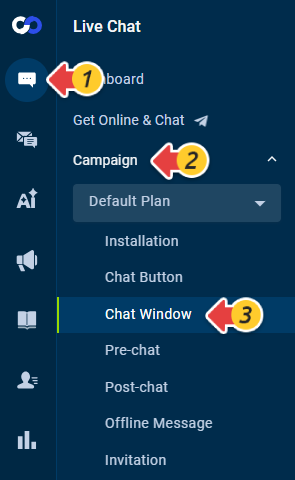
- From the left navigation menu, go to Live Chat > Campaign.
- Select the campaign you want to configure from the Campaign drop-down list.
- Click Chat Window.
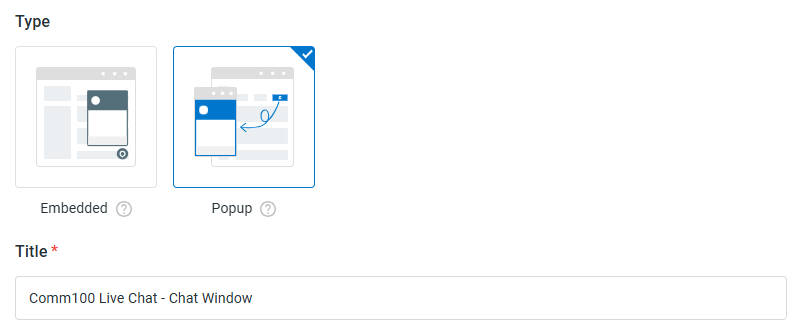
- Scroll to the Type section, select Embedded or Popup.Note: When you select the Popup type, the chat window includes a Title that you can customize.
- Click Save.
Now you have successfully modified your chat window type. The new settings take effect automatically and immediately. You can refresh your website to view the changes.