When a visitor opens your website and asks a question to the Chatbot, a conversation begins. The Chatbot greets the visitor and assists them with their questions. By using Quick Replies, you can create conversation flows that guide visitors to specific intents and help them reach the information they need more quickly.
Quick replies provide predefined options that visitors can click, allowing the Chatbot to direct them to the most relevant topic without requiring them to type their request.
Using Quick Replies to Create Flows
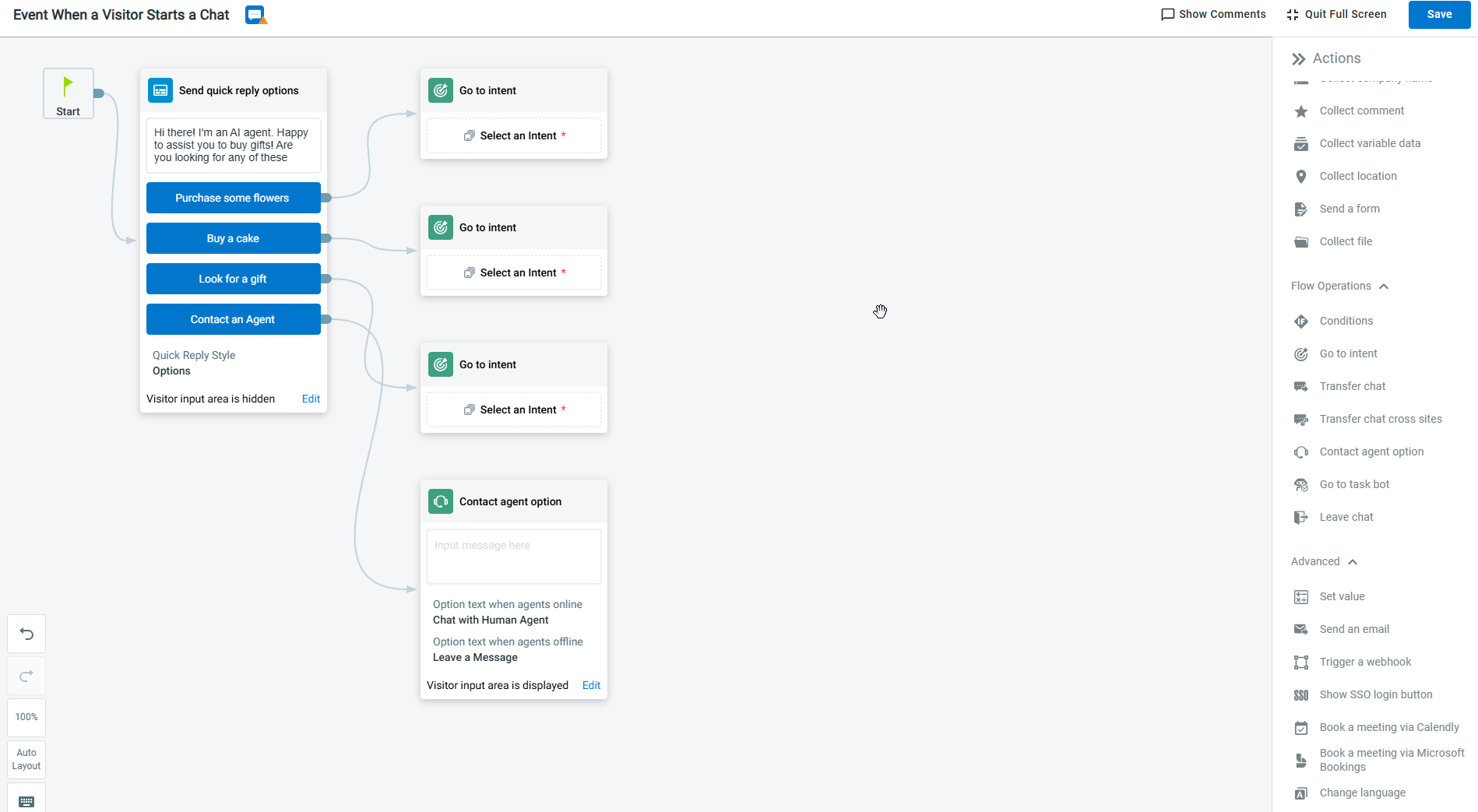
Consider a scenario: You run an online gift store that sells products such as cakes, flowers, candles, and chocolates. Your Chatbot can present a few quick replies you created to the visitor and continue the conversation.
Each quick reply can be linked to a corresponding intent, allowing the Chatbot to guide the visitor through the appropriate conversation flow.
However, there may be cases where the provided options do not meet the visitor’s needs. In such situations, you can include a Contact Agent option so the visitor can connect with a human agent for further assistance.
If the same quick reply options are used frequently across different intents, you can create Canned Quick Replies to reuse them easily.
Creating Quick replies
You can add quick replies to Event messages and to the Answers section of the intents.
- These steps show how to navigate from the Event message and create quick replies, and the process is similar when adding quick replies to an intent.
- You can add quick replies on Live Chat, Twitter Direct Message, and Facebook Messenger channels.
To create quick replies, follow these steps:
- Log in to your Comm100 Control Panel.
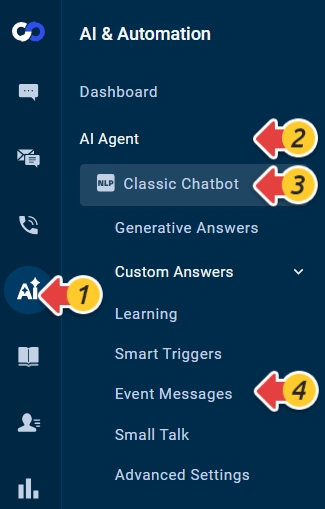
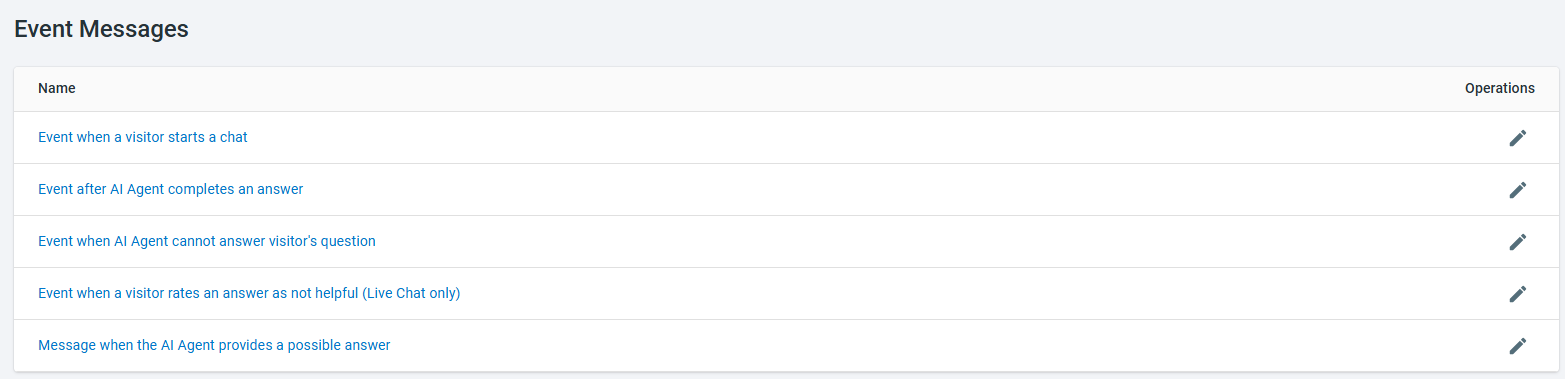
- From the left navigation menu, go to AI & Automation > AI Agent > Event Messages. If you have multiple AI Agents, make sure to choose the correct one from the drop-down list.
- On the Event Messages page, click the pencil icon beside the Event when a visitor starts a chat.
- In the Actions pane, drag Send quick reply options into the workflow and click the plus icon to enter the text for each quick reply option. Note: You can enable or disable visitor typing by using the Display the input area in chat window option.
Link each quick reply option to an intent by selecting one from your intent library. You can also configure an option to contact an agent.
- Click Save.
Creating Canned Quick replies
For quick replies that are used frequently across multiple intents or events, you can create Canned Quick Replies. This allows you to reuse predefined quick reply options without recreating them each time.
Canned quick replies can be added to Event Messages and to the Answers section of intents.
To create canned quick replies, follow these steps:
- Log in to your Comm100 Control Panel.
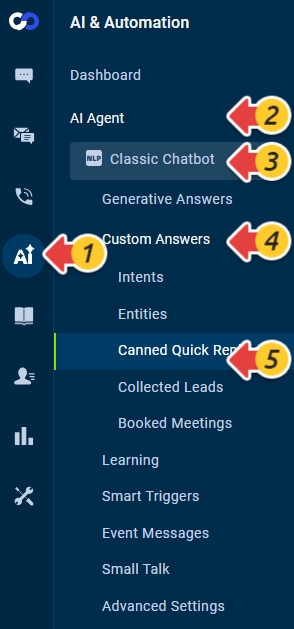
- From the left navigation menu, go to AI & Automation > AI Agent > Custom Answers > Canned Quick Replies. If you have multiple AI Agents, make sure to choose the correct one from the drop-down list.
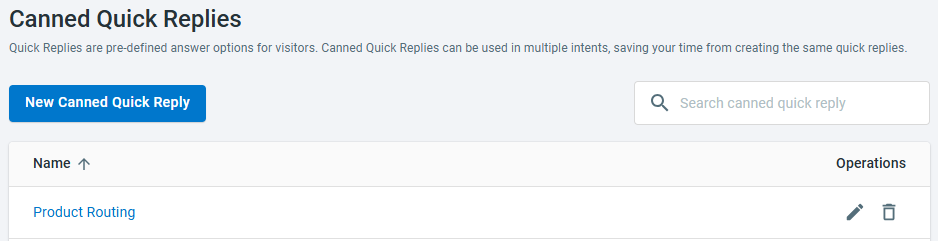
- On the Canned Quick Replies page, click New Canned Quick Reply.
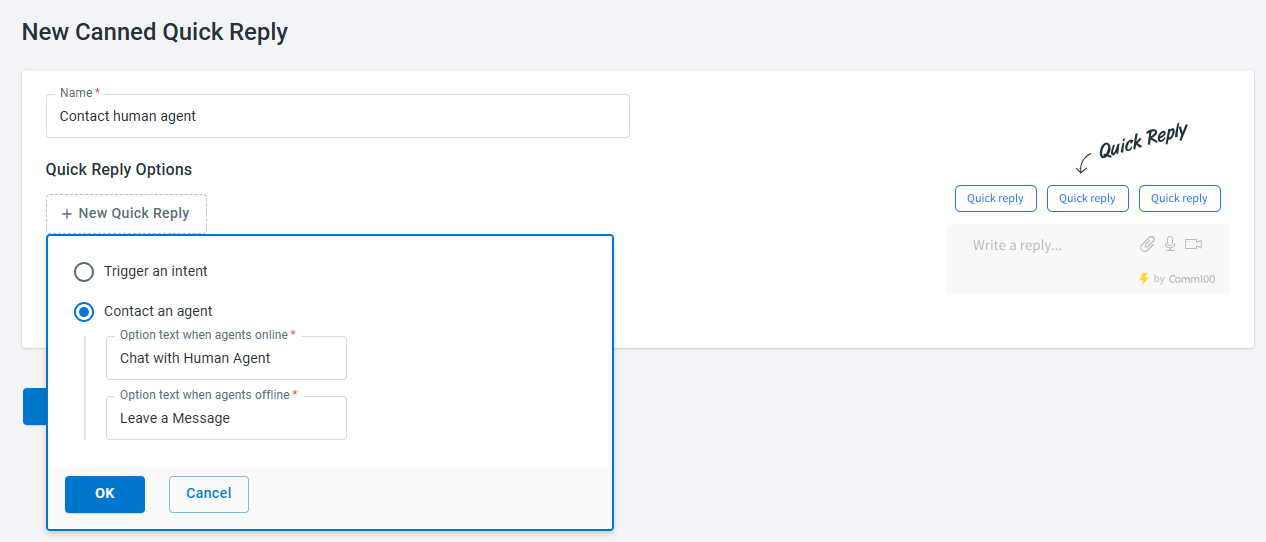
- On the New Canned Quick Reply page, enter a Name.
- Click New Quick Reply, choose the quick reply option, and click OK.
- Trigger an intent: Select an intent from your intent library
- Contact an agent: Adjust the option text when agents are online or offline.
- Click Save.