
AI Copilots can provide answer suggestions for human agents by using the extensive Knowledge sources you provide. To enable your AI Copilot to provide accurate and relevant suggestions, you need to set up a substantive knowledge repository from which it can fetch information. Comm100 AI Copilot supports multiple types of knowledge content that can be used to enhance answer relevance and coverage.
Comm100 AI Copilot supports the following types of knowledge sources:
- Online webpages. You can provide an accessible URL for the AI Copilot to retrieve public webpage content.
- Knowledge Base articles. You can add your Knowledge Base articles from Comm100, connected Confluence Cloud or ServiceNow account for the AI Copilot to use.
- Cloud files from SharePoint Online and Google Drive. You can add your files stored on SharePoint Online and Google Drive for the AI Copilot to use by connecting your account with Comm100.
- Snippets. For some quick Q&A pairs or customer-specific notices that you don’t want to publish on your public help center, you can add Snippets to improve the AI Copilot's answer coverage.
- Public canned messages. You can give the AI Copilot access to the public canned messages in your Comm100 account.
- Topic answers of AI Agents. You can import the Topic sources of AI Agents in the same channel for the AI Copilot to use.
- Local files. You can upload local files directly as a knowledge source. Supported formats include DOCX, HTML, MD, PDF, and TXT.
This article introduces the steps to add knowledge contents for AI Copilots.
Step-by-Step Instructions
To add knowledge contents for AI Copilots, follow these steps:
- Log in to your Comm100 Control Panel.
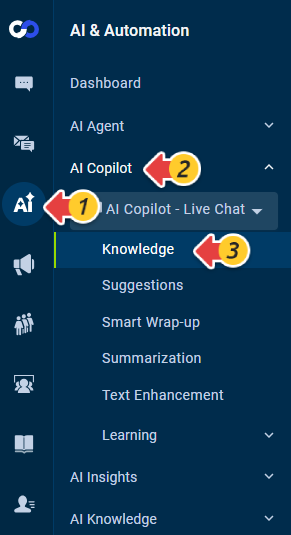
- From the left navigation menu, go to AI & Automation > AI Copilot > Knowledge. If you have multiple AI Copilots, make sure to choose the correct one from the dropdown list.
- On the Knowledge page, click New Content, then choose the Knowledge type.
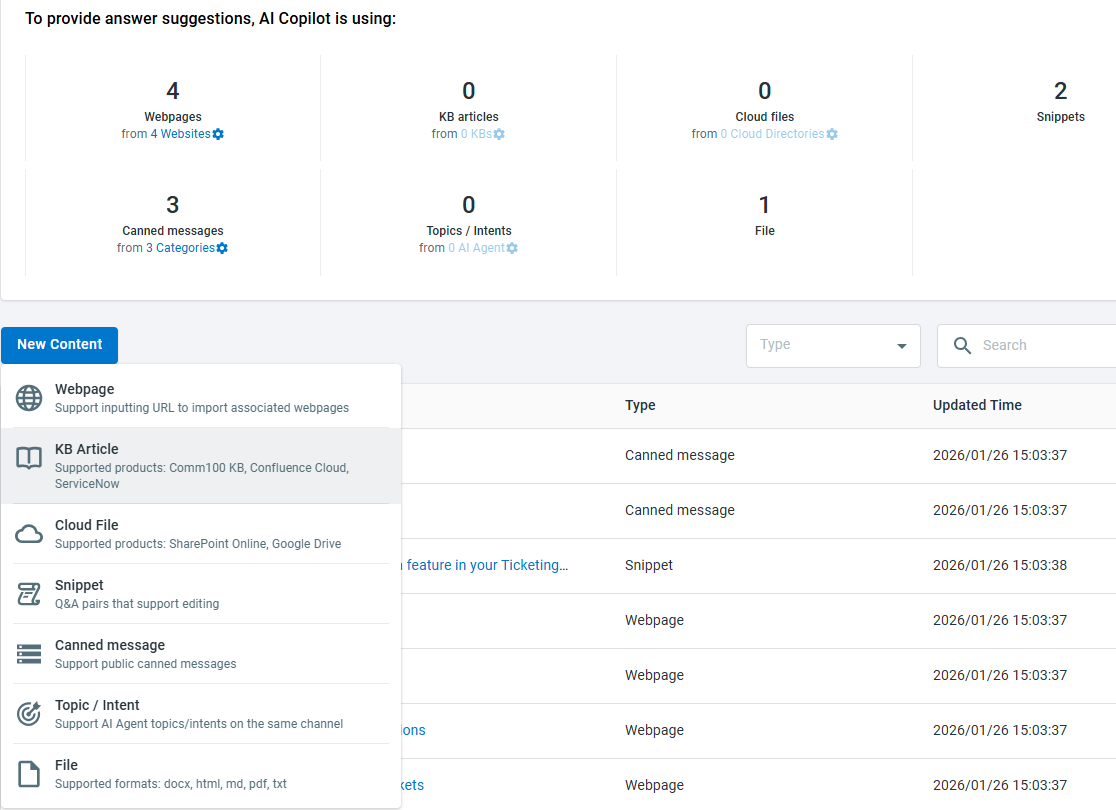
The subsequent steps vary depending on the knowledge types.
Webpage
To add online webpages, you need to input an accessible public URL for the AI Copilot to retrieve the resource. You can use regular expressions to filter out the webpages.
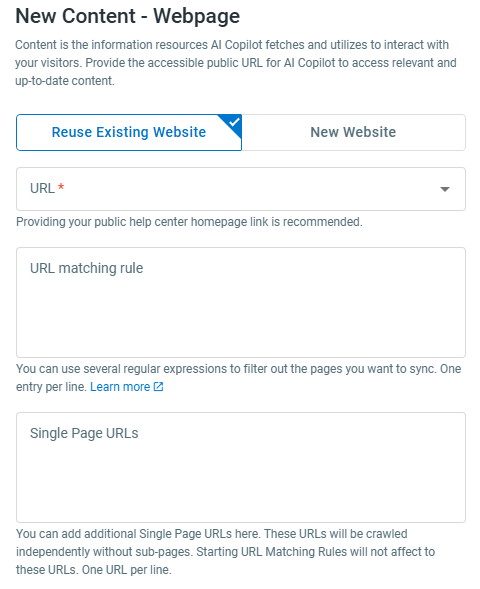
- For the best results, providing your public help center homepage link is recommended.
- Avoid entering a single page URL, such as https://www.yourcompany.com/index.html, as this will only retrieve that particular page.
- The configured URL is set as the starting page. The AI Copilot crawls and imports all the webpages starting with the URL you enter.
- The URL matching rule enables you to filter out the pages you wish to sync. The setup requires a basic understanding of regular expressions. You can consult with your technical team or access basic information by clicking here.
- When no URL matching rule is defined, all HTML webpages within the URL path are imported.
- When a URL matching rule is defined, the AI Copilot imports the webpages that match the rule, regardless of whether they are within the URL path or not.
- With multiple rules in place, a webpage is imported as long as it matches one of the defined rules.
- For each source, the system crawls a maximum of 1,500 webpages and processes data of up to 50.00 MB. The crawling task stops once this number is reached and more pages are ignored.
KB Article
If you are using Comm100 Knowledge Base, Confluence Cloud or ServiceNow, you can add the Knowledge Base articles from the connected accounts for the AI Copilot to use.
- If your site has Comm100 Knowledge Base subscription, you can use the articles directly by selecting it as the KB product.
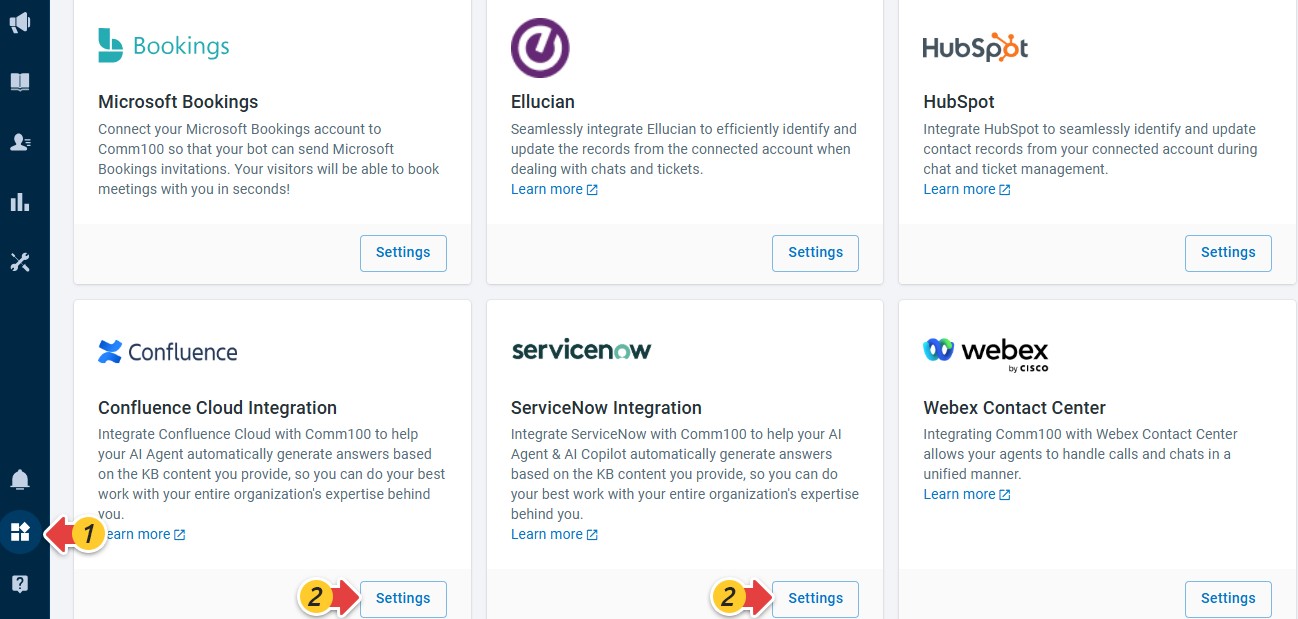
- To use Confluence Knowledge Base articles, you need to connect your Confluence account from Apps & Integrations > Confluence first.
- To use ServiceNow Knowledge Base articles, you need to connect your ServiceNow account from Apps & Integrations > ServiceNow first.
On the New Content – KB Article drawer, choose Comm100 KB, Confluence Cloud or ServiceNow from the KB Product dropdown list, then choose the KBs or spaces that are synced from Comm100 KB, your Confluence Cloud or ServiceNow account.
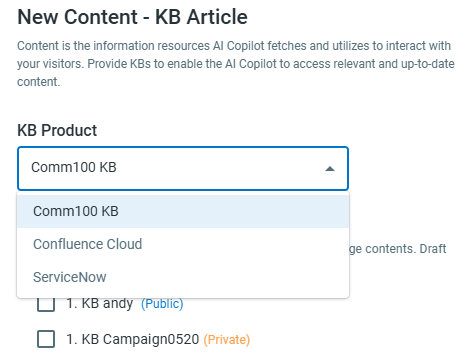
- For Comm100 KB, if you have defined your branding name from the Comm100 Partner Portal, the product name will be consistent with your branding name. For example, if your branding name is Coco, the KB product name will be Coco KB.
- All the published pages in the selected KBs or spaces are imported. Draft pages are ignored.
- All the text-based elements are imported. Images, medias, and files are ignored.
- For Comm100 Knowledge Bases, updates are auto-synced in real time. For Confluence KB spaces, updates are automatically synced every 12 hours. For ServiceNow articles, the system auto-syncs updates every 24 hours. You can also manually sync the KB at any time to retrieve the latest updates.
Cloud File
To use cloud files stored on SharePoint Online or Google Drive as the Content, you need to connect your SharePoint or Google Drive account from Apps & Integrations first.
The New Content - Cloud file drawer shows the cloud directories that are synced from your connected accounts. If you have connected both SharePoint and Google Drive accounts, choose the cloud drive product first, then choose the cloud directories to sync.
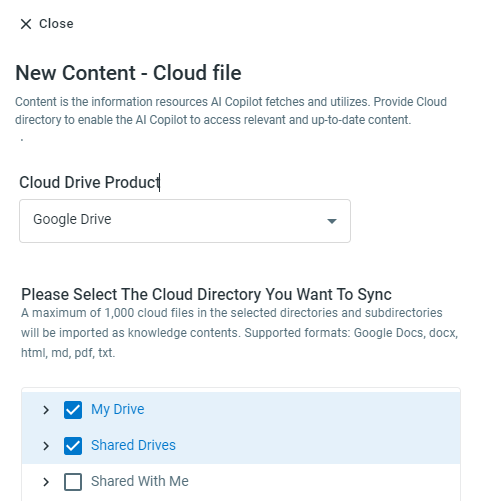
- All the supported files in the selected directories are imported. Supported file formats: Google Docs, DOCX, HTML, MD, PDF, and TXT.
- After the cloud directories are added, the cloud files from the directories are auto-updated every 12 hours. You can also manually sync the directories for the latest updates.
- If a directory is deleted from your connected account after being synced to Comm100, the directory still exists as an item in the Contents list, but the sync will fail at the next sync.
Snippet
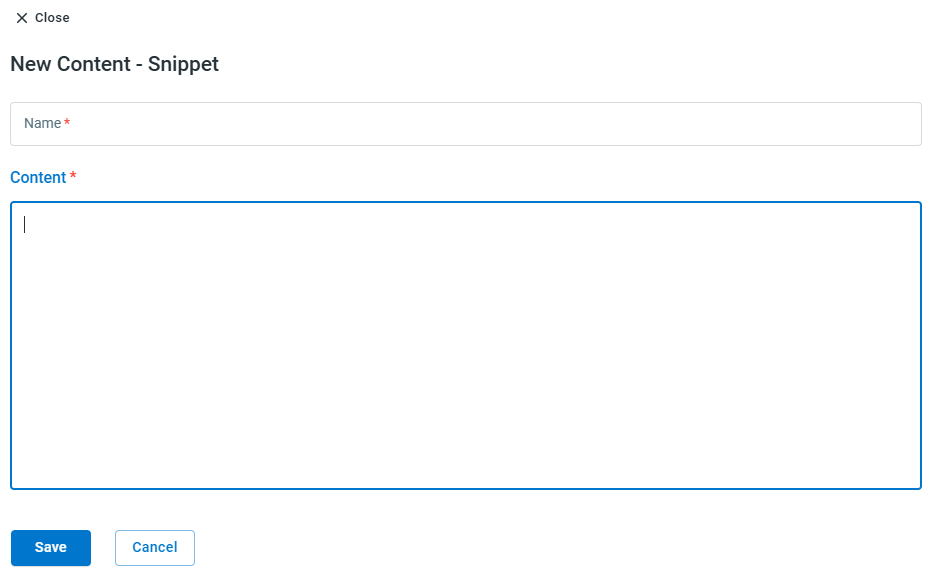
For small pieces of information that you do not want to publicly show on your website, you can add Snippets for the AI Copilot to use. Snippets can be edited or deleted quickly from the Control Panel.
To add snippets, input the Snippet name and content on the New Content - Snippet drawer.
Canned message
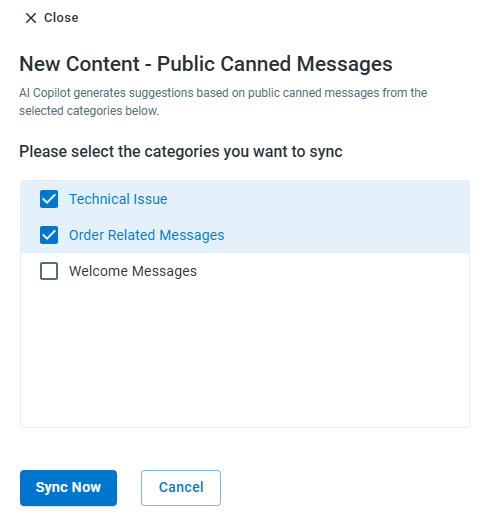
The New Content - Public Canned Messages drawer displays the available categories of public canned messages. You can select the categories you want to import. Categories that have already been synced will not appear in the list.
Topic / Intent
The New Content – Topics/Intents drawer displays the AI Agents within the same channel as the AI Copilot. You can select the AI Agents from which you want to import Topics.
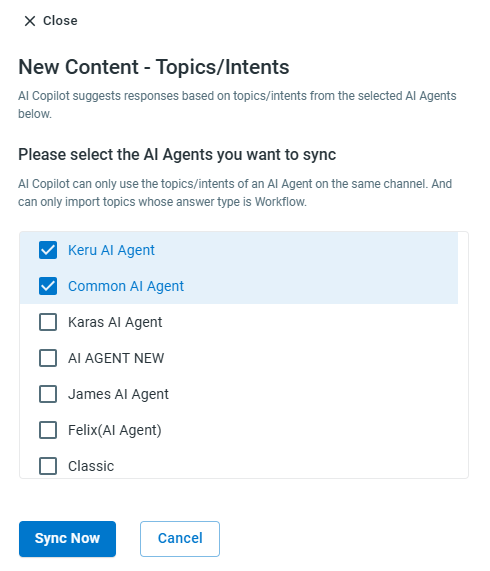
- Only AI Agent Topics whose answer type is Workflow are imported.
- Third-party chatbots are not supported.
File
The New Content - File drawer appears. You can drag and drop files into the drawer or browse and upload files directly from your computer. The supported file formats are DOC, HTML, PDF, and TXT, and the maximum file size is 20 MB per
file.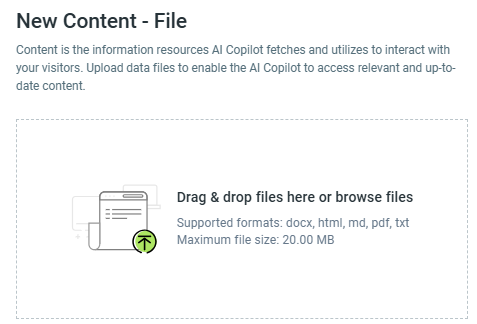
After adding the Knowledge sources, you can filter the knowledge list, and edit or delete the contents as needed.