Comm100 Live Chat can automatically distribute incoming chat requests to agents, so agents do not need to manually accept each request.
Comm100 provides basic Auto Distribution and advanced rule-based Auto Distribution, depending on your Live Chat package. Advanced Auto Distribution provides additional options for controlling how chats are distributed among departments and agents.
Note: To learn more about Comm100 Live Chat packages, visit here.
Step-by-Step Instructions
To configure Auto Distribution, follow these steps:
- Log in to the Comm100 Control Panel.
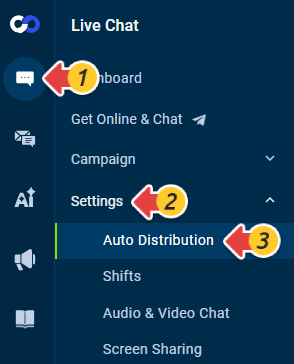
- From the left navigation menu, go to Live Chat > Settings > Auto Distribution.
- Turn on the Auto Distribution.
-
Configure the Auto Distribution settings based on your Live Chat package.
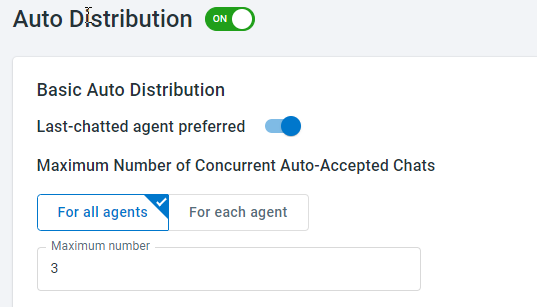
- Live Chat Startup and Live Chat Plus
- Configure Last-chatted agent preferred as needed. When enabled, a chat request is distributed to the agent who previously chatted with the visitor if the agent is online and has not reached the maximum number of concurrent chats.
- Set the maximum number of concurrent chats that can be distributed to each agent. The default is 3. You can also configure a different maximum for individual agents.
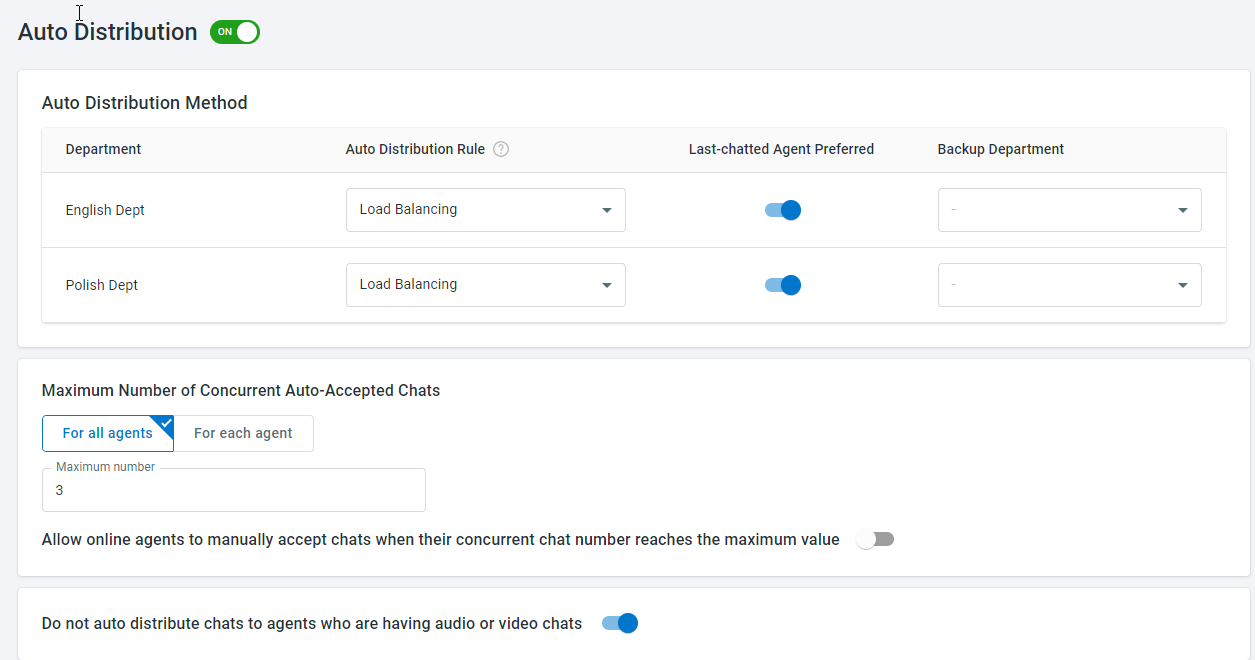
- Live Chat Ultra
- Select the Auto Distribution Rule for each department.
- Configure Last-chatted Agent Preferred as needed. When enabled, a chat request is distributed to the agent who previously chatted with the visitor if the agent is online and has not reached the maximum number of concurrent chats.
- Select one or more Backup Departments. When all agents in the original department are offline or have reached their maximum number of concurrent chats, chats can be distributed to agents in the backup departments. If multiple backup departments are selected, overflow chats are distributed to the first selected department first.
- Set the maximum number of concurrent chats that can be distributed to each agent. The default is 3. You can also configure a different maximum for individual agents.
- Configure whether agents can manually accept chats after the maximum number of concurrent chats is reached.
- Configure whether chats can be distributed to agents who are currently in audio or video chats.
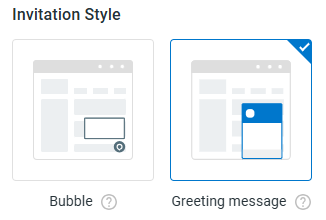
Note: Auto invitations that have already been accepted can behave differently when agents reach their maximum number of concurrent chats:- With the Greeting message invitation style, an accepted chat can still be automatically distributed to an online agent even if the agent has reached the configured maximum number of concurrent chats.
- With the Bubble invitation style, if the maximum number of concurrent chats is reached after the invitation has already been accepted, the chat waits in the queue.
This behavior applies after an auto invitation has already been displayed and accepted. It does not change the conditions that determine whether an auto invitation can pop up.
- Live Chat Startup and Live Chat Plus
- Click Save.